
MongoDB Compass is a graphical user interface that simplifies MongoDB database management and analysis.
- Provides an easy-to-use interface for querying data.
- Supports index visualization and aggregation pipeline building.
- Includes tools for schema analysis and validation.
- Helps optimize and manage MongoDB databases efficiently.
System Requirements
Before installing MongoDB Compass, make sure your system meets the following requirements:
- Operating System: 64-bit version of Microsoft Windows 10 or higher.
- MongoDB Version: MongoDB 4.4 or higher.
- .NET Framework
Install MongoDB Compass on Windows
Follow these easy steps to download and install MongoDB Compass on Windows:
Step 1: Download MongoDB Compass
- Visit the Official MongoDB Website: Go to the MongoDB Compass download page.
- Select Windows Version: Choose the appropriate version of MongoDB Compass (make sure to download the version suitable for your Windows architecture, typically 64-bit).
- Click on Download: Click the “Download” button to start the downloading process.
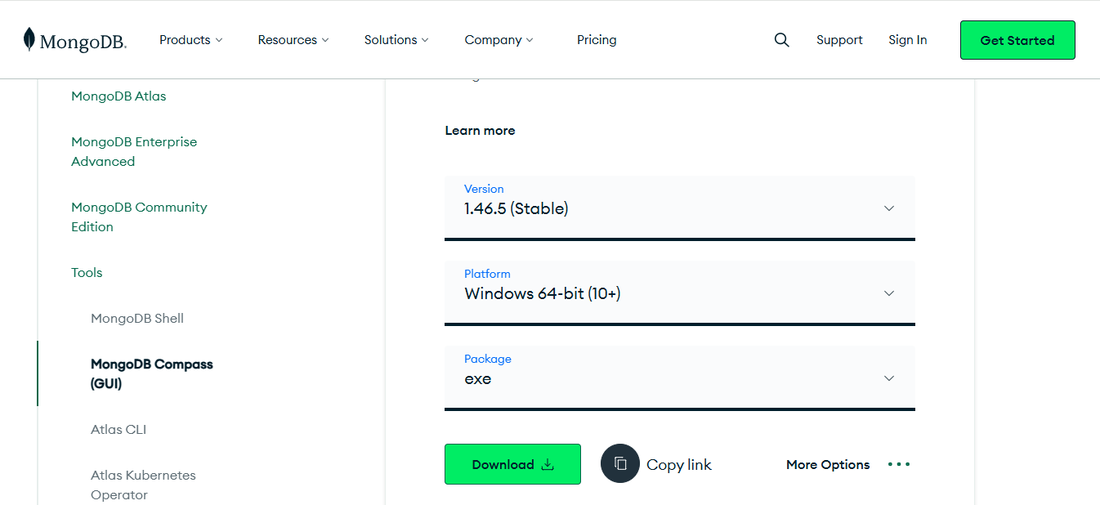
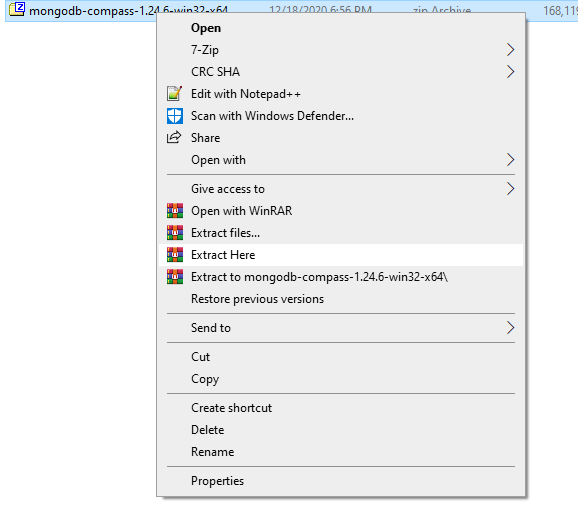
Step 2: Unzip the Downloaded File
- After downloading, navigate to the location where the file was saved.
- Extract the File: Right-click on the downloaded .zip file and select "Extract All" to unzip the contents to your desired location.
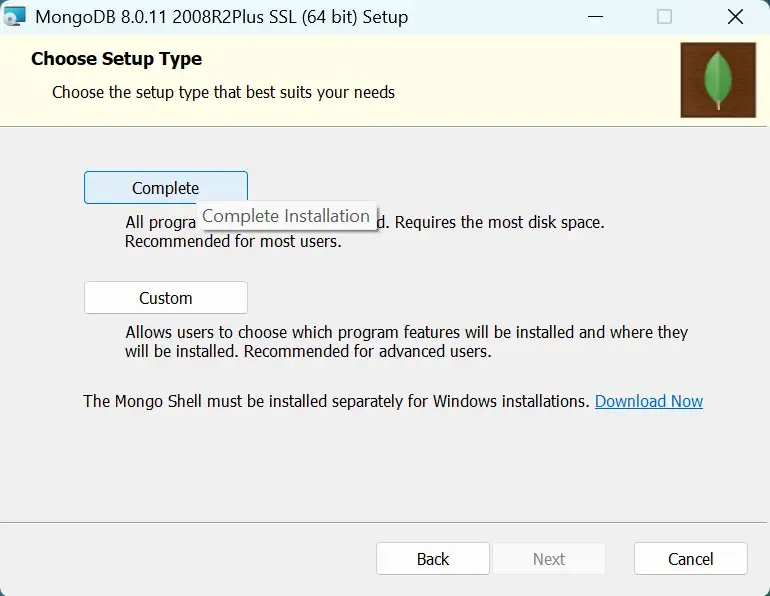
Step 3: Run the Installer
- Double-click the Installer: Locate the MongoDB Compass installer file and double-click to begin the installation process.
- Installation Prompt: Follow the installation prompts to proceed with the setup. You can customize the installation directory or proceed with the default settings.
Step 4: Configure Settings (Optional)
During installation, you can configure MongoDB Compass settings, though default options are sufficient for most users.
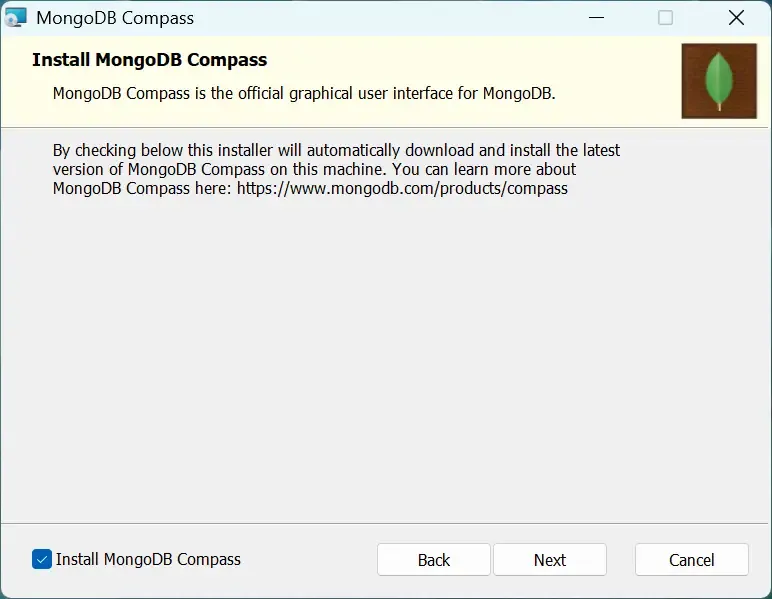
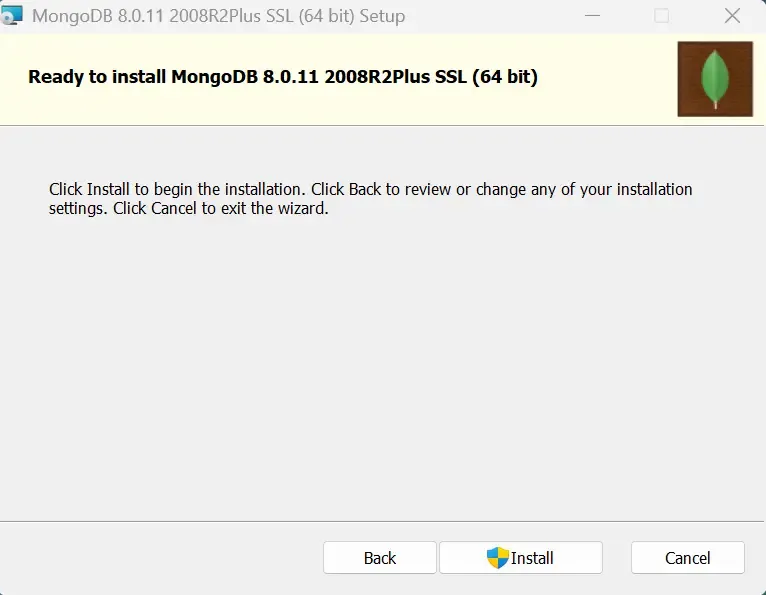
Step 5: Finish the Installation
After installation, a confirmation appears and MongoDB Compass is ready to use on your Windows system.
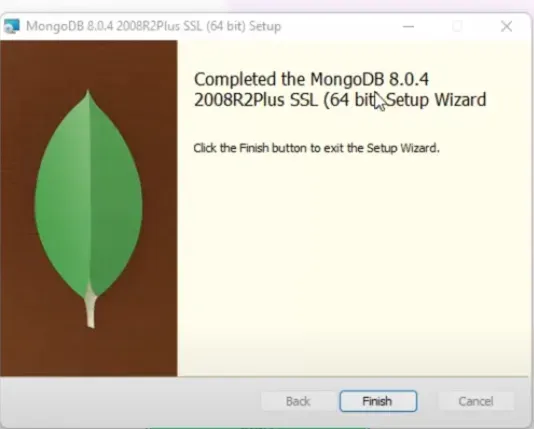
Step 6: Launch MongoDB Compass
After installation, you will find the MongoDB Compass icon on your desktop. Double-click the icon to launch the application. Alternatively, we can search for "MongoDB Compass" in the Start menu and open it from there.
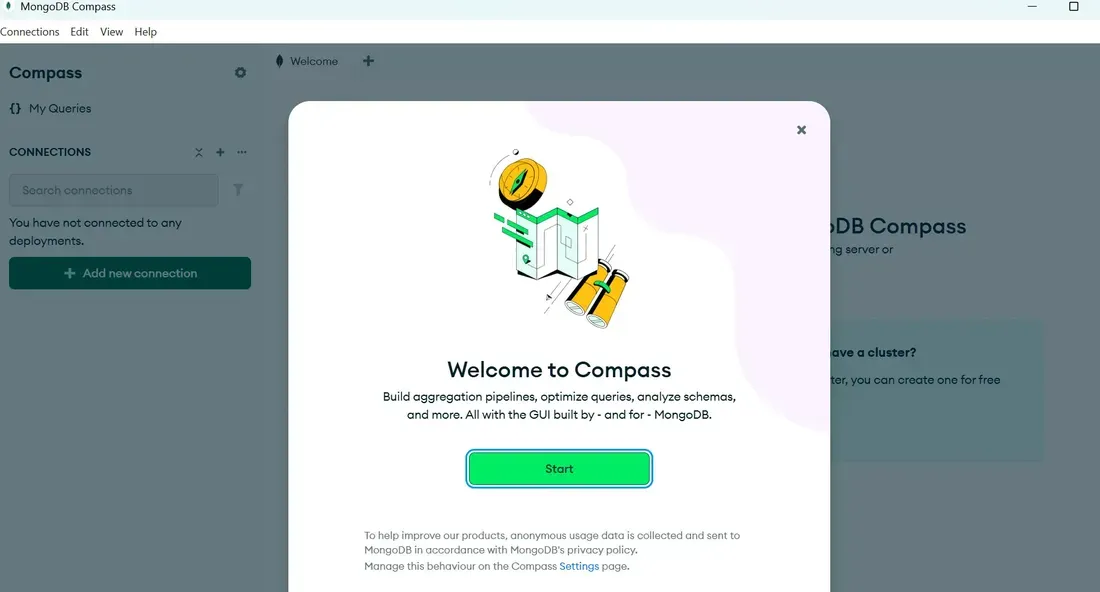
How to Use MongoDB Compass on Windows
Once MongoDB Compass is installed, you can easily connect it to your MongoDB instances and start managing your data.
How to Connect MongoDB Compass to Your MongoDB Database
1. Open MongoDB Compass: Launch the application from your desktop or Start menu.
2. Add a New Connection: In the "New Connection" window, input the connection string of your MongoDB instance. This could be a local MongoDB instance or one hosted in MongoDB Atlas.
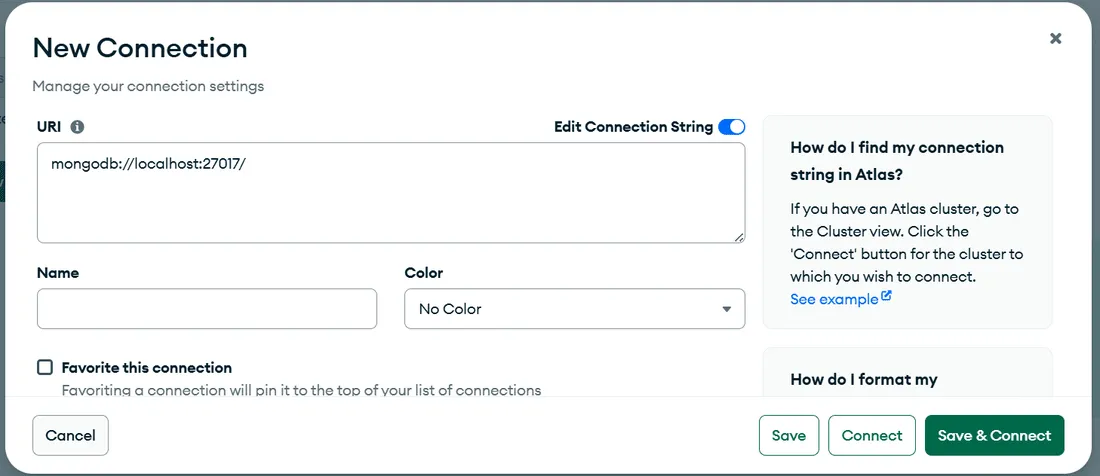
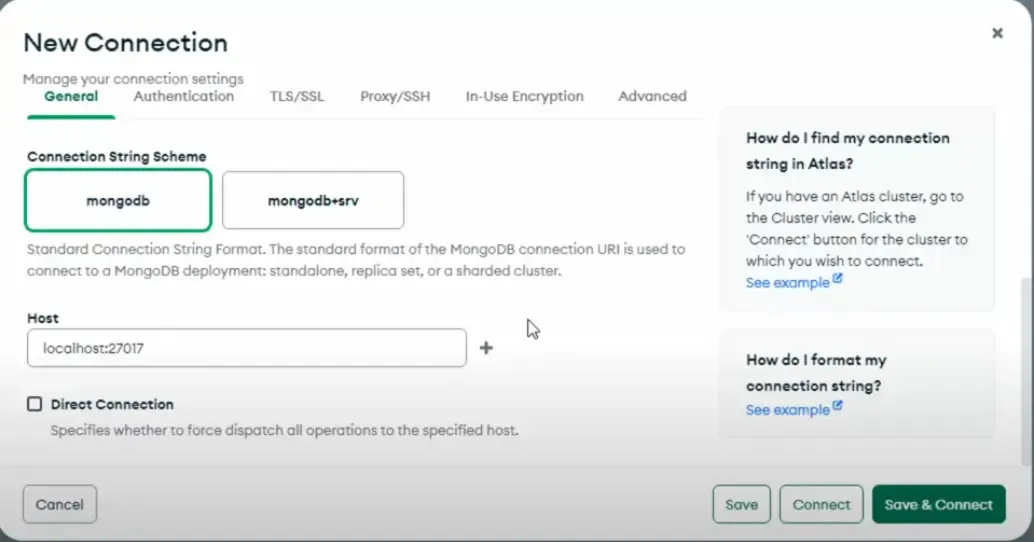
3. Click on 'Connect': After entering the connection string, click "Connect" to establish the connection between MongoDB Compass and your MongoDB server.
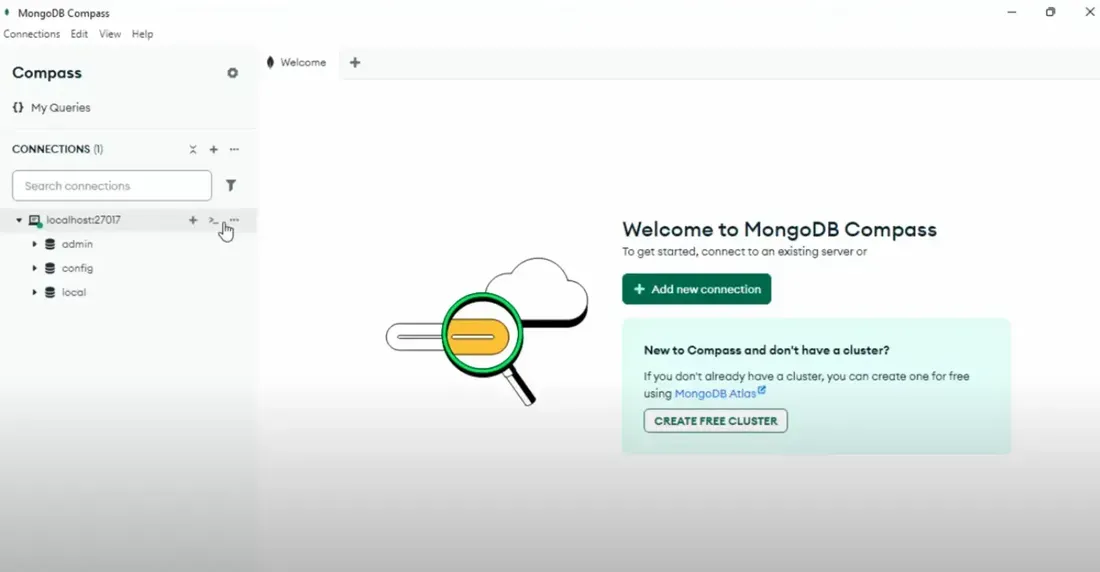
MongoDB Compass will now display your databases and collections, allowing you to query, visualize, and manage your data effectively.