
OpenCV is an important computer vision library that allows you to programmatically annotate images with various shapes. This is essential for tasks like highlighting detected objects, creating bounding boxes for AI training or building interactive graphical user interfaces.
1. Uploading and Displaying an Image Using OpenCV
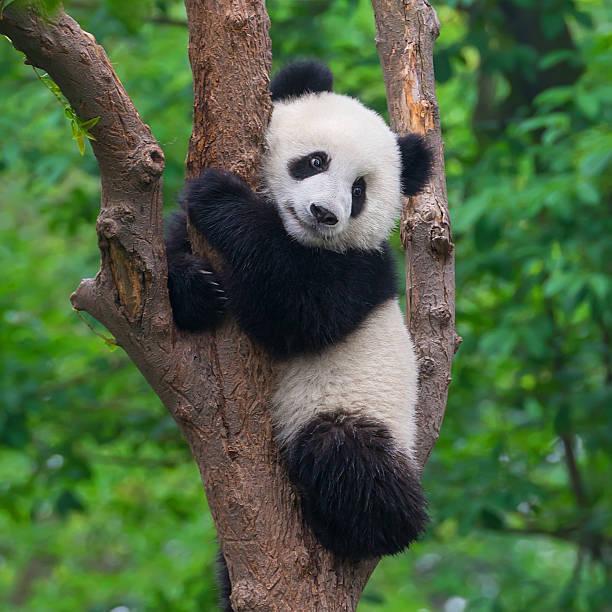
Here we load an image from the local system and display it using OpenCV. This is one of the most basic image input/output operations and is often the first step when working with image processing tasks.
- cv2.imread() to read the image from a specified path
- cv2.imshow() to display it in a window
import cv2
from google.colab.patches import cv2_imshow

image_path = "Your Image Path"

img = cv2.imread(image_path)

if img is not None:
    cv2_imshow(img)
else:
    print("Error: Image not found or unable to load.")
2. Drawing a Line on an Uploaded Image Using OpenCV
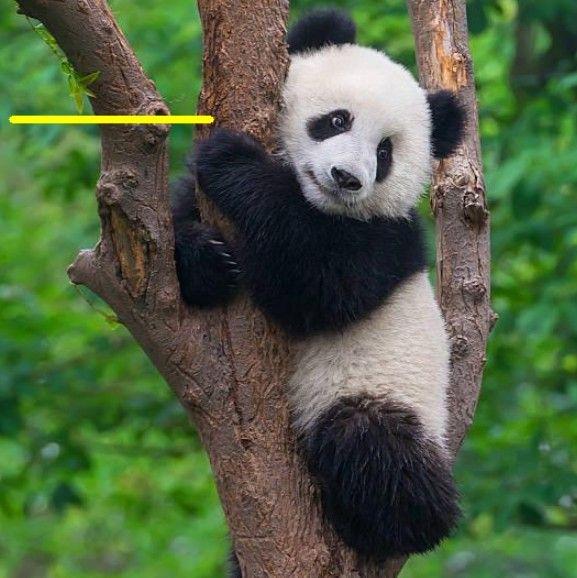
cv2.line() function is used to draw a straight line between two points on the image which is useful for annotation, highlighting specific regions or visualizing paths in image processing tasks.
Syntax: cv2.line(image, start_point, end_point, color, thickness)
where
- image: The uploaded image on which the line is to be drawn.
- start_point: Starting coordinates of the line (x1, y1).
- end_point: Ending coordinates of the line (x2, y2).
- color: Line color in BGR format.
- thickness: Thickness of the line in pixels.
import cv2
from google.colab.patches import cv2_imshow

image_path = "Your Image path"
img = cv2.imread(image_path)
if img is not None:
    cv2.line(
        img,
        (20, 160),
        (200, 160),
        (0, 255, 255),
        5
    )
    cv2_imshow(img)
else:
    print("Error: Image not found or unable to load.")
Output:
3. Drawing a Rectangle on an Uploaded Image Using OpenCV
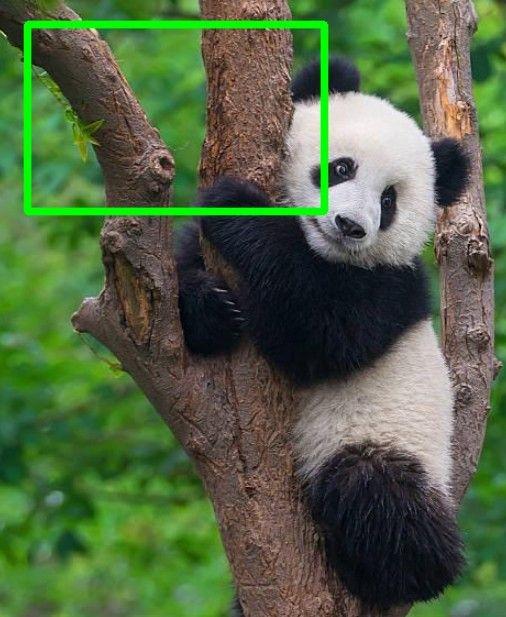
cv2.rectangle() function is used to draw a rectangular shape on an image. Rectangles are commonly used to mark regions of interest, draw bounding boxes around objects or highlight specific areas in image processing tasks.
Syntax: cv2.rectangle(image, top_left_point, bottom_right_point, color, thickness)
where
- image: The uploaded image on which the rectangle is to be drawn.
- top_left_point: Coordinates of the top-left corner of the rectangle (x1, y1).
- bottom_right_point: Coordinates of the bottom-right corner of the rectangle (x2, y2).
- color: Rectangle border color in BGR format.
- thickness: Thickness of the rectangle border in pixels.
import cv2
from google.colab.patches import cv2_imshow

image_path = "Your Image Path"

img = cv2.imread(image_path)

if img is not None:
    cv2.rectangle(
        img,
        (30, 30),
        (300, 200),
        (0, 255, 0),
        5
    )


    cv2_imshow(img)

else:
    print("Error: Image not found or unable to load.")
Output:
4. Drawing a Circle on an Uploaded Image Using OpenCV
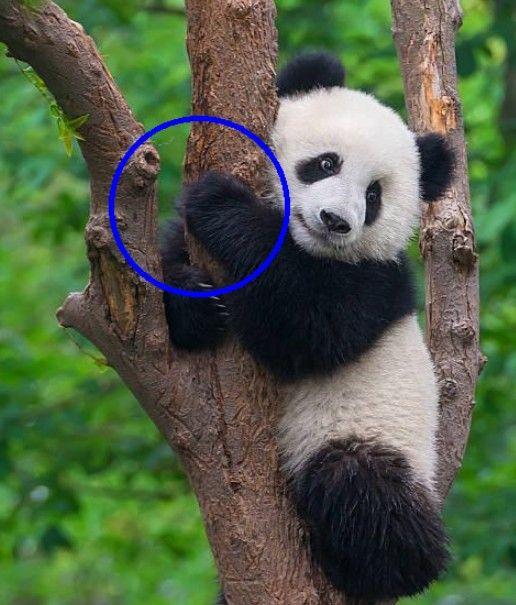
cv2.circle() function is used to draw a circular shape on an image. Circles are commonly used to mark key points, highlight objects or visualize regions in image processing and computer vision tasks.
Syntax: cv2.circle(image, center_coordinates, radius, color, thickness)
where
- image: The uploaded image on which the circle is to be drawn.
- center_coordinates: Center point of the circle (x, y).
- radius: Radius of the circle in pixels.
- color: Circle color specified in BGR format.
- thickness: Thickness of the circle border in pixels. Use -1 to fill the circle.
import cv2
from google.colab.patches import cv2_imshow

image_path = "Your Image Path"

img = cv2.imread(image_path)

if img is not None:

    cv2.circle(
        img,
        (200, 200),
        80,
        (255, 0, 0),
        3
    )

    cv2_imshow(img)
else:
    print("Error: Image not found or unable to load.")
Output:
5. Writing Text on an Uploaded Image Using OpenCV
cv2.putText() function is used to write text on an image. This is useful for adding labels, captions, annotations or any descriptive information directly onto images in image processing and computer vision applications.
Syntax: cv2.putText(image, text, org, font, font_scale, color, thickness, line_type)
where
- image: The uploaded image on which the text is to be written.
- text: The text string to be displayed.
- org: Bottom-left corner of the text string (x, y).
- font: Font type to be used (for example, cv2.FONT_HERSHEY_SIMPLEX).
- font_scale: Font size (scaling factor).
- color: Text color specified in BGR format.
- thickness: Thickness of the text strokes.
- line_type: Type of the line used to draw text.
import cv2
from google.colab.patches import cv2_imshow

image_path = "/content/panda.jpg"
img = cv2.imread(image_path)

if img is not None:
    font = cv2.FONT_HERSHEY_SIMPLEX

    cv2.putText(
        img,
        "GeeksForGeeks",
        (50, 50),
        font,
        0.8,
        (0, 255, 0),
        2,
        cv2.LINE_AA
    )
    cv2_imshow(img)
else:
    print("Error: Image not found or unable to load.")
Output:
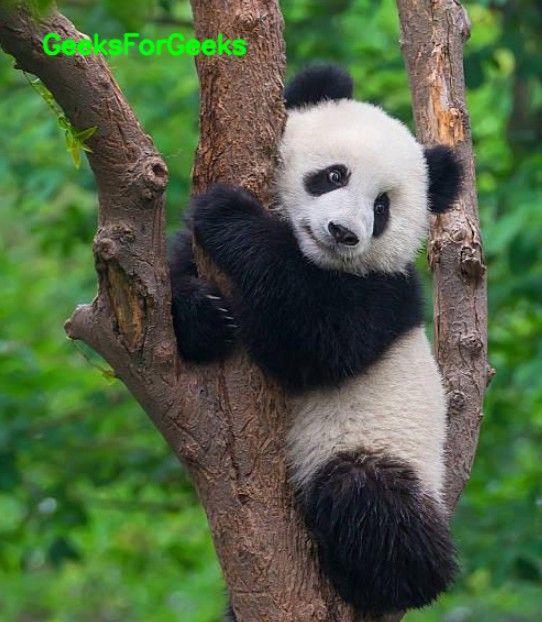
You can download full code from here
Applications
Drawing geometrical shapes on images plays an important role in image processing and computer vision. It helps in visually representing information and making images more meaningful and easier to interpret.
- Geometrical shapes help in highlighting specific regions or areas of interest within an image.
- Lines and rectangles are often used to point out or identify important objects and boundaries in an image.
- Circles can be used to mark key points or centers of detected objects.
- Writing text on images allows adding labels, descriptions or annotations to explain particular regions or results.