
Large Language Models have transformed how machines understand and respond to human language. However, creating a chatbot that uses these models effectively while managing prompts, memory and external data can be challenging. Flowise AI simplifies this process with a drag and drop, low code interface for building and deploying intelligent chatbots. Flowise is an open-source, low-code tool that allows developers to build custom Large Language Model orchestration flows and AI agents.
Installation of Flowise AI on Local System
To build and test your own LLM chatbot using Flowise AI we can install it on your local machine.
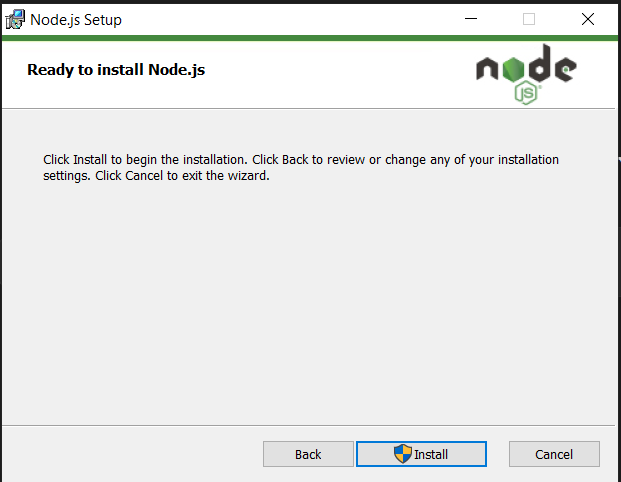
Step 1: Install Node.js
- Flowise requires Node.js as its runtime environment and npm for installing dependencies.
- Download and install Node.js from the official website
- Installing Node.js automatically includes npm.
Step 2: Verify Node.js and npm Installation
- Ensure that Node.js and npm are correctly installed and accessible from the system path.
- Both commands should return version numbers, confirming a successful installation.
node -v
npm -v
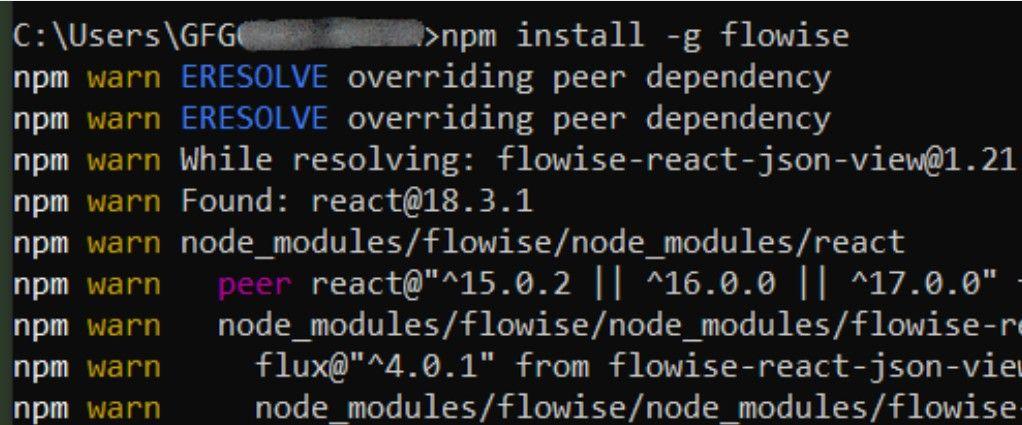
Step 3: Install Flowise Globally
- Install Flowise globally so it can be used from any directory.
- This command downloads and installs all Flowise dependencies globally
npm install -g flowise
Output:
Step 4: Start Flowise
- Launch the Flowise server locally on your machine.
- The server will initialize and display logs in your terminal.
- Flowise will now be running on your local environment.
npx flowise start
Step 5: Access the Flowise Web Interface
- Open Flowise in your browser to start building your chatbot visually.
- You will see the Flowise AI dashboard, which allows you to drag, connect and configure nodes for your LLM workflow.
How to Build LLM Chat Model using FlowiseAI
Here we build an interactive LLM chatmodel using Flowise AI by connecting nodes for chatModel, memory and model interaction. The workflow visually demonstrates how user inputs are processed through the LLM to generate intelligent, context aware responses.
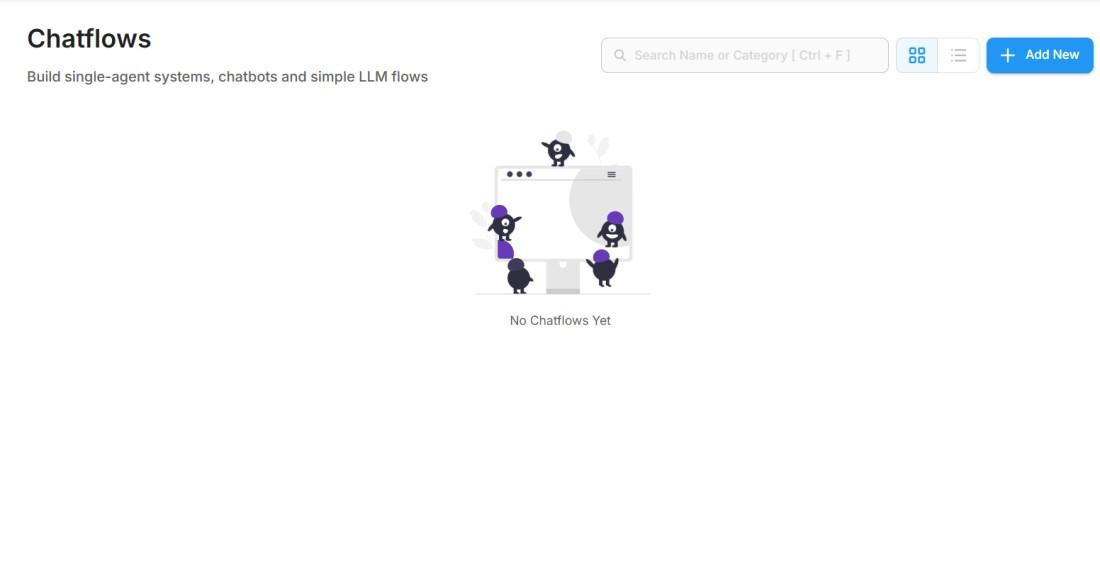
Step 1: Setting up Flowise AI and Creating a New Chatflow
- Open Flowise AI dashboard and navigate to the Chatflows section.
- Click on the Add New button to create a new project.
- Enter a name and category, then start designing your LLM flow on the canvas.
Step 2: Adding and Configuring Nodes
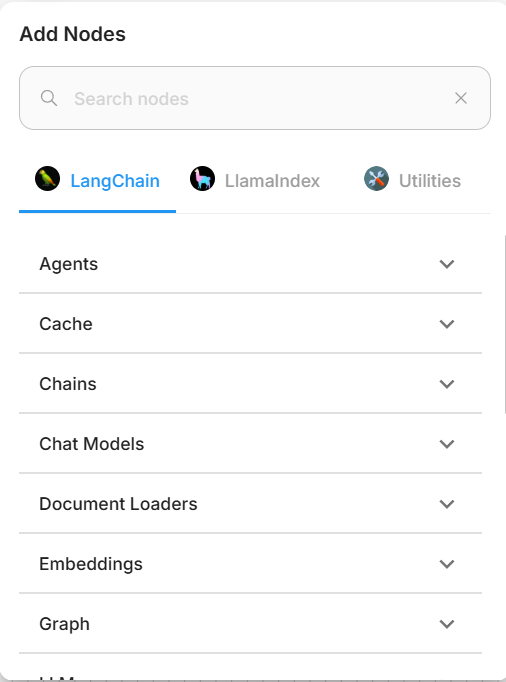
- Nodes are the building blocks used to design chatbot logic. Each node performs a specific task like connecting models, loading data or managing conversation memory.
- Select from LangChain, LlamaIndex or Utilities based on your requirement.
- Choose the Chat Model node to connect your preferred LLM and begin building the conversation flow.
Step 3: Selecting the Conversation Chain
- To enable meaningful interactions, there are different chain options that define how the chatbot processes and responds to queries.
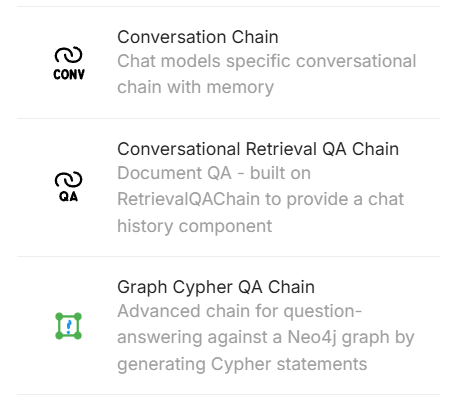
- Open the Chains section and view available options like Conversation Chain, Conversational Retrieval QA Chain and Graph Cypher QA Chain.
- Select the Conversation Chain as it allows the chatbot to maintain context and memory throughout the conversation.
- Connect this chain with the Chat Model node to create a responsive and context-aware chat flow.
Step 4 : Configure the ChatOpenAI Node
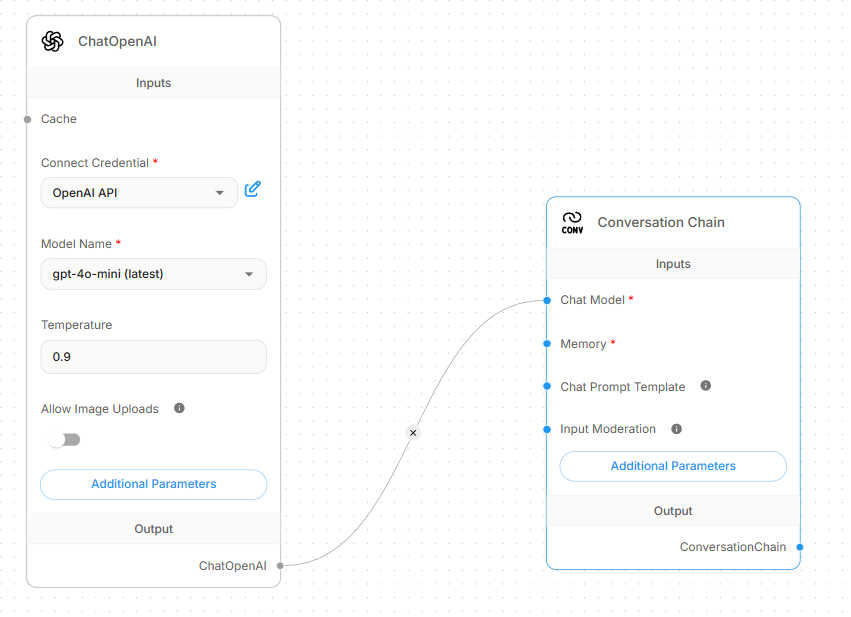
- The ChatOpenAI node connects Flowise with OpenAI’s conversational models. It allows users to define model parameters.
- Select the ChatOpenAI node from the node panel and drag it into the flow.
- Under Connect Credential choose your saved OpenAI API key to authenticate.
- From the Model Name dropdown, pick a suitable model.
- Set the Temperature value to control creativity in responses.
Step 5 : Connect ChatOpenAI with Conversation Chain
- The Conversation Chain node enables the LLM to maintain context across multiple chat turns.
- It links directly to the ChatOpenAI node to handle real-time dialogue flow.
- Drag the Conversation Chain node into the workspace.
- Connect the output of the ChatOpenAI node to the Chat Model input of the Conversation Chain.
Step 6 : Add and Connect Buffer Memory
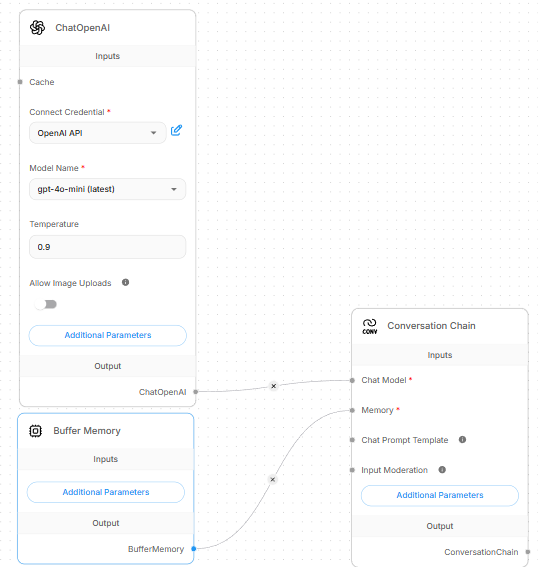
- The Buffer Memory node in Flowise helps the chatbot remember previous interactions.
- It stores chat messages in a database so that the model can maintain context during multi-turn conversations.
- Open the Add Nodes panel and select Memory then Buffer Memory.
- Connect the output of Buffer Memory to the Memory input of the Conversation Chain.
Step 7 : Integrate All Nodes to Form the Chat Flow
- After configuring individual components, the next step is to connect them to form a functional conversational pipeline.
- ChatOpenAI Node handles the language model logic and response generation.
- Buffer Memory Node stores previous messages to maintain conversational context.
- Conversation Chain Node combines both inputs the model and memory to process user queries seamlessly.
- All nodes are linked together, ensuring data flows.
Step 8 : Test the Chat Model
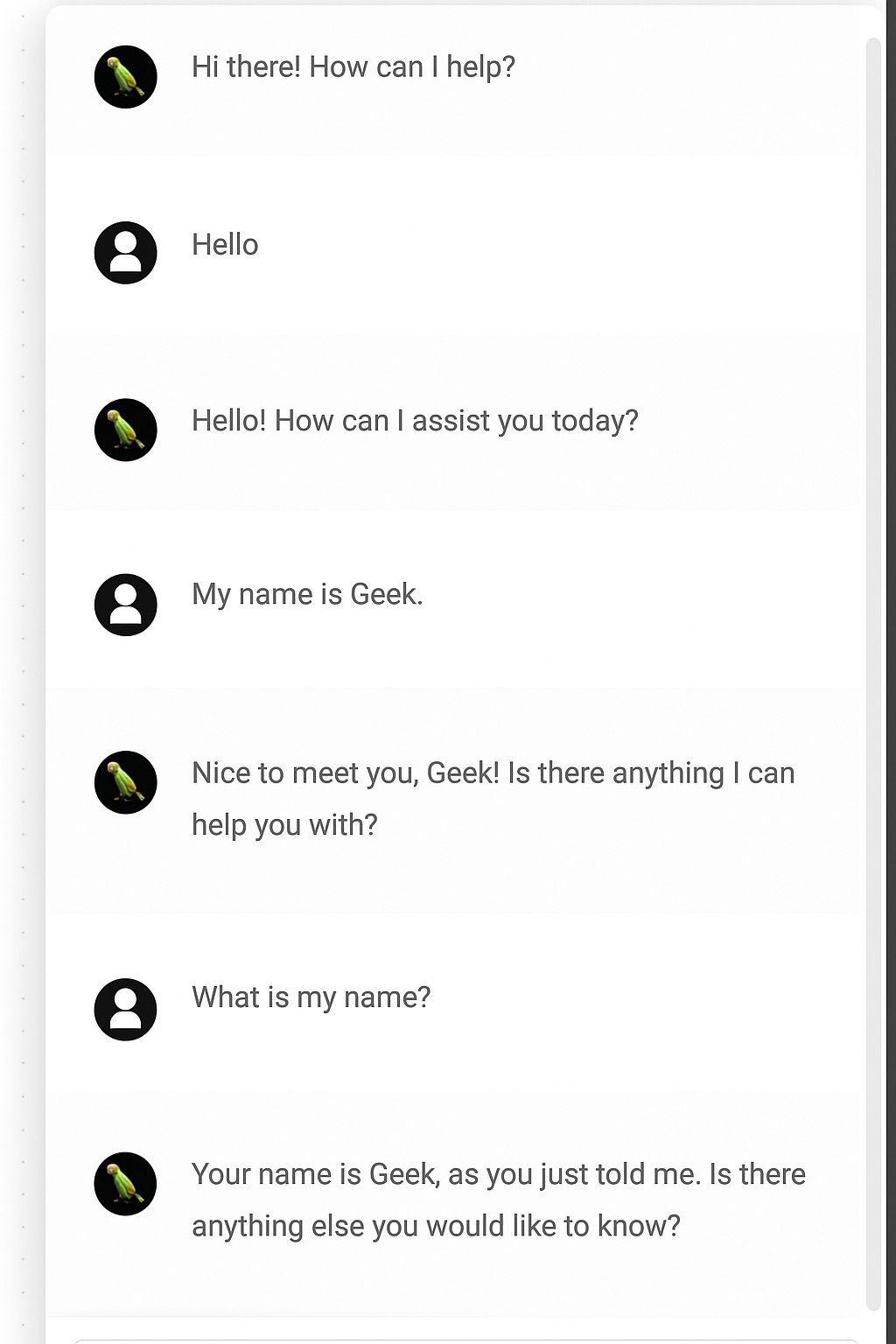
- Using the built in chat interface, you can send queries and observe real time, context-aware responses.
- The chatbot replies intelligently, remembering past exchanges.
- Verify that the memory node works correctly by checking if the model retains information across turns.
Use Cases
- Customer Support Chatbot : Businesses can build chatbots that instantly answer customer queries related to products, services or account details.
- Knowledge Base Assistant : Organizations often have large documentation. A Flowise chatbot integrated with LLMs can act as a knowledge retrieval agent, summarizing and presenting relevant answers from documents.
- Personal Productivity Assistant : Flowise can be used to design smart assistants for scheduling, summarization and brainstorming tasks.
- Domain Specific Systems : It allows developers to integrate external APIs and custom datasets enabling chatbots that function as experts in areas like law, healthcare or finance.
Advantages of Building Chatbots with Flowise AI
- Low code Interface: Simplifies complex LLM workflows, making chatbot development accessible even to non-programmers.
- Quick Prototyping: Enables users to build and test chatbot models within minutes without extensive coding.
- Contextual Conversations: Uses memory nodes to retain user context for natural, human like interactions.
- Integrations Ready: Supports easy connection with APIs, databases and external data sources for dynamic responses.
- Scalable Design: Allows smooth export and deployment of chatbots on web-based platforms for real-world use.