Sidebar
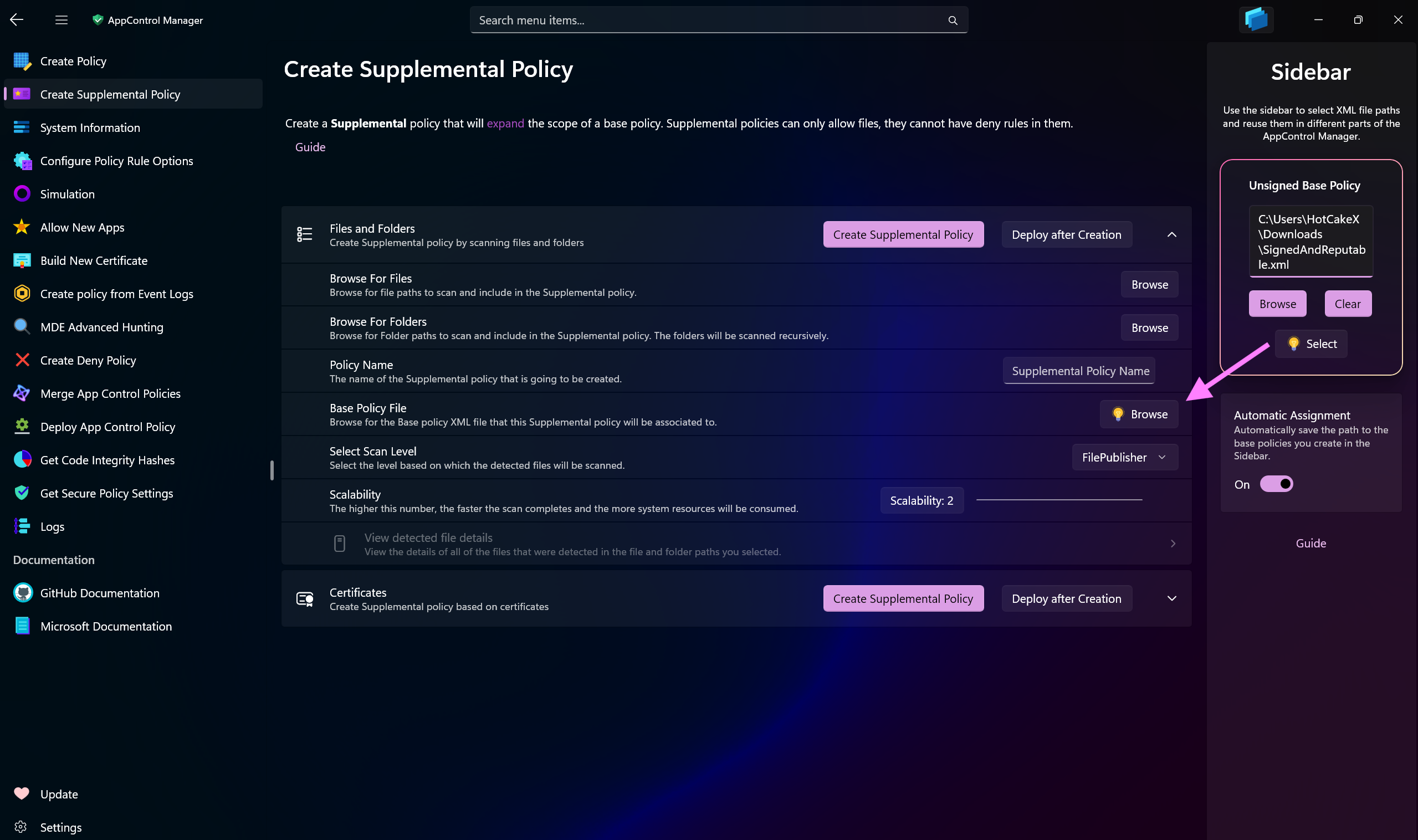
The AppControl Manager features a versatile Sidebar designed to streamline user interactions and enhance productivity.
A place where you can import as many App Control policies as you want and use them in different parts of the app. Policies in the library exist in the app's memory at runtime. You can import XML, CIP, BIN and P7B files to the library. The Sidebar button on the app's top bar displays the total count of the App Control policies in the library.
Any new policy that you create in the app will be automatically added to the library and when it happens a unique animation is displayed to make it clear where the new policy has been transferred to. You have the option to save the policies in the library as XML or CIP files.
-
The library offers quick actions for every policy in it when you click or tap on it, such as:
- Saving as XML (prompts for file picker so you can pick a location to save)
- Saving as CIP (prompts for file picker so you can pick a location to save)
- Opening in Policy Editor (The changes will be saved back to the same exact policy in the library)
- Configuring Rule Options (The changes will be saved back to the same exact policy in the library)
- Removing from the list (If persistence is enabled, this means it will be removed from the cache on the disk as well.)
- Deploying on the system (only available when running the app as Admin)
-
Some of the quick actions described above are also available when swiping right or left on each policy in the list. (only available on devices with touch capability)
-
You can right-click or top + hold on each policy in the library to access the following features
- Copy BasePolicyID (Copies the BasePolicyID to the clipboard)
- Copy policyID (Copies the PolicyID to the clipboard)
- Set Color (You can tag policies in the library with colors to help with easy recognition or categorization of them. You can choose from a pre-defined set of colors or use the color picker to select any color you like. The colors you select are remembered by the app and in the Policies Library local cache location, a new JSON file will be created that will be used to remember the colors. If you do not use any colors, that JSON file will never be created.)
- Duplicate Policy Duplicate the policy by creating a copy of it in the library.
- Remove File Path When you add a policy to the library such as via Drag & Drop or browsing for files, the file path will be saved with the policy in the library. Use this button to remove the file path so the changes made to the policy won't be written back to the original file. The file path association only remains until the app is restarted because it is not remembered when the app is closed.
You can search through the policies in the library by typing in the search box.
- Contextual Search: Click/tap on the magnifier icon in the Policies Library on the Sidebar to enable contextual search which allows you to not only search among the policies based on their names, types or IDs but also search through every detail that exists in them. This is quite useful when, for instance, you want to find out which policy in the Sidebar contains the hash of a particular file or which policy allows or blocks a particular app and other such advanced scenarios.
You can enable persistence for the Policies Library so that the policies in the library will remain intact even after you close the app or restart your system. This option is on by default. You can turn it off and on via a toggle switch on the Sidebar.
Persistent Library feature does not prevent the policies to remain intact when you uninstall the AppControl Manager, so if you ever plan to uninstall the app, make sure to use the Backup All option under the Actions menu to create a backup first.
When the library contains any policy, persistence is off and you attempt to close the app, you will encounter a notice reminding you that there are unsaved policies. You can configure this behavior in the app's settings page. At this point you can either enable persistence, save policies manually to files, or simply ignore the warning and confirm app closing dialog.
The Policies Library with all of its capabilities and persistence offers a seamless experience that just works out of the box, without adding any additional burden or responsibility to the user.
It's an optional per user encryption for the Policies Library cache. When enabled (off by default), cached policy files are encrypted using Windows DPAPI and stored for the current user only. The app automatically enforces the chosen encryption setting at startup and whenever the toggle on the Sidebar changes, keeping the on disk cache in sync with the preference. When you encrypt your policy files with this feature, they are accessible only while you are signed into the same Windows user account. If you switch to a different user account or move the cache files to another machine, they will not be readable. This enhances security by ensuring that sensitive policy data is protected and accessible only to the intended user.
Note
Using the Backup All button under the Actions menu creates an unencrypted backup of all policies in the library and saves them in the directory that you selected, regardless of the encryption setting. This is to ensure that users can always access their policies when restoring from a backup, even if they switch to a different user account or machine.
Select an encryption scope: User, which allows only the current Windows account to decrypt the encrypted policy files, or Machine, which restricts decryption to this device so the files cannot be decrypted if moved to another device.
If using Administrator Protection mode in the OS, it's recommended to switch to Machine scope mode. Policies encrypted with Machine scope can be decrypted by any user on the same device, while policies encrypted with User scope can only be decrypted by the user who encrypted them.
You can restore policies from a backup directory containing one or more XML/CIP/P7B/BIN App Control policy files by simply dragging all of the files and dropping them on the Sidebar's Policies Library (only works when the app is running unelevated).
By default, the location of the Policies Library cache on disk is in the app's internal OS-designated directory which is automatically cleared during app uninstallation. You can choose a custom location to be used as the Policies Library cache by using the Manage Cache Location button under the Actions menu. Once you press that button, you will be presented with multiple options:
-
Browse and Set: Browse for and select a directory to use as the custom location for the policies library cache. All of the policies from the default location will be moved to this new location.
-
Open: Open the selected custom policies library cache location in the file explorer.
-
Clear: Move all of the policies from the custom cache location to the default location and then clear the selected custom cache path.
Tip
Being able to change the Policies Library cache location on disk can come in handy if you, for instance, intend to sync the policy files with OneDrive, GitHub and so on.
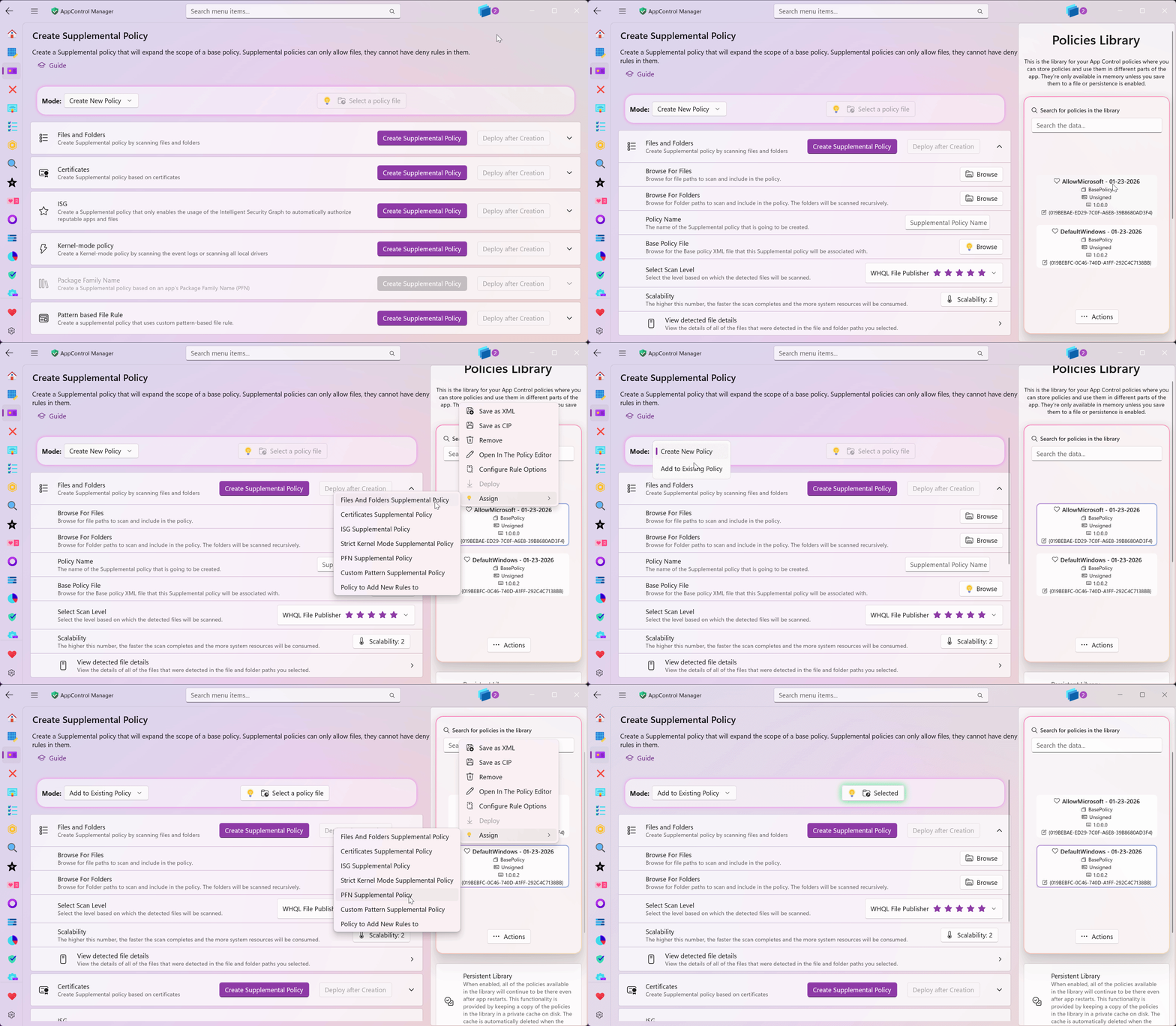
Pages within the AppControl Manager that require a policy automatically recognize when there is any policy in the library. As you navigate to these pages, subtle indicators appear  , prompting you to open the Sidebar and quickly assign a policy to these sections.
Tip
You can open the Sidebar via CTRL + S keyboard shortcut too.
-
Sidebar Guide: Use this button to open this page in the browser.
-
Open User Config Directory: Use this button to open the User Configuration directory in File Explorer.
-
Use the Optimize Memory button to optimize memory usage of the app and try to reduce it. AppControl Manager is already highly optimized but this gives users more control over its memory usage. The app will generate a detailed report in the Logs page that you can check out, showing the type and amount of memory changes.




- Create AppControl Policy
- Create Supplemental Policy
- System Information
- Configure Policy Rule Options
- Policy Editor
- Simulation
- Allow New Apps
- Build New Certificate
- Create Policy From Event Logs
- Create Policy From MDE Advanced Hunting
- Create Deny Policy
- Merge App Control Policies
- Deploy App Control Policy
- Get Code Integrity Hashes
- Get Secure Policy Settings
- Update
- Sidebar
- Validate Policies
- View File Certificates
- Microsoft Graph
- Firewall Sentinel
- Data Analysis in AppControl Manager

- Protect
- Microsoft Security Baselines
- Microsoft Security Baselines Overrides
- Microsoft 365 Apps Security Baseline
- Microsoft Defender
- Attack Surface Reduction
- Bitlocker
- Device Guard
- TLS Security
- Lock Screen
- User Account Control
- Windows Firewall
- Optional Windows Features
- Windows Networking
- Miscellaneous Configurations
- Windows Update
- Edge Browser
- Certificate Checking
- Country IP Blocking
- Non Admin Measures
- Group Policy Editor
- Manage Installed Apps
- File Reputation
- Audit Policies
- Cryptographic Bill of Materials
- Intune
- Configuration Service Provider (CSP)
- Service Manager
- Exploit Mitigations
- Sandbox Maker
- Duplicate Photos Finder
- EXIF Manager
- Download Manager
- Bootable Drive Maker

- Introduction
- How To Generate Audit Logs via App Control Policies
- How To Create an App Control Supplemental Policy
- The Strength of Signed App Control Policies
- How To Upload App Control Policies To Intune Using AppControl Manager
- How To Create and Maintain Strict Kernel‐Mode App Control Policy
- How to Create an App Control Deny Policy
- App Control Notes
- How to use Windows Server to Create App Control Code Signing Certificate
- Fast and Automatic Microsoft Recommended Driver Block Rules updates
- App Control policy for BYOVD Kernel mode only protection
- EKUs in App Control for Business Policies
- App Control Rule Levels Comparison and Guide
- Script Enforcement and PowerShell Constrained Language Mode in App Control Policies
- How to Use Microsoft Defender for Endpoint Advanced Hunting With App Control
- App Control Frequently Asked Questions (FAQs)
- System Integrity Policy Transformations | XML to CIP and Back
- About Code Integrity Policy Signing

- How To Install Microsoft Store Apps Completely Offline
- Create Bootable USB flash drive with no 3rd party tools
- Event Viewer
- Group Policy
- How to compact your OS and free up extra space
- Hyper V
- Git GitHub Desktop and Mandatory ASLR
- Signed and Verified commits with GitHub desktop
- About TLS, DNS, Encryption and OPSEC concepts
- Things to do when clean installing Windows
- Comparison of security benchmarks
- BitLocker, TPM and Pluton | What Are They and How Do They Work
- How to Detect Changes in User and Local Machine Certificate Stores in Real Time Using PowerShell
- Cloning Personal and Enterprise Repositories Using GitHub Desktop
- Only a Small Portion of The Windows OS Security Apparatus
- Rethinking Trust: Advanced Security Measures for High‐Stakes Systems

- Clean Source principle, Azure and Privileged Access Workstations
- How to Securely Connect to Azure VMs and Use RDP

- Basic PowerShell tricks and notes
- Basic PowerShell tricks and notes Part 2
- Basic PowerShell tricks and notes Part 3
- Basic PowerShell tricks and notes Part 4
- Basic PowerShell tricks and notes Part 5
- How To Access All Stream Outputs From Thread Jobs In PowerShell In Real Time
- PowerShell Best Practices To Follow When Coding
- How To Asynchronously Access All Stream Outputs From Background Jobs In PowerShell
- Powershell Dynamic Parameters and How to Add Them to the Get‐Help Syntax
- RunSpaces In PowerShell
- How To Use Reflection And Prevent Using Internal & Private C# Methods in PowerShell