Sandbox Maker
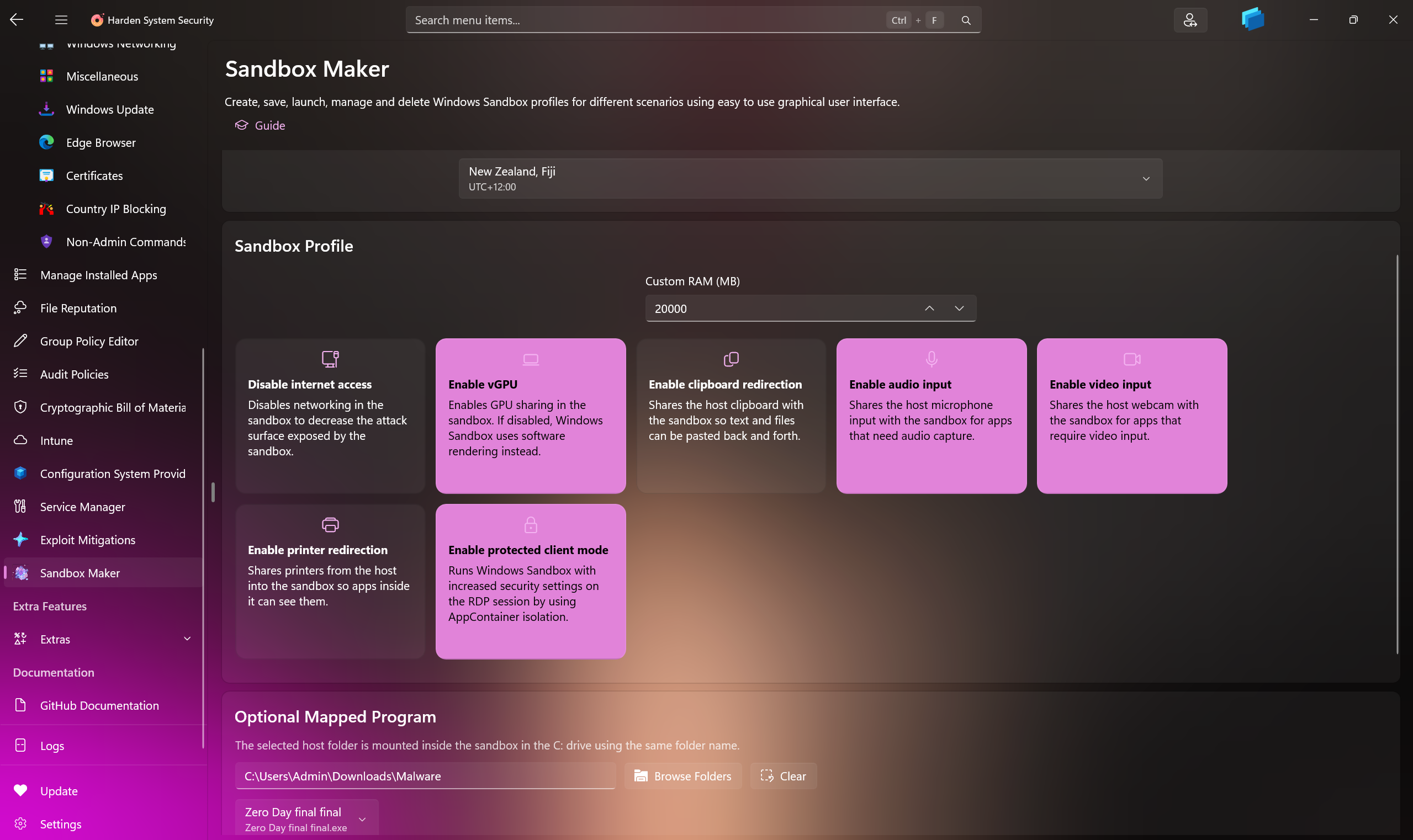
The Sandbox Maker page in the Harden System Security app is a refined workspace for making, preserving, and launching Windows Sandbox environments. It brings identity, resource allocation, device-integration controls, time-zone tailoring, optional host-folder mapping, custom startup scripting, and saved-profile management into one coherent dashboard so you can prepare disposable environments with both precision and ease.
The page is designed to support the full Sandbox lifecycle:
- Define a named sandbox profile.
- Choose a time zone for the guest environment.
- Configure resource and redirection settings.
- Optionally map a host folder and select its main executable.
- Optionally provide custom PowerShell code to run when the sandbox starts.
- Save the profile for future use.
- Launch the sandbox immediately or start any previously saved profile later.
Each saved profile produces its own .wsb configuration file, while the saved definitions are preserved separately so they can be reloaded into the page whenever the app is opened again.
The opening section of the page establishes the sandbox's identity.
- Sandbox Name lets you assign a human-readable name to the profile.
-
Sandbox File Path shows the precise
.wsbpath that will be used for that profile.
The chosen name is not merely decorative. It determines the saved profile identity and the generated .wsb file name, allowing multiple sandbox configurations to coexist elegantly rather than overwriting one another.
The Time Zone section lets you choose whether the sandbox should inherit the host time zone or switch to another supported region.
- The first option preserves the sandbox default time zone, which mirrors the host.
- Additional entries are arranged by UTC offset, from the most negative offset through UTC and onward to the most positive range.
- Each option presents both a region description and a concise offset label so selection remains intelligible at a glance.
When a non-default time zone is selected, the sandbox applies it automatically during startup to improve your anonymity in the guest OS.
The Sandbox Profile area is the operational heart of the page. It combines memory selection with a modern grid of interactive option cards.
- Custom RAM (MB) lets you specify how much memory the sandbox should receive.
- The app begins with a 4 GB default and validates the final value so it remains within an acceptable range for the host system. The minimum is 2GB.
Each option is presented as a dedicated card with a short description, making the purpose of every control immediately legible.
Available options include:
- Disable internet access - disables sandbox networking to reduce exposure.
- Enable vGPU - allows GPU sharing; if disabled, software rendering is used instead.
- Enable clipboard redirection - shares clipboard content between host and sandbox.
- Enable audio input - exposes host microphone input to the sandbox.
- Enable video input - exposes host camera input to the sandbox.
- Enable printer redirection - makes host printers visible inside the sandbox.
- Enable protected client mode - runs the session with increased security by using AppContainer-backed isolation on the RDP session.
The Optional Mapped Program section allows you to enrich the sandbox with a host folder and a chosen executable from within that folder.
- Use Browse to select the folder on the host.
- Use Clear to remove the current selection.
- The selected host folder is mapped into the sandbox directly under
C:\using the same folder name.
Once a folder is chosen, the page enumerates executable files within it and allows you to select the main executable from a drop-down list.
Two additional toggles govern how the mapped program behaves:
- Map the selected host folder as read-only - prevents writes from within the sandbox.
- Run the selected program automatically when the sandbox starts - launches the selected executable during sandbox logon.
Even when automatic launch is not enabled, the page still prepares a desktop shortcut for the selected executable inside the sandbox, giving you a convenient entry point once the environment has started.
The Custom PowerShell startup code section lets you attach your own PowerShell instructions to the sandbox startup process. This is useful for preparing the guest environment, creating files or folders, applying temporary settings, launching auxiliary tools, or performing any other initialization task that should happen automatically when the sandbox starts.
This feature is independent from the optional mapped program. You can use custom PowerShell startup code whether or not a mapped program is configured, and whether or not that mapped program is set to launch automatically.
The section provides a dedicated toggle to enable or disable custom PowerShell execution at sandbox startup.
When enabled, you can enter multiline PowerShell code directly into the editor. The supplied code is incorporated into the sandbox logon command and runs inside the sandbox environment during startup.
When a mapped program is configured and set to launch automatically, the page lets you choose where the custom PowerShell code should run in relation to that mapped program launch:
- Before mapped program launch - prepares the sandbox first, then starts the selected mapped program.
- After mapped program launch - starts the selected mapped program first, then runs the custom PowerShell code.
If no mapped program is configured, or if the mapped program is not set to launch automatically, the custom PowerShell code still runs during sandbox startup. In that case, the selected ordering simply defines its position relative to the built-in startup preparation steps.
Custom PowerShell startup code is saved with the sandbox profile. To preserve the script completely, the app stores the custom PowerShell code in the JSON definitions file as Base64 encoded UTF-8 text. This ensures that spacing, quotation marks, double quotation marks, line breaks, and unusual characters remain intact when the profile is saved and loaded again.
The command bar above the saved profiles area offers two principal actions:
- Save - writes the current profile to disk and updates the saved-profile list without launching the sandbox.
- Start - saves the current profile and then launches it immediately.
The Saved Sandboxes section presents the profiles already preserved by the app.
Each saved item displays:
- Sandbox name
- RAM
- Mapped program
- Custom PowerShell
- Date
- Timezone
If the mapped program is configured to run automatically at startup, that detail is reflected directly in the saved item summary. If custom PowerShell startup code is configured, the summary also indicates its selected execution position.
Every saved sandbox offers a compact action row:
- Load - restores the profile into the editor so you can revise it.
- Start - launches the saved profile immediately.
-
Open Location - opens the generated
.wsbfile location in File Explorer. -
Delete - removes the saved profile and deletes its generated
.wsbfile when present.
The section header also exposes a Delete All command, allowing you to remove every saved sandbox profile in one deliberate action.
Windows Sandbox Maker preserves its state with two complementary artifacts:
- A JSON definitions file that stores the saved profile metadata.
- Individual
.wsbfiles generated per saved sandbox profile.
These files are stored within the app's local cache area under the Sandbox Maker storage folder. This gives the feature durable persistence while keeping the generated artifacts neatly contained within the app's own storage boundary. These data are deleted when the Harden System Security app is uninstalled from the system. You can manually copy the data in order to restore them later on the same system or another one.
The JSON definitions file stores profile settings such as identity, memory, device redirection choices, time-zone selection, mapped program details, and custom PowerShell startup configuration. Custom PowerShell code is stored as Base64 encoded UTF-8 text so the original script content remains pristine across save and load cycles.
A typical workflow on this page is pleasantly straightforward:
- Enter a sandbox name.
- Choose a time zone or keep the host default.
- Adjust memory and profile cards.
- Optionally map a host folder and select its main executable.
- Decide whether the folder should be read-only.
- Decide whether the mapped program should launch on startup.
- Optionally enable custom PowerShell startup code.
- Choose whether custom PowerShell code should run before or after the mapped program launch.
- Save the profile, or start it at once.
- Revisit the saved profile later to load, amend, relaunch, or remove it.
This arrangement makes the page suitable both for ephemeral experimentation and for maintaining a carefully curated library of reusable sandbox profiles.
Windows Sandbox Maker transforms Windows Sandbox configuration from a raw file-editing exercise into a composed and intelligible experience. Instead of authoring .wsb documents by hand, you can shape disposable environments through a deliberate visual workflow, enrich them with mapped program support and custom startup automation, preserve them as named profiles, and return to them whenever a familiar scenario is needed again.




- Create AppControl Policy
- Create Supplemental Policy
- System Information
- Configure Policy Rule Options
- Policy Editor
- Simulation
- Allow New Apps
- Build New Certificate
- Create Policy From Event Logs
- Create Policy From MDE Advanced Hunting
- Create Deny Policy
- Merge App Control Policies
- Deploy App Control Policy
- Get Code Integrity Hashes
- Get Secure Policy Settings
- Update
- Sidebar
- Validate Policies
- View File Certificates
- Microsoft Graph
- Firewall Sentinel
- Data Analysis in AppControl Manager

- Protect
- Microsoft Security Baselines
- Microsoft Security Baselines Overrides
- Microsoft 365 Apps Security Baseline
- Microsoft Defender
- Attack Surface Reduction
- Bitlocker
- Device Guard
- TLS Security
- Lock Screen
- User Account Control
- Windows Firewall
- Optional Windows Features
- Windows Networking
- Miscellaneous Configurations
- Windows Update
- Edge Browser
- Certificate Checking
- Country IP Blocking
- Non Admin Measures
- Group Policy Editor
- Manage Installed Apps
- File Reputation
- Audit Policies
- Cryptographic Bill of Materials
- Intune
- Configuration Service Provider (CSP)
- Service Manager
- Exploit Mitigations
- Sandbox Maker
- Duplicate Photos Finder
- EXIF Manager
- Download Manager
- Bootable Drive Maker

- Introduction
- How To Generate Audit Logs via App Control Policies
- How To Create an App Control Supplemental Policy
- The Strength of Signed App Control Policies
- How To Upload App Control Policies To Intune Using AppControl Manager
- How To Create and Maintain Strict Kernel‐Mode App Control Policy
- How to Create an App Control Deny Policy
- App Control Notes
- How to use Windows Server to Create App Control Code Signing Certificate
- Fast and Automatic Microsoft Recommended Driver Block Rules updates
- App Control policy for BYOVD Kernel mode only protection
- EKUs in App Control for Business Policies
- App Control Rule Levels Comparison and Guide
- Script Enforcement and PowerShell Constrained Language Mode in App Control Policies
- How to Use Microsoft Defender for Endpoint Advanced Hunting With App Control
- App Control Frequently Asked Questions (FAQs)
- System Integrity Policy Transformations | XML to CIP and Back
- About Code Integrity Policy Signing

- How To Install Microsoft Store Apps Completely Offline
- Create Bootable USB flash drive with no 3rd party tools
- Event Viewer
- Group Policy
- How to compact your OS and free up extra space
- Hyper V
- Git GitHub Desktop and Mandatory ASLR
- Signed and Verified commits with GitHub desktop
- About TLS, DNS, Encryption and OPSEC concepts
- Things to do when clean installing Windows
- Comparison of security benchmarks
- BitLocker, TPM and Pluton | What Are They and How Do They Work
- How to Detect Changes in User and Local Machine Certificate Stores in Real Time Using PowerShell
- Cloning Personal and Enterprise Repositories Using GitHub Desktop
- Only a Small Portion of The Windows OS Security Apparatus
- Rethinking Trust: Advanced Security Measures for High‐Stakes Systems

- Clean Source principle, Azure and Privileged Access Workstations
- How to Securely Connect to Azure VMs and Use RDP

- Basic PowerShell tricks and notes
- Basic PowerShell tricks and notes Part 2
- Basic PowerShell tricks and notes Part 3
- Basic PowerShell tricks and notes Part 4
- Basic PowerShell tricks and notes Part 5
- How To Access All Stream Outputs From Thread Jobs In PowerShell In Real Time
- PowerShell Best Practices To Follow When Coding
- How To Asynchronously Access All Stream Outputs From Background Jobs In PowerShell
- Powershell Dynamic Parameters and How to Add Them to the Get‐Help Syntax
- RunSpaces In PowerShell
- How To Use Reflection And Prevent Using Internal & Private C# Methods in PowerShell