Exploit Mitigations
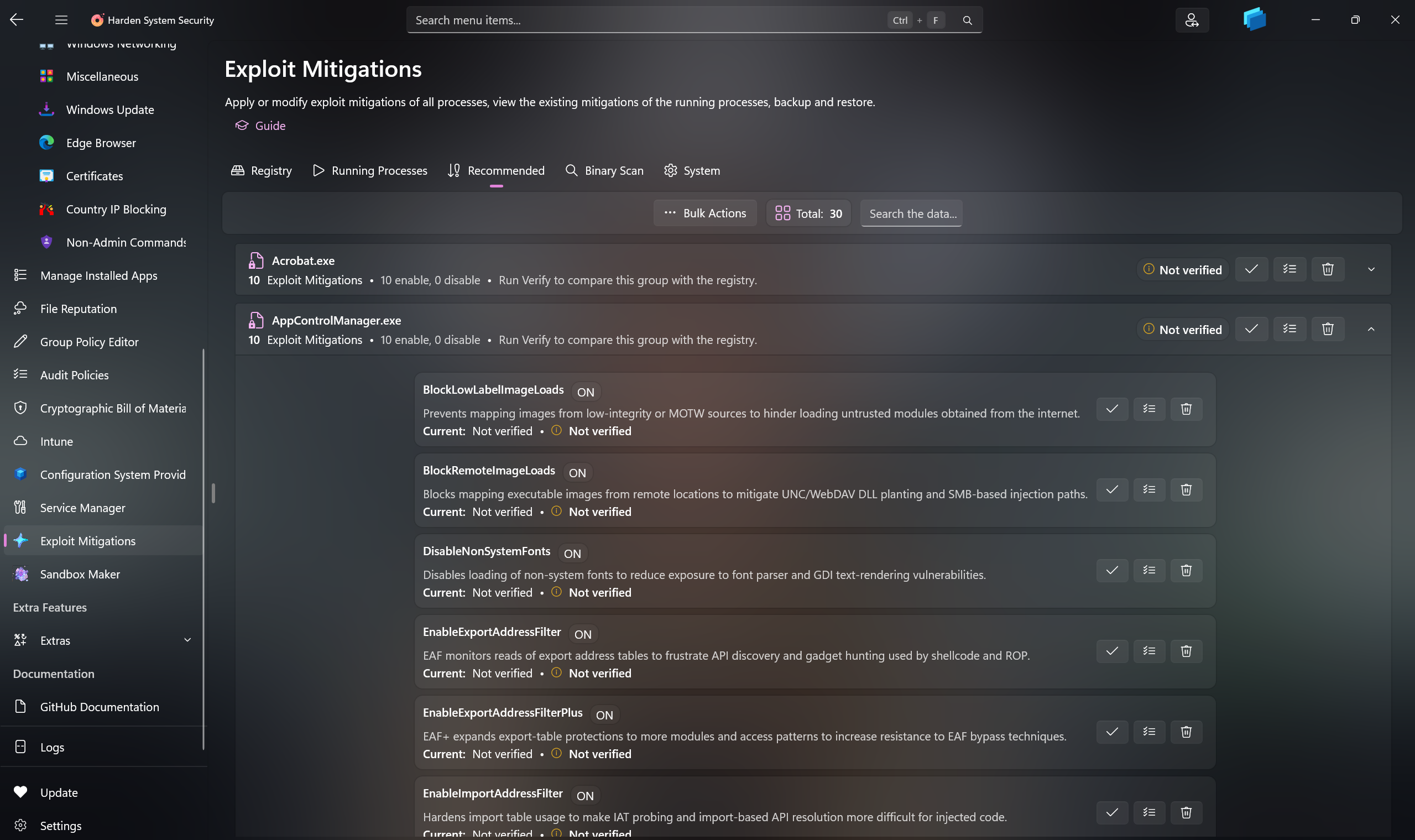
The Exploit Mitigations page in the Harden System Security app is a focused operational workspace for Windows process mitigation policy. It brings registry-backed rules (IFEO / Image File Execution Options), live process state, system defaults, recommendations, and binary inspection into a single coherent dashboard so you can make changes with confidence and then immediately verify outcomes.
The Exploit Mitigations page is split into 5 functional views:
- Registry - per-process mitigation policies stored in the registry.
- Running Processes - live mitigation state of currently running processes.
- Recommended - curated recommended mitigation sets for specific programs. They align with the app's broader hardening guidance in the Microsoft Defender category.
- Binary Scan - binary hardening inspection for selected executable files and folders.
- System - system-wide exploit mitigation settings.
The Registry view is for reading and managing per-process exploit mitigation entries under the Image File Execution Options policy area.
- Process the registry and load the current mitigation inventory.
- Search and sort the data.
- Export the loaded mitigation data to JSON.
- Import mitigation configuration from XML.
- Export mitigation configuration to XML.
- Open the exact registry location directly in Registry Editor.
- Add mitigations for new processes.
- Modify an existing process mitigation entry.
- Delete an existing registry process mitigation entry.
Use this section when you need an authoritative view of what the system will enforce for a given executable.
- Edit: Double-clicking a registry row opens the mitigation editor directly. Use it to set Enabled, Disabled, or Not configured states, apply supported force overrides, and review a change summary before committing policy updates. When creating new entries, you can define the target explicitly or select an executable path for accuracy.
- Details: Use the details dialog when you want a clean, copyable snapshot of the exact option-level state, including forced-state visibility and a structured list of all options for that target.
The Running Processes view shows live mitigation data for processes that are currently executing.
- Refresh the running-process inventory on demand.
- Enable Auto Refresh with a configurable interval.
- Search the loaded process list and sort it.
- Export the current running-process results to JSON.
- Open a full details dialog for the selected running process.
Use this view when you need to confirm the effective mitigation state of a live process without relying exclusively on static policy. It is also useful for spotting drift between what is configured and what is currently active.
The Recommended view groups curated mitigation recommendations by program and lets you work at both group level and individual mitigation level.
- Search recommended programs and mitigation groups.
- Apply all recommendations for a program.
- Verify compliance for a program.
- Remove the recommended mitigation set for a program.
- Run bulk actions across the currently visible recommendation groups.
- Verify results after apply/remove operations.
Use this view when you want a pragmatic baseline for a program (apply + verify), or when you want a controlled way to revert only the recommendation set without disturbing unrelated mitigations.
The Binary Scan view inspects selected executable files and folders and reports binary-level exploit-hardening indicators.
- Queue one or more executable files.
- Queue one or more folders.
- Scan the selected targets.
- Search and sort the results.
- Export the results to JSON.
Use this view as a pre-flight check (to understand what a binary supports) before applying mitigations to it.
From the Binary Scan section, you can open the dedicated View Exported functions page to inspect the export table of DLL files. This page is designed for cases where you need to understand what a DLL publicly exposes before you integrate it, troubleshoot it, or compare it with another build. Documented and undocumented function names will all be displayed by this feature.
- Open Exploit Mitigations.
- Go to Binary Scan.
- Use the View Exported functions entry point in that section.
- Browse for DLL files or directories to be scanned for DLL files.
- View exported entries by:
- exported name
- ordinal
- forwarder target when the export is forwarded to another module
- Search and sort the collected results.
- Export the full results set to JSON.
- Whether a DLL actually exports the function name a tool, script, or application expects.
- Whether a function is exposed by name, by ordinal only, or as a forwarded export.
- Whether two DLL versions expose the same public entry points after an update, vendor patch, rebuild, or replacement.
- Whether a DLL is suitable for run-time dynamic linking scenarios that rely on APIs such as
LoadLibraryandGetProcAddress.
The System view exposes the system-wide mitigation configuration and supports filtering the option set.
- Load the system-wide mitigation state.
- Search and filter the system mitigation options.
- Modify the system-wide mitigation set through the mitigation editor.
Use this view when you want to establish system defaults that apply broadly, and then layer per-process exceptions in the Registry view where necessary.
Press the Modify button to access the system mitigations editor.
- Search across supported mitigation names and descriptions.
- Configured / Not configured filtering.
- A parent-and-child dependency layout so dependent mitigations appear directly under their required parent mitigation.
- Automatic dependency handling:
- enabling a child mitigation automatically enables its required parent when needed
- disabling a required parent clears dependent child selections back to Not configured
- Force override support where the underlying policy allows it.
- A live change summary before applying.
This editor is intentionally dependency-aware so mitigation relationships are visible and handled deterministically (for example, enabling StrictCFG will satisfy its requirement on CFG, and disabling CFG will clear dependent child choices back to Not configured).
After mitigation changes are applied, Harden System Security refreshes the relevant data views so you can review the updated states immediately.
The table below compares the exploit mitigation experience offered by Microsoft Defender's Exploit Protection surface and Harden System Security. The Harden System Security app offers all of the Exploit Mitigation features available in the Microsoft Defender (Windows Security app) plus the following:
| Capability | Microsoft Defender | Harden System Security |
|---|---|---|
Display hidden exploit mitigations like the one for MsSense.exe
|
❌ | ✅ |
| Display all exploit mitigations no matter the total count | ❌ (Refuses to load the programs list if too big) | ✅ |
| Export the data to JSON | ❌ | ✅ |
| Search through the data and sort the data | ❌ | ✅ |
| Offer the full set of mitigations for the System context | ❌ (Only offers a small subset of the mitigations for the System) | ✅ |
| View changes without closing and reopening the app | ❌ | ✅ |
| View running processes' mitigations | ❌ | ✅ |
| Modify mitigations that have override/force flag | ❌ (they are grayed out) | ✅ |
This page is designed to support an end-to-end mitigation workflow: discover what exists, make deliberate adjustments, and immediately validate the new state through both persisted policy and live process inspection.




- Create AppControl Policy
- Create Supplemental Policy
- System Information
- Configure Policy Rule Options
- Policy Editor
- Simulation
- Allow New Apps
- Build New Certificate
- Create Policy From Event Logs
- Create Policy From MDE Advanced Hunting
- Create Deny Policy
- Merge App Control Policies
- Deploy App Control Policy
- Get Code Integrity Hashes
- Get Secure Policy Settings
- Update
- Sidebar
- Validate Policies
- View File Certificates
- Microsoft Graph
- Firewall Sentinel
- Data Analysis in AppControl Manager

- Protect
- Microsoft Security Baselines
- Microsoft Security Baselines Overrides
- Microsoft 365 Apps Security Baseline
- Microsoft Defender
- Attack Surface Reduction
- Bitlocker
- Device Guard
- TLS Security
- Lock Screen
- User Account Control
- Windows Firewall
- Optional Windows Features
- Windows Networking
- Miscellaneous Configurations
- Windows Update
- Edge Browser
- Certificate Checking
- Country IP Blocking
- Non Admin Measures
- Group Policy Editor
- Manage Installed Apps
- File Reputation
- Audit Policies
- Cryptographic Bill of Materials
- Intune
- Configuration Service Provider (CSP)
- Service Manager
- Exploit Mitigations
- Sandbox Maker
- Duplicate Photos Finder
- EXIF Manager
- Download Manager
- Bootable Drive Maker

- Introduction
- How To Generate Audit Logs via App Control Policies
- How To Create an App Control Supplemental Policy
- The Strength of Signed App Control Policies
- How To Upload App Control Policies To Intune Using AppControl Manager
- How To Create and Maintain Strict Kernel‐Mode App Control Policy
- How to Create an App Control Deny Policy
- App Control Notes
- How to use Windows Server to Create App Control Code Signing Certificate
- Fast and Automatic Microsoft Recommended Driver Block Rules updates
- App Control policy for BYOVD Kernel mode only protection
- EKUs in App Control for Business Policies
- App Control Rule Levels Comparison and Guide
- Script Enforcement and PowerShell Constrained Language Mode in App Control Policies
- How to Use Microsoft Defender for Endpoint Advanced Hunting With App Control
- App Control Frequently Asked Questions (FAQs)
- System Integrity Policy Transformations | XML to CIP and Back
- About Code Integrity Policy Signing

- How To Install Microsoft Store Apps Completely Offline
- Create Bootable USB flash drive with no 3rd party tools
- Event Viewer
- Group Policy
- How to compact your OS and free up extra space
- Hyper V
- Git GitHub Desktop and Mandatory ASLR
- Signed and Verified commits with GitHub desktop
- About TLS, DNS, Encryption and OPSEC concepts
- Things to do when clean installing Windows
- Comparison of security benchmarks
- BitLocker, TPM and Pluton | What Are They and How Do They Work
- How to Detect Changes in User and Local Machine Certificate Stores in Real Time Using PowerShell
- Cloning Personal and Enterprise Repositories Using GitHub Desktop
- Only a Small Portion of The Windows OS Security Apparatus
- Rethinking Trust: Advanced Security Measures for High‐Stakes Systems

- Clean Source principle, Azure and Privileged Access Workstations
- How to Securely Connect to Azure VMs and Use RDP

- Basic PowerShell tricks and notes
- Basic PowerShell tricks and notes Part 2
- Basic PowerShell tricks and notes Part 3
- Basic PowerShell tricks and notes Part 4
- Basic PowerShell tricks and notes Part 5
- How To Access All Stream Outputs From Thread Jobs In PowerShell In Real Time
- PowerShell Best Practices To Follow When Coding
- How To Asynchronously Access All Stream Outputs From Background Jobs In PowerShell
- Powershell Dynamic Parameters and How to Add Them to the Get‐Help Syntax
- RunSpaces In PowerShell
- How To Use Reflection And Prevent Using Internal & Private C# Methods in PowerShell