Download Manager
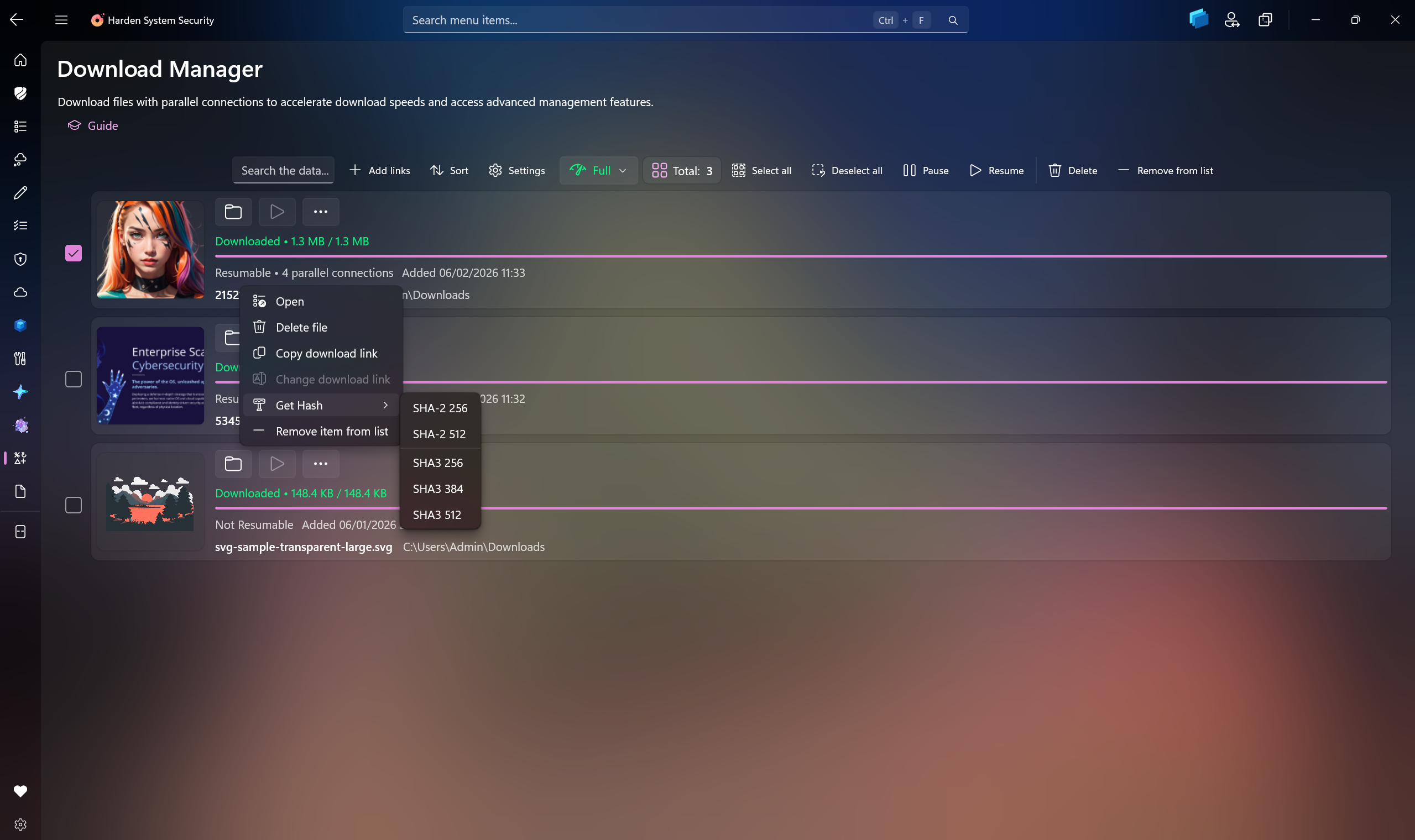
The Download Manager is a dedicated feature in the Harden System Security app under the Extras section. It can accelerate your download speeds and offers many features and capabilities that go beyond the built-in browser download experiences, making it a resilient download manager suitable for any use cases.
You can add downloads in multiple ways:
- Add Links button: Opens a dialog where you can paste one or more direct HTTP/HTTPS links.
- Clipboard-aware input: If your clipboard already contains links, the dialog preloads them automatically.
-
Keyboard shortcut: Press
Ctrl + Von the page to immediately queue valid links from the clipboard. - Drag and drop: You can also drag and drop links from a browser or text file directly into the app. (Only works when running unelevated.)
The app detects all valid links in the pasted text and queues them together.
The top command bar provides quick access to the main queue operations:
- Search: Instantly filters the current list.
- Add Links: Queues one or more new downloads.
- Settings: Opens the dedicated Download Manager settings page.
- Speed Preset selector: Quickly switches between Slow, Medium, and Full download-rate presets.
- Selection actions: When you select one or more items, bulk Pause, Resume, Delete file, and Remove from list actions become available automatically.
The list also supports drag-and-drop. If a selected item already has either its completed file or a partial file on disk, you can drag it out of the app to another destination in order to play or run it.
Every download item has quick actions and a flyout menu for common operations:
- Open the containing folder
- Pause or resume the transfer
- Open the downloaded file
- Delete the downloaded file
- Copy the original download link
- Change the download link
- Calculate file hashes
- Remove the item from the list without deleting the file
If a signed or time-limited link expires, the item flyout can be used to replace it with a new link.
The replacement link is validated before it is accepted:
- It must be a valid HTTP/HTTPS URL.
- It must resolve to the same file name.
- If size metadata is available for the existing item, the replacement must also match the same file size.
Tip
This helps you keep the same item in the list and continue the download without losing any progress, even if the original link becomes invalid.
For files that already exist on disk, the item flyout can display hashes in a dialog. The current implementation supports:
- SHA-2 256
- SHA-2 512
- SHA3 256
- SHA3 384
- SHA3 512
Tip
This can come in handy for verifying the integrity of downloaded files, especially when the source provides expected hash values for comparison.
The Download Manager is built to be resilient rather than assuming every server behaves perfectly.
It includes:
- Checkpoint-based resume support so interrupted downloads can continue later
- Parallel downloading when the source supports byte ranges
- Automatic retry/backoff handling for transient request and stream failures
- Conflict handling when the target file name already exists
- Metadata-based file-name resolution using server response headers and other fallbacks when the raw URL is not the real file name
Important
For downloaded executable and script-like file types, the app also applies Mark-of-the-Web tagging so Windows can preserve the proper internet-origin security context.
The Download Manager has its own settings page where you can control how transfers behave.
- Change the default save location for downloaded files
- Restore the default Downloads folder
- Open the Download Manager's storage location used for its internal state data
- Set the maximum number of simultaneous downloads
- Set the number of parallel connections per download (does not apply to downloads that are already in progress)
- Choose an action to run after all downloads finish
- None
- Shutdown
- Sleep
- Hibernate
- Choose how file-name conflicts are handled
- Ask
- Overwrite
- Add duplicate
- Enable or disable automatic removal of completed downloads from the list
When the automatic removal option is turned on, completed items are removed from the list and their stored checkpoints/history state is cleaned up automatically, while the finished files remain in the selected download folder.
The three preset modes can be configured from the settings page:
- Slow
- Medium
- Full
The Full preset can also be set to unlimited mode.
The preview area is designed to provide useful visual information about the download items:
- Images and supported visual files can show thumbnails.
- Videos can show a static preview and when you hover over them, a short preview clip is played.
- Placeholder text is shown when a preview is not available yet
The Download Manager is especially useful when you need one or more of the following:
- Downloading multiple links in one session
- Resuming interrupted large-file transfers
- Handling short-lived links that may need to be refreshed later
- Controlling bandwidth with presets
- Verifying downloaded files with built-in hash dialogs
It is meant to provide a practical, reliable, and security-conscious download workflow directly inside Harden System Security without relying on a separate external download tool.




- Create AppControl Policy
- Create Supplemental Policy
- System Information
- Configure Policy Rule Options
- Policy Editor
- Simulation
- Allow New Apps
- Build New Certificate
- Create Policy From Event Logs
- Create Policy From MDE Advanced Hunting
- Create Deny Policy
- Merge App Control Policies
- Deploy App Control Policy
- Get Code Integrity Hashes
- Get Secure Policy Settings
- Update
- Sidebar
- Validate Policies
- View File Certificates
- Microsoft Graph
- Firewall Sentinel
- Data Analysis in AppControl Manager

- Protect
- Microsoft Security Baselines
- Microsoft Security Baselines Overrides
- Microsoft 365 Apps Security Baseline
- Microsoft Defender
- Attack Surface Reduction
- Bitlocker
- Device Guard
- TLS Security
- Lock Screen
- User Account Control
- Windows Firewall
- Optional Windows Features
- Windows Networking
- Miscellaneous Configurations
- Windows Update
- Edge Browser
- Certificate Checking
- Country IP Blocking
- Non Admin Measures
- Group Policy Editor
- Manage Installed Apps
- File Reputation
- Audit Policies
- Cryptographic Bill of Materials
- Intune
- Configuration Service Provider (CSP)
- Service Manager
- Exploit Mitigations
- Sandbox Maker
- Duplicate Photos Finder
- EXIF Manager
- Download Manager
- Bootable Drive Maker

- Introduction
- How To Generate Audit Logs via App Control Policies
- How To Create an App Control Supplemental Policy
- The Strength of Signed App Control Policies
- How To Upload App Control Policies To Intune Using AppControl Manager
- How To Create and Maintain Strict Kernel‐Mode App Control Policy
- How to Create an App Control Deny Policy
- App Control Notes
- How to use Windows Server to Create App Control Code Signing Certificate
- Fast and Automatic Microsoft Recommended Driver Block Rules updates
- App Control policy for BYOVD Kernel mode only protection
- EKUs in App Control for Business Policies
- App Control Rule Levels Comparison and Guide
- Script Enforcement and PowerShell Constrained Language Mode in App Control Policies
- How to Use Microsoft Defender for Endpoint Advanced Hunting With App Control
- App Control Frequently Asked Questions (FAQs)
- System Integrity Policy Transformations | XML to CIP and Back
- About Code Integrity Policy Signing

- How To Install Microsoft Store Apps Completely Offline
- Create Bootable USB flash drive with no 3rd party tools
- Event Viewer
- Group Policy
- How to compact your OS and free up extra space
- Hyper V
- Git GitHub Desktop and Mandatory ASLR
- Signed and Verified commits with GitHub desktop
- About TLS, DNS, Encryption and OPSEC concepts
- Things to do when clean installing Windows
- Comparison of security benchmarks
- BitLocker, TPM and Pluton | What Are They and How Do They Work
- How to Detect Changes in User and Local Machine Certificate Stores in Real Time Using PowerShell
- Cloning Personal and Enterprise Repositories Using GitHub Desktop
- Only a Small Portion of The Windows OS Security Apparatus
- Rethinking Trust: Advanced Security Measures for High‐Stakes Systems

- Clean Source principle, Azure and Privileged Access Workstations
- How to Securely Connect to Azure VMs and Use RDP

- Basic PowerShell tricks and notes
- Basic PowerShell tricks and notes Part 2
- Basic PowerShell tricks and notes Part 3
- Basic PowerShell tricks and notes Part 4
- Basic PowerShell tricks and notes Part 5
- How To Access All Stream Outputs From Thread Jobs In PowerShell In Real Time
- PowerShell Best Practices To Follow When Coding
- How To Asynchronously Access All Stream Outputs From Background Jobs In PowerShell
- Powershell Dynamic Parameters and How to Add Them to the Get‐Help Syntax
- RunSpaces In PowerShell
- How To Use Reflection And Prevent Using Internal & Private C# Methods in PowerShell