
Linux YUM Package Management is a package management system used on older RPM-based Linux distributions to install, update, remove, and manage software packages efficiently. It automatically resolves dependencies and simplifies software maintenance on Linux systems.
Syntax of YUM
yum [options] [command] [package(s)]Here,
- [options] are optional flags that modify the behaviour of the command.
- [command] is the YUM operation you want to perform (e.g., install, update, remove).
- [package(s)] specify the package(s) you want to work with.
Installing and Managing a Package Using YUM
Suppose you want to install a web server package on an RPM-based Linux system.
Step 1: Search for a Package
Before installing, you can check whether the package is available:
yum search httpdThis searches the configured repositories for the Apache web server package.
Step 2: Install the Package
To install the package along with all required dependencies:
yum install httpdYUM automatically downloads and installs the package and its dependencies.
Step 3: Verify Installation
After installation, you can confirm that the package is installed:
yum list installed httpdStep 4: Update the Package
To update the installed package to the latest version:
yum update httpdThis ensures security patches and bug fixes are applied.
Working of YUM
YUM works as an automated package manager that installs, updates, and removes software on RPM-based Linux systems by communicating with software repositories.
- User Requests an Action: The user initiates an operation such as install, update, or remove a package using YUM.
- Repository Check: YUM reads repository configuration files and contacts enabled repositories to fetch package metadata.
- Dependency Resolution: YUM automatically identifies all required dependencies for the requested package.
- Package Download: Required RPM packages and dependencies are downloaded from the repository.
- Installation or Update: Packages are installed or updated in the correct order to avoid conflicts.
- Database Update: YUM updates the local RPM database to keep track of installed software.
Common YUM Commands
1. Installing Packages
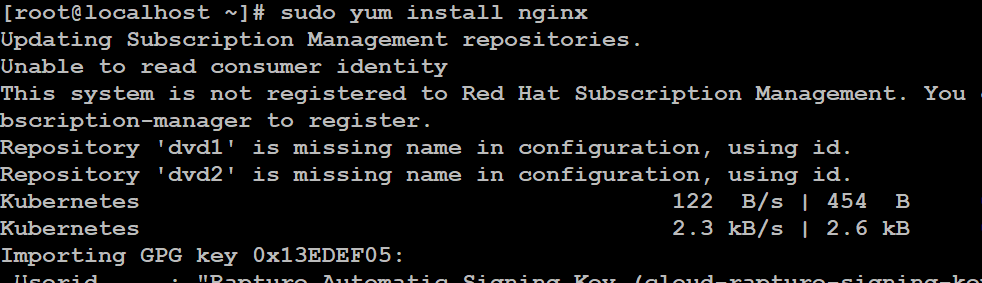
This command is used to install packages on your system using YUM. Replace package-name with the name of the package you want to install. YUM will automatically handle dependencies and download the necessary files from repositories.
Syntax:
sudo yum install package-nameExample:
sudo yum install nginxOutput:
2. Updating Packages
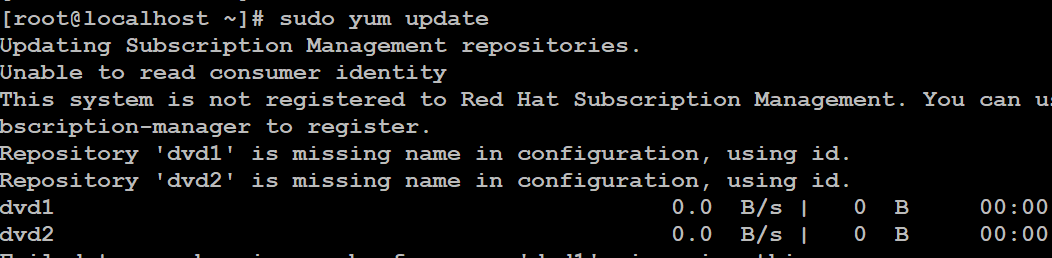
This command updates all installed packages to their latest available versions.
Command:
sudo yum updateOutput:
3. Removing Packages
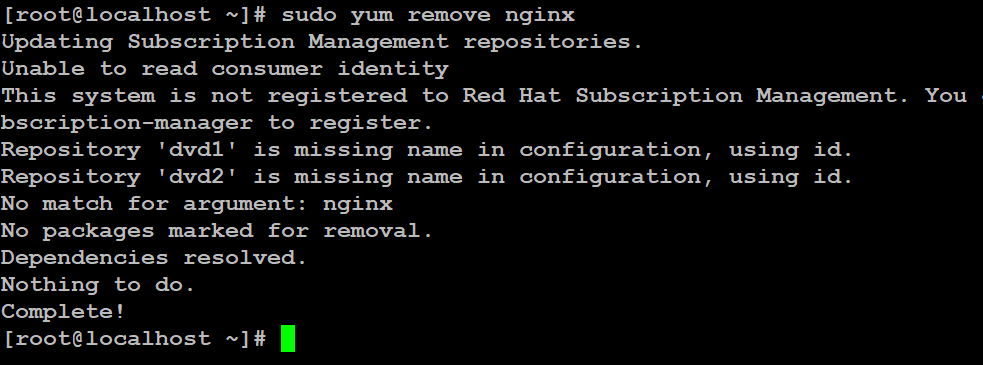
Use this command to remove an installed package.
Syntax:
sudo yum remove package-nameExample:
sudo yum remove nginxOutput:
4. Searching for Packages
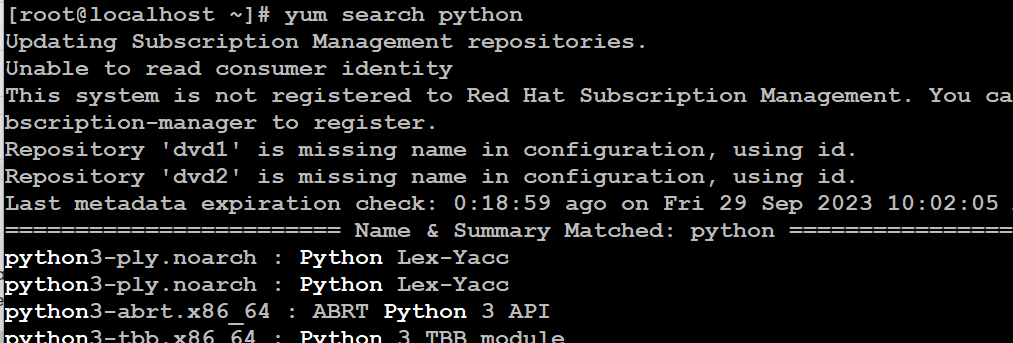
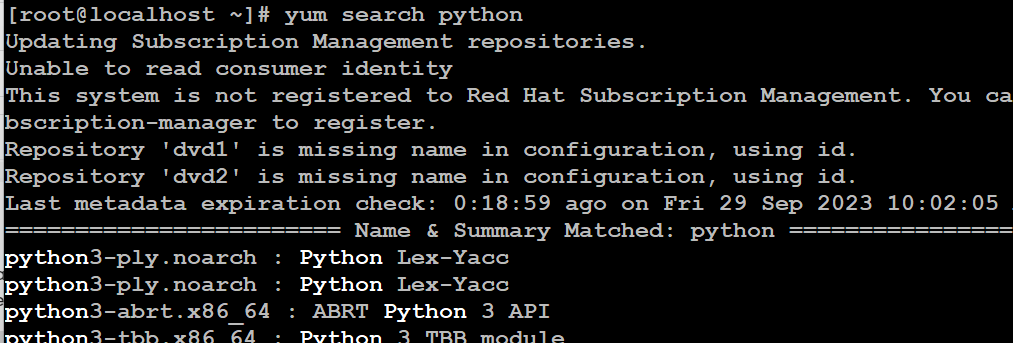
This command searches for packages using a keyword.
Syntax:
yum search keywordExample:
yum search pythonOutput:
5. Listing Installed Packages
This command lists all packages currently installed on the system.
Command:
yum list installedOutput:
6. Display Package Information
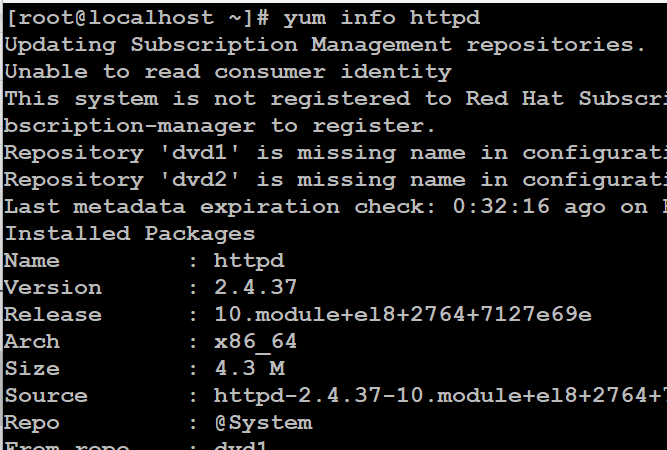
Use this command to get detailed information about a specific package, including its description, version, dependencies, and more.
Syntax:
yum info package-nameExample:
yum info httpdOutput:
7. Cleaning YUM Cache
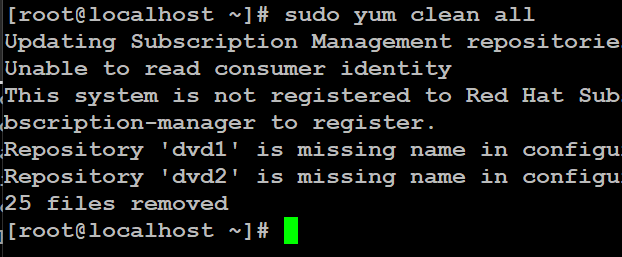
Over time, YUM accumulates cache data that can take up disk space. Running this command clears the YUM cache, helping to free up space on your system.
Command:
sudo yum clean allOutput:
8. Enabling and Disabling Repositories
YUM uses repositories to fetch packages. You can enable or disable specific repositories as needed, allowing you to control which packages are available for installation or updates.
sudo yum-config-manager --enable repositorysudo yum-config-manager --disable repository9. Checking for Updates Without Installing
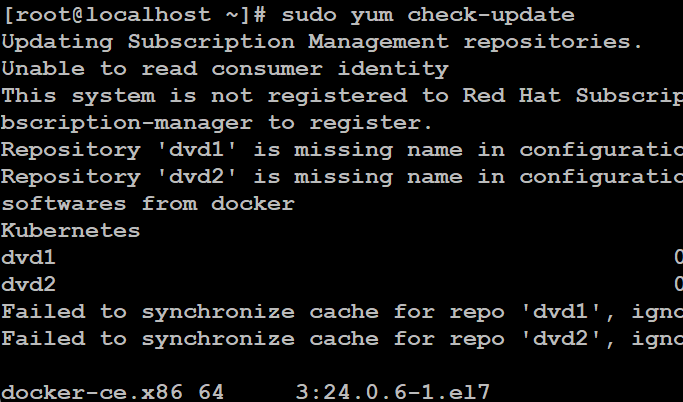
This command checks for available package updates without actually installing them. It's useful for previewing what updates are available before deciding to install them.
Command:
sudo yum check-updateOutput:
10. Installing Groups of Packages
YUM allows you to install predefined groups of packages, such as development tools or web servers, by specifying the group name. This can simplify the installation of multiple related packages.
Syntax:
sudo yum groupinstall group-nameExample:
sudo yum groupinstall "Development Tools"11. Removing Unused Dependencies
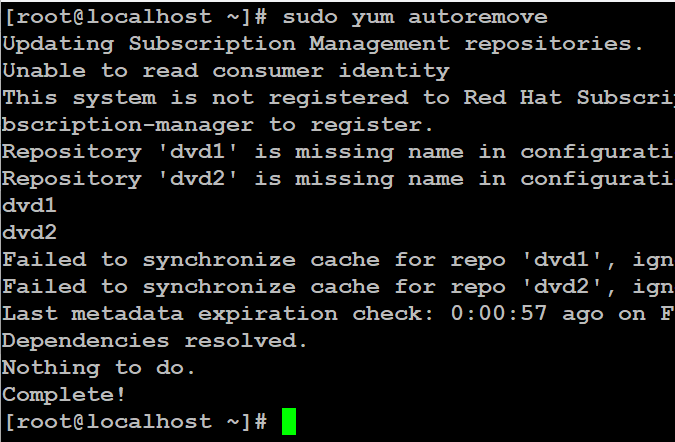
YUM can remove dependencies that are no longer needed by any installed package. This helps to keep your system clean and efficient by removing unnecessary files.
Command:
sudo yum autoremoveOutput:
12. Verbose Output
If you want more detailed information during YUM operations, you can use the `-v` (verbose) option. It will provide additional output about the installation process, which can be helpful for debugging or monitoring progress.
Syntax:
sudo yum -v install package-nameYUM Repositories
YUM repositories are storage locations that contain RPM packages along with metadata used by YUM to install, update, and manage software on Linux systems. These repositories allow YUM to fetch the correct packages and automatically resolve dependencies.
There are three types of YUM repositories:
1. Official Repositories
- Provided by the Linux distribution (RHEL, CentOS, AlmaLinux, Rocky Linux).
- Contain stable, tested, and security-patched packages.
2. Third-Party Repositories
- Maintained by external vendors or communities.
- Used to install software not available in official repositories (e.g., extra tools or applications).
3. Local Repositories
- Hosted locally on a server or filesystem.
- Commonly used in offline or enterprise environments with restricted internet access.