
Directories in Linux are special types of files that store metadata mappings to other files and directories, organizing the filesystem in a hierarchical structure.
- Directories act as containers for files and subdirectories.
- The root directory (/) is the top-level directory in Linux.
- Special directories like . (current directory) and .. (parent directory) are used for navigation.
- Each directory can contain multiple files and subdirectories.
To manage directories in Linux based system, follow the given steps carefully :
Step 1. Creating Directories
- To create a directory in Linux use the mkdir command which stands for make directory.
mkdir directory_name
Step 2. Listing Directories
- To list directories use the ls command. Adding the -l flag provides detailed information about each item, including whether it’s a file or directory. In the detailed output, entries that start with a ‘d’ (e.g., drwxrwxr-x) indicate directories.
Commands:
ls or
ls -l
- You can also list a directory's content by using ls command
ls path/to/directory
Step 3. Removing Directories
- To remove a directory you can use 'rmdir' but for that the directory must be empty
rmdir directory_name - To remove a directory which has contents in it use 'rm' with recursive flags '-r' or '-rf'
rm -rf directory_name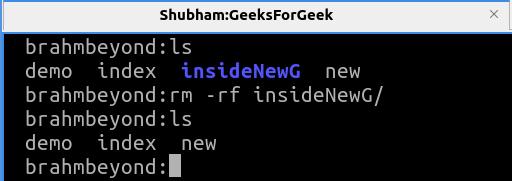
- This will delete the directory with all its content inside it.
Step 4. Changing Directories
- To change directories you have 'cd' with various attributes.
cd Directory_name- If directory is somewhere else then give the path also with directory name.
cd /path/to/directory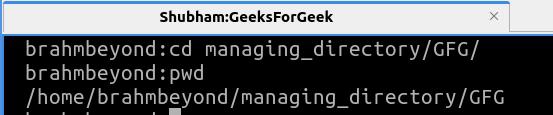
- To move back to last directory you were in
cd -- To move to the parent directory of your current directory use
cd ..- To move back to the default directory use
cd ~- To check in current directory use (while it has no much use case other than scripting but it is still useful to know it)
cd .Step 5. Copying Directories
- To copy a directory, use the cp command with the -r (recursive) flag to ensure all contents inside the directory are copied as well.
- You can copy a directory from any location by providing the full path of both the source and destination.
- This command works even if you’re not in the parent directory of the directory being copied.
- Make sure you have the required permissions to access and copy the directory.
cp -r source_dir destination_dir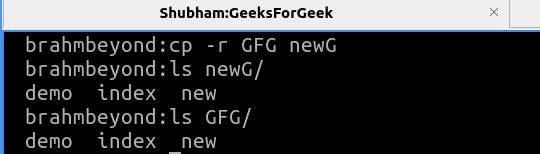
Step 6. Moving or Renaming Directories
- To move or rename a directory, for both 'mv' command is used.
- To move a directory provide the path of source directory and destination path. You can move a directory from and to anywhere, you just need to provide correct path with directory name which you want to move and the destination where you want to move, required you have permission to do so.
mv source_dir /path/to/destination
- To rename a directory you need to be present in the parent directory. just provide the old name and followed by new name.
mv old_name new_name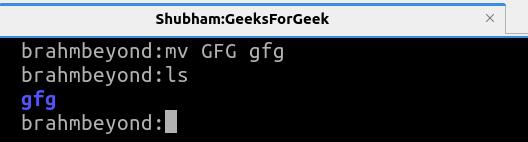
Step 7. Checking Directory Size
- To check a directory/files size use 'du' command and to get in human readable format (KB,MB,GB) use '-h' with it.
du -h