
Linux file permissions form the foundation of the system’s security model. They define who can read, write, or execute files and directories.
1. The Three Basic Permissions
Every file or directory has three types of permissions:
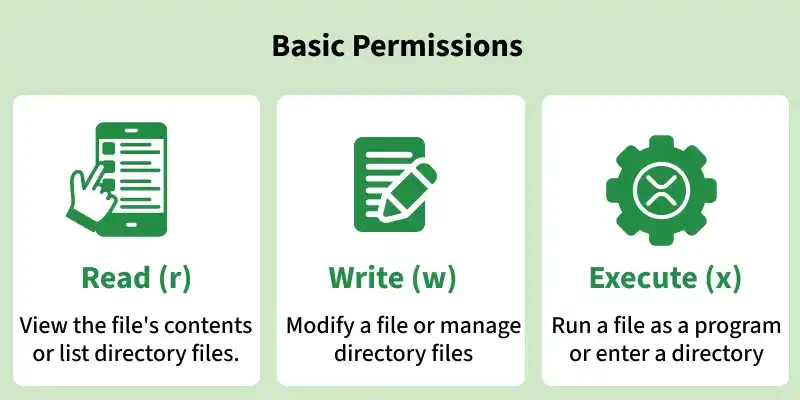
2. Ownership and Permission Groups
Permissions are assigned to three categories of users:

File Permission: Operation Chart
| Operators | Definition |
|---|---|
| `+` | Add permissions |
| `-` | Remove permissions |
| `=` | Set the permissions to the specified values |
Note: All these permissions are being granted at three different levels based on their group.
Permission Groups in Linux
First, Permissions are represented as nine characters. Each of the three "rwx" characters refers to a different operation you can perform on the file.
---     ---     ---
rwx     rwx     rwx
user    group   other
User, Group, and Others Option in Linux File Permission
| Reference | Class | Description |
|---|---|---|
| `u` | user | The user permissions apply only to the owner of the file or directory, they will not impact the actions of other users. |
| `g` | group | The group permissions apply only to the group that has been assigned to the file or directory, they will not affect the actions of other users. |
| `o` | others | The other permissions apply to all other users on the system, this is the permission group that you want to watch the most. |
| `a` | All three | All three (owner, groups, others) |
Checking Permission of Files in Linux
Let's dive in to understand the possible methods to check all the desired details of a file including "File Permission"
The 'ls' Command
Here's the command to execute it within the terminal. Let's show you with an example:
Input:
We're taking 'NarX' as a default file name:
ls -l NarX.txtOutput:
-rw-r--r-- 1 user group 46 Apr 14 16:37 NarX.txtThe above command represent the following information:
- The first character '-' indicates a file, if 'd' indicates a directory
- The next nine characters = (rw-r--r--) show the security
- The next column shows the owner of the file.
- The next column shows the group owner of the file. (which has special access to these files)
- The next column shows the size of the file in bytes.
- The next column shows the date and time the file was last modified.
The 'namei' Command
The 'namei' command is used to check the file path through each component of the file path. Here's the command to execute it within Terminal:
namei -l /path/to/your/fileThe 'stat' Command
Unlike 'ls -l' command, the "stat" command is used to pin point the file location. Here's how you can do it:
We're taking file name as "example.txt"
stat example.txtOutput:
  File: example.txt
  Size: 2210       Blocks: 8          IO Block: 4096  regular file
Device: 802h/2050d    Inode: 1288496     Links: 1
Access: 2024-11-18 10:50:56.000000000 +0000
Modify: 2024-11-18 10:50:56.000000000 +0000
Change: 2024-11-18 10:50:56.000000000 +0000
 Birth: -
Permissions in Linux
The command you use to change the security permissions on files is called "chmod", which stands for "change mode" because the nine security characters are collectively called the security "mode" of the file. You can modify permissions using symbolic notation or octal notation.
Symbolic Notation
Symbolic notation allows you to add, remove, or set permissions for specific users. Let's understand this using different example below:
Example 1: To Change File Permission in Linux
If you want to give "execute" permission to the world ("other") for file "xyz.txt", you will start by typing.
chmod oNow you would type a '+' to say that you are "adding" permission.
chmod o+Then you would type an 'x' to say that you are adding "execute" permission.
chmod o+xFinally, specify which file you are changing.
chmod o+x xyz.txtYou can see the change in the picture below.
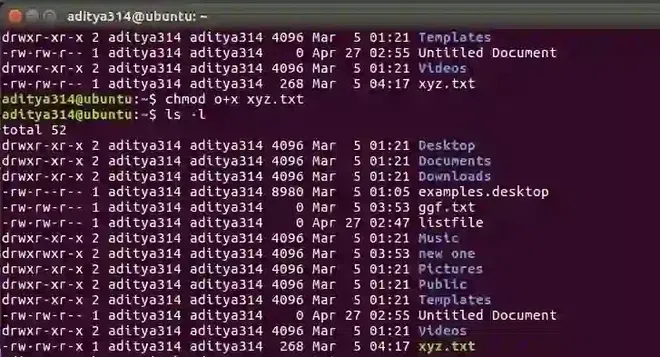
You can also change multiple permissions at once. For example, if you want to take all permissions away from everyone, you would type.
chmod ugo-rwx xyz.txtThe code above revokes all the read(r), write(w), and execute(x) permission from all user(u), group(g), and others(o) for the file xyz.txt which results in this.
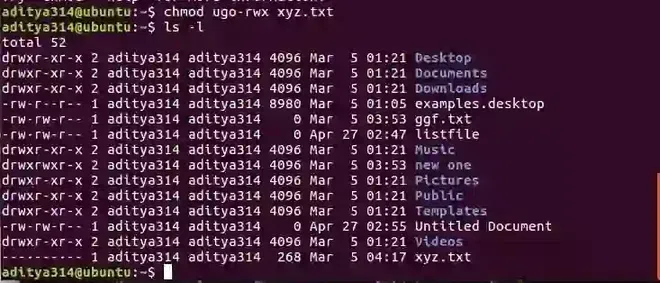
Example 2:
The code adds read(r) and write(w) permission to both user(u) and group(g) and revoke execute(x) permission from others(o) for the file abc.mp4.
chmod ug+rw,o-x abc.mp4Something like this:
chmod ug=rx,o+r abc.c- Assigns read(r) and execute(x) permission to both user(u) and group(g) and add read permission to others for the file abc.c.
- There can be numerous combinations of file permissions you can invoke revoke and assign. You can try some on your Linux system.
Octal Notations Permissions in Linux
The octal notation is used to represent file permission in Linux by using three user group by denoting 3 digits i.e.
- user
- group
- other users
Here's how to permissions are mapped:
- Read (r) = 4
- Write (w) = 2
- Execute (x) = 1
Permissions for owner, group, and others are represented by a three-digit octal value. The sum of permissions for each group gives the corresponding number.
Reference:
chmod oNow you would type a '+' to say that you are "adding" permission.
chmod o+Then you would type an 'x' to say that you are adding "execute" permission.
chmod o+xFinally, specify which file you are changing.
chmod o+x xyz.txtYou can see the change in the picture below.

Example:
The code adds read(r) and write(w) permission to both user(u) and group(g) and revoke execute(x) permission from others(o) for the file abc.mp4.
chmod ug+rw,o-x abc.mp4You can also use octal notations like this.
.webp)
Using the octal notations table instead of 'r', 'w', and 'x'. Each digit octal notation can be used for either of the group 'u', 'g', or' o'.
Security Permissions in Linux
The combination for the permissions are r,w,x, and -. Let's understand this briefly:
For example: "rw- r-x r--"
- "rw-": the first three characters `rw-`. This means that the owner of the file can "read" it (look at its contents) and "write" it (modify its contents). We cannot execute it because it is not a program but a text file.
- "r-x": the second set of three characters "r-x". This means that the members of the group can only read and execute the files.
- "r--": The final three characters "r--" show the permissions allowed to other users who have a UserID on this Linux system. This means anyone in our Linux world can read but cannot modify or execute the files' contents.
Special Permissions in Linux
Besides usual methods, Linux also offers special permission types to have more complex control over files.
1. The 'setuid' Command
The SET User ID permission allows user to execute programs with the privileges of its owner. Below is the example for the same:
chmod u+s program2. The 'setgid' Command
The Set Group ID permission allows files to run under file's group permissions (or ensures the files created in a directory inherits the group of the directory). Here's the command for the same:
chmod g+s directoryname3. The 'sticky bit' Command
This allows the user (only owner) to delete or rename files within the directory (regardless of other user's permissions). Here's a command for the same:
chmod +t directorynameSetting File Permissions for a Specific User
To set permissions for a specific user or group:
By using chown
Use chown to change file ownership:
chown user:group file.txtBy using chmod
Use chmod to modify permissions:
chmod 755 file.txt