
The su command (short for Substitute User) is a fundamental Linux utility that allows you to switch your current shell session to another user account. It is widely used in system administration to gain root access, test user permissions, and execute commands as different users.
- Temporarily switch to the root user for administrative tasks
- Log in as another user to test file and command permissions
- Execute commands with another user’s privileges
- Troubleshoot permission and access-related issues
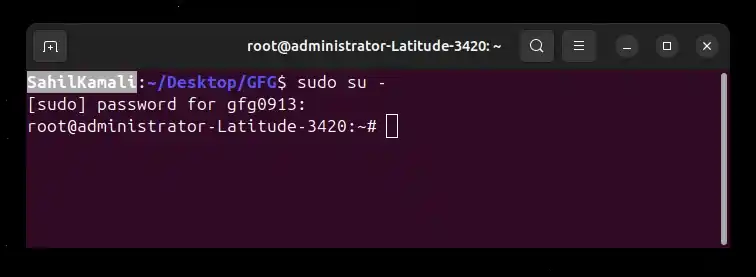
Example 1: Switch to the Root User with a Login Shell (Recommended)
Gain root (administrator) access with the correct root environment and PATH settings.
Command:
su -- su switches the current user
- - creates a login shell
- Loads root’s environment variables
- Changes the working directory to /root
Output:
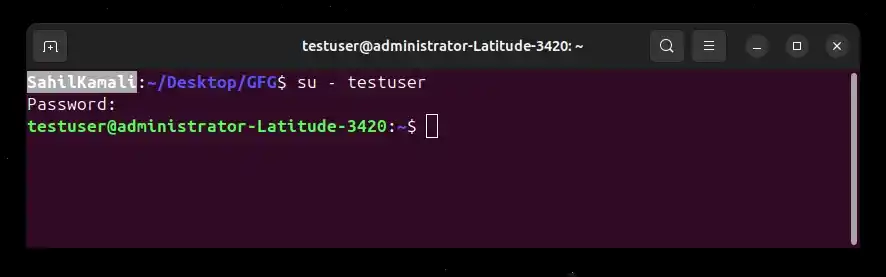
Example 2: Switch to a Specific User with a Login Shell
Work as another user exactly as if they logged in normally.
Command:
su - username- username is the target user account
- - ensures the user’s login environment is loaded
- Prevents PATH and permission-related issues
Output:
Syntax
su [OPTION] [USER]- su: Switches the current shell to another user account.
- [options]: Optional flags that control how the user switch occurs, such as starting a login shell or running a single command.
- [user]: The target user to switch to. If omitted, su switches to the root user by default.
Options Available in su Command
1. -, -l, --login
Creates a login shell for the target user. This loads the user’s environment variables, sets the correct PATH, and switches to the user’s home directory. This is the recommended and safest way to use su.
Syntax:
su - [user]- -, -l, --login: Start a full login shell
- user: Target user account (defaults to root)
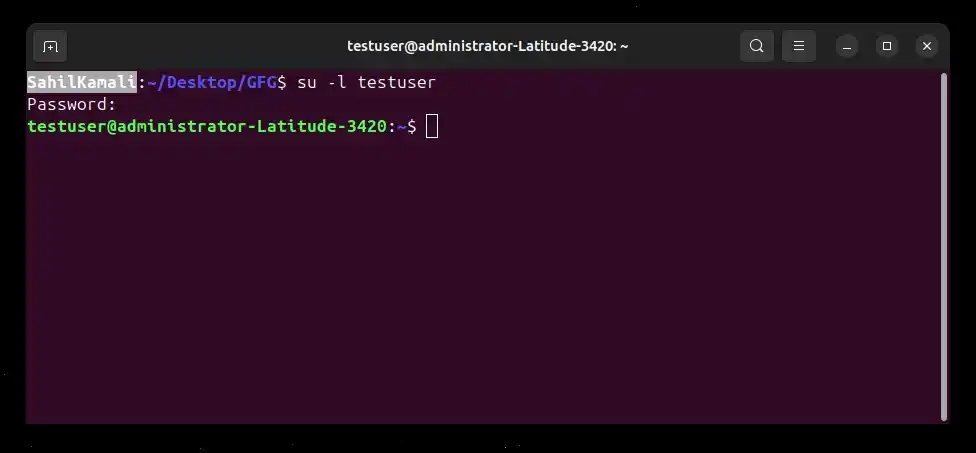
Example: Switching to User with Login Shell
Command:
su -l testuserOutput:
2. -c "command"
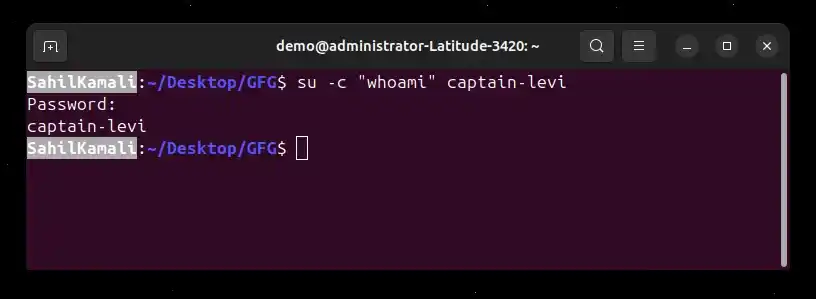
Executes a single command as another user and exits immediately. This does not open an interactive shell.
Syntax:
su -c "command" [user]- -c: Specifies the command to execute
- "command": Command to be run
- user: User under which the command runs
Example: Running a Command as Another User
Command:
su -c "whoami" captain-leviOutput:
3. -p
Preserves the current environment variables while switching users. The directory and PATH remain unchanged.
Syntax:
su -p user- -p: Preserve environment variables
- user: Target user account
Example: Preserving Environment While Switching User
Command:
su -p captain-leviOutput:
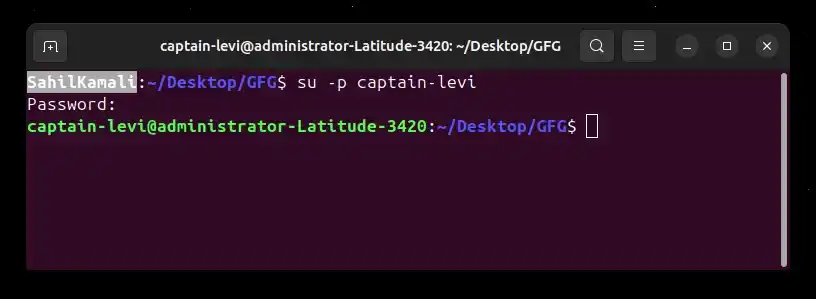
Note: This option is not recommended for general use due to security and PATH-related risks.
4. -s SHELL
Specifies the shell to be used when switching users instead of the default shell.
Syntax:
su -s /bin/shell user- -s: Defines the shell to use
- /bin/shell: Path to the shell binary
- user: Target user
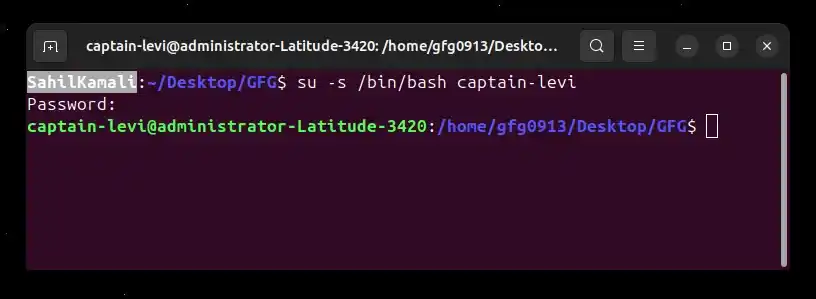
Example: Using Bash as the Login Shell
Command:
su -s /bin/bash captain-leviOutput:
5. -m (Preserve Environment – Legacy)
Preserves the current environment variables while switching users. This option behaves the same as -p and exists mainly for backward compatibility.
Syntax:
su -m user- -m: Preserve current environment
- user: Target user account
Example: Using -m to Preserve Environment
Command:
su -m captain-leviOutput:
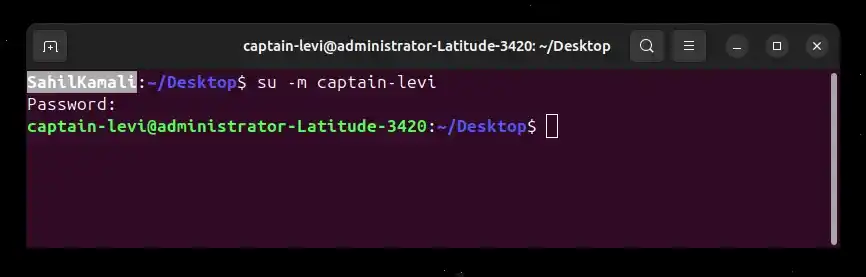
Note: Not recommended for routine use due to security risks.
6. -g GROUP
Sets a custom primary group for the user after switching users. By default, su assigns the user’s standard primary group. This option is useful when testing group-based file permissions.
Syntax:
su -g group_name user- -g: Sets the primary group
- group_name: Group to assign
- user: Target user
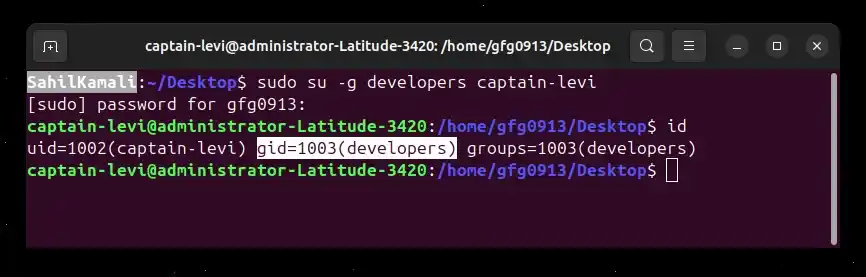
Example: Switching User with Specific Primary Group
Command:
su -g developers captain-leviOutput:
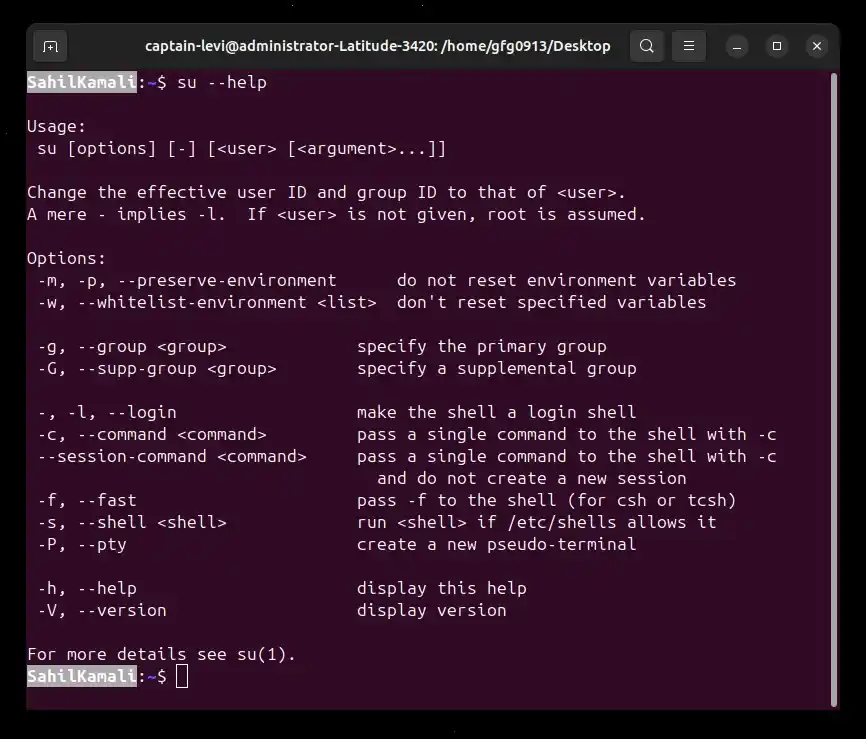
7. --help
Displays help information for the su command and exits. This option does not modify the system.
Syntax:
su --helpOutput:
Most Important Concept: su - vs su
The behavior of the su command depends on whether it is used with or without the - option. This difference directly affects environment variables, PATH, and the working directory.
su - [user] (Login Shell – Recommended)
Starts a login shell for the target user and closely simulates a full login session, similar to logging in from a terminal or SSH.
- Loads the target user’s environment variables from login configuration files
- Sets the correct PATH according to the target user’s profile
- Changes the working directory to the target user’s home directory
- Ensures commands run with the expected permissions and binaries
Syntax:
su - [user]Example: Switching to the root user using a login shell.
Command:
su -Output:
root@hostname:/root#Note: Using su - avoids environment and PATH conflicts and is the safest method for switching users.
su [user] (Non-Login Shell – Not Recommended)
Switches the user identity without starting a login shell. The existing environment from the current user remains active.
- Keeps the current environment variables
- Uses the existing PATH
- Remains in the current working directory
- Does not load the target user’s login configuration files
Syntax:
su [user]Example:
Switching to another user without loading their login environment.
Command:
su userOutput:
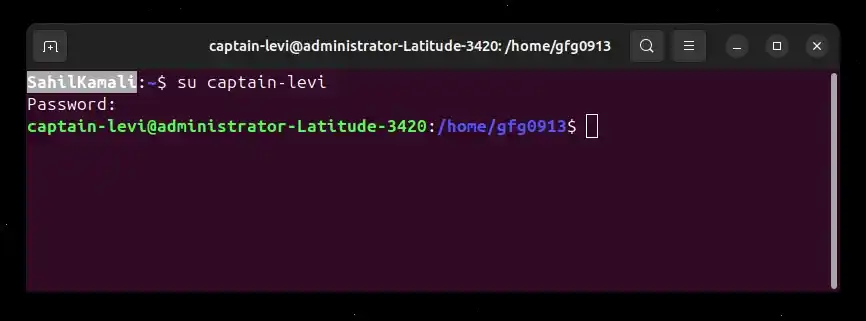
Note: Using this form can cause incorrect command execution and unwanted file ownership issues, especially when switching to the root user.