
The lscpu command in Linux is used to display detailed information about the CPU (Central Processing Unit) architecture of the system. It provides an overview of processor configuration such as CPU family, model, cores, threads, cache sizes, architecture type and other hardware characteristics.
- Displays CPU architecture information.
- Shows number of cores, threads and sockets.
- Provides cache and NUMA details.
- Useful for hardware inspection and system analysis.
Install the lscpu command
The lscpu command is part of the util-linux package and is usually pre-installed. If it is missing, install it using your distribution’s package manager.
1. Debian/Ubuntu-based Systems
Use the following command to install the util-Linux package, which includes lscpu:
Command:
sudo apt install util-linuxOutput:

2. Red Hat/CentOS-based systems (yum or dnf):
Use one of the following commands depending on your package manager:
- For systems using yum:
Command:
sudo yum install util-linux- For systems using dnf:
Command:
sudo dnf install util-linux3. openSUSE (zypper):
Command:
sudo zypper install util-linuxExample 1: Display Complete CPU Architecture Information
Command:
lscpuOutput:
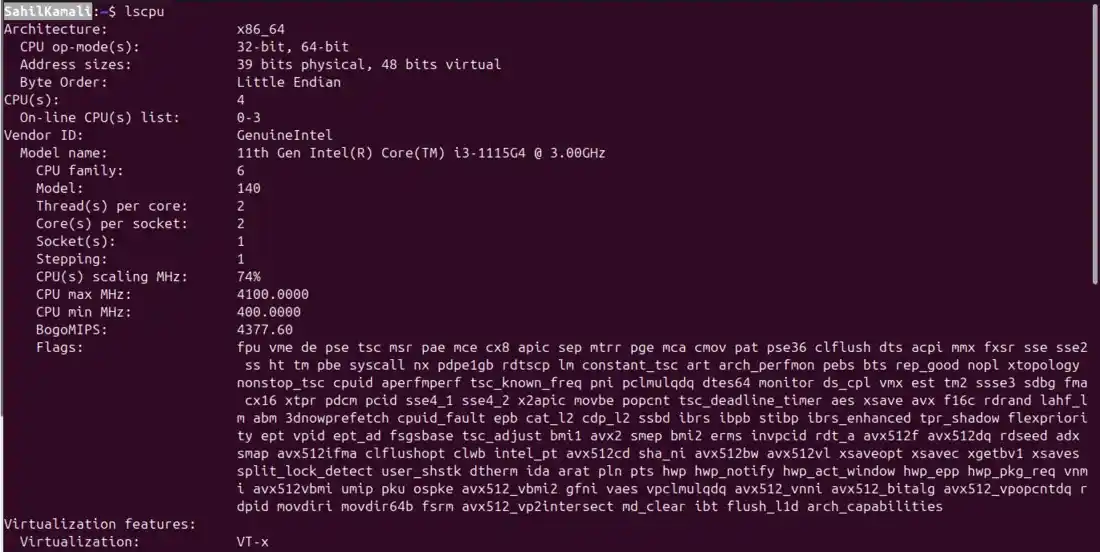
Syntax
lscpu [options]Options of lscpu Command
1. --bytes
Displays cache sizes and other size-related values in bytes instead of human-readable units like KB or MB.
Syntax:
lscpu --bytesExample: Display sizes in bytes
The command in Linux displays CPU information with sizes, such as cache sizes, represented in bytes instead of more human-readable units like kilobytes or megabytes. This option provides detailed and precise numerical values for CPU attributes.
Command:
lscpu --bytesOutput:
.jpg)
2. -e, --extended
Displays CPU information in an extended table format, including details such as CPU ID, core, socket, node and online status.
Syntax:
lscpu -eExample: Display Extended CPU Information
This command displays CPU information in a human-readable table format, including details about the architecture, model name and various CPU features.
Command:
lscpu -eOutput:

3. -p, --parse
Displays output in a parsable (CSV-like) format suitable for scripting and automation.
Syntax:
lscpu -pExample: Display CPU Information in Parsable Format
This command extracts and displays the CPU topology from the lscpu output in a parsable format.
Command:
lscpu -pOutput:

4. -a, --all
Displays both online and offline CPUs. This option must be used with -e or -p.
Syntax:
lscpu -a -eExample: Display Both Online and Offline CPUs
-a or --all option is used to display both online and offline CPUs in the output. You can only use this option with -e or -p.
Command:
lscpu --all -eOutput:

5. -b, --online
Displays only online CPUs that are currently active.
Example: Display Only Online CPUs
Using the --online option with lscpu displays information only about online CPUs, which are actively in use.
Command:
lscpu --online -eOutput:

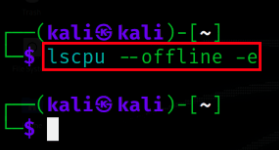
6. -c, --offline
Displays only offline CPUs that are currently disabled.
Syntax:
lscpu -c -eExample: Display Only Offline CPUs
The --offline option allows you to view information about CPUs that are currently offline.
Command:
lscpu --offline -eOutput:
7. --json
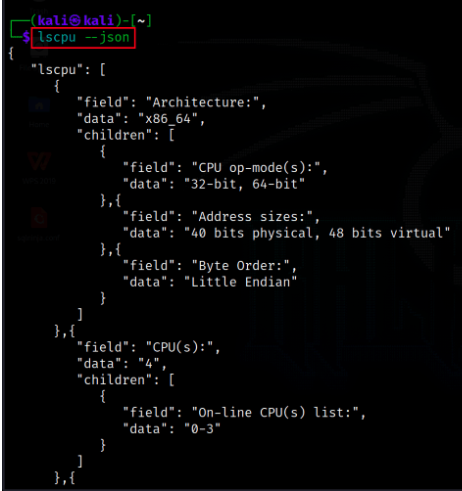
Displays CPU information in JSON format for programmatic access.
Syntax:
lscpu --jsonExample: Display CPU Information in JSON Format
This command presents CPU information in JSON format, making it easier for programmatic access or integration with other tools.
Command:
lscpu --jsonOutput:
8. --caches
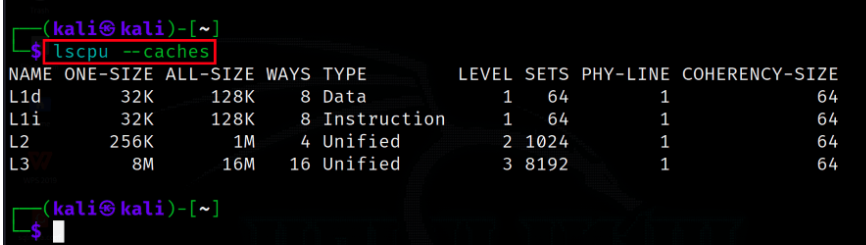
Displays detailed information about CPU caches including L1, L2 and L3 cache sizes.
Syntax:
lscpu --cachesExample: Display Cache Information
The --caches option in lscpu displays information about CPU caches, including data, instruction, unified caches, their sizes and more.
Command:
lscpu --cachesOutput:
9. -x, --hex
Displays CPU masks in hexadecimal format.
Syntax:
lscpu -xExample: Display Hexadecimal CPU Masks
This command extracts the hexadecimal masks of the CPU's available resources, which can be useful for specific system configuration or analysis.
Command:
lscpu --hex.jpg)
10. --sysroot DIRECTORY
Reads CPU information from a specified root directory instead of the current system.
Syntax:
lscpu --sysroot DIRECTORYExample: Read CPU Information from Root Directory
The --sysroot option allows you to read CPU information from an alternative root filesystem instead of the currently running system. This is useful for inspecting mounted Linux systems, containers or recovery environments.
Command:
lscpu --sysroot /Output:
.jpg)
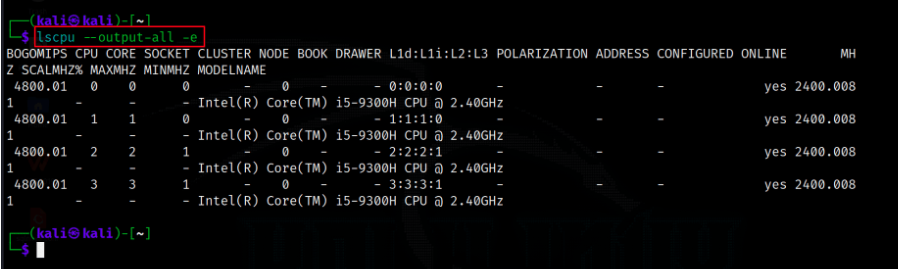
11. --output-all
Displays all available columns for extended, parse and cache output formats.
Syntax:
lscpu --output-all -eExample: Display All Available Columns
The --output-all option is used to view all the available columns for --extended, --parse and --caches.
Command:
lscpu --output-all -eOutput:
12. Output Redirection
Saves lscpu output to a file for documentation or troubleshooting.
Example: Save CPU Information to File
This command redirects the output of lscpu to a text file named cpu_info.txt, allowing you to save and review the information at a later time or share it with others.
Command:
lscpu > cpu_info.txtOutput:
.jpg)