
The groups command in Linux is used to display the group memberships of a user. It shows the primary group and all supplementary groups associated with a user account. This command is mainly used for permission verification, access control checks and troubleshooting user-related issues.
- Displays primary and supplementary groups of a user.
- Shows groups of the current user if no username is provided.
- Accepts multiple usernames as arguments.
- Useful for checking permission and access configuration.
Syntax
groups [OPTION]... [USERNAME]...- groups: Command to display group memberships.
- [OPTION]: Optional flags (e.g., --help, --version).
- [USERNAME]: Name of the user whose group membership you want to check.
- ... : Indicates multiple options or usernames can be provided.
Note: If no username is specified, the command displays groups of the current logged-in user.
Options of the`groups`command
1. `--help`
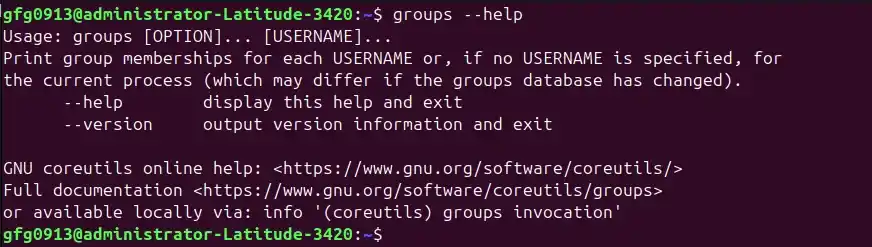
It displays usage information and basic details about the command. Use it when you want to understand the correct syntax or available options.
Command:
groups --helpOutput:
2. `--version`
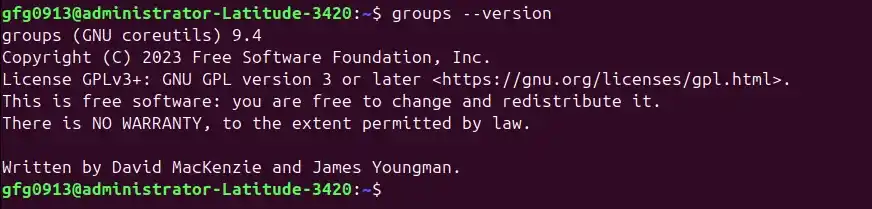
It Displays the installed version of the groups command. It useful for debugging or verifying the installed core utilities version.
Command:
groups --versionOutput:
Examples and Implementation of groups Command
Here are some common ways to use the 'groups' command to view user group memberships:
Example 1: Viewing Group Memberships of a Specific User
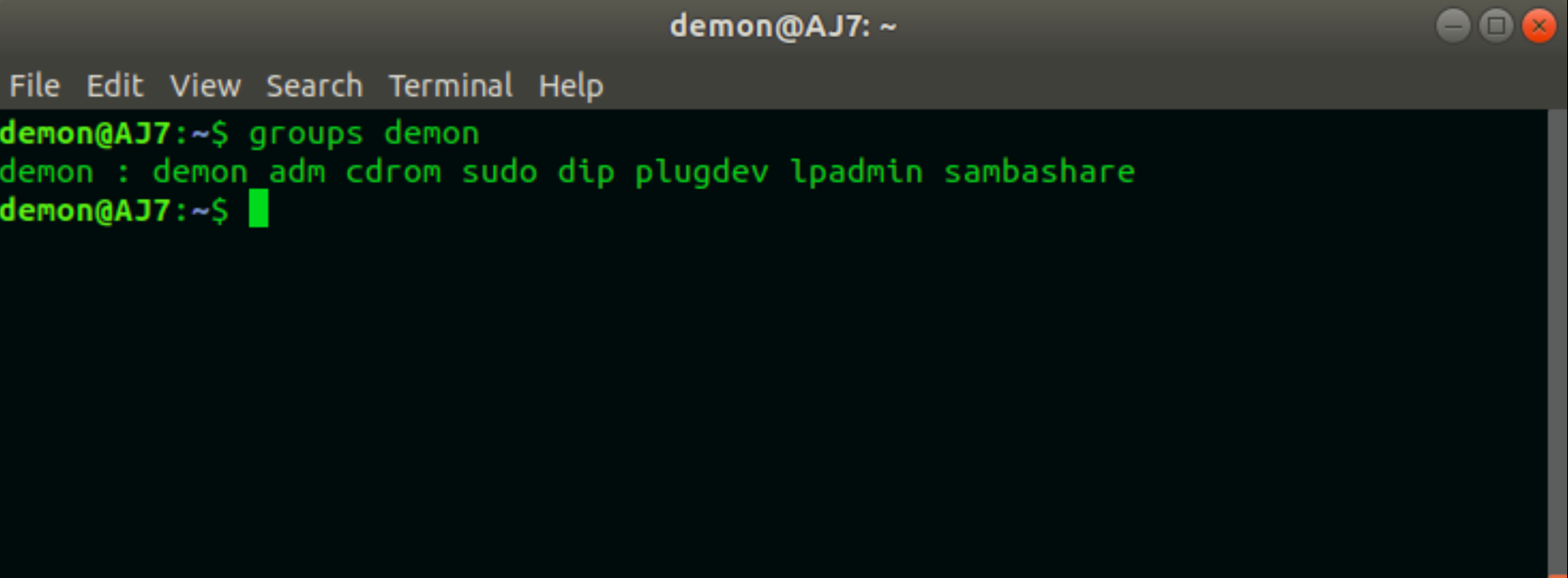
The most common use of the groups command is to check a specific user’s group memberships.
Syntax:
groups [username]Command:
groups demonOutput:
Example 2: Display Group Membership of Current User
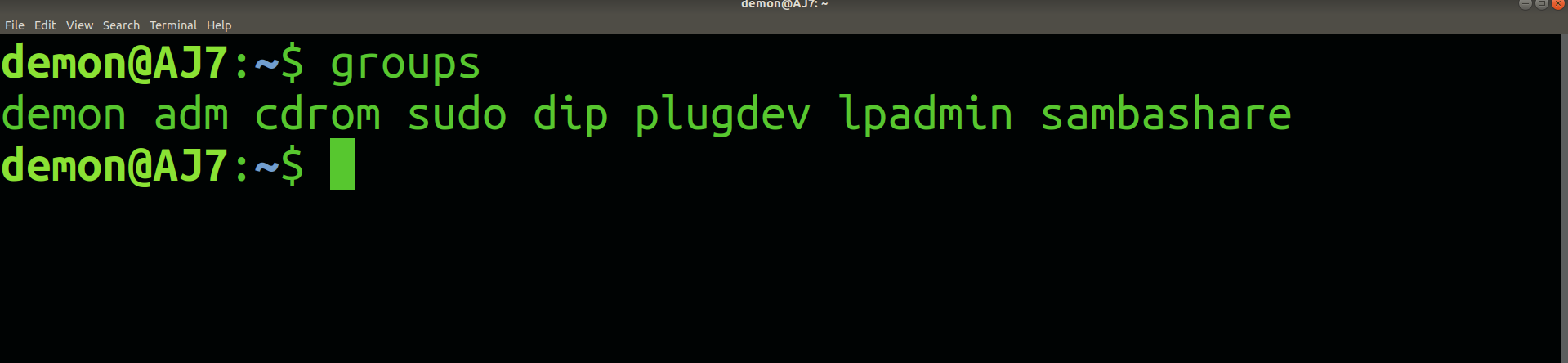
Here the current user is a demon. So, when we give "groups" command we only get groups in which 'demon' is a user.
Command:
groupsOutput:
Example 3: Display Group Membership of root User
This example shows how to check the group memberships of the root user account. The root user is the superuser in Linux and typically has full system privileges.
Command:
groups rootOutput:

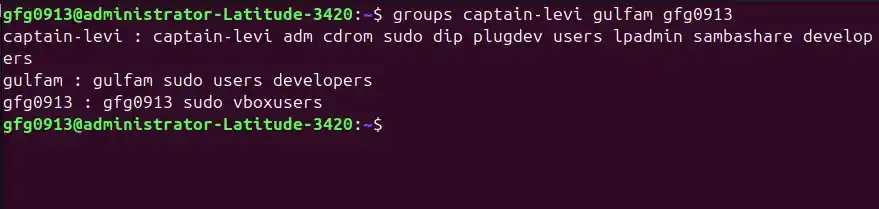
Example 4: Checking Multiple Users at Once
The groups command allows you to pass multiple usernames in a single execution. This helps administrators verify group memberships of several users quickly without running the command repeatedly.
Syntax:
groups user1 user2 user3- user1 user2 user3: Multiple usernames separated by spaces.
- The command will display group memberships for each user sequentially.
Command:
groups captain-levi gulfam gfg0913Output:
Important Note on Primary and Supplementary Groups
- Every Linux process inherits its group memberships from its parent process, including the primary group (usually the first in the list) and supplementary groups (additional groups).
- Once you log in, your session “locks in” your group memberships.
- If you modify the system group database after logging in (for example, using usermod -aG groupname username), these changes will not appear in your current session.
- To see updated groups, either log out and log back in, or use the newgrp command to switch to a new group within the current session:
newgrp groupname