
In Linux, a path is used to specify the exact location of a file or directory inside the filesystem. Since Linux follows a hierarchical directory structure starting from the root (/), paths play a crucial role in file navigation, command execution, scripting and system administration. Linux mainly uses two types of paths:
Absolute Path
An absolute path is the complete and exact location of a file or directory starting from the root directory (/). It clearly defines where a file exists in the filesystem, independent of the user’s current directory.
- Linux does not depend on the current working directory when an absolute path is used
- The system starts searching from the root directory (/)
- Each directory in the path is followed step by step
- The search continues until the target file or folder is reached
- This approach makes absolute paths reliable and unambiguous
- Works from any location in the system
- Does not change based on the current directory
Example
cat /home/user/projects/linux/notes.txtThis command tells the OS to print the content written inside the file notes.txt
/home/user/projects/linux/notes.txtThis path tells Linux:
- Start from /(root)
- Go to home
- Enter User
- Move to projects/linux
- Access the file notes.txt
Practical Uses
- Used in shell scripts to avoid path confusion
- Common in cron jobs and system services
- Preferred in system configuration files
Relative Path
A relative path defines the location of a file or directory with respect to the current working directory. It does not start from the root directory.
- Does not begin with a slash ('/')
- Dependent on the current directory
- Shorter and easier to type
- Changes meaning when the current directory changes
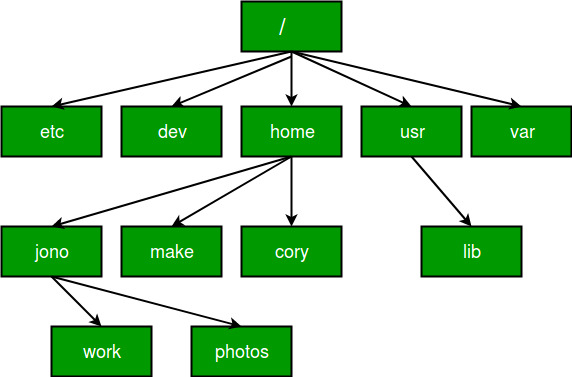
Example
If the current directory is:
/home/userThen the relative path:
cd projects/linux/Moves to:
/home/user/projects/linux/Special Symbols in Relative Paths
Linux provides special symbols to simplify relative paths:
.(dot) : Refers to the current directory..(double dot) : Refers to the parent directory
Examples
./script.sh- Runs script.sh in the current directory
cd ../../backup- Moves the current working directory to 2 directories up and then into backup
- These symbols make navigation faster and reduce the need for long paths
Common Mistakes to Avoid
- Using relative paths in scripts that run automatically
- Forgetting the current directory while using relative paths
- Mixing absolute and relative paths incorrectly
- Assuming Linux paths behave like Windows paths
When to Use Absolute or Relative Path
Follow the instructions below to understand when to use absolute paths and relative paths
Use absolute paths when
- Writing shell scripts
- Running background jobs
- Editing system configuration files
- When accuracy is critical
Use relative paths when
- Navigating directories manually
- Working within a known project structure
- Performing quick file operations