
Bitbucket is a Git-based repository hosting platform by Atlassian that helps developers manage source code, collaborate with teams, and track changes efficiently in a structured development environment.
- Provides Git-based version control for tracking and managing code changes.
- Enables team collaboration through pull requests and code reviews.
- Integrates with tools like Jira and CI/CD pipelines for streamlined workflows.
Working
Working with Bitbucket involves creating a remote repository and using Git commands to manage and synchronize code between local and remote environments.
Step 1: Create a Bitbucket Repository
Create a Bitbucket account, click Create Repository, and choose either public (accessible to everyone) or private (accessible only to you).
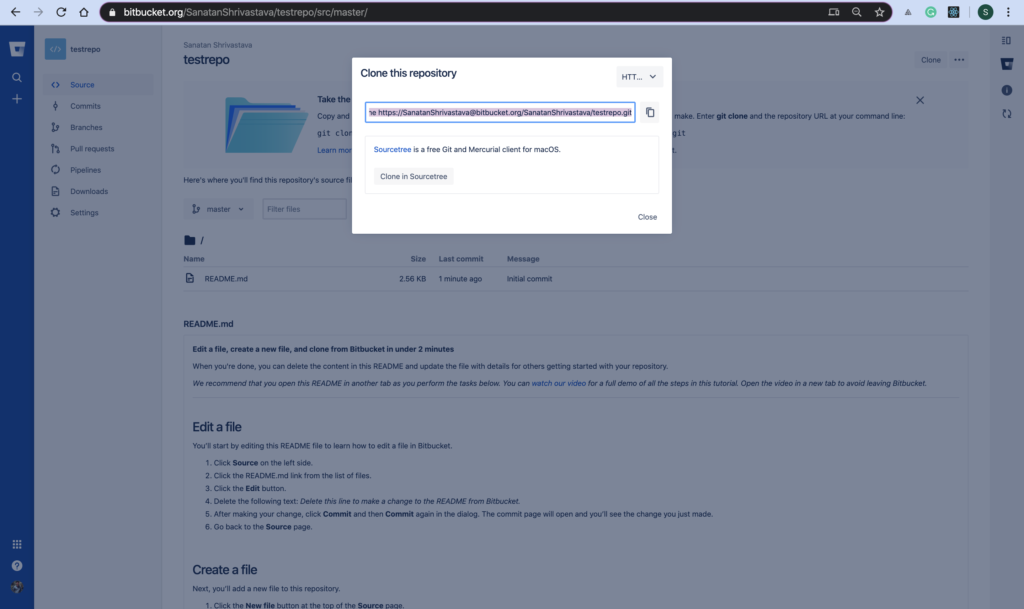
Step 2: Clone the Repository
Click the Clone button in Bitbucket and copy the repository URL (HTTPS or SSH).
git clone https://USERNAME@bitbucket.org/USERNAME/REPOSITORY_NAME.git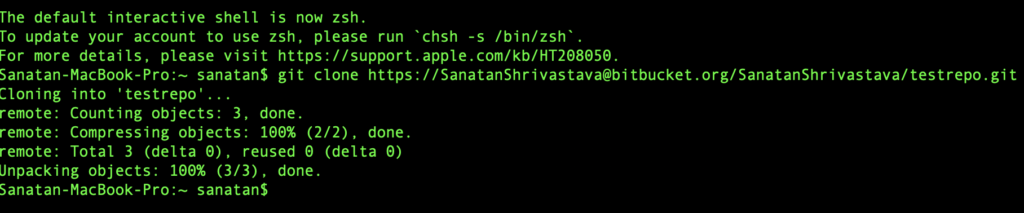
Clone is the process of copying a remote repository to your local machine without affecting the original repository.
Step 3: Check Repository Status
git status Shows current state of files (tracked/untracked/modified).
Step 4: Create and Add a File
echo "This is a test file" >> file.txt
git add file.txt
Creates a file and adds it to staging area

Step 5: Commit and Push Changes
git commit -m "Initial Commit"
git push origin master- Commit: Saves changes locally.
- Push: Uploads changes to Bitbucket.


Step 6: Pull Updates from Repository
git pull
git pull origin master
git pull --all
Fetches latest changes from Bitbucket to local machine
Step 7: Work with Branches
Create a Branch:
git branch testbranch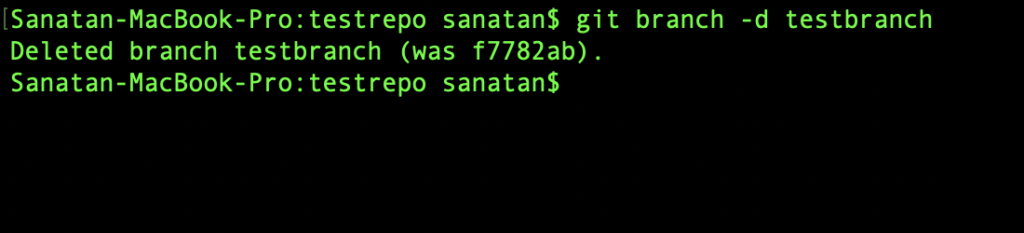
Switch Branch:
git checkout testbranchMerge Branch:
git merge branch_name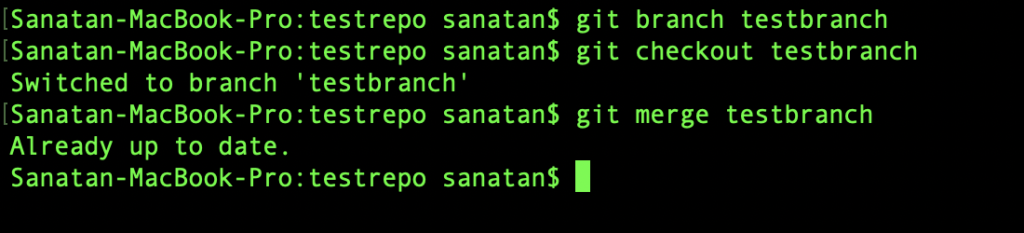
Delete Branch:
git branch -d branch_nameFor Existing Projects
Navigate to your project folder in the terminal and use Git commands like add, commit, push, and pull as needed.
| Command | Action performed |
|---|---|
| git init | git initialization. |
| git add --all | This stages the newly added files and prepares them for commit. |
| git remote add origin (repository_url) | Use the https or ssh URL link from the bitbucket website to connect to remote Bitbucket repository that you want to add the folder into |
| git commit -m | Initial Commit |
| git push origin master | Push the files into your Bitbucket repository |