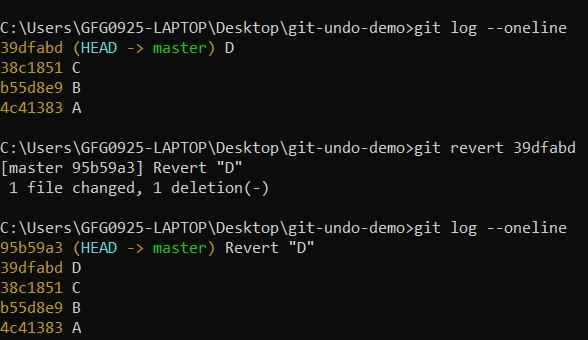
Undoing in Git refers to reversing changes in a repository, similar to an undo operation in a text editor. It helps restore previous states and correct mistakes efficiently.
- Fix errors by reverting unwanted changes.
- Restore files or commits to a previous state.
- Manage and control commit history safely.
Common Scenarios for Undoing the Changes
Common scenarios include undoing staged, unstaged, committed, or merged changes to restore the desired project state.
- Unstaging Changes: Remove changes from the staging area.
- Discarding Local Changes: Revert changes in the working directory.
- Amending the Last Commit: Modify the most recent commit.
- Reverting Commits: Create a new commit that undoes previous changes.
- Resetting Commits: Move HEAD to a previous commit (with/without changes).
Git Undo Operations
Return to a Previous Commit
Allows moving HEAD to an earlier commit to revisit or modify history.
- Navigate to any past commit state.
- Optionally preserve or discard changes.
- Useful for reworking recent commits.
1. Move to a Specific Commit (Detached HEAD)
Moves HEAD to a specific commit without affecting branches.
git checkout <commit-id>- Moves HEAD to a specific commit
- Creates a detached HEAD state
- New commits won’t affect any branch
Example:
git checkout B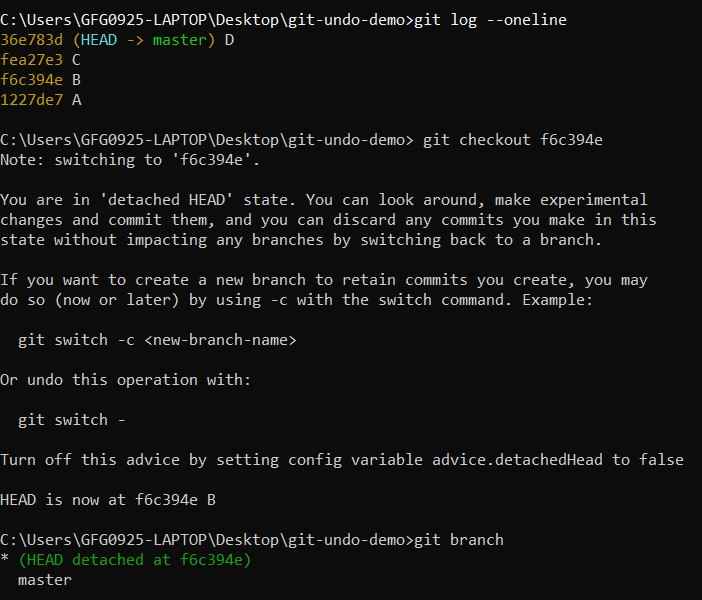
2. Create a Branch from That Commit
Creates a new branch from a previous commit to continue work safely.
git checkout -b <new-branch-name> <commit-id>Example:
git checkout -b new-branch B
3. Reset While Keeping Changes Staged
Moves HEAD back while keeping changes in the staging area.
git reset --soft <commit-id>Example:
git reset --soft C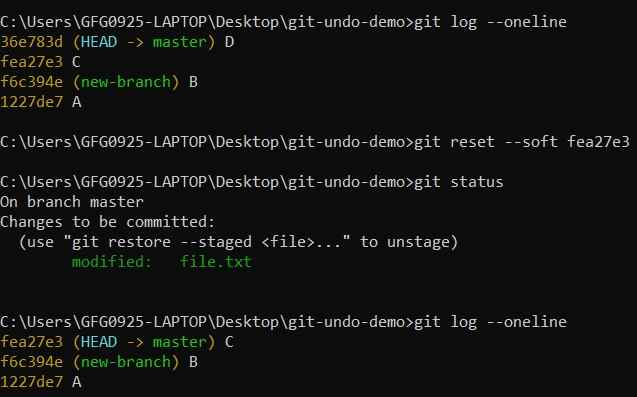
4. Reset and Keep Changes Unstaged
Moves HEAD back and keeps changes in working directory.
git reset HEAD~<n>Example:
git reset HEAD~2
5. Reset and Discard Changes Completely
Moves HEAD back and deletes all changes after that commit.
git reset --hard <commit-id>Example:
git reset --hard C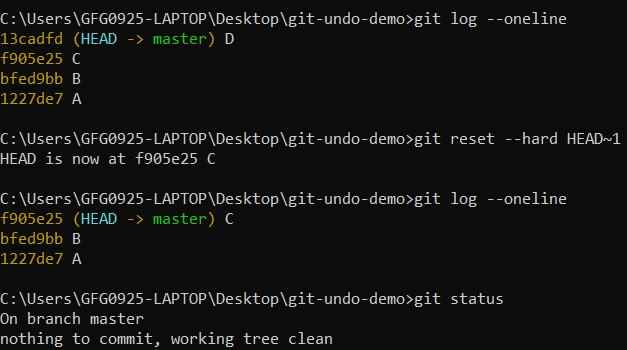
Undoing Local Changes
Reverts modifications in the working directory before committing.
- Discard unwanted file changes.
- Restore files to last committed state.
- Clean working directory quickly.
1. Undo Changes in a File
Restores a specific file to its last committed version.
git checkout -- <file_name>Example:
git checkout -- file.txt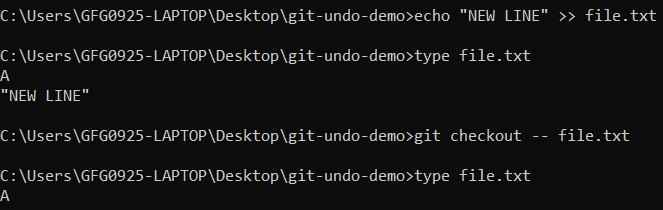
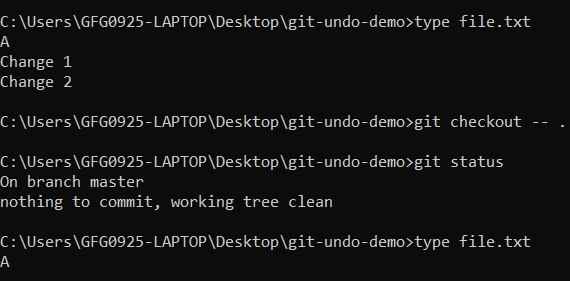
2. Undo All Local Changes
Discards all changes in the working directory.
git checkout -- .Example:
Using Reflog (Recovery Mechanism)
Tracks all HEAD movements and helps recover lost commits.
- Maintains history of actions (~90 days).
- Recovers deleted or reset commits.
- Useful safety mechanism.
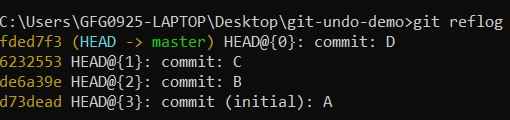
1. View Reflog History
Displays history of HEAD changes.
git reflogExample:
2. Restore Previous State
Moves repository back to a previous state.
git reset --hard <reflog-reference>Example:
git reset --hard HEAD@{1}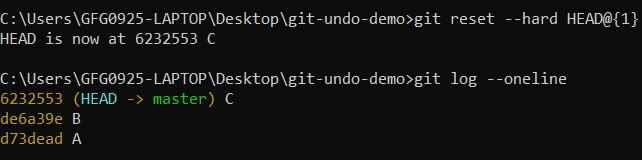
Undoing Merge
A merge combines changes from one branch into another. Undoing it depends on whether the merge has been pushed and whether you want to keep history intact.
1. Not Pushed
Removes merge commits before pushing to remote.
- Fix incorrect merges locally.
- Removes merge commit completely.
- Affects local history only.
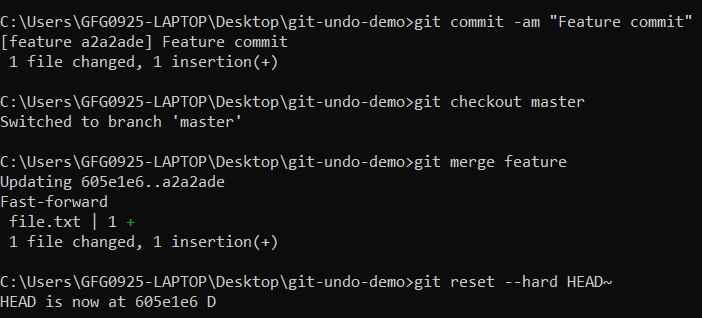
Undo Merge Commit
Removes the latest merge commit.
git reset --hard HEAD~Example:
2. Already Pushed
Safely reverses a merge commit without rewriting history.
- Safe for shared repositories.
- Creates a new commit and preserves history.
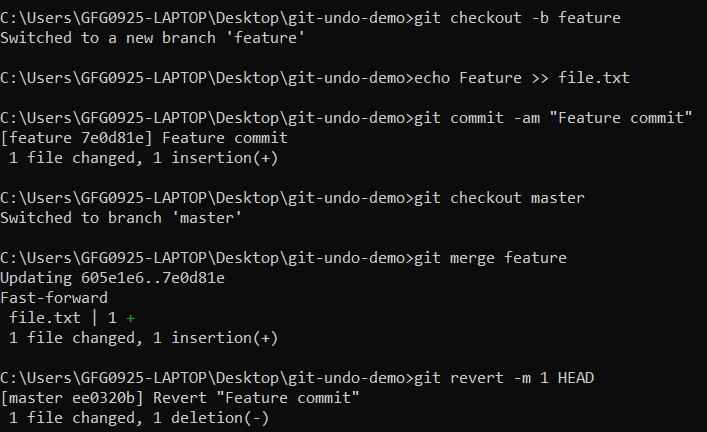
Revert Merge Commit
Reverses the changes introduced by a merge.
git revert - m 1 <commit-id>Example:
git revert -m 1 MNote: Running git revert opens an editor to edit the commit message. You can accept the default message or use --no-edit to skip the editor.
Reverting Commits
Creates a new commit to undo changes from previous commits.
- Does not delete history and safe for remote repositories.
- Preferred for shared work.
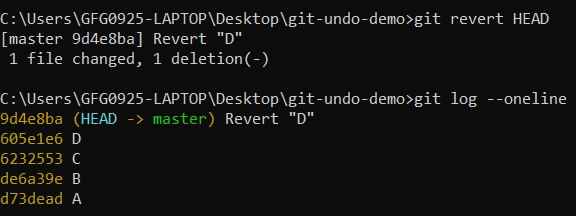
1. Revert Last Commit
Creates a new commit undoing the latest commit.
git revert HEADExample:
2. Revert Specific Commit
Reverses changes from a selected commit.
git revert <commit-id>Example:
git revert B