Git checkout and merge are commands used to switch branches and combine code changes in a repository. They play a key role in managing version control and integrating different development work.
- Enables movement between different code versions without affecting other branches
- Allows integration of completed work into a target branch
- Supports collaborative development by combining contributions
- May require conflict handling when changes overlap
- Maintains a structured workflow during development
Git checkout
Git checkout is used to switch between branches, create new branches, or restore previous versions of files. This command is essential for moving between different feature developments or viewing past states of your project.
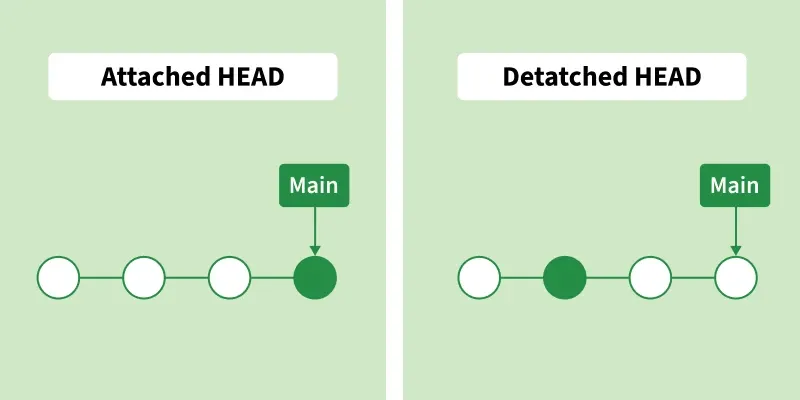
- Attached HEAD means your work is on a branch and commits are saved normally.
- Detached HEAD means you are on a specific commit and new commits are not linked to any branch.
- Attached is used for normal development, while detached is mainly for viewing past commits.
Functions of git checkout
Here are the key functions of git checkout:
- Switching Branches: Move between branches using git checkout feature-branch.
- Creating a New Branch: Create and switch using git checkout -b new-feature.
- Restoring Files: Revert changes using git checkout -- filename.
Usage of git checkout
- Used to navigate between branches during development.
- Helps inspect previous commits or restore files when needed.
Commands of git checkout
Some common commands of git checkout are discussed below:
1. git checkout
A HEAD pointer tracks the current branch or commit. The git checkout command moves the HEAD pointer to the specified branch (e.g., main).

2. git checkout -b feature-branch
The git checkout -b feature-branch command creates a new branch named feature-branch and automatically switches to it.

3. Check out a specific commit
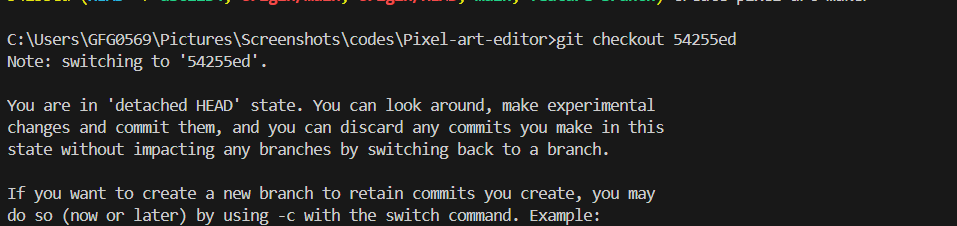
git checkout <commit-hash> switches to a specific commit and puts the repository in a detached HEAD state. In this state, new commits are not linked to any branch unless a new branch is created.
4. Restore a specific file to the last committed version
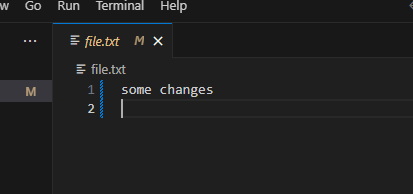
The git checkout --<file-name> command restores a file to its last committed state, discarding any uncommitted changes.

5. Discard all changes in the working directory
The git checkout . command restores all tracked files in the working directory to their last committed state, discarding uncommitted changes.

Git merge
Git merge is used to integrate changes from one branch into another. This command combines updates, so work done by different contributors or developed in parallel branches converges cleanly.
Working process of git merge
- Merges changes from one branch into another.
- If both branches have new changes, Git creates a special commit to combine them.
- If no new commits exist on the current branch, Git simply moves the branch pointer forward.
- If the same file is changed in both branches, Git requires manual conflict resolution.
- Unlike rebase, merging keeps the commit history of both branches intact.
Usage of git merge
- To combine changes: Git merge helps bring changes from one branch into another.
- To keep history clear: It keeps all past commits, making it easy to track changes.
Commands of git merge
Some common commands of git merge are discussed below:
1. Basic Merge
In a basic merge, you first switch to the target branch using git checkout, then run git merge <branch-name> to combine changes from the specified branch into the current branch.

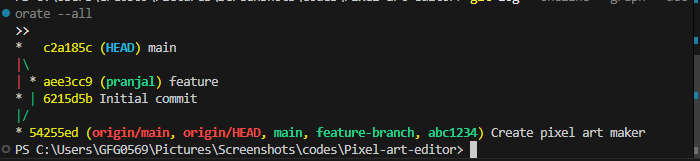
git log --oneline --graph --decorate --all(use this command to check if your branch has merged into the main branch)
2. Fast-Forward Merge
In a fast-forward merge, if the current branch has no new commits, Git simply moves the branch pointer forward to the latest commit of the target branch without creating a new merge commit.
git checkout A
git merge B

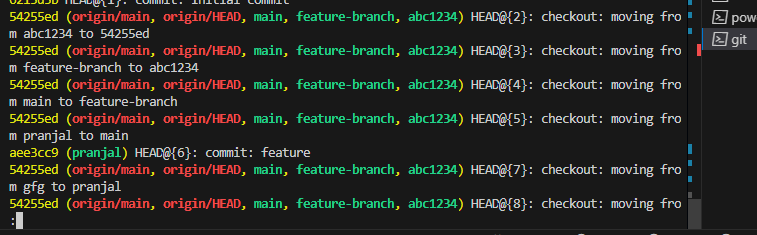
Use git reflog to view recent HEAD movements. In a fast-forward merge, the branch pointer moves forward without creating a merge commit, so no merge commit entry appears in the history.
3. Merge with a commit message
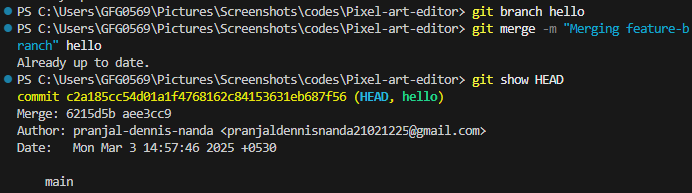
Merges with a custom commit message and then use git show HEAD to verify the latest commit details.
git merge -m 'message'
git show HEAD
4. Merge while resolving conflicts manually
First, switch to the target branch using git checkout <branch-name>, then run git merge <other-branch> to merge changes from the specified branch into the current branch, resolving any conflicts manually if they occur.
git merge branchname
git status

5. Merge and squash commits into a single commit
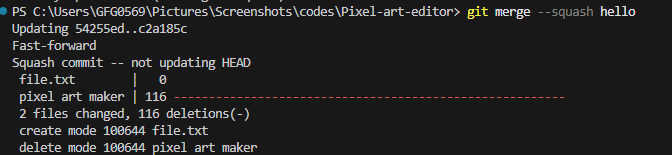
Squash merge combines multiple commits into a single commit, creating a cleaner and more concise commit history.
git merge --squash 'branchname'