
A Git repository (or repo) is a storage space where your project’s files and their complete history of changes are kept. It allows you to track, manage, and collaborate on code over time.
- Stores all files, branches, commits, and history of a project.
- Allows version control, so you can go back to any previous state of your project.
- Supports collaboration, enabling multiple developers to work together without overwriting each other’s changes.
- Can be cloned to create copies on different machines.

Types of Git Repositories
1. Local Repository
- Stored on your own computer.
- Allows you to make changes, commit them, and review your project history without needing an internet connection.
- Example: The
.gitfolder inside your project contains the local repository.
2. Remote Repository
- Hosted on a server like GitHub, GitLab, or Bitbucket.
- Enables multiple developers to collaborate on the same project.
- Supports operations like
push,pull, andfetchto synchronize changes with the local repository.
Types of Repositories based on Structure
Bare vs Non-Bare Repositories
| Bare Repository | Non-Bare Repository |
|---|---|
| Contains only the version history and Git data, no working files. | Contains working files along with the Git history. |
| Mainly used on servers for collaboration. | Used on local machines for development. |
Cannot directly edit files; only supports Git operations like push and fetch. | Files can be edited directly; supports all Git operations including commit and merge. |
Usually ends with .git extension. | Does not usually end with .git extension. |
| Acts as a central repository for multiple developers. | Acts as a local copy for development and testing. |
Initialize a Git Repository
Before you can start tracking files, you need to initialize a repository in your project folder. This is done with the git init command.
$ git initSyntax And Usage Of `git add`
$ git add file_nameThe following are the different ways to use add command:
- To add all the working area files in the current repository to the staging Area following command is used:
$ git add .- Adds all changes (new, modified, and deleted files) to the staging area.
$ git add --all- To add all files with extension .txt of the current directory to a staging area.
$ git add *.txt- To add all text files with .txt extension of the docs directory to staging area.
$ git add docs/*.txt- To add all text files of a particular directory(docs) to staging area.
$ git add docs/- To add all files in a particular directory(docs) to staging area.
git add "*.txt"Moving From Staging Area To Commit Area In A Git Repository
Committing changes from the Index Committing process is done in the staging area on the files which are added to the Index after git add command is executed. This committing process is done by the use of git commit command.
Syntax And Usage Of `git commit`
$ git commit -m "Add existing file"This commit command is used to add any of the tracked files to staging area and commit them by providing a message to remember.
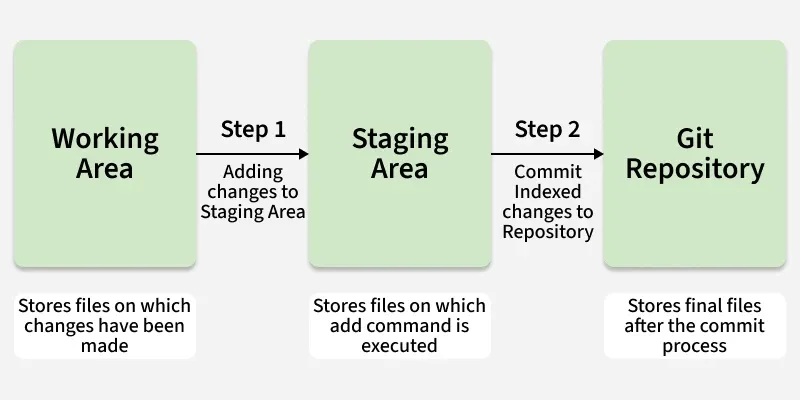
Cloning And Synchronizing With Remote Repositories
Git lets users clone repositories to their local machine, creating separate copies. To sync changes with others, Git provides commands to synchronize local repositories with remote one.
- push
- pull
Git Push And Pull Commands
Git Push
This git push command is used to push all the commits of the current repository to the tracked remote repository. This command can be used to push your repository to multiple repositories at once.
Syntax
$ git push -u origin masterTo push all the contents of our local repository that belong to the master branch to the server (Global repository).
Git Pull
The git pull command updates your local repository by fetching and merging changes from the remote repository. It ensures your copy stays synchronized when others have made updates.
Syntax
$ git pullAdditional Git Commands
Here are some more git commands that you might use when working on a project:
Git Status
It is used for checking the status of git repository, i.e., if the files are committed or not, files in staging area or untracked file.
Syntax
$ git statusGit Log
It is used to track all the changes made in the repository, providing the information on contributors and their contributions.
Syntax
$ git log.gitignore
You may use .gitignore if you want to hide any file when uploading online. Just simply create a .gitignore file, and write all the files names you want to ignore.
Git Merge
It is used to merge two branches within the same repository. It combines the changes from one branch into another (usually merging a feature branch into the main branch) without losing history.
Syntax
$ git merge <branch-name>Git Checkout
Git checkout is a command used to switch between branches or view a previous version of your project by moving the HEAD pointer to a different commit. It does not permanently rollback your project-it simply allows you to explore or temporarily switch to an older commit using its hash from git log.
Syntax
$ git checkout <hash-code>