
Jenkins and Git integration using SSH keys enables secure, password-less authentication for accessing repositories, allowing automated build and deployment processes.
- Uses SSH keys for secure authentication between Jenkins and Git.
- Eliminates the need for username and password login.
- Enables automated code fetching and deployment.
- Improves security and efficiency in CI/CD pipelines.
Prerequisites
Ensure required tools and platform access are available before configuring integration.
Steps to Integrate Git in Jenkins
Set up Jenkins to connect with Git repositories for automated code access and build execution.
Configure Git and Set Up SSH Keys in Jenkins
Establish secure communication between Jenkins and GitHub using SSH-based authentication.
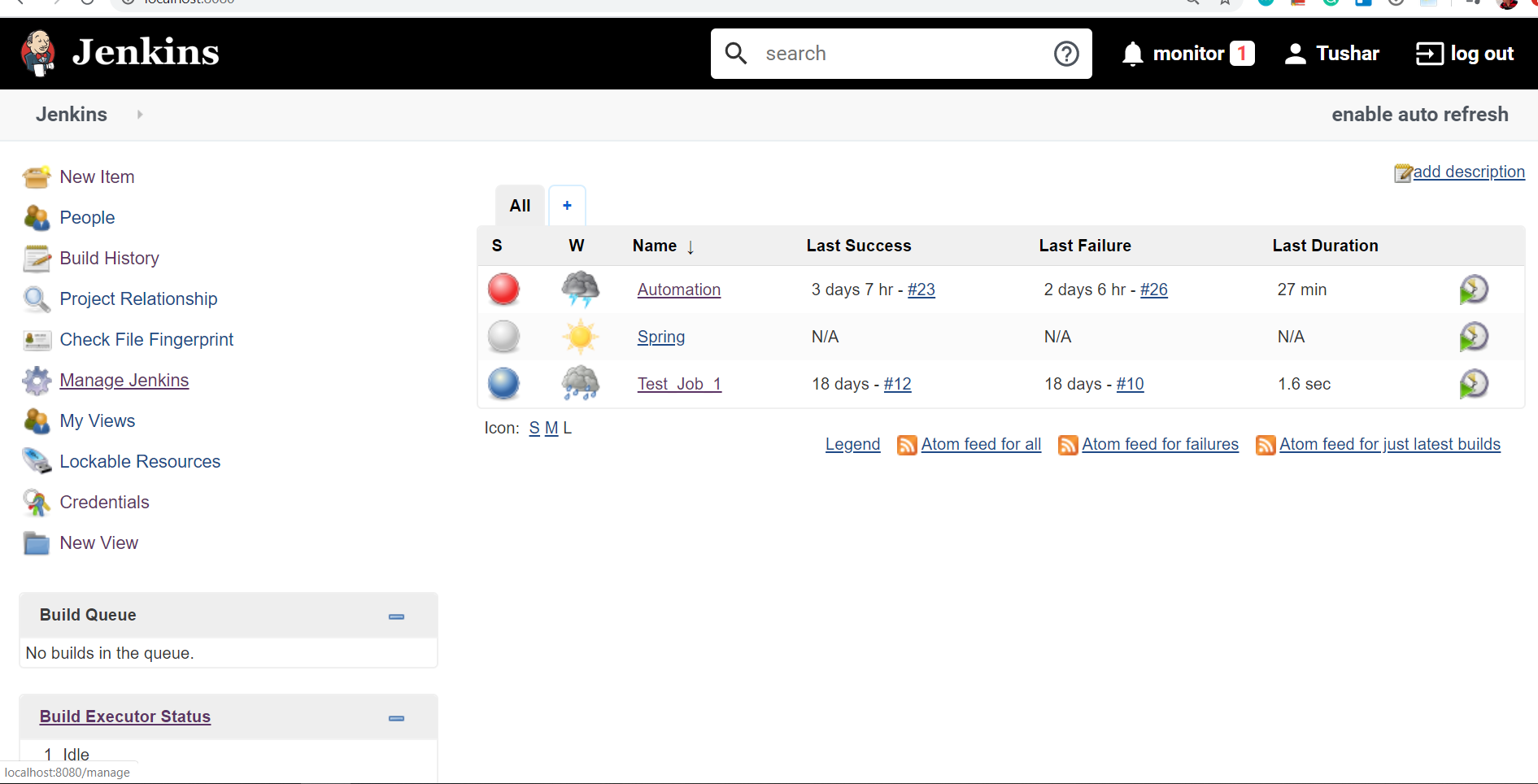
Step 1: Click on Manage Jenkins
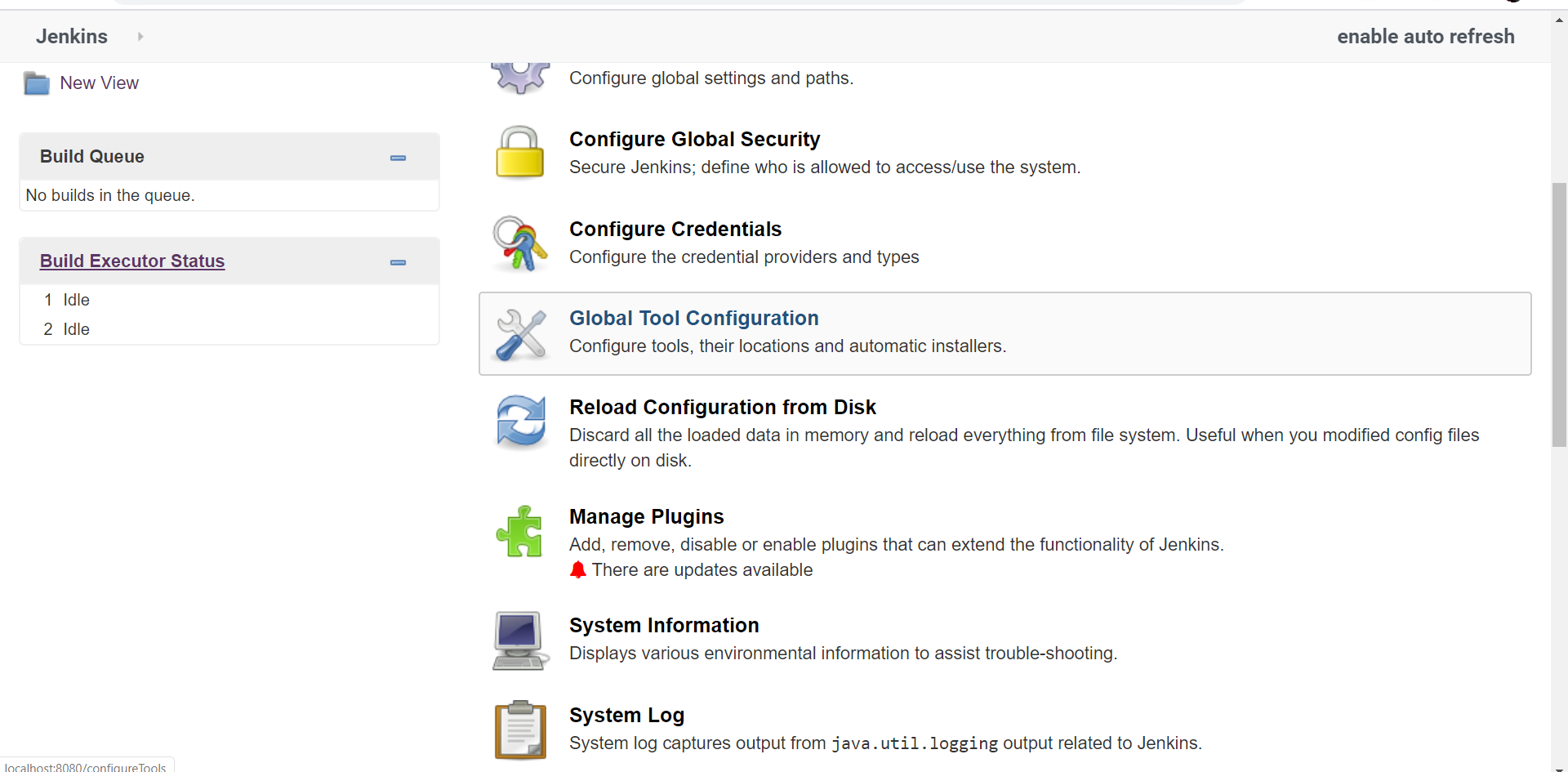
Step 2: Click on Global Tool Configuration
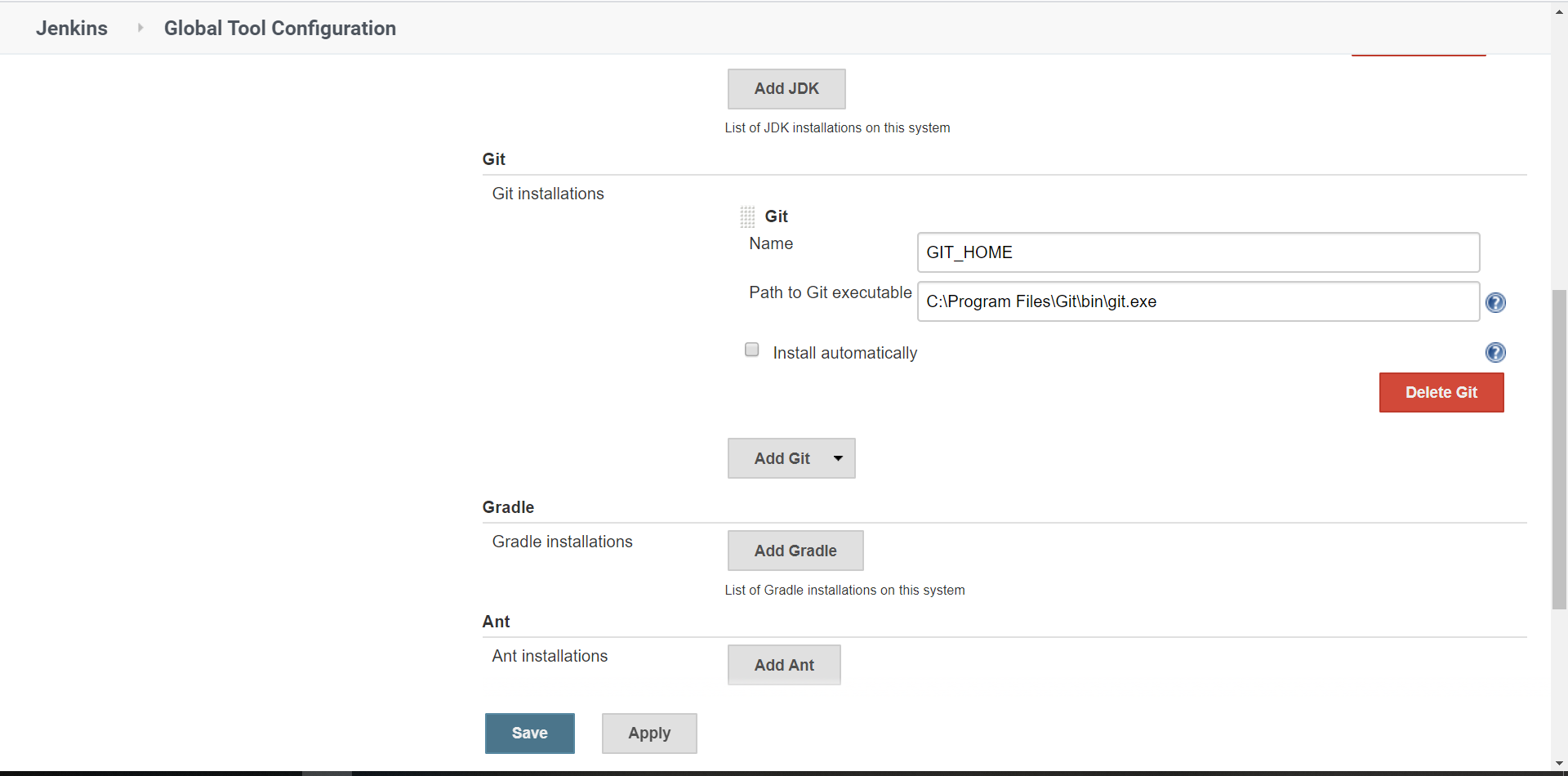
Step 3: Set your git home location i.e. give the path of git in your system
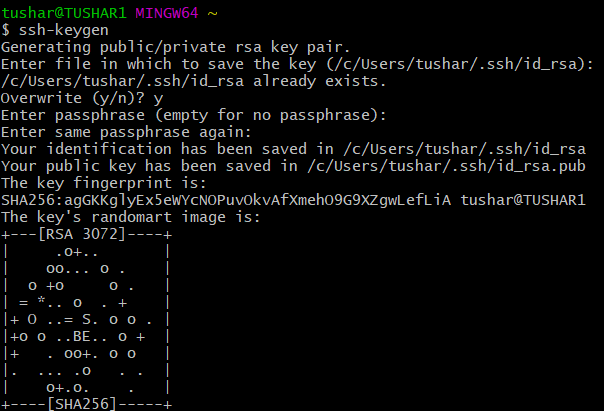
Step 4: Generate SSH keys using
ssh-keygenThis creates id_rsa (private key) and id_rsa.pub (public key) in the .ssh folder
Step 5: Go to GitHub > Settings > SSH and GPG Keys > Click New SSH Key
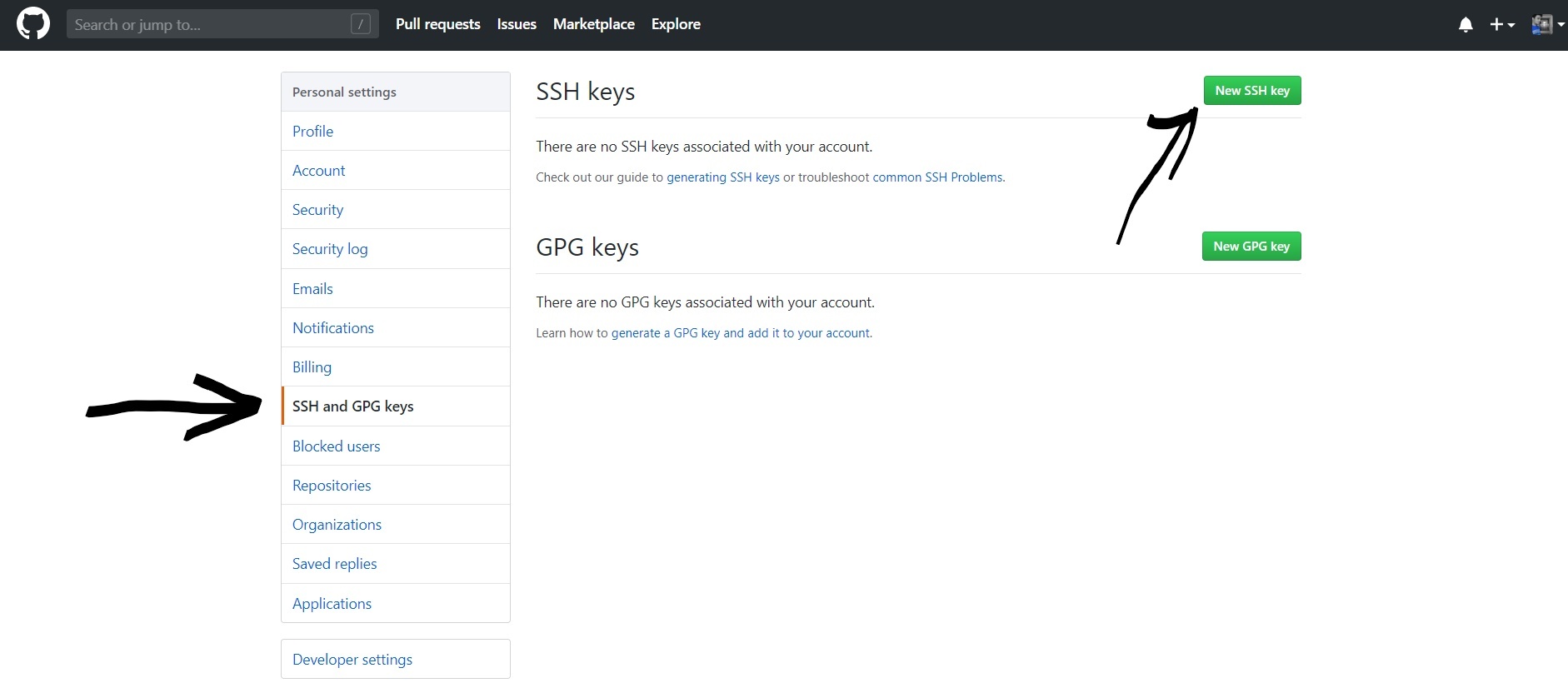
Step 6: Copy the id_rsa.pub key and paste it into GitHub, then save it.
Add Credentials in Jenkins
Add SSH credentials in Jenkins to enable secure authentication with the Git repository.
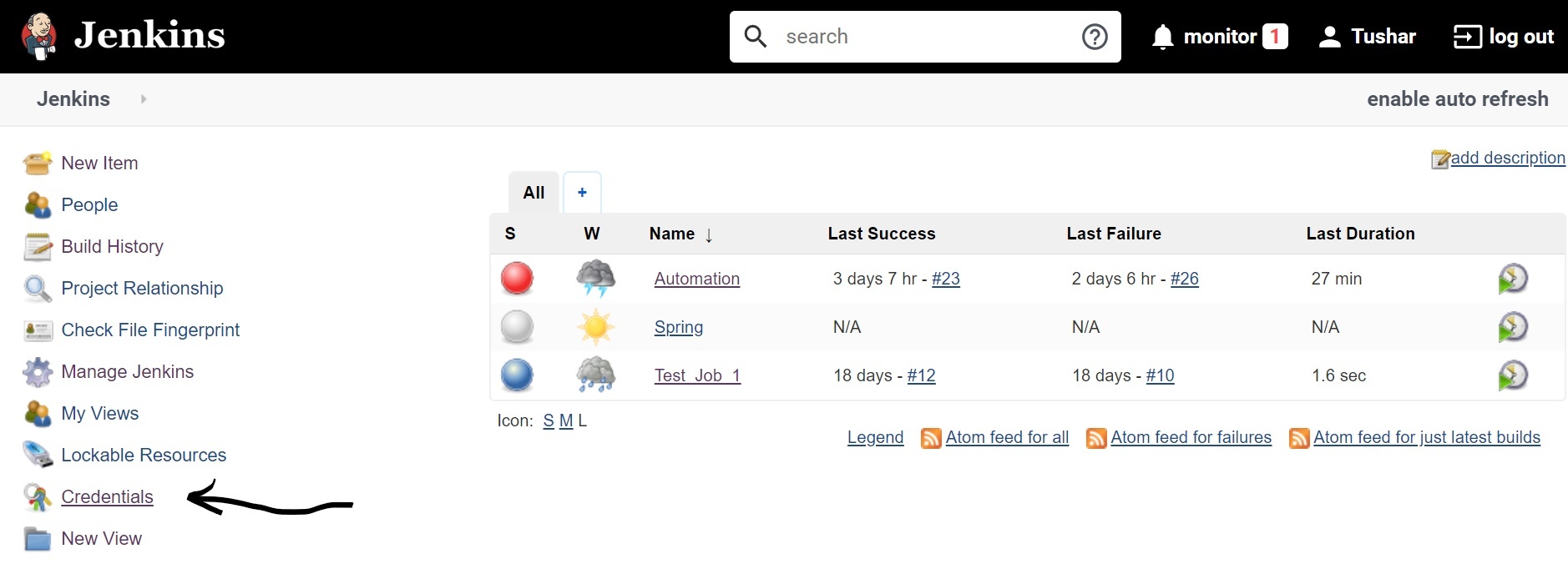
Step 1: Click on the System
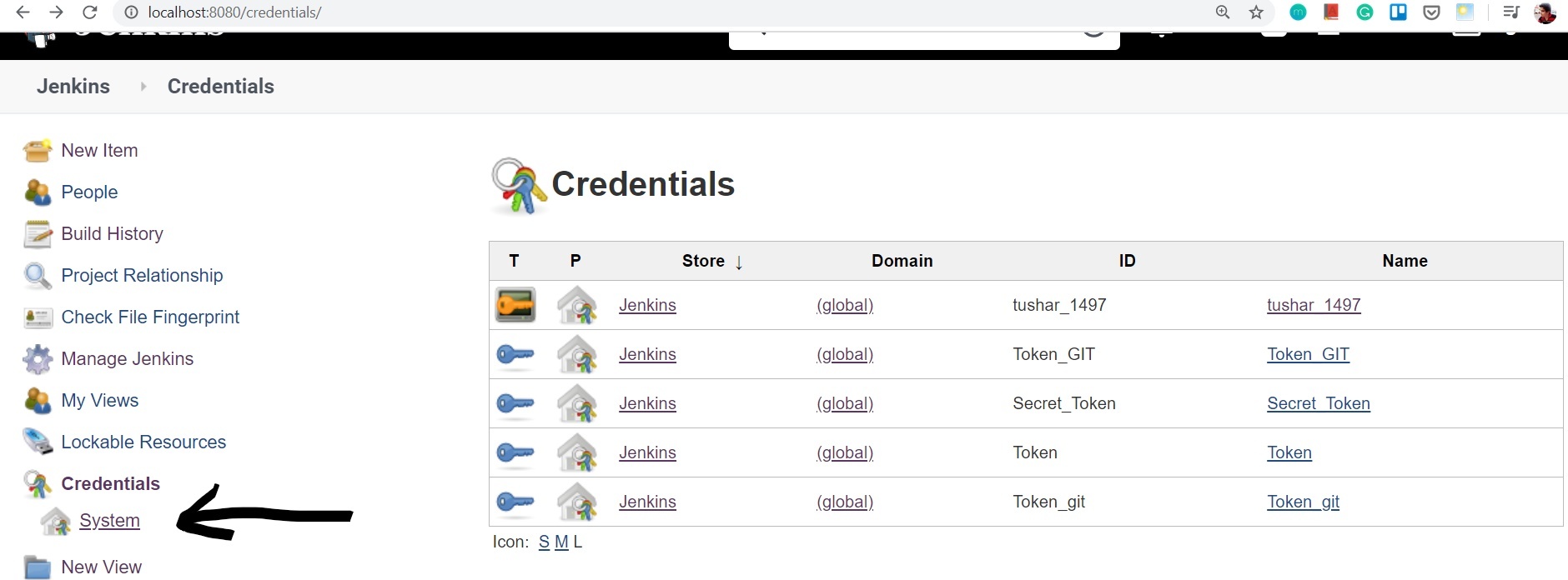
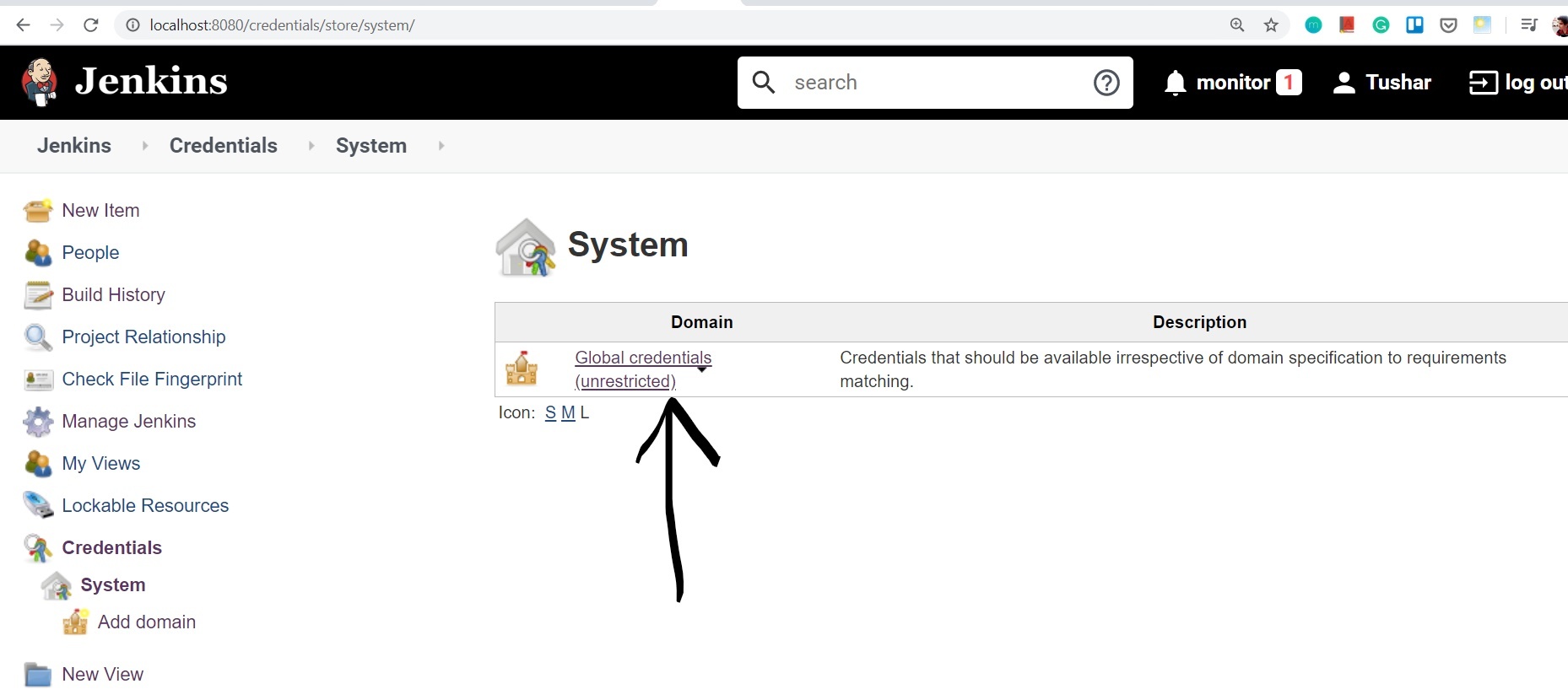
Step 2: Select the Global Credentials
Step 3: Click on Add Credentials
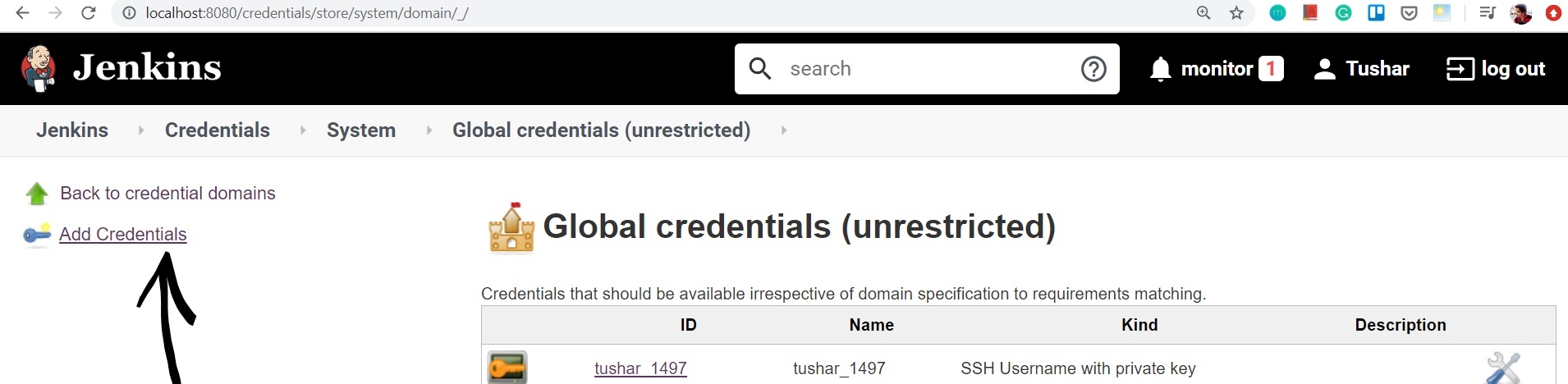
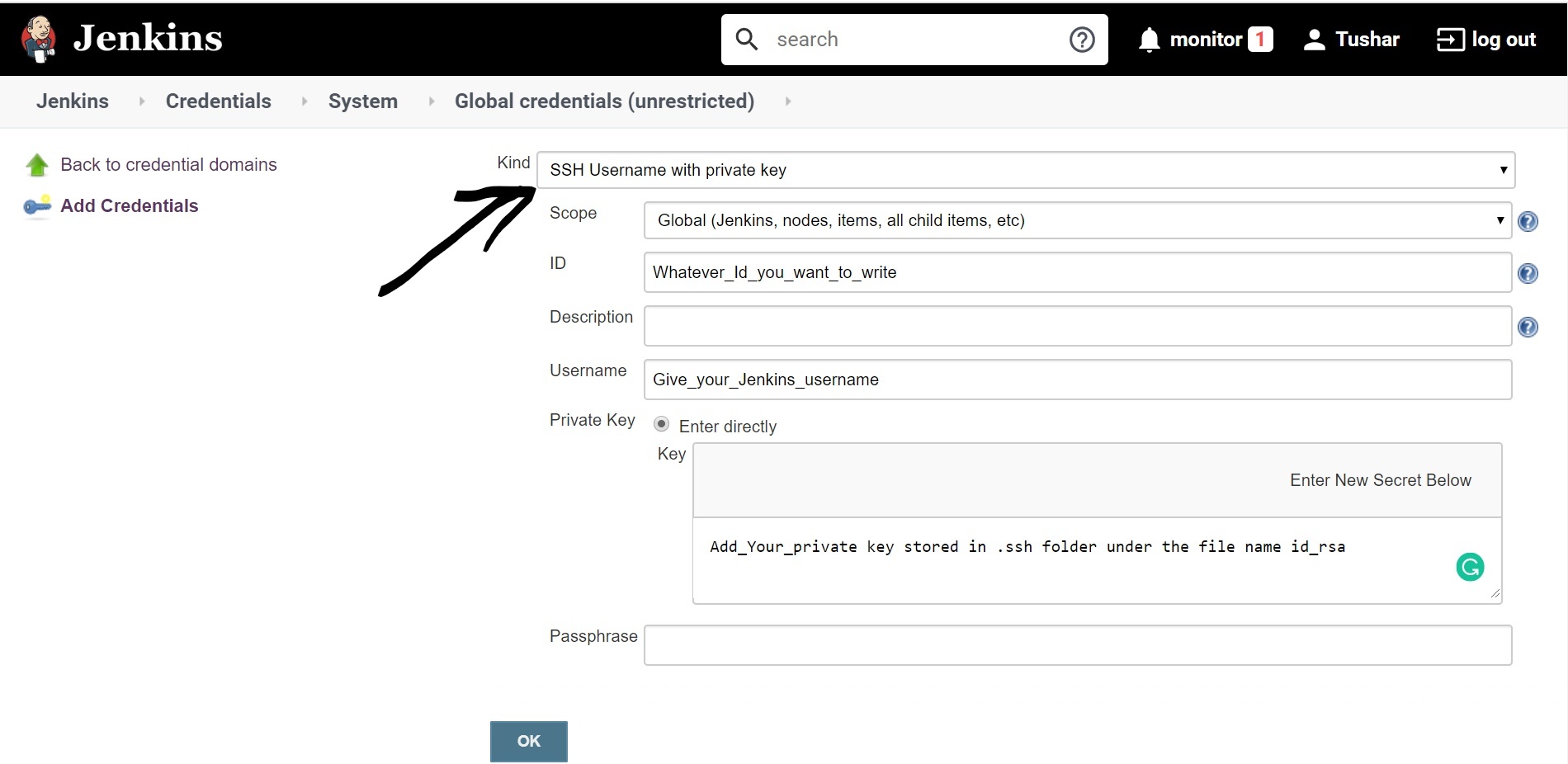
Step 4: Choose SSH Username with Private Key and add the private key (id_rsa) from .ssh folder.
Configuring Git with Jenkins
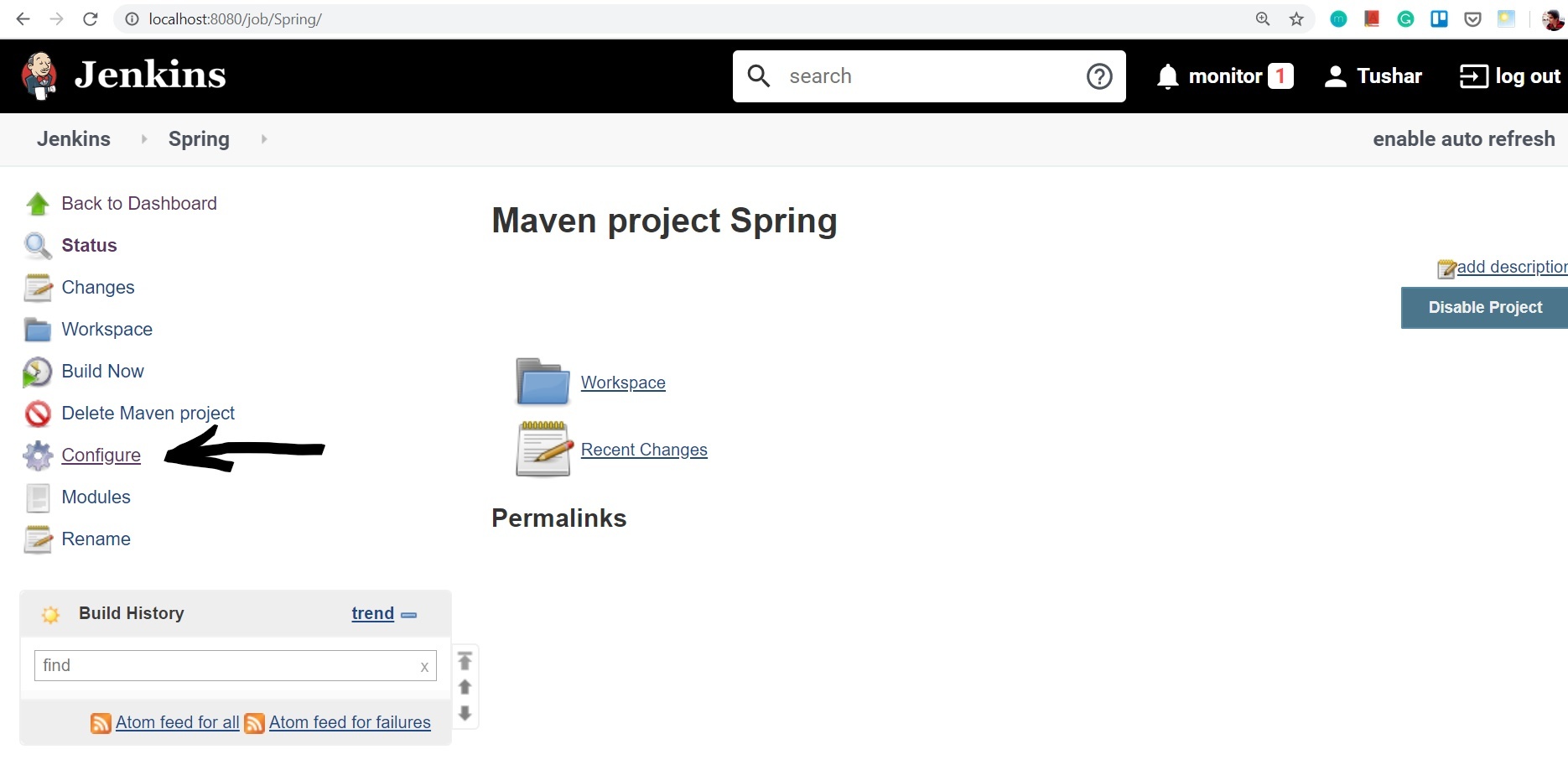
After configuring the private key in Jenkins and the public key in GitHub, open the Jenkins project and proceed to the configuration settings.
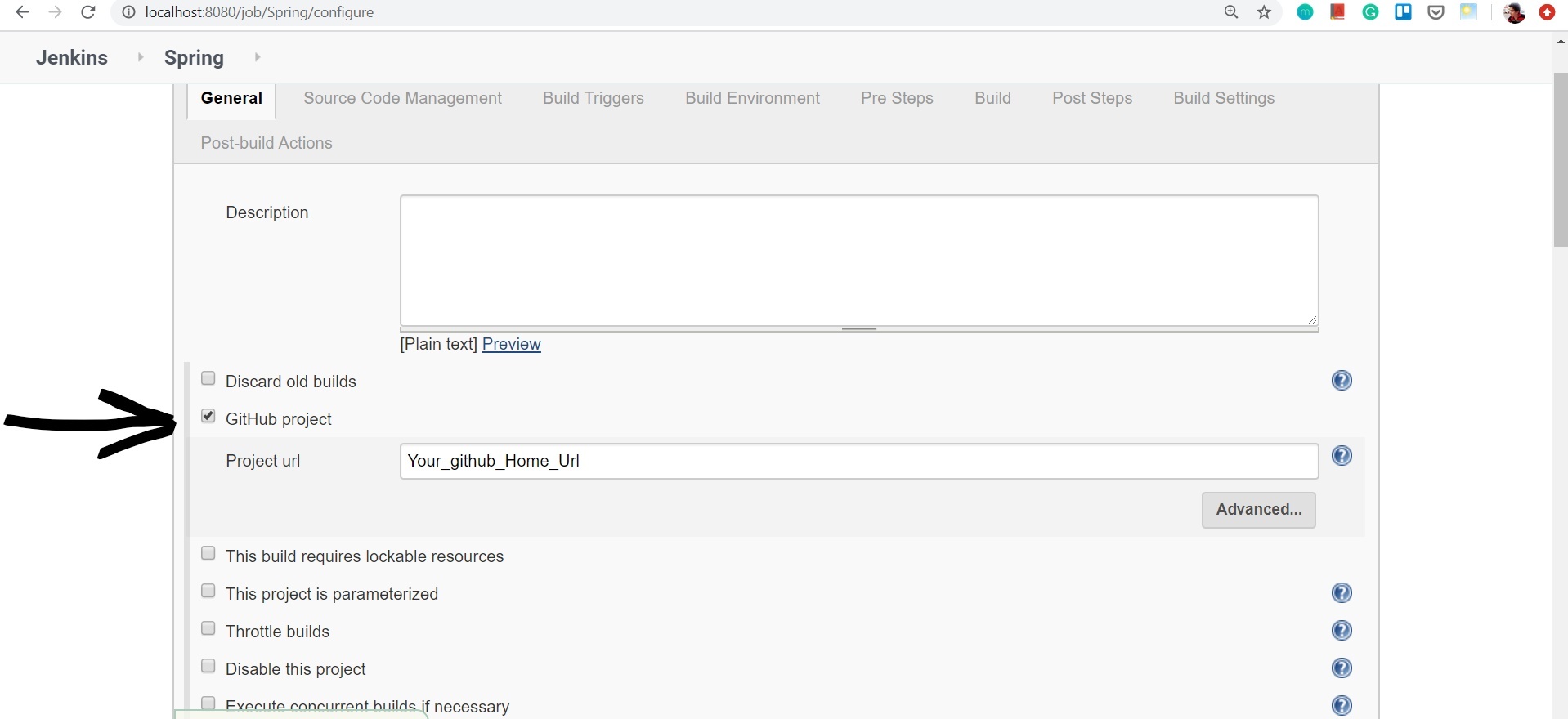
Step 1: In General, enable GitHub project and add GitHub URL.
Step 2: In Source Code Management, add repository SSH URL and Select added credentials.
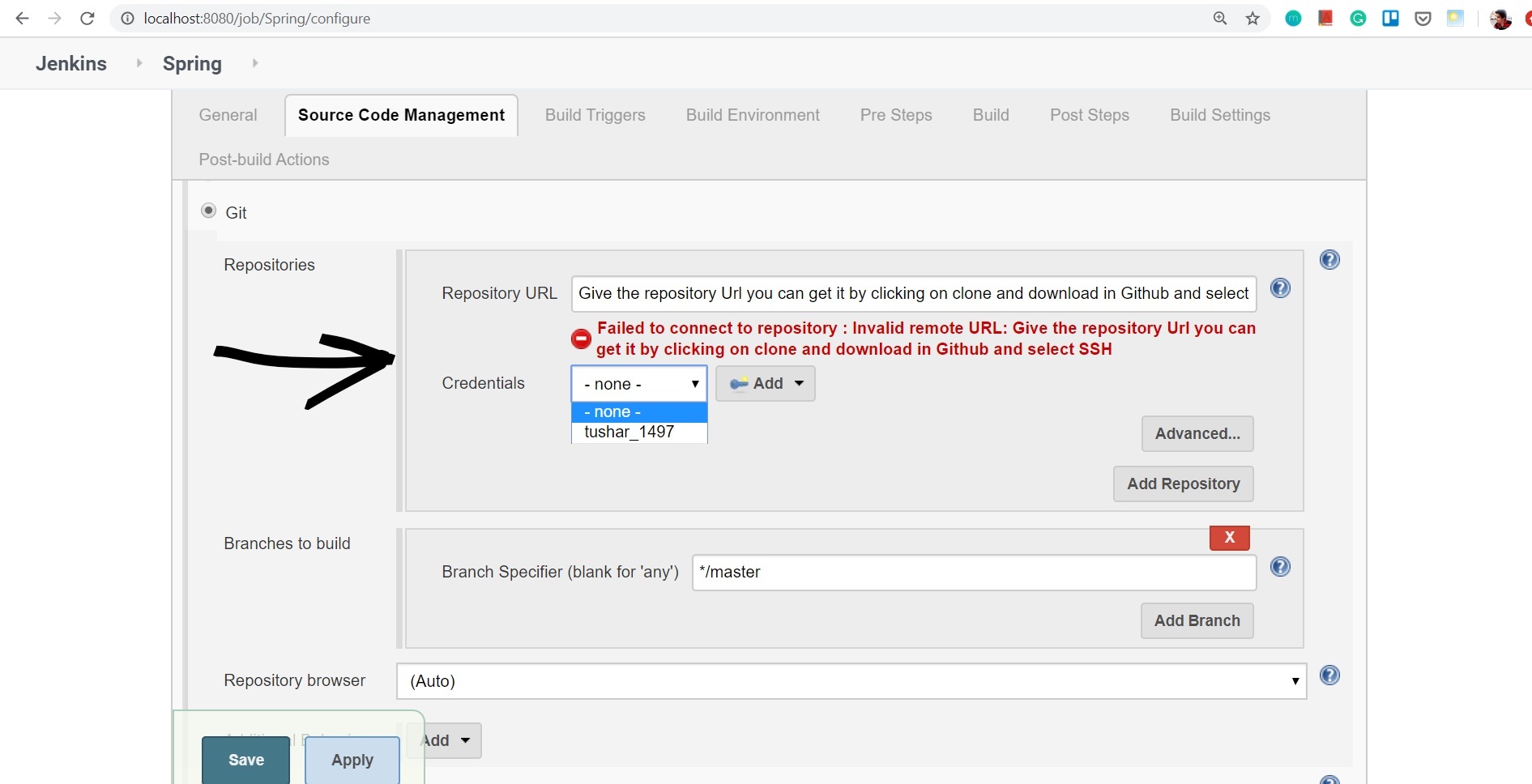
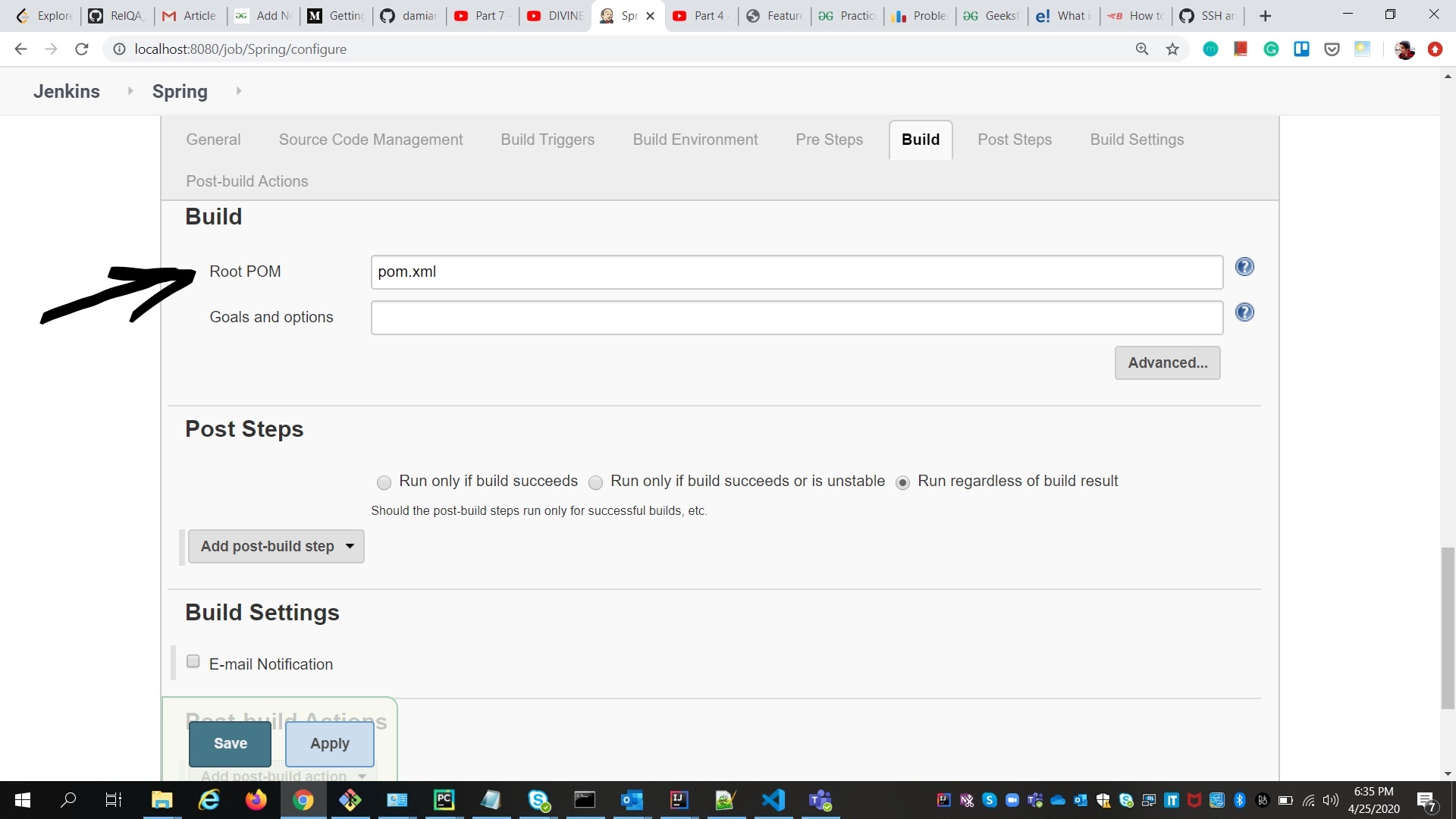
Step 3: If using Maven, set the pom.xml path.
Example: Repo_name\pom.xml
Jenkins is now configured to clone Git repositories. Navigate to the project and initiate the build process.