
Gitea Git Server setup on Azure Kubernetes Service (AKS) involves deploying a lightweight, self-hosted Git service using Helm on a managed Kubernetes cluster.
- Uses AKS to host the cluster and deploys Gitea using Helm.
- Exposes the service via LoadBalancer or Ingress for access.
- Enables repository management with support for custom configurations.
Implementation
Steps to set up AKS, deploy Gitea, and configure a private Git server.
1. Verify Azure Providers
Ensure required providers are registered:
az provider show -n Microsoft.OperationsManagement -o table
az provider show -n Microsoft.OperationalInsights -o table
If not registered:
az provider register --namespace Microsoft.OperationsManagement
az provider register --namespace Microsoft.OperationalInsights
2. Create Resource Group
All Azure resources must be placed in a resource group:
az group create --name my-gitea-lab --location westeurope
3. Create AKS Cluster
Deploy AKS cluster with SSH keys:
az aks create --resource-group my-gitea-lab --name mygiteaAKSCluster
--node-count 1 --node-vm-size standard_b2s --generate-ssh-keys
- Minimum VM requirement: 3.5 GB RAM
- Example VM: standard_b2s
- A second resource group is automatically created.
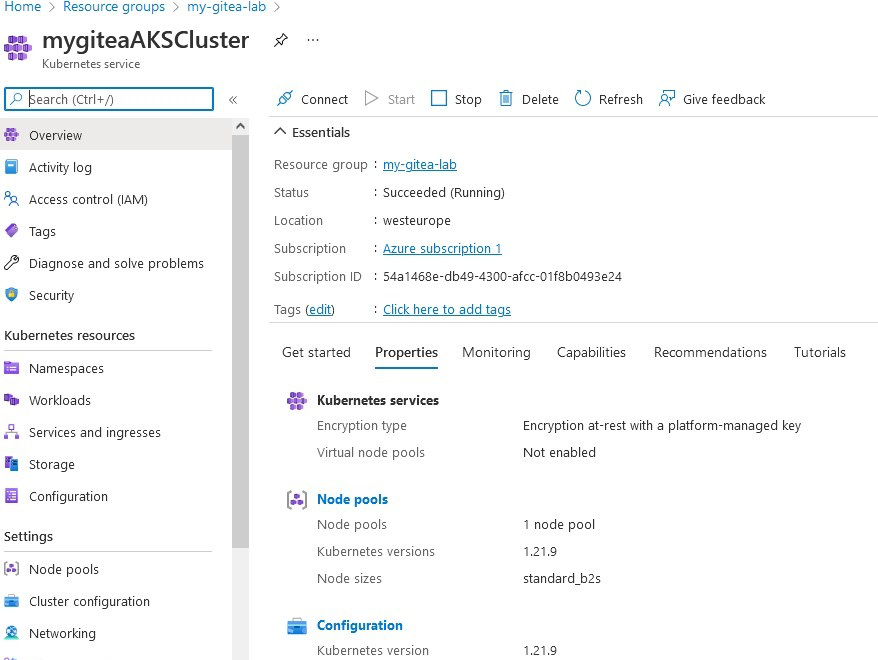
Get cluster credentials:
az aks get-credentials --resource-group my-gitea-lab --name mygiteaAKSCluster
4. Setup Helm
Check Helm installation:
which helmAdd Gitea Helm repository:
helm repo add gitea-charts https://dl.gitea.com/charts/
helm repo update
5. Configure Gitea Deployment
Customize using values.yml:
- Use LoadBalancer instead of default ClusterIP.
- Enable Ingress if required.
- Configure SSH port.
- Set storage and authentication options.
Let's continue by adding gitea-charts helm repository
helm repo add gitea-charts https://dl.gitea.com/charts/
helm repo update
To customize your Gitea deployment you need to download the file. You can play around with options of your Gitea setup and provide custom storageclass, expose Gitea through Loadbalancer\Ingress, or setup LDAP or Oauth2 integration. Here are a few examples:
- The service.http.type=LoadBalancer default value is ClusterIP but since we are deploying in the public cloud we will use LoadBalancer
- The ingress.enabled will enable ingress, by default it is false.
- The service.ssh.port setup custom port for ssh traffic.
6. Deploy Gitea
helm install gitea gitea-charts/gitea --set service.http.type=LoadBalancer
Monitor service:
kubectl get --namespace default svc -w gitea-http
Get service URL:
export SERVICE_IP=$(kubectl get svc --namespace default gitea-
http --template "{{ range (index .status.loadBalancer.ingress 0) }}{{.}}{{ end }}")
echo http://$SERVICE_IP:3000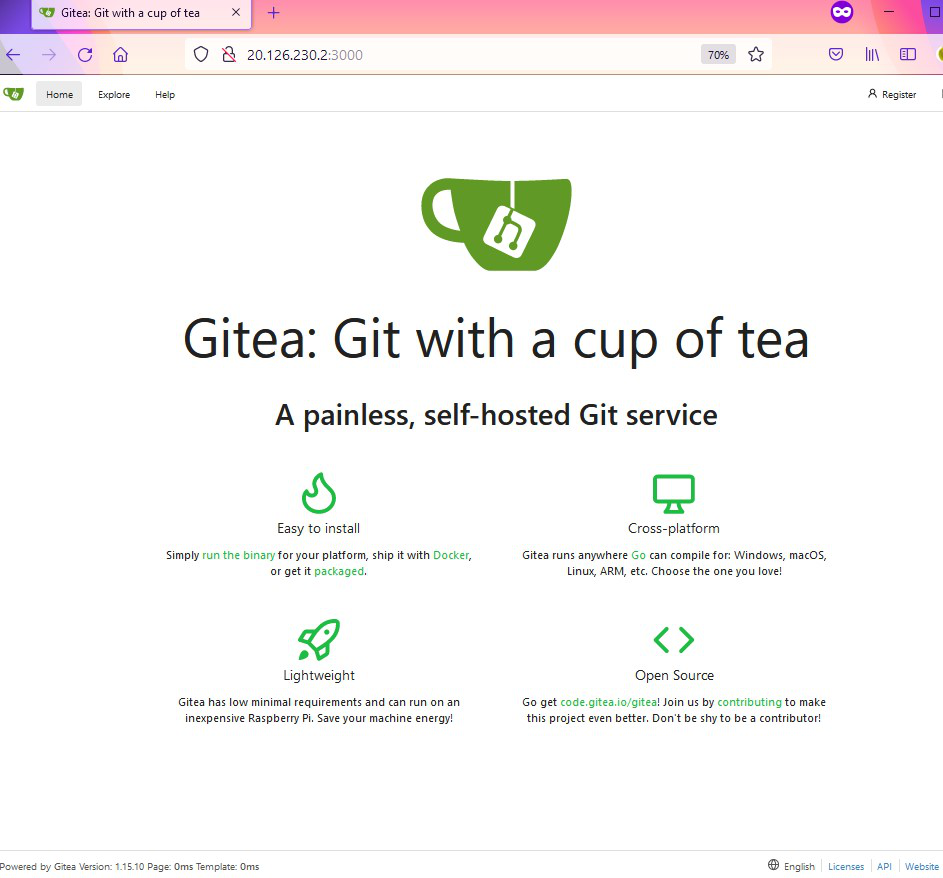
Default credentials (from values.yml):
- Username: gitea_admin
- Password: r8sA8CPHD9!bt6d
7. Create Repository
Create a repository in Gitea by logging in, clicking New Repository, and configuring the settings.

There are plenty of parameters that you can setup during the repo creation process:

8. Push Code to Repository
Initiate git repo in cloud shell, add Readme file and push code to our private Gitea server:
git init
echo "Hello from Gitea Repo!" > README.md
git add README.md
git commit -m "first commit"
git remote add origin http://<IP>:3000/gitea_admin/FirstRepo.git
git push -u origin master
Now we can see the first commit on the remote server!

9. Cleanup Resources
Delete Gitea deployment:
helm delete giteaDelete resource group:
az group delete --name my-gitea-lab --yes --no-wait