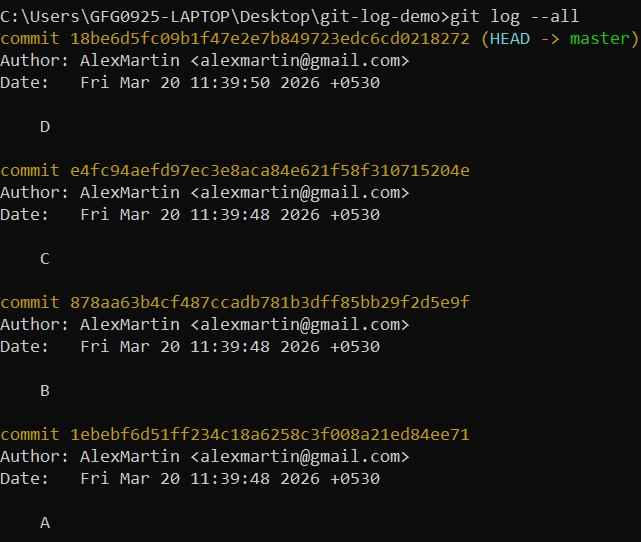
git log helps track and understand a project's commit history, and its customization options make the output more clear and easy to analyze.
- Displays complete commit history with essential details.
- Allows filtering based on author, date, or keywords.
- Provides compact and graphical views for better readability.
Formatting Commit History
Git provides options to customize commit history using git log, allowing you to control, format, and filter output for better readability.
Common Git Log Formatting Options
Git Log Formatting options provide control over how commit history is displayed.
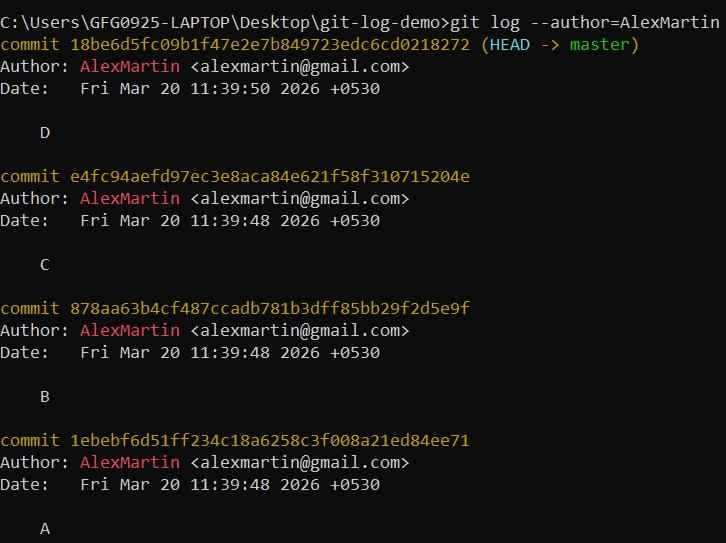
1. --author=<Name>: Displays only those commits that were created by a specific author. It is useful for analyzing or reviewing the contributions made by an individual over time in a repository.
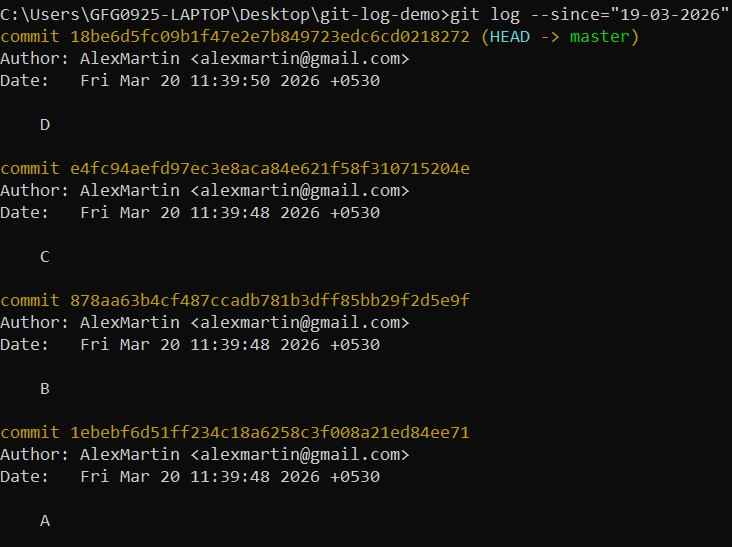
2. --since=<Date> / --after=<Date>: Shows commits that were made after a specified date or time. This helps in filtering commit history to focus on recent updates or changes within a particular period.
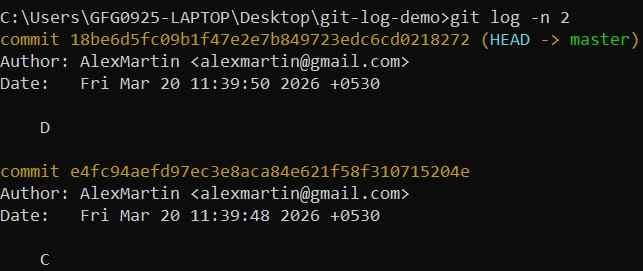
3. -n <number>: Limits the number of commits displayed in the output to a specified count. It is helpful when you want to view only the most recent commits instead of the entire history.
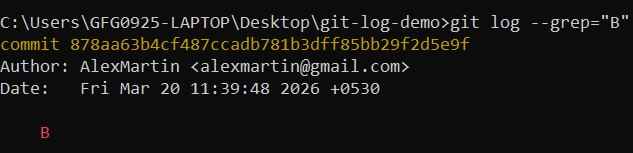
4. --grep=<pattern>: Filters commits based on a specific keyword or pattern present in commit messages. This makes it easier to locate commits related to a particular feature, bug fix, or change.
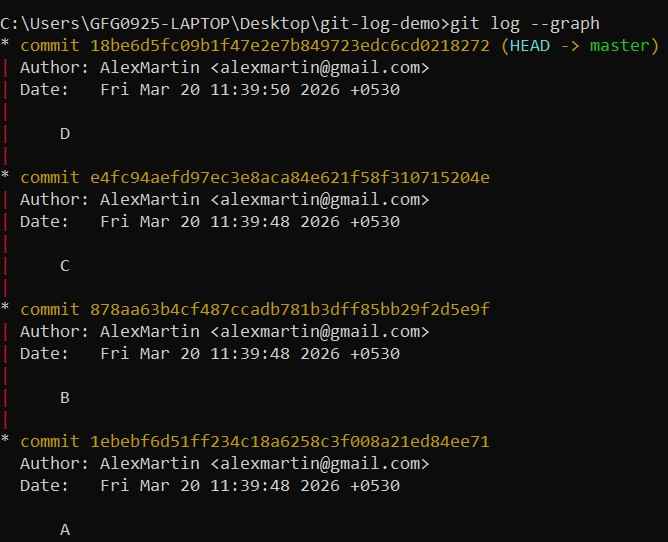
5. --graph: Displays the commit history in a graphical format using an ASCII graph. It helps visualize branching and merging, making it easier to understand the project structure.
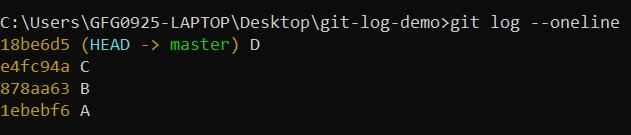
6. --oneline: Formats each commit into a single concise line showing a short commit hash and message. It is useful for quickly scanning through the commit history.
7. --all: Displays the commit history of all branches in the repository. This provides a complete and unified view of all changes across different branches.