Git clean is a useful command to remove untracked files efficiently. Untracked files are files present in your working directory but not staged or committed in Git. They do not appear in the commit history and are not part of version control unless added.
Steps to Set Up a Basic Project
Step 1: Create a folder named git
mkdir gitStep 2: Switch to the git folder and create a folder named files
cd git
mkdir files
Step 3: Create three files named tracked.txt, untracked.txt, and .gitignore in the git folder
touch tracked.txt untracked.txt .gitignoreStep 4: Create two files in the files folder names file1.txt and file2.txt
cd files
touch file1.txt file2.txt
Step 5: Create a .env file
touch .envStep 6: Initialize an empty git repository using the following command
git initStep 7: Add .env to the .gitignore file
Step 8: Add the tracked.txt and .gitignore files to the staging area using the following command
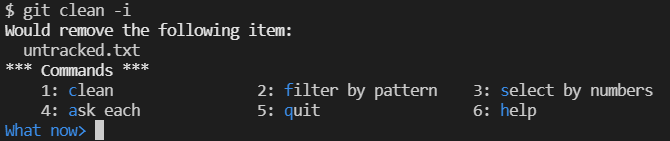
git add tracked.txt .gitignoreLet's go through each of the interactive commands one by one:
- clean: Removes the untracked files and directories and quits.
- filter by pattern: Lists all the files and directories that are going to be removed and asks the user for an input prompt in the form of a pattern to exclude files and directories from removal.
- select by numbers: Lists all the files and directories that are going to be removed and asks the user for an input prompt in the form of numbers that indicate the file number to be excluded. The number can be comma-separated or separated by white space. Example: 5,8,9 or 5-9 or 5 8 9.
- ask each: Allows the user to confirm each file that is going to be removed. Not as efficient as the above methods.
- quit: Quits the interactive mode without cleaning.
Project Structure
The project structure will be similar to the below image.

Now that the basic project structure is set up, let's understand how untracked files are removed. Untracked files are those files that are absent from the latest snapshot of the git repository. We can remove untracked files from the current git working tree using the following command
git cleanNo untracked files can be removed by running the git clean command without any flag. By running the git clean command without any flags, a fatal error is generated and explicitly asks us to mention a flag

List out the Files to be removed
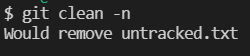
To have a look at all the untracked files that will be removed, we can use the git clean command with the -n flag. This lists out all the files that are going to be removed using the git clean command.
git clean -nBy running the command in our repository we get:
List out the Files and Directories to be removed
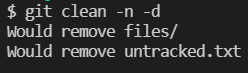
To have a look at all the untracked files and untracked directories that will be removed, we can use the git clean command with the -n and -d flag. This lists out all the files and directories that are going to be removed using the git clean command.
git clean -n -dBy running the command in our repository we get:
Remove the unstaged files
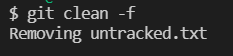
To remove the unstaged files, we have to use the git clean command with the -f flag.
git clean -fBy running the command in our repository we get:
Remove the unstaged files and the unstaged directories
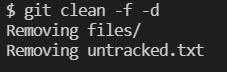
To remove the unstaged files and the unstaged directories, we have to use the git clean command with the -f and -d flags.
git clean -f -dBy running the command in our repository we get:
Remove the ignored files
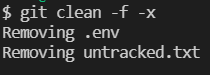
To remove the untracked files and the files ignored by git, we have to use the git clean command with the -f flag and -x flag
git clean -f -xBy running the command in our repository we get:
Remove all untracked files, directories, and ignored files
To remove all the untracked files, untracked directories, and ignored files, we have to use the git clean command with the -fdx flag
git clean -fdxBy running the command in our repository we get:

Entering the interactive mode
To enter an interactive git clean mode, we need to use the git command flag with the -i flag
git clean -iBy running the command in our repository we get: