
HTML (HyperText Markup Language) is the standard language used to structure content on the web. It tells the browser how to display text, images, and other elements on a webpage.
- HTML is a markup language, not a programming language.
- It defines the structure of a webpage using tags and elements.
- HTML is static; CSS styles it and JavaScript adds interactivity.
- It forms the foundation of almost every website today.
Beginner HTML Questions
Here are some beginner-friendly HTML questions to help you get started.
1. What are HTML tags?
HTML tags are special keywords enclosed in angle brackets (< >) that tell a web browser how to structure and display content on a webpage.
<h1>Hello!</h1> <!-- This makes a big **heading** -->
<p>A **paragraph** goes here.</p>
2. What’s the difference between HTML and HTML5?
HTML is the general name for HyperText Markup Language, and HTML5 is the latest launched version in 2014. HTML5 added awesome features like:
| Aspect | HTML | HTML5 |
|---|---|---|
| Doctype | Long & complex | Simple: <!DOCTYPE html> |
| Multimedia | Needs plugins (Flash) | <audio>, <video> |
| Graphics | No native support | <canvas>, <svg> |
| Forms | Basic inputs | New inputs: email, date, etc. |
| Semantic Tags | Uses <div> mostly | <header>, <footer>, <article> |
| APIs | None | Geolocation, Web Storage, etc |
3. What’s the basic structure of an HTML document?
Every HTML document needs a specific setup so browsers know how to read it. It’s like the blueprint for your web page. Here’s what goes in it:
<!DOCTYPE html>: Tells the browser this is an HTML5 page.<html>: The main container for everything else.<head>: Holds behind-the-scenes info like the page title or links to CSS and JavaScript.<body>: Where all the visible stuff goes, like text, images, or links.
<!DOCTYPE html>
<html lang="en">
<head>
  <meta charset="UTF-8">
  <title>My Cool **Website**</title>
</head>
<body>
  <h1>Hey There!</h1>
  <p>Welcome to my **page**.</p>
</body>
</html>
4. What’s the difference between a tag and an element?
A tag is just the code you write, like <p> or </p>, inside angle brackets. An element is the whole package: the opening tag, the content inside, and the closing tag. Some tags, like <img>, are self-closing and don’t need a closing partner. So, tags are the tools, and elements are what you build with them.
- Tag: <div> or </div>, just the code.
- Element: <div>Hi there!</div>, the tag plus content.
<p>This is an **element**.</p> <!-- <p> and </p> are **tags** -->5. What are attributes in HTML?
Attributes are extra details you add to an opening tag to give it more powers. They look like name="value". For example, they can tell a link where to go or an image what picture to show. Common ones are href for links, src for images, and id to give something a unique name.
<a href="https://example.com/">Click this **link**</a> <!-- **href** is an **attribute** -->
<img src="pic.jpg" alt="A cool photo"> <!-- **src** and **alt** are **attributes** -->
6. What is the difference between <section>, <article>, and <div>?
<div> is a generic container for styling or layout, <section> groups thematically related content, and <article> represents self-contained, independent content like blog posts or news items.
<div> | <section> | <article> |
|---|---|---|
| Generic container, no semantic meaning. | Groups related content thematically. | Self-contained content that stands independently. |
| Used for grouping elements. | Usually includes a heading (<h1>–<h6>). | Suitable for blog posts, news articles, comments. |
| Mainly for styling or layout purposes. | Helps structure content logically on the page. | Can be reused or syndicated. |
Example: <div class="card"><p>Styled content box</p></div> | Example: <section><h2>Services</h2><p>Web development and design</p></section> | Example: <article><h2>Blog Post</h2><p>This is a blog article</p></article> |
7. How do you create hyperlinks? What are absolute vs relative URLs?
A hyperlink is created using the <a> (anchor) tag and an href attribute that says where the link goes. The text inside the tag is what people click on to visit another page or resource.
<a href="https://example.com/">Go to Example</a>This makes a clickable link that says “Go to Example” and takes you to that website.
Absolute URL: An absolute URL specifies the full path to the resource, including the protocol (http, https, etc.), domain, and file path. It works independently of the current page location.
<a href="https://www.example.com/about.html">About Us</a>- No matter where the current page is hosted, this link always points to the full domain.
Relative URL: A relative URL specifies the path to the resource relative to the current page’s location. It is used when linking to resources within the same website/project.
<a href="/about.html">About Us</a>- If the current website is hosted at https://www.mysite.com, this link points to https://www.mysite.com/about.html.
8. What’s the <img> tag for?
The <img> tag puts pictures on your web page. It’s a self-closing tag, so it doesn’t need a closing part. You need two main attributes:
src: Tells the browser where to find the image file.alt: Gives a description of the image for accessibility (like for people using screen readers) or if the image doesn’t load.
The alt text also helps Google understand your image, which is great for SEO.
<img src="mountain.jpg" alt="A beautiful **mountain** scene">9. What’s the difference between block-level and inline elements?
Block-level and inline elements act differently on a web page:
- Block-level elements: Take up the whole width of their space, start on a new line, and stack like boxes (e.g., <div>, <p>, <h1>). They’re great for big sections like paragraphs or headers.
- Inline elements: Only use the space their content needs, stay on the same line, and flow with text (e.g., <span>, <a>, <img>). They’re perfect for small bits like links or images within a sentence.
<div>This **block** starts a new line.</div>
<div>Another **block**.</div>
<span>This **inline** stays here</span> <span>and so does this.</span>
10. What kinds of lists can you make in HTML?
HTML lets you create three types of lists:
- Ordered List (<ol>): Shows items with numbers or letters (like 1, 2, 3).
- Unordered List (<ul>): Uses bullets for items.
- Description List (<dl>): Pairs terms (<dt>) with their descriptions (<dd>).
For ordered and unordered lists, each item goes in an <li> (list item) tag.
<ol>
  <li>First **item**</li>
  <li>Second **item**</li>
</ol>
<ul>
  <li>**Bullet** point</li>
  <li>Another **point**</li>
</ul>
<dl>
  <dt>**HTML**</dt>
  <dd>**HyperText Markup Language**</dd>
</dl>
11. What is the <form> tag and what do action and method do?
The <form> tag in HTML is used to create a form that collects user input and sends it to a server for processing. It acts as a container for input elements like text boxes, checkboxes, radio buttons, and buttons.
action attribute: Defines where the form data should be sent once the user submits it.
- Example: action="/submit.php" will send the form data to the submit.php file on the server.
method attribute: Defines how the form data will be sent to the server.
- GET: Appends the form data into the URL (visible in the address bar, suitable for non-sensitive data, like search queries).
- POST: Sends data in the request body (not visible in the URL, better for sensitive or large data like passwords and file uploads).
<form action="/submit" method="post">
  <label for="name">**Name**:</label>
  <input type="text" id="name" name="name">
  <input type="submit" value="**Send**">
</form>
This form asks for a name and sends it to /submit.
12. What does the <br> tag do and when should you avoid it?
The <br> tag adds a line break, moving content to the next line without starting a new paragraph.
- It’s self-closing and handy for things like addresses or poems where you want a quick line shift without extra space.
- It should not be used for layout or spacing. Instead, use semantic HTML and CSS for better readability and maintainability.
123 **Main St**<br>**New York**, NY13. How do you make a link open in a new tab safely?
To make a hyperlink open in a new tab, add target="_blank" to the <a> tag. This keeps the current page open while the new page loads in a separate tab. Adding rel="noopener" is a good idea for security, so the new tab can’t mess with your original page.
<a href="https://example.com/" target="_blank" rel="noopener">Open in a **New Tab**</a>- Using target="_blank" alone exposes a security risk: the new page can access the window.opener property and potentially manipulate the original page (phishing or malicious redirects).
- We add rel="noopener" to prevent the new page from accessing window.opener
14. What does the <title> tag do and why is it important for SEO?
The <title> tag sets the name of your web page that appears in the browser tab and helps people and search engines know what your page is about.
- Helps Search Engines: Makes it easier for Google and others to understand your page.
- Helps Visitors: Lets people quickly see what your page is about, so they know if they want to click.
<head> <title>My Awesome **Website**</title></head>15. What’s the <meta>tag?
The <meta> tag lives in the <head> and gives extra info about your web page, like what character set it uses, a description for search engines, or settings for mobile screens. It’s not visible to users but helps browsers and Google understand your page better.
<meta charset="UTF-8"> <!-- Sets the **character encoding** --><meta name="description" content="A cool **webpage**"> <!-- Helps with **SEO** --><meta name="viewport" content="width=device-width, initial-scale=1.0"> <!-- Makes it **mobile-friendly** -->
- Charset (<meta charset="UTF-8">): Defines the character encoding of the web page. UTF-8 is the most widely used because it supports almost all characters and symbols across different languages.
- Viewport: It helps control how a page is displayed on mobile and tablet devices. Ensures the website is responsive by setting the width of the page equal to the device’s screen width.
- Description: It provides a short summary of the web page’s content. This description often appears in search engine results (SEO).
16. How do you make a table?
A table is built with the <table> tag. You use <tr> for rows, <th> for headers, and <td> for data cells. Tables organize data in a grid, like for schedules or charts. For accessibility, add <thead>, <tbody>, and <caption> to make it clear what the table is about.
<table>
  <caption>**Sales** Chart</caption>
  <tr>
    <th>**Item**</th>
    <th>**Price**</th>
  </tr>
  <tr>
    <td>**Book**</td>
    <td>$10</td>
  </tr>
</table>
17. How do you make an email link?
An email link uses the <a> tag with a mailto: in the href attribute. When clicked, it opens the user’s email app with a new message to the email address you specify.
<a href="mailto:hello@example.com">Send an **Email**</a>18. What’s the <em> tag?
The <em> tag emphasizes text, usually making it italic. Unlike <i>, which is just for style, <em> has meaning—it tells screen readers to stress the text, helping with accessibility and adding a bit of tone to your content.
<p>I <em>**love**</em> to **code**!</p>19. How do you make a checkbox?
A checkbox uses <input type="checkbox"> to let users select multiple options. Use a unique id for each checkbox and connect it to a <label> for accessibility. Use the same name to group them and checked to pre-select.
- Each checkbox: unique id, meaningful value.
- Label: <label for="..."> or wrap the input.
- Group: <fieldset> + <legend> describes the set.
- Same name for the group (e.g., name="hobbies").
<input type="checkbox" id="news" name="news" checked><label for="news">Get the **Newsletter**</label>20. What is the <label> tag and how does for/id improve accessibility?
The <label> tag provides a text description for a form input. Using for (on <label>) and id (on the input) links them so clicking the label focuses the input, and screen readers announce them together—greatly improving accessibility.
- Without a label: Users must click the small input box, and screen readers may not identify the field clearly.
- With a label: Clicking the text focuses the input, and screen readers read the label with the field.
How for and id work together:
They create a direct connection between a label and its input, improving usability and accessibility.
- Each form control (like <input>) has a unique id.
- The <label> uses the for attribute with the same value as that id.
- This creates a direct link between the text and the input.
<label for="name">**Name**:</label><input type="text" id="name" name="name">21. How do you make a dropdown list?
A dropdown list uses the <select> tag, with options inside <option> tags. The name attribute sends the chosen value, and value sets what goes to the server. Pair it with a <label> for accessibility.
<label for="fruits">Pick a **fruit**:</label>
<select id="fruits" name="fruits">
  <option value="apple">**Apple**</option>
  <option value="banana">**Banana**</option>
</select>
22. What is the <blockquote> tag and when should you use cite?
The <blockquote> tag is for long quotes from somewhere else, often shown with indentation. You can add a cite attribute to note the source URL, though it’s not visible. It’s semantic, so search engines know it’s a quote, which helps with SEO.
- Cite Attribute: Specifies the source URL of the quote.
- Accessibility: Screen readers can detect the source, helping visually impaired users.
- SEO & Documentation: Search engines and documentation tools can recognize and credit the quote properly.
<blockquote cite="https://example.com/"> A really **inspiring quote**.</blockquote>23. How HTML is different from CSS?
HTML provides the structure and content of a webpage, while CSS controls its design and visual layout.
HTML | CSS |
|---|---|
Defines the structure and content of a webpage | Styles and formats the appearance of the webpage |
Uses tags to add elements like text, images, and links | Uses selectors and properties to control colors, fonts, spacing, etc. |
Forms the backbone of any webpage | Enhances visual appeal and layout |
Determines what appears on the page | Determines how it appears |
Intermediate HTML Questions
These questions go beyond the basics, focusing on HTML5 features, semantics, forms, and attributes that improve accessibility, SEO, and user experience.
24. What are semantic HTML elements?
Semantic HTML elements clearly describe their purpose (e.g., <header>, <nav>, <article>, <footer>), making code readable, improving accessibility, and helping SEO.
- Improves accessibility for screen readers.
- Helps search engines understand page structure.
<header>
  <nav>
    <ul>
      <li><a href="#home">**Home**</a></li>
    </ul>
  </nav>
</header>
25. How do you add a video in HTML5?
HTML5 <video> tag lets you embed videos without extra software. Use controls for play/pause buttons, <source> for the video file, and fallback text if unsupported.
- controls adds play, pause, and volume options.
- <source> specifies video file and format.
<video controls>
  <source src="movie.mp4" type="video/mp4">
  Your **browser** doesn’t support **videos**.
</video>
26. Why is the alt attribute important in <img>?
The alt attribute in <img> describes what the image is about. It’s a big deal because:
- Accessibility: Screen readers read it to visually impaired users.
- SEO: Search engines use it to index images.
- Backup: It shows up if the image doesn’t load.
<img src="cat.jpg" alt="A cute **cat** on a couch">27. What’s the <fieldset>tag?
<fieldset> groups related form elements, and <legend> adds a title for the group, improving form clarity and accessibility.
- Helps users understand related fields.
- Screen readers announce the group and its purpose.
<fieldset>
  <legend>**Personal** Details</legend>
  <label for="name">**Name**:</label>
  <input type="text" id="name" name="name">
</fieldset>
28. What does <noscript> do and why is it still relevant?
The <noscript> tag in HTML provides fallback content for users whose browsers do not support JavaScript or have it disabled. Anything inside <noscript> is displayed only when scripts can’t run.
- Accessibility & graceful degradation: Some users disable JavaScript for speed, privacy, or security. <noscript> ensures they don’t miss critical content.
- SEO impact: Search engine crawlers may not fully execute scripts; fallback text in <noscript> can improve discoverability.
- Security environments: In corporate firewalls or browsers with JS blocked, <noscript> ensures forms, links, or instructions are still visible.
<script>
  document.write("**JavaScript** is on!");
</script>
<noscript>**JavaScript** is off. Turn it on for the full experience.</noscript>
29. How do you add a JavaScript file?
To add an external JavaScript file, use the <script> tag with a src attribute pointing to the file. Put it in the <head> (with defer or async) or at the end of <body> so the page loads faster without waiting for the script.
<script src="mycode.js"></script>30. How do you add CSS styling in an HTML file?
You can add CSS styling in three ways: inline, internal, or external, to style HTML elements and control their appearance.
- Inline CSS: Apply styles directly to an element using the style attribute.
<p style="color: blue; font-size: 16px;">Hello!</p> - Internal CSS: Place CSS inside a <style> tag within the <head> section.
<head>
  <style>
    p { color: blue; font-size: 16px; }
  </style>
</head> - External CSS: Link an external .css file using the <link> tag.
<head>
  <link rel="stylesheet" href="styles.css">
</head>
31. When should you use <strong>/<em> vs <b>/<i>? (semantics vs presentation)
You should use <strong> and <em> when you want to give text semantic meaning, since they signal importance or emphasis to browsers, screen readers, and search engines—<strong> usually renders bold and <em> italic, but also carry meaning for accessibility.
- <strong> and <em>: Give semantic meaning; show importance or emphasis.
- <b> and <i>: Purely for styling; <b> makes text bold, <i> makes it italic. Useful for UI elements, foreign words, or stylistic highlights.
<b>**Bold** for looks</b><strong>**Important** stuff</strong>32. How do you make a multi-line text input?
The <textarea> tag lets users type longer text, like a comment. You set its size with rows and cols attributes, and name sends the data when the form is submitted. You can add default text inside the tags.
<label for="comment">**Comment**:</label>
<textarea id="comment" name="comment" rows="4" cols="50">Type something here</textarea>
33. What’s the action attribute in a form?
The action attribute in a <form> tells the browser where to send the form data when submitted, like to a server address. If you don’t include it, the data goes to the same page you’re on.
<form action="/send-data" method="post">
  <input type="text" name="username">
  <input type="submit">
</form>
34. What’s the <base> tag?
The <base> tag goes in the <head> and sets a default starting point for all relative URLs on your page. It’s like saying, “All my links start from this address.” Be careful, as it affects every link on the page.
<head>
  <base href="https://example.com//stuff/">
</head>
<a href="page.html">**Link**</a> <!-- Goes to https://example.com//stuff/page.html -->
35. What is enctype in forms? When to use multipart/form-data?
The enctype attribute determines how form data is encoded when sent to the server, usually with method="post". Here are the main types:
- application/x-www-form-urlencoded: The default, turns data into URL-friendly format.
- multipart/form-data: Needed for uploading files.
- text/plain: Sends data as plain text (not common).
You should use enctype="multipart/form-data" when your form involves file uploads (via <input type="file">). Unlike the default encoding, this type splits the data into separate parts (one per field), allowing binary files (like images, PDFs, or videos) to be sent correctly along with text fields.
<form action="/upload" method="post" enctype="multipart/form-data">
  <input type="file" name="file">
  <input type="submit">
</form>
36. How do you make a hidden input field?
A hidden input field (<input type="hidden">) stores data that gets sent with the form but isn’t shown to users. It’s great for things like user IDs or session tokens that the server needs.
<input type="hidden" name="userID" value="12345">37. What’s the <address>tag?
The <address> tag holds contact info for the person or group behind a page or section, like an email, website, or street address. It’s semantic, so search engines recognize it, and browsers often style it in italics. It is used to display the author’s or owner’s contact details of a document or article.
<address>
  **Jane Doe**<br>
  <a href="mailto:jane@example.com">jane@example.com</a><br>
  456 **Park Ave**, **USA**
</address>
38. What’s the lang attribute in <html>?
The lang attribute in the <html> tag tells browsers and search engines the main language of your page (like en for English). It helps screen readers read the content correctly and improves SEO for targeting the right audience.
<html lang="en">
  <head>
    <title>My **English** Page</title>
  </head>
  <body>
    <p>Hello, **world**!</p>
  </body>
</html>
39. What’s the contenteditable attribute?
The contenteditable attribute, when set to true, lets users edit text or content right in the browser. It’s cool for things like live editing tools, but you’ll need JavaScript to save the changes.
<div contenteditable="true">Click to **edit** this **text**.</div>40. Are <div> and <span> tags similar?
Both the tags (<div> and <span>) are used to represent the part of the web page. The <div> tag is used as the block component, and the <span> tag is used as an inline component.
<div>
    A Computer Science Portal for Geeks
    <span>
        GeeksforGeeks
    <span>
</div>
<div> tag
- Block-level container used to divide sections of a webpage.
- Commonly used for layout (header, footer, sections, etc.).
- Always has opening <div> and closing </div> tags.
<span> tag
- Inline container used to style or group small pieces of content.
- Does not start on a new line.
- Mainly used with class or id when no semantic tag fits.
<ol>
  <li>First **item**</li>
  <li>Second **item**</li>
</ol>
<ul>
  <li>**Bullet** point</li>
  <li>Another **point**</li>
</ul>
<dl>
  <dt>**HTML**</dt>2. Differences between <div> & <span> tag:
  <dd>**HyperText Markup Language**</dd>

</dl>
41. Differences between <div> & <span> tag?
<div> tag | <span> tag |
|---|---|
The <div> tag is a block level element. | The <span> tag is an inline element. |
It is best to attach it to a section of a web page. | It is best to attach CSS to a small section of a line on a web page. |
It accepts align attribute. | It does not accept aligned attributes. |
This tag should be used to wrap a section, for highlighting that section. | This tag should be used to wrap any specific word that you want to highlight on your webpage. |
42. Are <div> and <span> tags similar?
Both the tags (<div> and <span>) are used to represent the part of the web page. The <div> tag is used as the block component, and the <span> tag is used as an inline component.
<div>
    A Computer Science Portal for Geeks
    <span>
        GeeksforGeeks
    <span>
</div>
<div> tag: The div tag is known as the Division tag. It is a block-level tag & is used in HTML to make divisions of content on the web page (text, images, header, footer, navigation bar, etc). Div tag has both openings (<div>) and closing (</div>) tags, and it is mandatory to close the tag.
<span> tag: The HTML span element is a generic inline container for inline elements and content. It is used to group elements for styling purposes (by using the class or id attributes). A better way to use it is when no other semantic element is available.
43. What is the difference between classes and id?
id Attribute: The id attribute is a unique identifier that is used to specify the document. It is used by CSS and JavaScript to perform a certain task for a unique element. In CSS, the id attribute is written using the # symbol followed by id.
Syntax:
<element id="id_name">

In CSS Stylesheet:
#id_name {
    // CSS Property
}
class Attribute: The class attribute is used to specify one or more class names for an HTML element. The class attribute can be used on any HTML element. The class name can be used by CSS and JavaScript to perform certain tasks for elements with the specified class name. The class name can be represented by using the “.” symbol.
Syntax:
<element class="class_name>

In CSS Stylesheet:
.class {
    // CSS Property
}
The only difference between them is that “id” is unique on a page and can only apply to at most one element, while the “class” selector can apply to multiple elements.
44. How can we create a nested webpage in HTML?
When the content of one completely different webpage is embedded into another webpage, it is called a nested webpage. The nested webpage can be created using the following 2 methods:
- <iframe> tag: The iframe in HTML stands for Inline Frame. The “iframe” tag defines a rectangular region within the document in which the browser can display a separate document, including scrollbars and borders.
- <embed> tag: The <embed> tag in HTML is used for embedding external applications which are generally multimedia content like audio or video into an HTML document.
45. What are the tags that can be used inside the <head> tag?
The <head> element is like a container for metadata i.e. data about data and it also lies between the <html> tag and the <body> tag. Metadata is the data about the HTML document and is not displayed on the webpage. It defines the document title, style, script, and other meta information.
The HTML <head> element is a container for the following elements:
- <title>: It defines the title of the webpage.
- <link>: It is most often used to link an external CSS file.
- <meta>: It is used to specify the Character set, Page description, Keywords, Author of the document, and Viewport settings. It will not be displayed but is used by browsers on how to display content or reload pages and by search engines, and other web services.
- <base>: It is used to specify the base URL or target for relative URLs.
- <style>: It is used to make internal CSS within our HTML webpage.
- <script>: It is used to define within the HTML webpage.
46. What are meta tags? How are they important?
The metadata means information about data. The <meta> tag in HTML provides information about HTML Document or in simple words, it provides important information about a document. These tags are basically used to add name/value pairs to describe properties of HTML documents, such as expiry date, author name, list of keywords, document author, etc. This tag is an empty element because it only has an opening tag and no closing tag, but it carries information within its attributes. A web document can include one or more meta tags depending on information, but in general, it doesn’t affect the physical appearance of the document.
Syntax:
<meta attribute-name="value">- The <meta> tag contents are not visible in the browser.
- <meta> tags are added inside the <head> section of an HTML document.
- They are used to provide additional information (metadata) about the HTML page.
- <meta> tags help in Search Engine Optimization (SEO).
47.What is HTML Layout?
Page layout is the part of graphic design that deals with the arrangement of visual elements on a page. Page layout is used to make the web pages look better. It establishes the overall appearance, relative importance, and relationships between the graphic elements to achieve a smooth flow of information and eye movement for maximum effectiveness or impact.
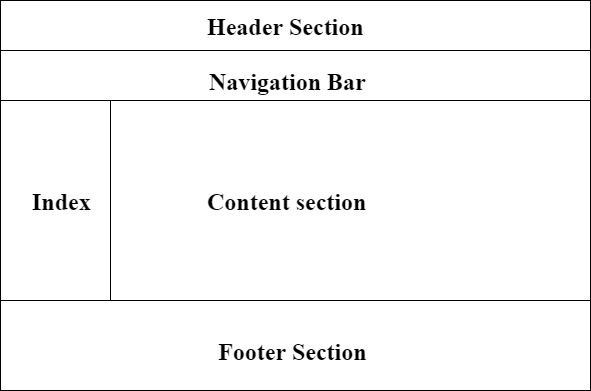
Page Layout Information:
- Header: The part of the front end which is used at the top of the page. <header> tag is used to add header section in web pages.
- Navigation bar: The navigation bar is the same as the menu list. It is used to display the content information using hyperlinks.
- Index / Sidebar: It holds additional information or advertisements and is not always necessary to be added to the page.
- Content Section: The content section is the main part where content is displayed.
- Footer: The footer section contains the contact information and other query related to web pages. The footer section is always put on the bottom of the web pages. The <footer> tag is used to set the footer on web pages.
48. What are semantic elements?
Semantic Elements have meaningful names which tell about the type of content. For instance header, footer, table, … etc. HTML5 introduces many semantic elements as mentioned below which make the code easier to write and understand for the developer as well as instruct the browser on how to treat them.
- article: It contains independent content which doesn't require any other context.
- aside: It is used to place content in a sidebar i.e. aside from the existing content.
- details: It defines additional details that the user can hide or view.
- figure & figcaption: It is used to add an image to a web page with a small description.
- footer: It is located at the bottom of any article or document, they can contain contact details, copyright information, etc.
- header: It is used for the header of a section introductory of a page.
- main: It defines the main content of the document.
- mark: It is used to highlight the text.
- nav: It is used to define a set of navigation links in the form of a navigation bar or nav menu.
- section: A page can be split into sections like Introduction, Contact Information, Details, etc and each of these sections can be in a different section tag.
49. What are HTML entities?
HTML entities provides some method to display reserved characters. Reserved characters are those characters that are either reserved for HTML or those which are not present in the basic keyboard.
For Example: '<' is already reserved in HTML language. Sometimes this character needs to display on the web page which creates ambiguity in the code. Along with these are the characteristics which are normally not present in basic keyboard ( £, ¥, €, © ), etc. HTML provides some Entity names and Entity numbers to use these symbols. Entity number is easy to learn.
50. How can we add symbols in HTML?
There are some characters in HTML that are reserved, & have special meaning when they are used in an HTML document. Like if you used less than or greater than sign in your HTML document then the browser will treat them differently. So we will use HTML entities to insert HTML symbols in a webpage.
Special Symbols | Syntax |
|---|---|
©:copyright | © |
®:registered trademark | ® |
™:trade mark | ™ |
@: at | @ |
¶: paragraph | ¶ |
§: section | § |
ℂ: double-struck capital c | 𝕔 |
℅: care of | ℅ |
51. What is HTML Encoding?
A Uniform Resource Locator (URL) is simply the address of a website to access the website content like www.geeksforgeeks.org. But there are certain characters allowed to use in the URL like alphabets A-Z and a-z, numbers 0-9, and a few special characters. They can be used as it is but the rest of the characters that are not in this list are used after encoding them to a suitable form.
URL Encoding is the process of converting the URL into a valid format that is accepted by web browsers. URL Encoding takes place by replacing all the characters that are not allowed with a % sign followed by two hexadecimal digits. These two hexadecimal values represent the numerical values of the character in the ASCII character set. For example, a space is not acceptable in a URL and is replaced by ‘%20’ or a ‘+’ sign while encoding. Similarly, a $ sign is replaced by ‘%24’.
Reserved Characters: There are certain characters that sometimes have special meanings in the URL and they can be used in both ways. For example, the ‘/’ character is a reserved character and it has a special meaning when being used as a delimiter to separate the paths of a URL. Here it is used by encoding it to ‘%2F’. Else when it has no special purpose it can be used normally.
52. What is the difference between the POST method and the GET method?
The Hypertext Transfer Protocol (HTTP) is designed to enable communications between clients and servers. HTTP works as a request-response protocol between a client and server. There are 2 HTTP request methods ie., GET & POST
- GET: It requests data from a specified resource.
- POST: This method is used to submit data to be processed to a specified resource.
- The bold parts in the URL are the GET parameters and the italic parts are the value of those parameters.
- More than one parameter=value can be embedded in the URL by concatenating with ampersands (&).
- One can only send simple text data via GET method.
53. What is HTML Canvas?
The HTML “canvas” element is used to draw graphics via JavaScript.The “canvas” element is only a container for graphics. One must use JavaScript to actually draw the graphics. Canvas has several methods for drawing paths, boxes, circles, text, and adding images.
Example: The canvas would be a rectangular area on an HTML page. By default, a canvas has no border and no content. An id attribute has been specified to refer to it in a script, and a width and height attribute to define the size of the canvas. The style attribute is used to add a border.
<!DOCTYPE html>
<html>

<body>
    <canvas id="myCanvas"
            width="400"
            height="200"
            style="border:2px solid #000000;">
    </canvas>
</body>
</html>
Output:
54. What is SVG?
SVG stands for Scalable Vector Graphics. It basically defines vector-based graphics in XML format. SVG graphics do NOT lose any quality if they are zoomed or resized. Every element and every attribute in SVG files can be animated.
Advantages of SVG: Advantages of using SVG over other image formats (like JPEG and GIF) are:
- SVG images can be created and edited with any text editor.
- SVG images can be searched, indexed, scripted, and compressed.
- SVG images are scalable.
- SVG images can be printed with high quality at any resolution.
55. What are the different multimedia formats supported by HTML?
Multimedia files have formats and different extensions like .wav, .mp3, .mp4, .mpg, .wmv, and .avi.
56. How can we allow the browser to tell our location using HTML Geolocation API?
Geo-location in HTML5 is used to share the location with some web site and aware of the exact location. It is mainly used for local businesses, restaurants, or to show locations on the map. It uses JavaScript to give the latitude and longitude to the backend server. Most of the browsers support Geolocation API. Geo-location API uses a global navigator object which can be created as follows:
var loc = navigator.geolocationDisplaying Location using HTML Geolocation: The following code is displaying the current location with the help of latitude and longitude via HTML Geolocation.
<!DOCTYPE html>
<html>

<head>
    <title>Latitude and longitude</title>
    <style>
        .gfg {
            font-size: 40px;
            font-weight: bold;
            color: #009900;
            margin-left: 50px;
        }

        .geeks {
            margin-left: 150px;
        }

        p {
            font-size: 20px;
            margin-left: 20px;
        }
    </style>
</head>

<body>
    <div class="gfg">GeeksforGeeks</div>
    <p>Displaying location using Latitude and Longitude</p>
    <button class="geeks"
            onclick="getlocation()">
        Click
    </button>
    <p id="demo1"></p>

    <script>
        var variable1 = document.getElementById("demo1");

        function getlocation() {
            navigator.geolocation.getCurrentPosition(showLoc);
        }

        function showLoc(pos) {
            variable1.innerHTML = "Latitude: "
        + pos.coords.latitude
        + "<br>Longitude: "
        + pos.coords.longitude;
        }
    </script>
</body>
</html>
57. What is HTML Web Storage API?
SessionStorage and LocalStorage are known as the web storage API. Data can be stored on the client-side by using these APIs.
SessionStorage:
- SessionStorage is used for storing data on the client-side.
- The maximum limit of data saving in SessionStorage is about 5 MB.
- Data in the SessionStorage exist till the current tab is open if we close the current tab then our data will also erase automatically from the SessionStorage.
- Like SessionStorage, LocalStorage is also used for storing the data on the client-side.
- The maximum limit of data saving is about 5 MB in LocalStorage also.
- LocalStorage has no expiration time, Data in the LocalStorage persist till the user manually deletes it. This is the only difference between LocalStorage and SessionStorage.
58. What are forms in HTML?
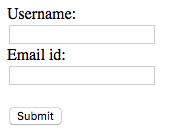
HTML Form is a document that stores information of a user on a web server using interactive controls. An HTML form contains different kinds of information such as username, password, contact number, email id, etc.
The elements used in an HTML form are check box, input box, radio buttons, submit buttons, etc. Using these elements the information of a user is submitted on a web server. The form tag is used to create an HTML form.
<!DOCTYPE html>
<html>

<body>
    <form>
        Username:
        <br>
        <input type="text"
               name="username">
        <br>
        Email id:
        <input type="text"
               name="email_id">
        <br>
        <input type="submit"
               value="Submit">
    </form>
</body>
</html>
Output:
Advanced HTML Questions
These questions cover modern and specialized HTML features—like <canvas>, <dialog>, Web Components, ARIA, and SEO-friendly practices
59. What’s the <canvas> element?
The <canvas> element is like a blank drawing board for creating graphics, animations, or even games with JavaScript (using the Canvas API). You set its size with width and height. It’s often used for charts or fun visuals, with fallback text for browsers that don’t support it.
<canvas id="myCanvas" width="200" height="100">
  Your **browser** doesn’t support **canvas**.
</canvas>
<script>
  const ctx = document.getElementById('myCanvas').getContext('2d');
  ctx.fillRect(0, 0, 100, 50); // Draws a **rectangle**
</script>
60. What is the <dialog> element and how do showModal() / close() work?
The <dialog> element in HTML provides a native, accessible way to create modal and non-modal dialogs. Unlike custom popups built with <div> and JavaScript, <dialog> comes with built-in focus management, keyboard accessibility, and an optional backdrop for modals.
Using showModal()
- Displays the dialog as a modal with a backdrop.
- Focus automatically moves inside the dialog.
- Blocks interaction with other page content until closed.
<dialog id="myDialog">
  <p>This is a modal dialog.</p>
  <button id="closeBtn">Close</button>
</dialog>

<button id="openBtn">Open Dialog</button>

<script>
  const dialog = document.getElementById("myDialog");
  document.getElementById("openBtn").onclick = () => dialog.showModal();
  document.getElementById("closeBtn").onclick = () => dialog.close();
</script>
Using close()
- Closes the dialog and removes the modal backdrop.
- Can return a value (string) to indicate why it was closed.
- Restores focus back to the element that opened it.
dialog.close("user-cancelled");
61. How do you add SVG to HTML?
SVG (Scalable Vector Graphics) uses the <svg>tag to create graphics that look sharp at any size. They’re perfect for icons, logos, or charts because they’re lightweight and don’t get pixelated.
<svg width="100" height="100">
  <circle cx="50" cy="50" r="40" fill="red"/>
</svg>
This draws a red circle.
62. What are data attributes?
Data attributes (data-*) let you store custom info in HTML elements that JavaScript can use. They start with data- and a name you choose, and you grab them with the dataset property. They’re handy for passing data to scripts without messing up the age.
<div data-user-id="12345" data-role="admin">**User**</div>
<script>
  const div = document.querySelector('div');
  console.log(div.dataset.userId); // 12345
  console.log(div.dataset.role); // **admin**
</script>
63. What’s the <template>tag?
The <template> tag holds HTML content that doesn’t show up right away but can be used later with JavaScript. It’s like a stash for reusable code, perfect for components or dynamic content that you’ll add when needed.
<template id="my-template">
  <div>Hello, **world**!</div>
</template>
<script>
  const template = document.getElementById('my-template').content;
  document.body.appendChild(template.cloneNode(true));
</script>
64. What’s the rel attribute in <link>?
The rel attribute in <link> explains how the linked resource relates to your page. Common ones are stylesheet for CSS, icon for favicons, or alternate for things like RSS feeds. It helps browsers know what the link is for.
<link rel="stylesheet" href="styles.css"><link rel="icon" href="favicon.ico">65. How do you show different language versions of a webpage?
Use <link> with rel="alternate" and hreflang to point to versions of your page in other languages. The hreflang attribute uses a language code (like fr for French) to tell search engines which version to show users.
<link rel="alternate" href="example.fr.html" hreflang="fr"><link rel="alternate" href="example.es.html" hreflang="es">66. What’s the <output> tag?
The <output> tag shows the result of something a user does or a calculation, usually in a form. It links to inputs with the forattribute and updates with JavaScript or the oninputevent, great for live updates like a calculator.
<form oninput="result.value=parseInt(a.value)+parseInt(b.value)">
  <input type="number" id="a" value="0"> +
  <input type="number" id="b" value="0"> =
  <output name="result" for="a b">0</output>
</form>
67. What’s the <datalist>tag?
The <datalist> tag gives a list of suggestions for an <input>field, like an autocomplete dropdown. Connect it with the listattribute in <input> matching the <datalist>’s id. Users can type or pick from the list.
<label for="browser">Choose a **browser**:</label>
<input list="browsers" id="browser" name="browser">
<datalist id="browsers">
  <option value="Chrome">
  <option value="Firefox">
</datalist>
68. What’s the difference between defer and async in <script>?
The defer and async attributes make JavaScript files load smarter to speed up your page:
- defer: Grabs the script while the page loads but waits until the HTML is fully ready to run it, keeping scripts in order.
- async: Runs the script as soon as it’s downloaded, which might mix up the order and cause issues if it needs the page to be ready.
<script defer src="script1.js"></script> <!-- Runs after **HTML** is ready -->
<script async src="script2.js"></script> <!-- Runs as soon as it’s **downloaded** -->
69. What are Web Components?
Web Components are a way to create custom HTML elements that you can reuse, with their own styles and behavior hidden away. They use:
- Custom Elements: Make your own tags (like <my-cool-tag>).
- Shadow DOM: Keeps styles and code separate from the rest of the page.
- HTML Templates: Store code in <template> for later use.
They’re awesome for building modular pieces that work without needing a big framework.
<custom-element>Cool **stuff**</custom-element>
<script>
  class CustomElement extends HTMLElement {
    constructor() {
      super();
      this.attachShadow({ mode: 'open' });
      this.shadowRoot.innerHTML = '<p>My **Custom** Component</p>';
    }
  }
  customElements.define('custom-element', CustomElement);
</script>
70. What’s ARIA, and how do you use it?
ARIA (Accessible Rich Internet Applications) adds attributes to make dynamic or tricky web content easier for screen readers to understand. ARIA roles (like role="alert") and properties (like aria-label) give extra clues, especially for JavaScript-heavy pages.
<button aria-label="Close **dialog**">X</button> <!-- Explains what the **button** does -->
<div role="alert">**Error**: Bad **input**</div> <!-- Marks it as an **urgent** message -->
71. How do you lazy-load images and control loading priority?
Lazy loading waits to load images until they’re almost visible on the screen, making your page load faster. Just add loading="lazy" to <img> or <iframe>. Modern browsers support this, and it’s great for pages with lots of images.
<img src="photo.jpg" alt="Nice **view**" loading="lazy">- loading="lazy"; Loads only when close to being visible.
- loading="eager"; Loads immediately, regardless of whether it’s in view.
- loading="auto"; Lets the browser decide.
The problem: browsers don’t always know which images matter most to you. That’s why attributes like fetchpriority and <link rel="preload"> exist—to give hints about resource importance.
- fetchpriority: This is a developer hint to tell the browser how urgent an image is relative to others. For example, a hero image at the top should not be delayed behind thumbnail images far below the fold.
- <link rel="preload">: This is a stronger instruction—it asks the browser to start fetching the resource as soon as possible, even before it’s needed in rendering. It’s often used for critical images, fonts, or scripts.
72. What’s microdata, and how does it help SEO?
Microdata adds structured data to your HTML with attributes like itemscope, itemtype, and itemprop, using standards like Schema.org. It helps search engines understand your content (like a product’s price or a person’s name), which can make your search results pop with rich snippets.
<div itemscope itemtype="https://schema.org/Person">
  <span itemprop="name">**John Doe**</span>
  <span itemprop="jobTitle">**Developer**</span>
</div>
73. How do you make HTML better for SEO?
To make your HTML shine for SEO, so search engines love your page, try these:
- Use semantic elements like <header> or <article> to organize content clearly.
- Add <meta>tags like description to summarize your page.
- Put alttext on images so Google can index them.
- Use hreflang for multilingual sites to reach the right users.
- Speed up loading with defer or async for scripts.
<head>
  <meta name="description" content="Learn **web development** tips">
  <title>**Web** Guide</title>
</head>
74. What’s the <picture> element?
The <picture> element lets you offer different images for responsive design or formats like WebP. It uses <source>tags with rules (like screen size) and a fallback <img> tag, so browsers pick the best image.
<picture>
  <source media="(min-width: 800px)" srcset="big.jpg">
  <source srcset="small.webp" type="image/webp">
  <img src="small.jpg" alt="Cool **image**">
</picture>
75. How do you create an iframe?
An iframe (<iframe>) embeds another webpage or content inside your page. Use attributes like src, width, and height to control it. It’s great for things like maps, videos, or forms from other sites.
<iframe src="https://example.com/" width="600" height="400" title="**Embedded** Page"></iframe>76. What’s the tabindex attribute?
The tabindex attribute controls how elements get focused when users navigate with a keyboard. Here’s how it works:
- 0: Lets the element be focused in the normal order.
- Positive numbers (like 1): Sets a custom focus order (use sparingly).
- -1: Makes it focusable with code but skips it when tabbing.
<div tabindex="0">**Focusable** div</div><button tabindex="1">First **button**</button>77. How do you validate an HTML form?
HTML5 has built-in validation for forms using attributes like required, type, pattern, or min/max. These check user input before the form is sent, saving server work. You can also use JavaScript for fancier checks.
<form>
  <label for="email">**Email**:</label>
  <input type="email" id="email" name="email" required pattern="[a-z0-9._%+-]+@[a-z0-9.-]+\.[a-z]{2,}$">
  <input type="submit">
</form>
This checks for a valid email and makes it required.
78. What are the <figure> and <figcaption> tags?
The <figure> tag groups content like images or charts, and <figcaption> adds a caption to explain it. They’re semantic, so they help accessibility (for screen readers) and SEO by linking the caption to the content.
<figure>
  <img src="chart.jpg" alt="**Sales** chart">
  <figcaption>**Sales** data for 2024</figcaption>
</figure>
79. What are HTML Global Attributes? Give examples.
Global attributes are special attributes that can be used on any HTML element, not just specific tags. They give elements extra functionality or metadata without changing the tag itself.
Common Global Attributes:
1. id – Assigns a unique identifier to an element.
<p id="intro">Welcome to my page</p>2. class – Assigns one or more classes for CSS styling or JavaScript.
<div class="card highlight">Content here</div>3. title – Provides extra information shown as a tooltip on hover.
<abbr title="HyperText Markup Language">HTML</abbr>4. hidden – Hides the element from display.
<p hidden>This text is hidden</p>5. tabindex – Controls the order of keyboard focus on elements.
<button tabindex="1">Click Me</button>6. contenteditable– Makes an element editable by the user in the browser.
<div contenteditable="true">Edit this text</div>7. data- (custom data attributes) – Stores custom data that JavaScript can access.
<div data-user-id="123" data-role="admin">User Info</div>Key Point: Global attributes can be applied to almost any HTML tag, making them extremely versatile for styling, scripting, and accessibility.