The <label> element provides a caption for form inputs and improves accessibility by linking text to input fields. Clicking the label focuses or activates the associated input.
The <label> tag can be used in two ways:
- With for attribute: Links the label to an input via the input’s id.
- Wrapping input inside label: Place the input directly inside the label, no for needed.
- Enhances form usability and navigation.
HTML Inputs and Labels
The <label> tag links text with input fields, improving accessibility and making forms easier to use. Clicking the label activates or focuses the associated input.
Supported Tags
The <label> tag can be defined with the following Tags:
Syntax:
<label> form content... </label>Attribute Value:
- for: It refers to the input control that this label is for. The for value must be the same as the value of the input control's "id" attribute.
- form: It refers to the form to which the label belongs to.
HTML <label> Tag Examples
Here are some examples of how labeling can be used:
Example 1: Using the <label> Tag with the For Attribute
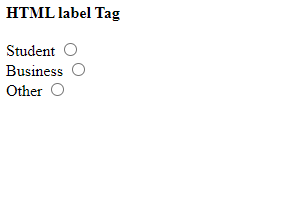
This example illustrates the basic usage of the <label> tag in HTML. Here, we will use the <input> tag outside of the <label> tag.
<!DOCTYPE html>
<html>
<head>
    <title></title>
</head>
<body>
    <strong>HTML label Tag</strong>
    <br><br>
    <form>
        <label for="student">
            Student
        </label>
        <input type="radio"
               name="Occupation"
               id="student"
               value="student"><br>
        <label for="business">
            Business
        </label>
        <input type="radio"
               name="Occupation"
               id="business"
               value="business"><br>
        <label for="other">
            Other
        </label>
        <input type="radio"
               name="Occupation"
               id="other"
               value="other">
    </form>
</body>
</html>
Output:
Example 2: Using the <input> Tag Inside the <label> Tag
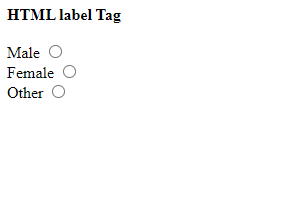
In this example, we will demonstrate how to use the <input> tag inside the <label> tag.
<!DOCTYPE html>
<html>
<body>
    <strong> HTML label Tag</strong>
    <br><br>
    <form>
        <label>
            Male
            <input type="radio"
                   name="gender"
                   id="male"
                   value="male" />
        </label><br />
        <label>
            Female
            <input type="radio"
                   name="gender"
                   id="female"
                   value="female" />
        </label><br />
        <label>
            Other
            <input type="radio"
                   name="gender"
                   id="other"
                   value="other" />
        </label>
    </form>
</body>
</html>
Output: