Showing posts with label tips. Show all posts

Monday, October 17, 2011

Read answers from Experts Exchange for Free- Trick

 Have you ever searched google and stumbled into the pages of Experts Exchange? Uff! the I've seen this page so many times to and it really irritates. I found it using Google and Google is there to rescue too.

Can't stand viewing this page?
 When you see a Experts Exchange page on the search list, don't click the direct link to the page. It will just lead you to the above image page. Instead check for cached link below it's link and definition.
Click the "Cached", thats where you get the Answers.
Ops! you still see the Subscribe Now Image? Don't worry, just scroll down a bit... TAADA! Answers! Awesome!.
Try it now, works Great.
Update  21 oct 2011:
Hmm... it seems that you can view the answers on expert exchange by viewing the link bordered with red too(above image). It may not work in all cases though.

Wednesday, October 12, 2011

Iframe Method for Facebook Like

So, I tested with the Iframe method too. It is actually the most easiest way to insert Facebook like to your blogger post. I am still using the FBML version though.
Here is how you do it.
For Blogger/Blogspot

  1. Go to Layout (Design) > Edit HTML and check “Expand Widget Templates”.
  2. Find <data:post.body/> and Below the line add the following codes.
<b:if cond='data:blog.pageType != &quot;static_page&quot;'> <iframe allowTransparency='true' expr:src='&quot;http://www.facebook.com/plugins/like.php?href=&quot; + data:post.url + &quot;&amp;send=false&amp;layout=button_count&amp;show_faces=false&amp;width=90&amp;action=like&amp;font=arial&amp;colorscheme=light&amp;height=21&quot;' frameborder='0' scrolling='no' style='border:none; overflow:hidden; width:90px; height:21px;'/> </b:if> 

The blue coloured ones can be changed according to the your needs. Or got to http://developers.facebook.com/docs/reference/plugins/like/ and customize your Button.
See related post : http://likeweb.blogspot.com/2011/10/finally-i-got-facebook-like-button.html

Test the FBML and IFrame version, and share which one works best with you.

Finally, I got the Facebook Like Button. WoHoo!

After two days(now its way faster than that) of searching and testing I got it. Finally I got the facebook like button to work properly on my blog. Here's how I did it.

First Goto to http://developers.facebook.com/docs/reference/plugins/like/ . Here you will get the required code to insert the like button.
Select the required options as you want, the most important is the URL to Like. It is where you set the post or website which you want to link like button.

For now just type anything there (need to be changed if for blog posts). In Layout Style if you just need a small like box then choose the "button_count".
In the width option, if you chose "button_count" then 150 will just be enough for you. Enter 450 if you want a bit detailed view.

Show Faces shows the Profile Picture of the one who liked the page.


After you click on Get Code a pop-up box will appear showing you the code.

Select XFBML for now and I guide you to rest.
I tried with the other methods HTML5 and IFRAME, the result was not like as I wanted so I chose XFBML.
Choose XFBML for now.
  1.  First you have to do is copy the code in second box. You don't need to copy all, just copy the xmlns:fb="http://ogp.me/ns/fb#"
  2. Now Go to  Blogger and Overview(Dashboard)> Template> Edit HTML. Tick the "Expand Widget Template". You can backup the Code in Notepad if any error occurs.
  3. Find your <HTML ...tag. copy the above code and paste before the ">" of the HTML tag.
  4. Now Find <data:post.body/>Then right below the line paste the code from the First Box(above image).
  5. Then paste another code from the third box(above image) , to the another line below.
    Important:
    Now change the code of third box href='post.url' to expr:href='data:post.url'. This gives the link of the post you are currently viewing.

You like button must be up and running after this. Do ask if any questions.
Click here for The iframe method.

Friday, July 1, 2011

Install Android SDK and Run the android Apps

Before, I helped you guys with installing the Android LiveCD. Now here's how you can install Andorid on your PC working side by side with Windows, using Android SDK. Before download look at the System Requirements.
http://developer.android.com/sdk/requirements.html

  1. Go to http://developer.android.com/sdk/index.html.
  2. Java from http://java.sun.com/javase/downloads/index.jsp. If you don't already have it. It is recommended to install newer version of Java(JDE).
  3. you want to develop apps from the SDK then you will also need to download ECLIPSE. But that's the other part. Download it from
    http://www.eclipse.org/downloads/

    The "Eclipse Classic" version is recommended. Otherwise, a Java or RCP version of Eclipse is recommended.
Now Setting up Android Virtual Device (AVD). ADV is your Virtual Phone where you run your Android.
  1. Launch ADV from Eclipse by clicking Window > Android SDK and AVD Manager. You can also start the AVD Manager from the command line by calling the android tool in the tools directory of the Android SDK.
  2. Click New and the ADV creation dialog appears. Enter a size under SD Card. It's not an actual SD card but it stores the IMG file of the Android for storing Data. Eg:512.
  3. Then Click Create AVD.You’re now ready to run Android on your PC! Select your new virtual Android by clicking Start.
Now for Installing Apps on your Virtual Android.
  1. Start your AVD. It may take some time to load. After it loads you can see a browser app. Click on it and goto:https://market.android.com/ You will need to Register or Login through your existing Account. Select Apps you want and Download them.
  2. The Default Apps like email work great. However the call app may(will?) not work. The games you download will work great. I tried Angry Birds and Pac Man.
Enjoy your Android and apps.

Sunday, June 12, 2011

Easy to use PhotoScape - Facebook photos here I come

http://www.photoscape.org
PhotoScape unlike Photoshop is a great easy to use photo editing software. You can edit your photos; resizing, brightness and color adjustment, white balance, backlight correction, frames, balloons, mosaic mode, adding text, drawing pictures, cropping, filters, red eye removal, blooming, clone stamp; on the fly. Great for facebook users who frequently need to have new photos for their profile picture.

You will be quite amazed( actually if you don't use much of photoshop) what you can do with your photo with photoscape.

Saturday, May 14, 2011

Run Android on your PC! - Android Live CD

The world is now buzzing with the Android devices(iPhone is already there). The only platform right now which can match or out class the likes of iPhone(iOS).

If you have still not got an android device yet then no problem. You can stil use what an Android has in offer for free by Android Live CD. Also there is Android Live USB available.

Download it from
http://code.google.com/p/live-android/downloads/detail?name=liveandroidv0.3.iso.001&can=2&q=
http://code.google.com/p/live-android/downloads/detail?name=liveandroidv0.3.iso.002&can=2&q=
These are two parts of the download and are spitted so you need to join them together. Use this freeware to join the two parts together http://www.freebyte.com/hjsplit/

Then Burn it to a CD and boot.
You can also use virtual box or Vmware to run the live CD on your current OS.
Here are some features of Live Android 0.3
  • OpenDNS added
  • Audio support
    • VirtualBox – Intel 8×0 AC97
  • SD card support (512M)
  • Ethernet (DHCP)
  • Mouse wheel support
  • High-resolution support (800*600, 1024*768)
  • Apps added
    • Software Directory
    • AndroidVNC
    • PilotLines, Craigs Races, Super Mario
  • More net card drivers added
    • Amd PCNET32 PCI
    • Broadcom 440x/47xx
    • CS89x0
    • Intel PRO/100+
    • NE2000/NE1000
    • Realtek RTL-8129/8130/8139

For more information about the Android Live CD 0.3 and how to use it, visit: http://code.google.com/p/live-android/

Sunday, May 23, 2010

In Facebook - Not Friends or Blocked? Not a big deal!

You have been having some creepy guys out there stalking at you. So you blocked them from your Facebook friends list; you get relaxed then. But by passing days you may find out that they are still watching you. Here's how people actually stalk on facebook.


Handling blocks(or not friends): Just search the name of the person you want to view and click on it. You will be taken to his profile and see his status updates, photos and other stuffs. BUT, If he has perked with the security settings and stoped unknown peoples from viewing his post then you won't be able to see his status updates. 


Handling blocks(blocked from post): A friend has blocked you from their posts? No worries, you can still find out what they've been up to. Type their name in the search bar and click on See more Results for X. Check out the list of events and wall posts and photo comments under Posts by Friends. If you want more, go for View All Posts by Friends.


Photos: To view a photo album put up by somebody who is not on your friend list, find a friend of theirs who allows public viewing of their wall. Now, amongst all their news feeds, you'll see: X commented on Y's photo. Click on the photo, and just keep clicking next. *Wink Wink* you just saw their entire album without actually being friends.

The Last Resort: Make a new facebook account and fake him/her as friend, send friend request and wait till he accepts. Rest you know.

Friday, January 15, 2010

The Add-ons Eco system on Firefox - Third

CoolPreviews
http://www.coolpreviews.com/
https://addons.mozilla.org/en-US/firefox/addon/2207

This is my Personal Favorite. This 'Time Savior' Add-on lets you to preview your desired links without leaving the current page. Just put your mouse over any link then on the blue Magnification Glass icon then the preview of the link automatically shows up without you leaving the page.

Try it on facebook; I actually loved it on Facebook. Searching for friends is easy with this.Here are its features. It works with every website(google, facebook, forums, flicker,blogger,...). Do write if it doesn't.
That is the charm(ie,the product of the mouse over) with no hassel.


Similar Posts.
http://likeweb.blogspot.com/2010/01/add-ons-eco-system-on-firefox.html
http://likeweb.blogspot.com/2010/01/add-ons-eco-system-on-firefox-second.html
http://likeweb.blogspot.com/2010/01/add-ons-eco-system-on-firefox-third.html
http://likeweb.blogspot.com/2010/01/add-ons-eco-system-on-firefox-fourth.html

Sunday, November 1, 2009

Making your URL Short

Do you have problem typing or memorizing long URLs(Uniform Resource Locator; ie, http://likeweb.blogspot.com) then there are some websites that can help you shorten them. Here are two of them that I think are most widely used.

1. Tinyurl
http://tinyurl.com
Its the one from the past. It had been used enormously and still used. But now a days even the tinyurl is gettng hard to get because of its complexity. 'http://tinyurl.com/yzez6et', this is what it makes of http://likeweb.blogspot.com.

2. Alturl
http://alturl.com
I like this one to tinyurl. 'http://alturl.com/fkwm', this is what it makes of http://likeweb.blogspot.com That's why Alturl is better than tinyurl (see the difference?). However shortening the url is not just it. It has 'preview transition' and 'traffic counter'. The preview transition shows what the short url directs to. Then the traffic counter shows how many viewers has passed through the short url.

Tuesday, October 20, 2009

Download Youtube Videos without any software!

http://www.pwnyoutube.com
This website must have been there for long time, I don't know. The question is how didn't I know it before. I recently got this website or a tool to download youtube videos with no hassle to install the softwares nor copy/paste.

First you goto the youtube website or search youtube video. Then select the video you want to download and just add 'pwn' before 'youtube.com' to make it 'pwntube.com' in the address bar of your web browser.Then it takes you to the pwnyoutube website where you can download the video either on .flv(low quality) or .mp4(high quality) format. It's simply as that.
Try it out yourself!

Monday, August 24, 2009

How to make good conversations on Omegle?

When the Omegle first launched then everyone stormed into it, everyone were so excited. I too was excited for what was it. Talking to strangers even with their name as "stranger" was quite interesting. I got to talk with some pretty good strangers and had long conversations sometimes. But now as the days grew older the long conversations seems to fade away.

Now a days;

Stranger: hi
Stranger: have you checked Xanka on Bebo its fabulous http://apps.bebo.com/xanka
Stranger: they add new games every minute!
Stranger: sorry got to go now

This is the one I got recently and more
Stranger: My name is Claudia, u can see me here live on cam www.bloscos.com Im the first blonde

Omegle has now become home for spams. In every 10 conversations about 8 starts with these spams.

So how to make a good conversation on Omegle?
1. When you see the conversation starting with the above like sentences then just disconnect from the chat.
2. Just start with a simple "Hi" for instance. Even try this one "My name is ... what is ur name?", it might sound a bit geekish but it worked.
3. Don't wait too long for a response. If there is no respose then you can disconnect from the chat and start a new one.
4. If you get the response try talking about the possible topics of interest. Just get any random topic, and do change it if the conversation is getting boring.
5. Listen to what your stranger says and reply to it honestly as necessity. But don't give out ur personal information just yet.
6. Even making fun of your stranger is not bad for running a good conversation, though there is no gurantee the conversation will be long.
7. Can you disguise peoples? Try it to the stranger. If you are a man then try talking in woman ascent. I found talking as a woman is a good way for long and good conversations.
8. If the time comes where one of you has to go or you are ready to exchange contact information, think about starting with an email address.

Try them and they are not bad for health.

Saturday, August 8, 2009

Things that you didn't know about Gmail

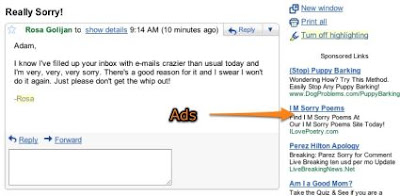
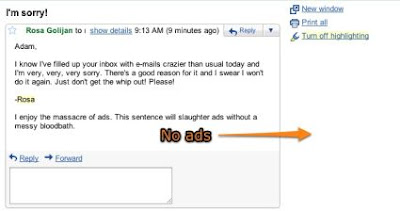
With just two simple sentences at the end of an email, you can now eliminate the ‘Sponsored Links’ that show up on the side of an email in your inbox.

The sentences were based on the logic laid forth by blogger Joe McKay, who wrote in a blog post on his site that all you need to do is mention catastrophes or tragedies in your mail for Gmail to not put up ads.

“Google does not use humans to read your email, only computers. These computers search for keywords that trigger the advertisements, however, if they happen to find a catastrophic event or tragedy Google errs on the side of good taste and removes the ads altogether,” McKay wrote.

While McKay’s suggestions were a bit too offensive, the guys at Lifehacker came up with their own phrases that were ‘safe’ to send to anyone.

So all you need to do is add these two sentences at the end of an email: “I enjoy the massacre of ads. This sentence will slaughter ads without a messy bloodbath.”

Before
After

“Those two simple (and innocent) sentences at the end of an e-mail appear to consistently block Gmail's sponsored ads for us. We've tested e-mails of varying lengths because Joe remarked that he found that there needs to be a ratio of one ad-blocking word for every 167 normal words, but so far, we haven't seen those sentences fail,” Lifehacker wrote.

HOW TO DISABLE THE SPONSORED LINKS BAR
McKay also notes how to disable the bar at the top of your inbox, which displays sponsored links. A lot of our tech-savvy readers might already know this one, but the Sponsored Links bar can be turned off simply through the Gmail settings itself.

Go to your settings page, click on ‘Web Clips’ and uncheck the box for “Show my web clips above the Inbox”.

That’s it! You now have an ad-free Gmail inbox.

Of course, Mozilla Firefox users could always just use the AdBlockPlus extension and disable all of the annoying sponsorship nonsense directly…

Friday, June 12, 2009

How to identify your Mobile Phone Platform?

You can always check your mobile phone user manual to know what platform your phone is running on. However if you find hard to find it out then you can always use the internet.

To start off, visit GSM Arena at www.gsmarena.com.

If you know the brand and model number of your phone, then simply search for the same in the search box provided at the top right corner. Alternatively if you are unsure about the model number of your phone, just use the listing of brands on the left to browse through the different models in a pictorial grid – after all you know what your mobile phone looks like!.

Once you locate your phone through either method, click on it to open its specification sheet. For phones where the OS is not listed, or for those operating systems that are not listed, you will need to know whether your phone supports Java. It is a rare that smart phones don’t have java support.

Of course if that doesn’t help then you can always use the Google or search for Wikipedia entry. You can also call your customer service for your brand and ask them to help you out with this information.

Thursday, February 12, 2009

Yahoo! Search, Tips and Tricks

Well after the Google Search tips here is the just another tips and tricks for the Internet's 2nd largest search giant, Yahoo!. OK the list starts.

Choose Words Carefully
Use specific words to describe exactly what you're looking for. More general terms give a larger number of results, so try to narrow your search.
For example:
* Try 19th century chairs instead of old furniture
* Use digital camera reviews instead of electronics
Watch for words with more than one meaning. If you're looking for information on modeling, make sure you specify "fashion" or "clay."

Phrase Search
When you want the results with the exact phrase then you can simply use quotation marks around your search terms. Example: "the rose bud"

Including Words
To include words, just type a plus sign + in front of each one. For example, if you want to see pages about the latest "in thing," search for +in thing.

Excluding Words
To exclude words, type a minus sign - in front of them. No pages containing those words show up in your results. For example, if you want to see pages about dogs with no mention of poodles, search for "dogs -poodles."

'OR'
It shows results with either of the given words, like Pen OR book.

site: Use to find all documents within a particular domain and all its subdomains.
Example: football site:yahoo.com

hostname: Use to find all documents from a particular host only.
Example: ford hostname:autos.yahoo.com

link: Use to find documents that link to a particular URL.
Example: link:http://autos.yahoo.com/

url: Use to find a specific document in our index.
Example: url:http://edit.autos.yahoo.com/repair/tree/0.html

inurl: Use to find a specific keyword as part of indexed URLs.
Example: inurl:bulgarian

intitle: Use to find a specific keyword as part of the indexed titles.
Example: intitle:Bulgarian

'orginurlextension'
To search on specific file types, add ‘originurlextension:[file format]‘ after your search query. For example: nanotechnology originurlextension:swf OR nanotechnology originurlextension:pdf Some of the supported formats are:
* .htm, .html—Standard HTML
* .pdf—Adobe PDF
* .xls—Microsoft Excel
* .ppt—Microsoft PowerPoint
* .doc—Microsoft Word
* .xml, .rdf, .rss—RSS or XML feeds
* .txt—Plain Text Format

Definitions & Synonyms
To look up the definition of a word, try adding “define” or “definition” to your search term. For example: quixotic definition, definition of globalization or define ergonomics Or, if you’re looking for a synonym, try adding “synonym” to your search term. For example: humorous synonym

Flight tracker — search for the airline and flight number and you’ll get a shortcut to the flight’s status. Try: American 83 or Lufthansa 421

Traffic — if you’re driving instead of flying, you can search for traffic before you leave. Example: traffic Los Angeles Click on the shortcut and you’ll get a map with traffic alerts.

Maps — try searching for the exact address: ‘1600 Pennsylvania Avenue, Washington, DC.’ Don’t have the address? No problem. Add “map” before the city: map San Francisco You can also search for the zip code by itself: 20502

Yahoo! Open Shortcuts
Yahoo! Open Shortcuts are the ultimate time-saving search feature. Add an exclamation point to the front of certain terms to instantly navigate to a URL, search a site, recall a favorite Yahoo! search, or start an application.
!wiki queen elizabeth takes you directly to the Wikipedia page for Queen Elizabeth.
!wsf gives you the Yahoo! Search results for weather San Francisco
!ebay lamps searches eBay for lamps.
Search for !list to see a bunch more.

Hotels
Type city hotels to get a quick list of hotels in that city, along with the Yahoo Local rating, the base rate, and a link to check availability. You can also look for a specific hotel chain by typing city chain--for example, San Francisco Ramada.

Sports scores
Find out how your favorite pro team is doing by typing team mascot scores. You'll get a quick look at recent games, and sometimes you can see who they're playing in the next game. The query 49ers scores will give you information about the San Francisco 49ers football team.

Movie showtimes
To see when movies are playing in your area, type showtimes zip code, and you'll get links to local theater showtimes and a few showtimes for current movies.

Zip codes
You can find all of the zip codes for a city by typing zip code city.

Area codes
If you're not sure where someone is calling from, try typing the three-digit area code into Yahoo Search. Yahoo will return a list of cities in that area code.

Weather
For a quick look at the current weather for any city, type city weather. Yahoo will give you the current conditions and the expected high and low temperatures.

Preferences
Last but not the least the preferences will really help you to search with the options for your search to choose from.

Monday, February 2, 2009

Google Search Tips and Tricks

I am just fade up of doing the normal search of writing the keyword, then searching (more searching) for the right result to show up. Here's some of the tips and tricks you can try out to reduce the quantity but increase the quality of your search results.
1.
Google is not case sensitive. Using 'book reader' as 'BOOK READER' shows the same results. But the Google operators are case sensitive. Using 'book OR reader' uses OR as Google operator but 'book or reader' doesn't. Google excludes some common words like, 'what', 'is', 'and', etc.

2. '+' It
forces a word to be used in the search. Using it with the common words like 'is', 'and', are included in the search results, which are usually discarded.

3. '-'
It prevents a search term to show in results. Example: books -fantasy will avoid results of fantasy books.

4. 'OR'
It shows results with either of the given words, like Pen OR book.

5. Synonym '~'
It shows the result not only of your search term but also the synonym of it. Example: ~ food

6. 'site:website'
It allows you to search inside the specific website only. Example: wine site:www.wineworld.com

If you want to exclude certain website from search result then you can use it. Example: food site:www.wikipedia.com -site:www.wordpress.com

7. Number range
Numrange searches for results containing numbers in a given range. Example: here's how you'd search for a DVD player that costs between $50 and $100: DVD player $50..$100
8. Phrase search

When you want the results with the exact phrase then you can simply use quotation marks around your search terms. Example: "the rose bud"
9. Get the local time anywhere
What time is it in Kathmandu right now? Enter simply what time is it to get the local time in big cities around the world, or add the locale at the end of your query, like what time is it Hong Kong to get the local time there. time Hong Kong does the same thing as what time is it Hong Kong
8. Convert currency, metrics, bytes, and more
Google's powerful built-in converter calculator can help you out whether you're cooking dinner, traveling abroad, or building a PC. Find out how many teaspoons are in a quarter cup (quarter cup in teaspoons) or how many seconds there are in a year (seconds in a year) or how many euros there are to five dollars (5 USD in Euro). For the geekier set, bits in kilobytes (155473 bytes in kilobytes) and numbers in hex or binary (19 in binary) are also pretty useful. Try half a cup in ounces. And there are many other such relations to find.
9.filetype:
It returns links to documents with the given file type. For example searching for mobile game filetype:java will find portable and object-oriented mobile games. Currently officially supported file types are pdf, ps, wk1, wk2, wk3, wk4, wk5, wki, wks, wku, lwp, mw, xls, ppt, doc, pdf, wks, wps, wdb, wri, rtf, swf, ans, txt, but other are supported as well, like xml, cpp, java etc.

10. cache:
No problem if the website is blocked; using this to your search term shows the cached version of the given web page. Example:stake money cache:something.com

11. link:
It lists webpages that link to the given webpage. Example link:http://likeweb.blogspot.com wil list webpages with links to the likeweb.blogspot.com.

12. weather:
It shows the weather information of the given city. Example: weather:Kathmandu

13. define:
It shows the definition of the searched term. Example: define:Doughnut

14. Advanced Options
Just see the right of the Google Search box. There is in tiny words saying Advanced Options. It can really help you minimise the page no and give you quality search results. You can opt for country, time, language, and many other options from it.

Still there are many other Search options that I left you to find. Just search them.
Yahoo Search Tips and tricks

Thursday, October 16, 2008

Growing up with Search Engines

When you are researching online, you need to be aware that anyone can publish a web page. This means that material you find on a web site is not necessarily accurate. This can be discouraging, but there are steps you can take to see whether or not the information is accurate.

Once you understand that not everything on the web is factual, you are ready to learn some techniques to help you sort through the thousands upon millions of sites located on the word wide web. Some well known search engines include - Google (http://www.google.com), Yahoo! (http://www.yahoo.com, MSN (http://www.live.com).

There are also some good search engines made specifically for kids. This means the results will be tailored to fit your needs. Two search engines designed just for kids are - KidsClick! (http://www.kidsclick.org) and Yahooligans (http://www.yahooligans.com). There are also specialized types of search engines. These sites specialise in specific fields such as math, science, medicine, and even newspaper articles.

Search Engine Tips
There are also tips you can take when typing your search request into a search engine. Here are some of the tips.

* If there's a specific phrase you're looking for, to get the best results put the phrase in quotation marks. For example, if you want to learn about graphics designer, type it into search engine as "graphics designer". If you do not your quotation marks, your results may include sites that are just about graphics, pictures.
* Include words 'or' and 'not' in your search. If you type 'book not fiction' into a search engine, then the list of results will exclude fiction books.
* Using an akterisk can also help when looking for web pages. Adding asterisks to the ends of words or partial words makes the search engine look for other words that have the same roots. For example, instead of looking for 'law' and 'lawyer' separately, you would type 'law*'. Anyway nowaday's search engines are smart enough to add the results of both 'law' and 'lawyer' without the use of * in search.
*You can use Google to search only within one specific website by entering the search terms you're looking for, followed by the word "site" and a colon followed by the domain name. For example, 'admission site:www.college.edu'.
*You can also include number range. For example 'DVD player $50- $100'.
*Use the Advanced Search option. This option allows you to search local, include date, language, domains, occurrences on the page, and likewise.