
HTTP defines a set of methods used to specify actions performed on server resources, forming the basis of client-server communication.
- Defines how clients interact with server resources.
- Maps closely to CRUD operations (Create, Read, Update, Delete).
- Ensures standardized communication over the web.
- Used in APIs to perform operations on data.
HTTP Requests Methods
HTTP Requests are the messages sent by the client to request data from the server or to perform some actions. Different HTTP requests are:
1. GET Request
A GET request retrieves data from the server, sends data through the URL, is cacheable, and commonly returns status codes like 200 OK or 404 Not Found.
Steps to make GET request:
1. Paste the following URL in the Enter request URL text box of Postman.
https://jsonplaceholder.typicode.com/posts2. Click Send.
3. At the bottom, you can see the response formatted as JSON.
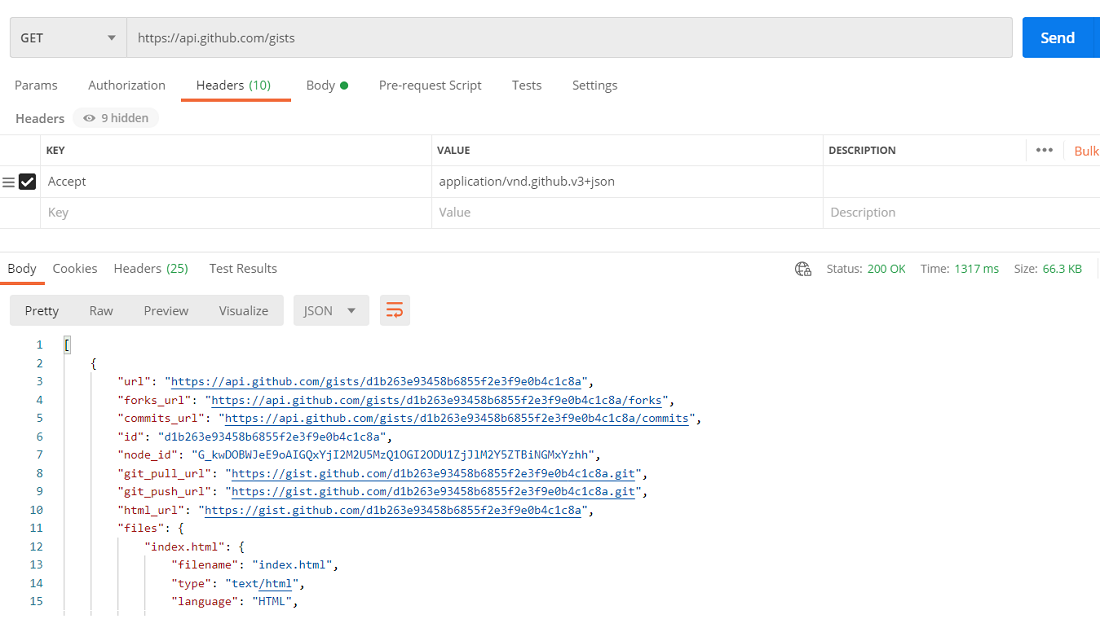
2. POST
A POST request sends new data in the request body to create or process resources, is not cacheable by default, and often returns 201 Created or 200 OK.
Steps to make a POST request are:
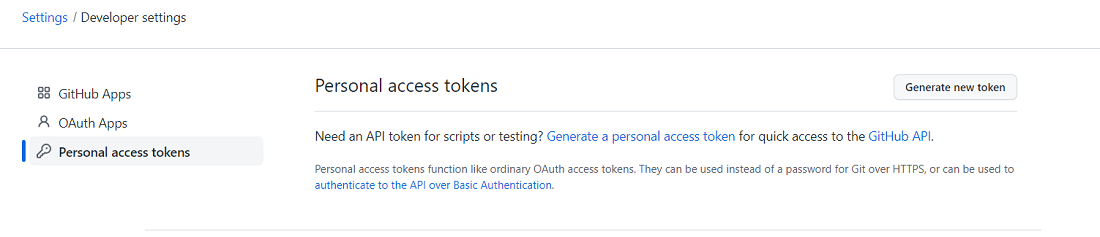
Step 1: Login to your GitHub account and go to Settings/Developer settings >> Personal access tokens.
Step 2: Click on Generate new token button.
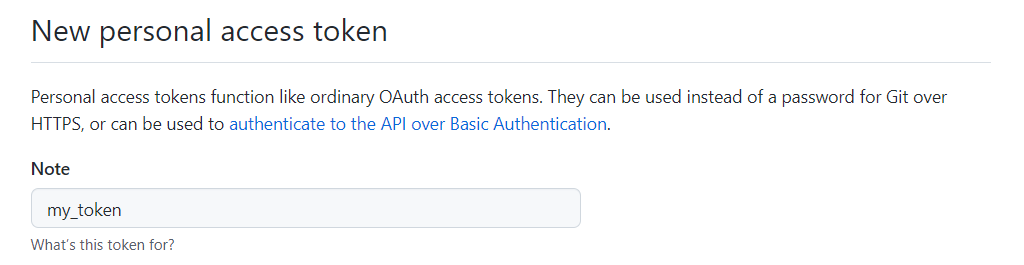
Step 3: Give your token a name and select the scope Create gists.

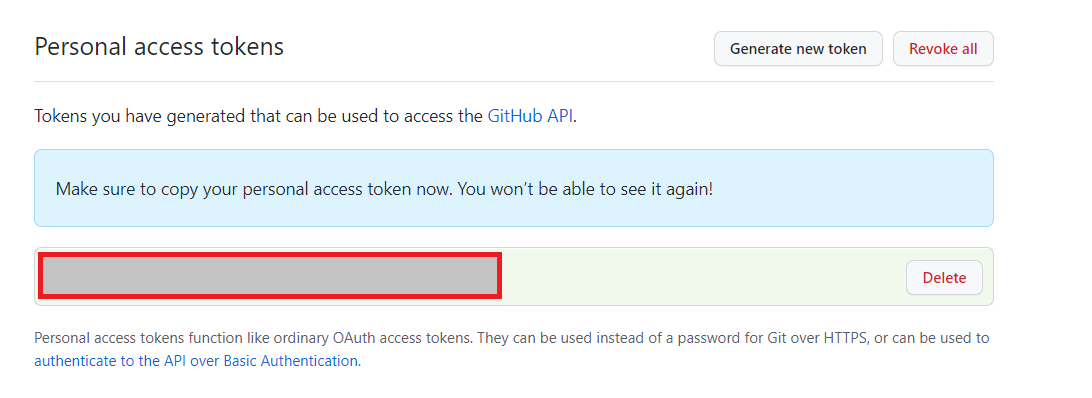
Step 4: Click on Generate token button.

Step 5: Copy the access code and paste it somewhere.
Step 6: Finally, we are ready to make a POST request. Paste the same URL we used above in GET request in the input field of the postman.
Step 7: In the headers tab, add "Accept" as a header and set it to:
application/vnd.github.v3+jsonStep 8: Go to the body tab, choose the content type to JSON and choose the data format as raw.
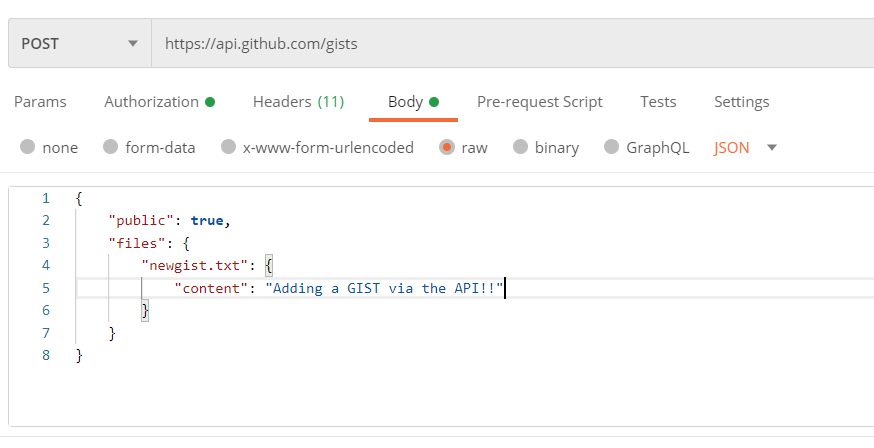
Step 9: Paste the following in the body tab.
{
    "public": true,
        "files": {
        "newgist.txt": {
            "content": "Adding a GIST via the API!!"
        }
    }
}
- Set public to true to make the gist public.
- Add a files object with the filename as the key.
- Use content to define what you want to write in the gist.
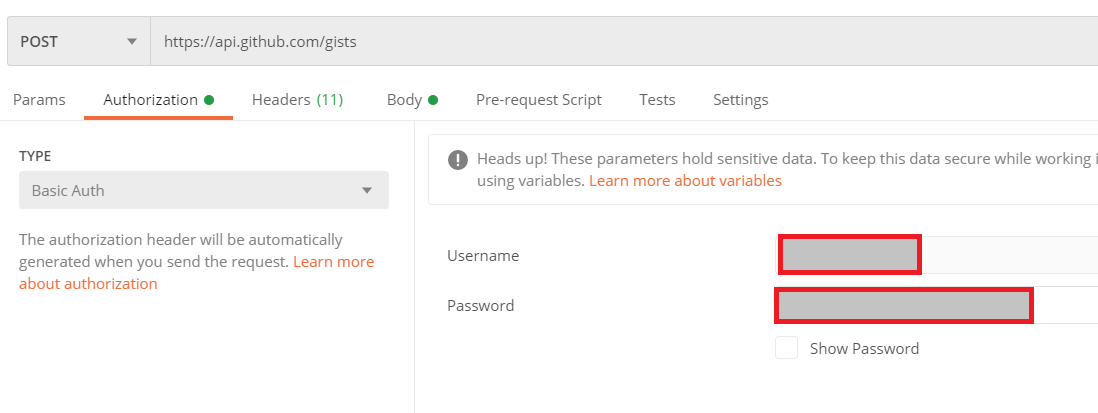
Step 10: Go to the authorization tab and choose the authorization type to Basic Auth. Type your GitHub username and generated access token in the username and password field, respectively.
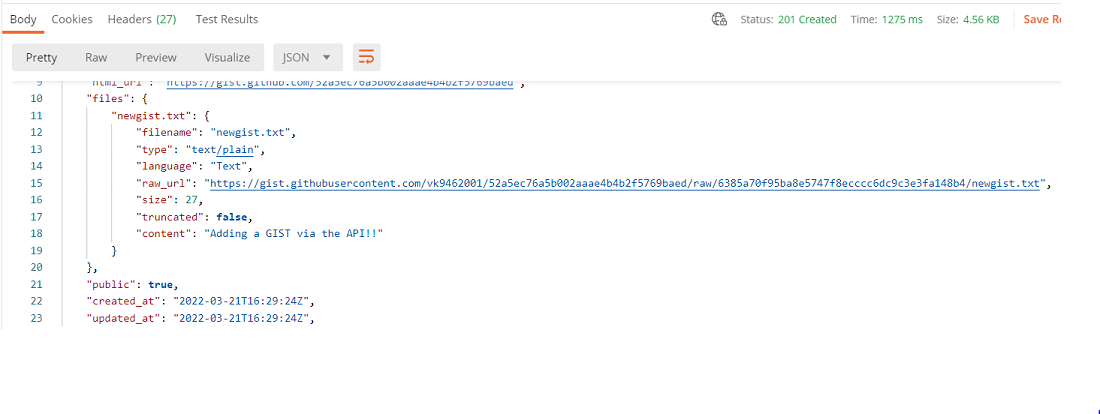
Step 11: Click on the send button, and you will get the response.
3. PATCH
A PATCH request partially updates specific fields of a resource using only modified data, making updates efficient, and usually returns 200 OK or 204 No Content.
Now we update the gist we just created. To make a PATCH request, follow the given steps:
Step 1: Find the ID of your created gist by going to
https://gist.github.com/starred

Step 2: Paste the following URL in the input field of the Postman.
https://api.github.com/gists/%7Bgist_id%7DStep 3: In the headers tab, add "Accept" as a header and set it to
application/vnd.github.v3+jsonStep 4: Go to the body tab and add the description of the created gist.
{
    "description": this is my newly created gist,
        "files": {
        "newgist.txt": {
            "content": "Adding a GIST via the API!!"
        }
    }
}
Step 5: Go to the authorization tab and choose the authorization type to Basic Auth. Type your GitHub username and generated access token in the username and password field, respectively.
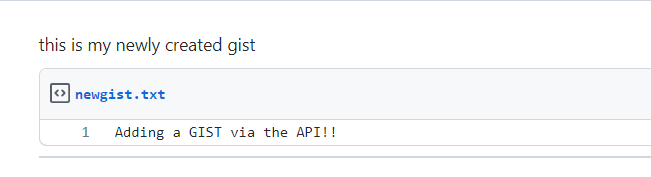
Step 6: Click on the send button and refresh your gist to see the updated description.
4. DELETE
A DELETE request removes a resource from the server using its identifier or URL, and commonly returns 200 OK, 202 Accepted, or 204 No Content.
Follow the steps to make delete requests:
Step 1: Paste the following URL in the input field of the Postman.
https://api.github.com/gists/%7Bgist_id%7DStep 2: In the headers tab, add accept as a header and set it to
application/vnd.github.v3+jsonStep 3: Click on the send button and your gist gets successfully deleted.