A VBA Subroutine (or Sub) is a block of code that performs a specific task, such as updating a worksheet, reading files, or launching applications from Excel. Subroutines help break large code into manageable, reusable parts, improving readability and reducing complexity. For example, a subroutine can display a message or format cells with a single call.
Why Use Subroutines?
- Modularity: Divide large code into smaller, organized blocks.
- Reusability: Call the same subroutine multiple times without rewriting code (e.g., accessing a database).
- Readability: Use meaningful names to describe the subroutine’s purpose.
Naming Rules of Subroutines
- Must start with a letter or underscore (not a number or special character).
- Cannot contain spaces or most special characters (periods are allowed but not recommended).
- Must be less than 255 characters.
- Cannot use VBA reserved words (e.g., Sub, Private, End).
| Valid Names | Invalid Names |
|---|---|
| DisplayMessage | 1ShowMessage |
| _FormatCells | SubRoutine |
| UpdateSheet | Message Box |
Syntax for Subroutines:
Private Sub SubName(ByVal arg1 As String, ByVal arg2 As String)
    ' Code to perform tasks
End Sub
Syntax Explanation
- Private Sub SubName(...): Declares a subroutine named SubName. Private limits access to the module; use Public for project-wide access (default is Public if omitted).
- ByVal arg1 As String, ByVal arg2 As String: Parameters (arg1, arg2) are inputs of type String. ByVal means changes to parameters don’t affect the caller’s variables; ByRef (default) allows modifications.
- End Sub: Marks the end of the subroutine.
How to call a Subroutine in VBA?
Follow these steps to create and call a subroutine using a command button in Excel:
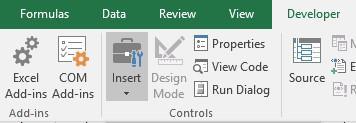
Step 1: Select the developer tab and click Insert drop-down list from the control box.
Step 2: Choose the command button from ActiveX Controls Box.

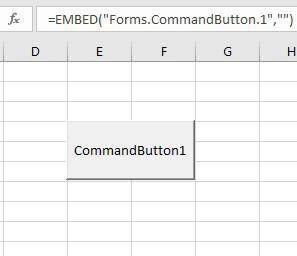
Step 3: Draw the command button in the excel sheet.
Step 4: Press Alt + F11 to open the VBA code.
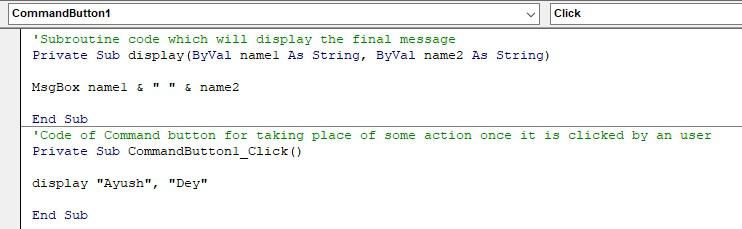
Step 5: Write the following subroutine with the name "display" which will display a name in the message box once its function gets called.

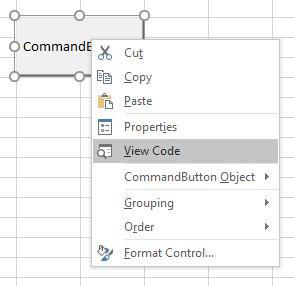
Step 6: To call the subroutine we need to right-click on the command button and then select view code.
Step 7: Write the following code to call the display function by clicking the command button.
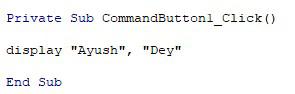
The following code displays the overall code of the program.