
Type conversion in Excel helps transform data from one format to another, such as numbers to text or text to numbers. This is useful when preparing data for reports, calculations, or formatting requirements. In tools like Microsoft Excel from Microsoft, built-in functions like TEXT(), VALUE(), and ROUND() make data conversion simple and reliable.
Why Type Conversion Matters:
- Prevents accidental calculations on IDs or codes
- Helps standardize data formatting (like leading zeros)
- Ensures correct numeric calculations from imported text data
- Improves data consistency in reports and dashboard
Understanding Type Conversion in Excel
Type conversion allows you to convert one type of data into another. For example, you may convert a numeric employee ID into text or convert stored text numbers back into numeric values for calculations.
Excel handles type conversion efficiently using built-in functions such as:
- TEXT()
- VALUE()
- ROUND()
Converting Numeric Data to Text
By default, Excel treats numbers as numeric values, allowing mathematical operations. However, sometimes numbers like employee IDs, phone numbers, or product codes should be stored as text.
Example Scenario
- Suppose you have employee IDs: 1102, 1104, 1106
- Numeric values are right-aligned by default, indicating numeric data.
Formula
=TEXT(A1,"0")
This converts the numeric value into text format.
Adding Leading Zeros
If you want all IDs to have at least four digits:
=TEXT(A1,"0000")
Example Output
- 12 → 0012
- 245 → 0245
- 1102 → 1102
Converting Text Data to Numeric
Sometimes numbers are stored as text (common in imported data). To perform calculations, you must convert them back to numbers.
Formula
=VALUE(A1)
After conversion:
- Text numbers become numeric values
Note: Before Pasting
- Select Column A
- Right Click → Format Cells
- Select Text → OK
- Then paste data
- Data becomes right-aligned (default numeric alignment)
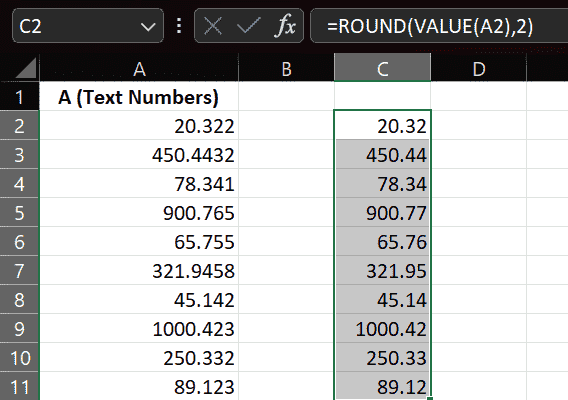
Converting Decimal Numbers to Specific Decimal Places
When working with financial or analytical data, controlling decimal precision is important.
Example:
If cell A1 contains: 102.6789
Formula:
=ROUND(VALUE(A1),2)
Result: 102.68
More Examples
=ROUND(VALUE(A1),3) → 3 decimal places
=ROUND(VALUE(A1),4) → 4 decimal places
Where ROUND() Is Useful:
- Financial reports
- Dashboards
- Data analysis
- Standardized reporting
Understanding Alignment as a Data Type Indicator
Excel alignment provides a quick visual clue about data type.
| Data Type | Default Alignment |
|---|---|
| Text | Left |
| Number | Right |