
Microsoft Excel’s ROW, ROWS, COLUMN, and COLUMNS functions are powerful tools used to navigate, analyze, and automate data inside Excel’s grid structure. These functions help you return row or column numbers, count rows or columns in ranges, and build dynamic formulas for dashboards, reports, and lookup operations.
- Used in lookup formulas like VLOOKUP and INDEX for flexible data retrieval.
- Helpful for dynamic formulas, arrays, reports, charts, and automation.
Understanding Rows, Columns, and Cells in Excel
Before using these functions, you should understand Excel’s structure:
- Rows: Run horizontally (1 to 1,048,576)
- Columns: Run vertically (A to XFD, total 16,384 columns)
- Cells: Intersection of rows and columns (e.g., A1, C5)
The ROW and COLUMN functions return position numbers. The ROWS and COLUMNS functions count how many rows or columns exist in a range.
- For the examples below, consider this dataset in cells A1:C4:
Product | Sales | Region |
|---|---|---|
A | 100 | East |
B | 150 | West |
C | 200 | North |
1. ROW Function in Excel
The ROW() function returns the row number of a specified reference.
Syntax:
=ROW([reference])
- reference (optional): The cell or range for which to return the row number. If omitted, returns the row number of the formula’s cell.
Example:
=ROW(G100);
- Returns 100 as output as G100 is in the 100th row in the Excel sheet
If we write no argument inside the ROW( ) it will return the row number of the cell in which we have written the formula.
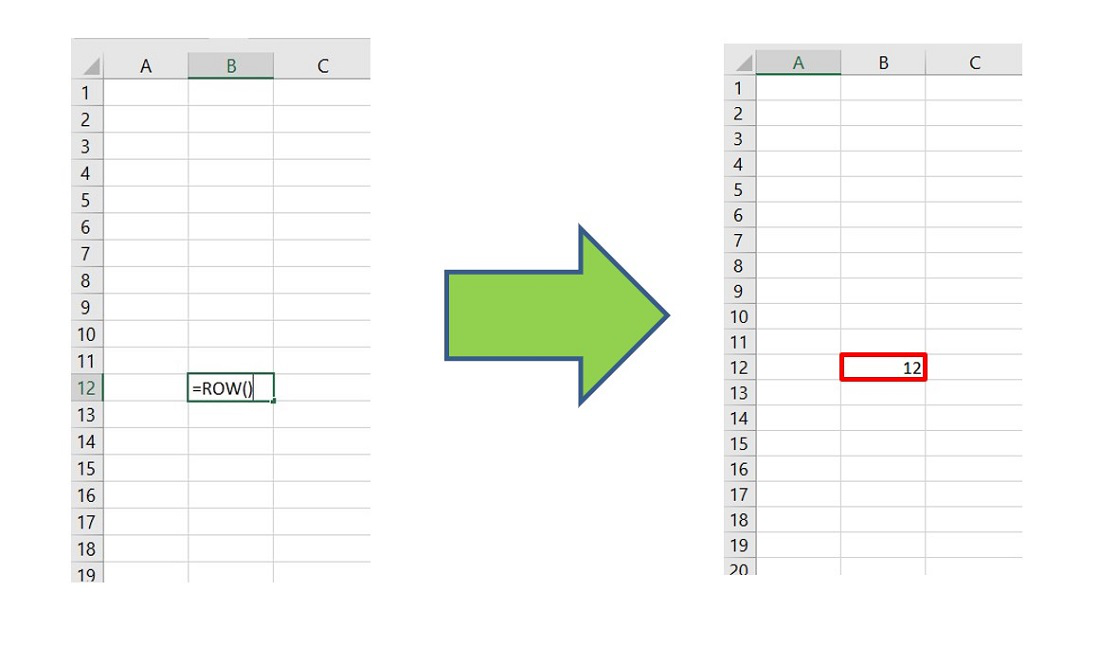
=ROW(B12)
- OUTPIUT: 12
2. ROWS Function
It is the extended version of the ROW function. ROWS function is used to return the number of rows in a cell range.
Syntax:
=ROWS([array])
How to use the ROWS formula in Excel?
=ROWS(A2:A11) // Returns 10 as there are ten rows
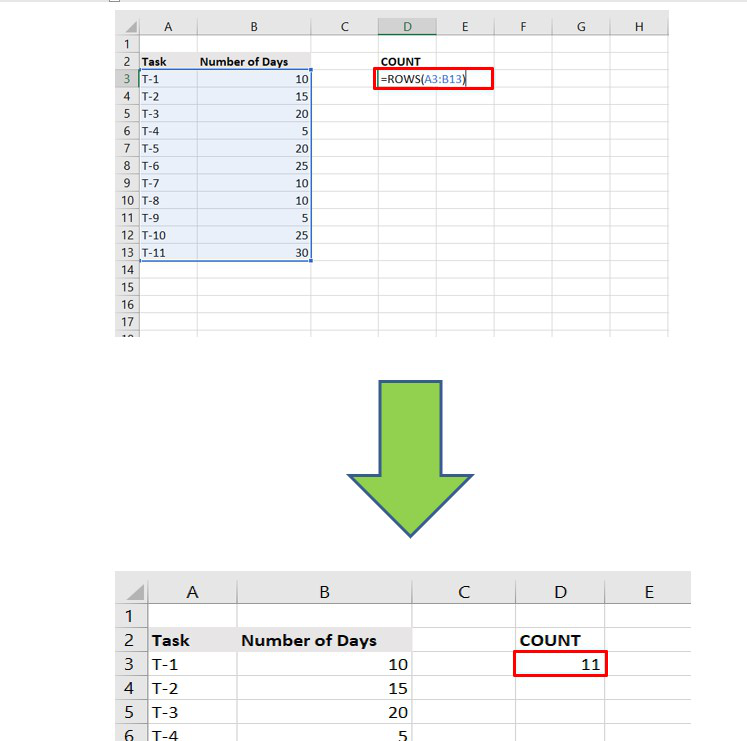
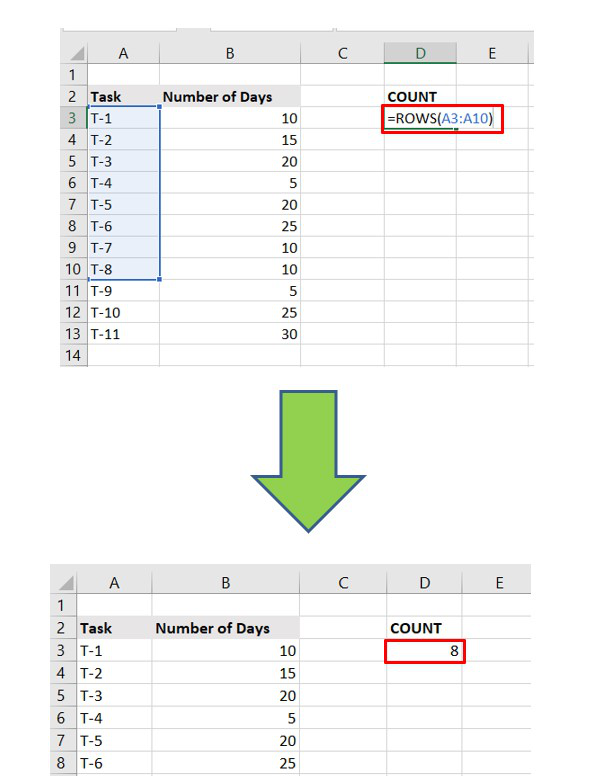
- It is important to note that writing the column name is trivial here. We can also write :
=ROWS(2:13)
- which will return 12.
Note: ROWS counts row numbers only. The column reference does not affect the result.
3. COLUMN Function in Excel
The COLUMN() function returns the column number of a reference. In Excel 2007 and all later versions (including Excel 2010, 2013, 2016, 2019, 2021, 2024, Excel for Microsoft 365, and current releases as of 2026), the worksheet grid supports:
- 16,384 columns total
- Columns range from A (column 1) to XFD (column 16,384)

Syntax:
=COLUMN([reference])
Example:
=COLUMN(E20)
- Returns 5 as output as E is the fifth column in the Excel sheet
Note: Similar to the ROW function, the argument is not mandatory. If we don't write any argument, it will return the index of the column in which the formula is written.
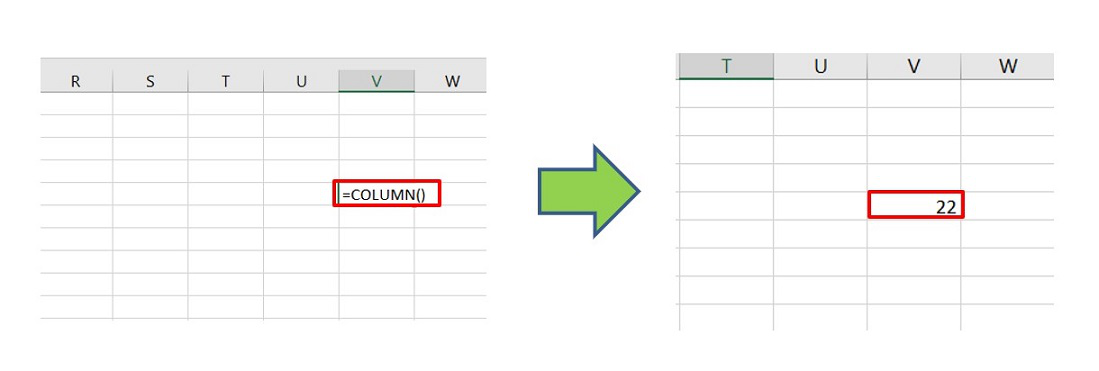
4. COLUMNS Function in Excel
The COLUMNS() function counts the number of columns in a range.
Syntax:
=COLUMNS([array])
Example:
=COLUMNS(B12:E12)
It is important to note that writing the row number is trivial here. We can also write :
=COLUMNS(B:E)
6. ROWS And COLUMNS Functions in Array Formulas
These functions are extremely useful inside formulas like:
- SMALL()
- LARGE()
- INDEX()
- VLOOKUP( )
- FILTER()
- SORT()
They help create dynamic indexing when dragging formulas down or across.
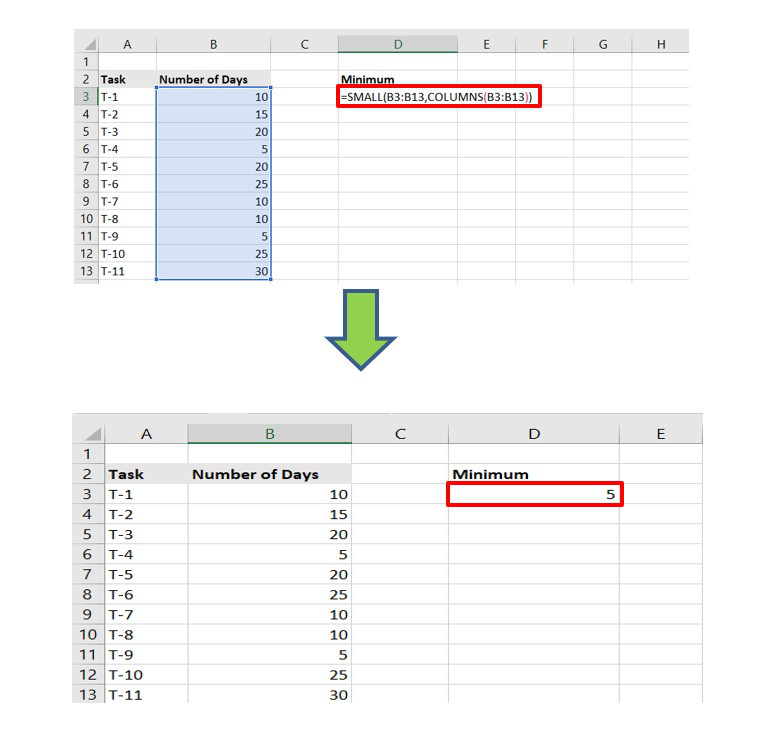
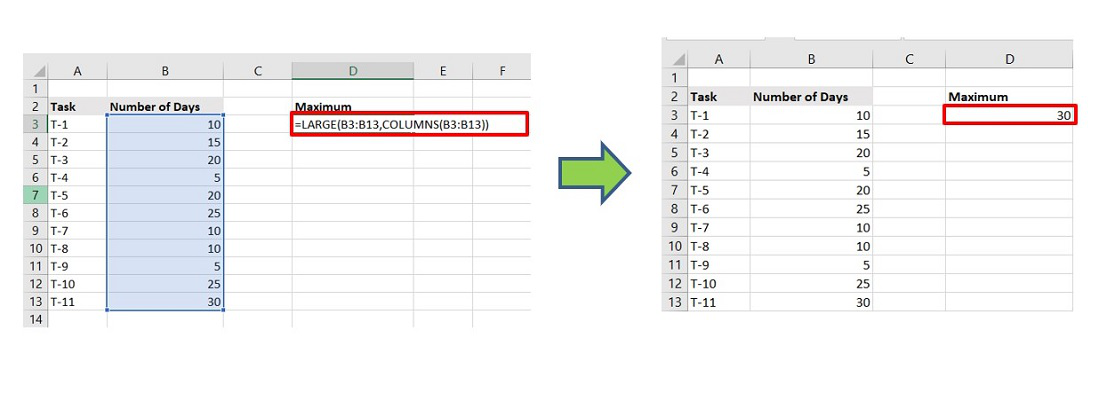
Example :
- The smallest value is returned to the provided cell range.
- The largest value is returned to the provided cell range.
Key Differences
| Function | Returns |
|---|---|
| ROW | Row number of a reference |
| ROWS | Count of rows in a range |
| COLUMN | Column number of a reference |
| COLUMNS | Count of columns in a range |