
Conditional Formatting in a Pivot Table in Excel is a feature that highlights important values based on defined rules. It automatically changes cell appearance using colors, icons, or data bars when conditions are met, making trends, patterns, and outliers easier to identify in large datasets.
.png)
Types of Conditional Formatting in Excel
There are many conditional formats that we can use on our data. Some of them are given below:
1. Text or Value-BasedFormats
In this particular formatting, we have two options available.
- We can highlight the cells that are greater than or less than any particular number, or are between a particular range, or are equal to a particular number.
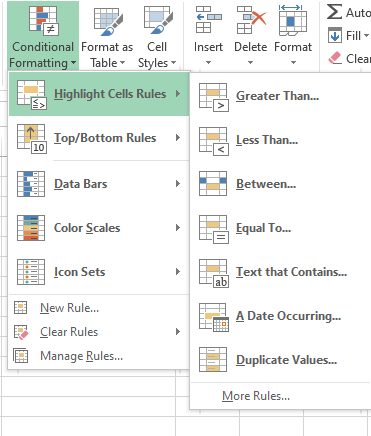
For Example:
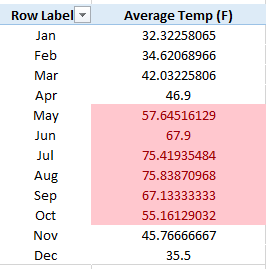
If we use month-wise average temperature data (in °F) and want to highlight values greater than 50°F, we can apply conditional formatting to easily identify those months.
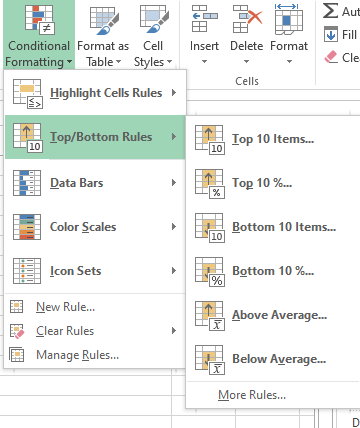
- Secondly, we can highlight the cells that are the top 10 items or the bottom 10 items or occur in the top 10% or bottom 10% of that particular column.
2. Data Bars
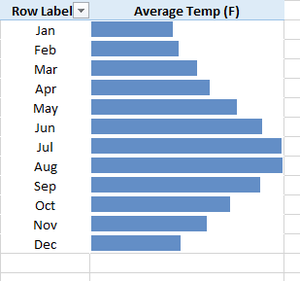
It is also a great way to visualize relative values. Given below is the same example of average temperature displayed month-wise having the visualization of data bars.
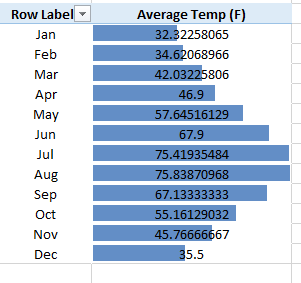
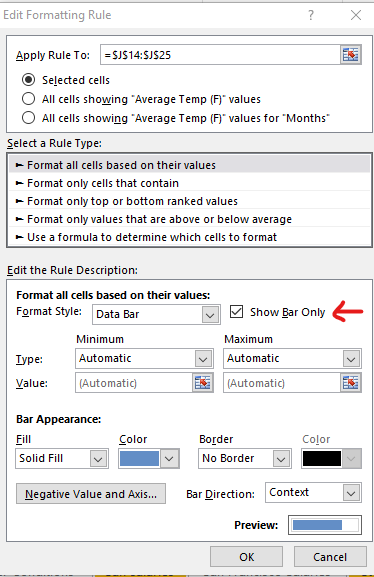
We can also edit this formatting rule by going to the Manage rules option and then select the option of "Show only data bar" if we want only the data bars to be displayed and not the numbers.
3. Color Scales
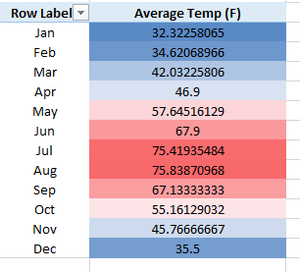
A great way to create some heat maps for our data. So we will take the same example of displaying month-wise average temperatures. In this formatting, we will use a Red - White - Blue color scale in which maximum temperatures will be colored red and minimum will be colored blue.
4. Icon Sets
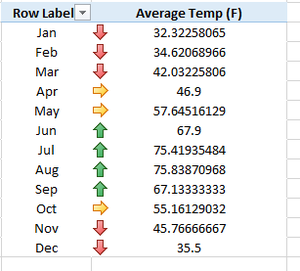
In this type of formatting, we use directional arrows, shapes, and various indicators to visualize our data.
5. Formula-Based Rules
We can also create our own rule and apply conditional formatting to them.
- These were basically the 5 types of conditional formats that we can use to visualize our data in a more convenient and simpler way.
- If we want to clear any rule or edit any rule, we can simply go to the option of Clear rules and Manage rules respectively. We can clear any rule that we applied or edit it according to our choice.
.png)
Methods to Apply Conditional Formatting to Pivot Table Cells
There are two methods to apply conditional formatting that make sure conditional formatting works even when there is new data in the backend.
Method 1: Conditional Formatting Using Pivot Table Formatting Icon
This method uses the Pivot Table Formatting Options icon, which appears after applying conditional formatting.
Given below is the data set. (First Create a Pivot Table)
.png)
To employ this method, follow the below steps:
Step 1: Select the Data on which you want to apply conditional formatting.
Step 2: Go to Home and select Conditional Formatting.
Step 3: In conditional Formatting choose Top/Bottom Rules -> Above Average.
Step 4: Now specify the Format.
.png)
Step 5: Click OK.
When you follow the above steps, it applies the conditional formatting on the data set. On the bottom right of the data set, you can see the Formatting Options icon.
.png)
Click on the Icon. It will show following options in a drop down:
- Selected Cells
- All Cells Showing "Sum of Sales Amount"
- All cells Showing "Sum of Sales Amount" values for Name and Product.
Select the last option, So when you add any data in the back end and refresh the Pivot Table, the additional data would automatically be covered by conditional formatting.
When working with conditional formatting in a pivot table, it's essential to grasp the significance of three available options, each influencing how your formatting is applied:
- Selected Cells: This is the default option where conditional formatting applies only to the cells you select. It’s useful when you want to highlight a specific part of the Pivot Table.
- All Cells Showing Sum of Sales Amount Values: This option applies conditional formatting to all cells that display the Sum of Sales Amount, including the Grand Total values.
- All Cells Showing Sum of Sales Amount Values for Name and Product: This is usually the best option because it applies formatting to all relevant values based on Name and Product, while excluding Grand Totals. It also continues to work correctly when new data is added.
Method 2: Conditional Formatting Using Conditional Formatting Rules Manager
There is an alternative route to applying conditional formatting in Pivot tables using the Conditional Formatting rules manager Dialog Box. This method proves particularly valuable when you've already implemented conditional formatting and now seek to modify the existing rules:
Follow the steps to know how to execute this approach:
Step 1: Select the data where you wish to implement conditional formatting within the Pivot table.
Step 2: Navigate to the Home tab, locate the Conditional Formatting option, and click over Top/Bottom Rules.
Step 3: From the dropdown menu, choose Above Average. This initiates the application of conditional formatting.
Step 4: Define the desired format.
Step 5: Click OK.
Step 6: Go back to the Home Tab, find Conditional formatting, and select , Manage Rules.
.png)
Step 7: In the Conditional Formatting Rules Manager, select the rule you want to modify and click Edit Rule.
.png)
Step 8: Within the Edit Rule dialog box, you'll encounter the same trio of options:
- Selected Cells
- All cells showing Sum of Sales Amount Values.
- All cells showing Sum of Sales Amount values for Name and Product.
- Select the Last option and click OK.
Note: This applies conditional formatting to all Name and Product field cells and keeps it working even after backend data changes.