
Protecting Excel Macros with a Password is a security feature in Microsoft Excel VBA that allows users to restrict access to the VBA project containing macros. By applying password protection to the VBA project, users can prevent others from viewing, modifying, or copying the macro code. This helps maintain the integrity of automated processes and protects sensitive logic used in Excel workbooks.
Implementation:
Follow the Steps Below to Protect your Excel macro with a Password:
Step 1: Open an Excel file to create a simple “hello world” macro.
Step 2: Press Alt + F11 to open Visual Basic Editor.
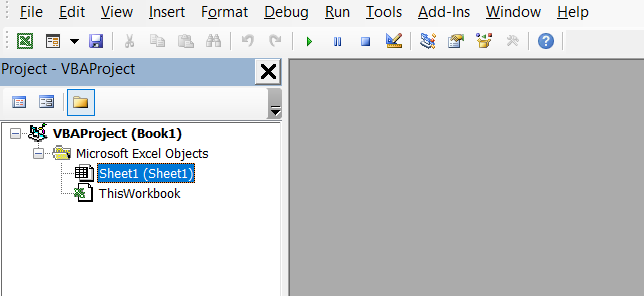
Step 3: Click Insert >> Module, which will add a new module as in Img1.
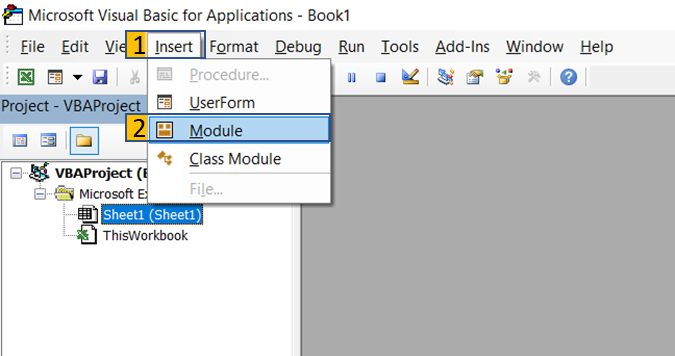
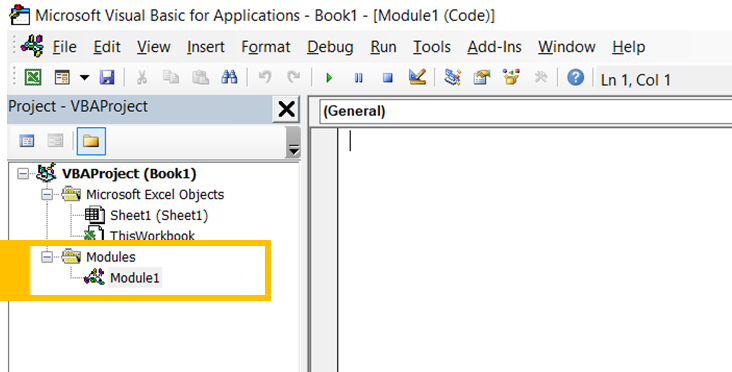
Step 4: Type the below code in “code window”.
Sub firstMacro()
MsgBox "Hello World"
End Sub
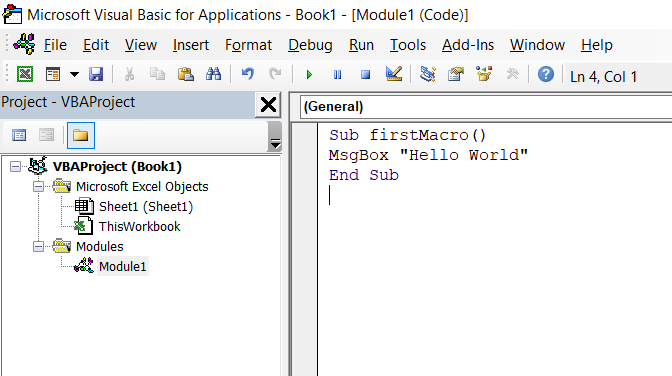
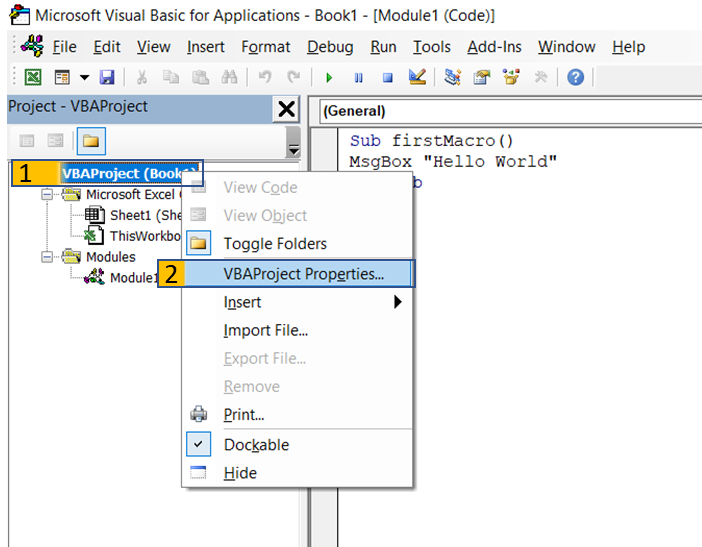
Step 5: Right-click “VBAProject (Book1)” and then click “VBAProject Properties”.
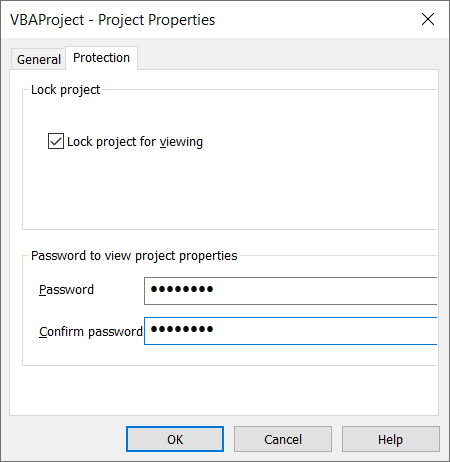
Step 6: GoTo Protection Tab >> Check “Lock project for viewing” and type your password in both Password and Confirm password input text boxes. Press “OK”
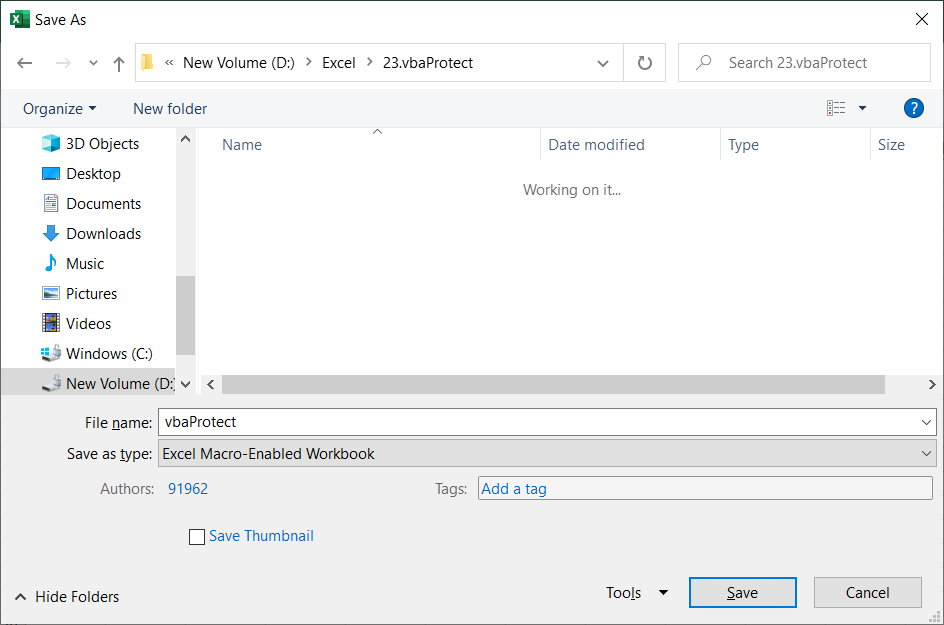
Step 7: Save your Excel workbook as Excel Macro-Enabled Workbook (*.xlsm) and close
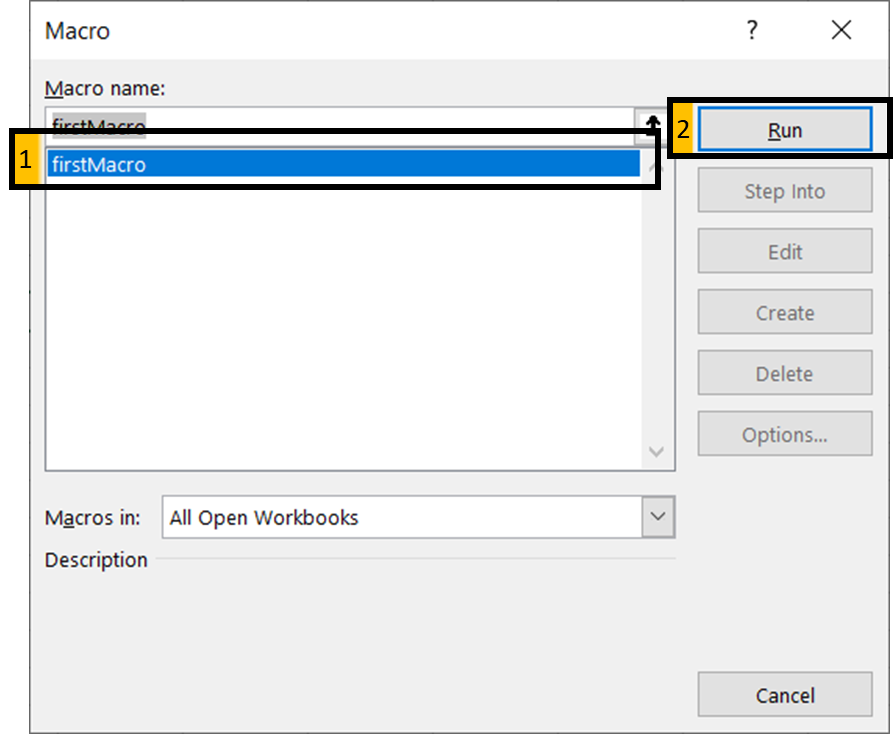
Step 8: Now reopen your excel file. Press Alt+F8 – to open the Macro dialog box. Select the macro “firstMacro” and click “RUN”.
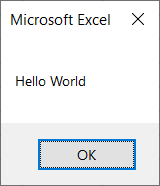
Step 9: Our macro will pop up below the message box. Close or press OK to hide the message box
Step 10: Press Alt + F11 – to open Visual Basic Editor. Now user cannot see any information in the VBA.
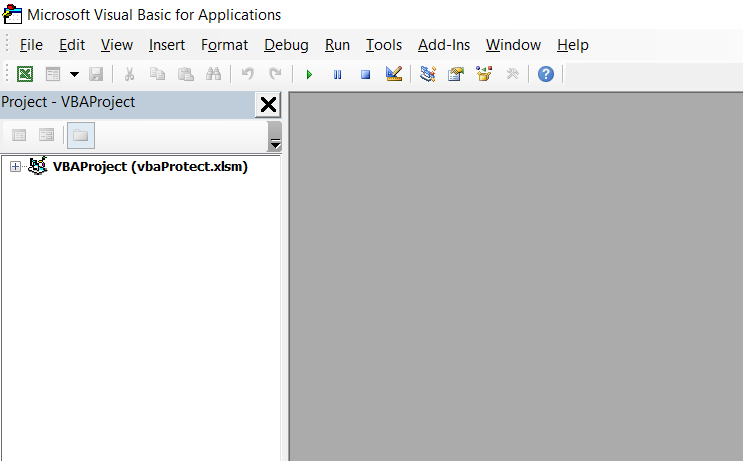
Step 11: Double click “VBAProject (vbaProtect.xlsm)”, It will ask the user to enter a password.
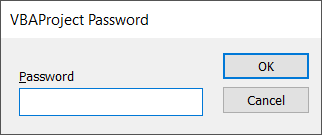
Step 12: Type your password and press “OK”. Now user can see all the excel objects and Macro.
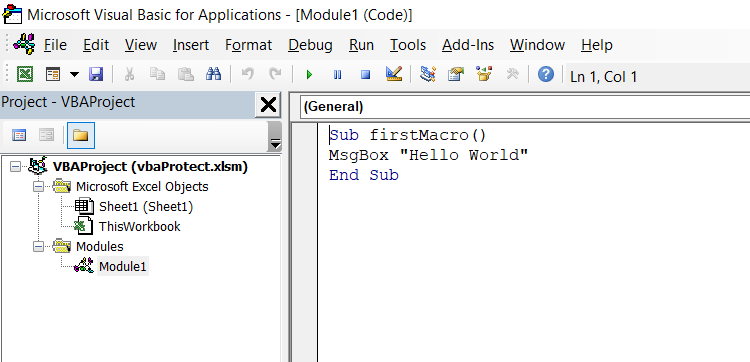
At this point we have successfully created a macro in VBA and protected it with a password.