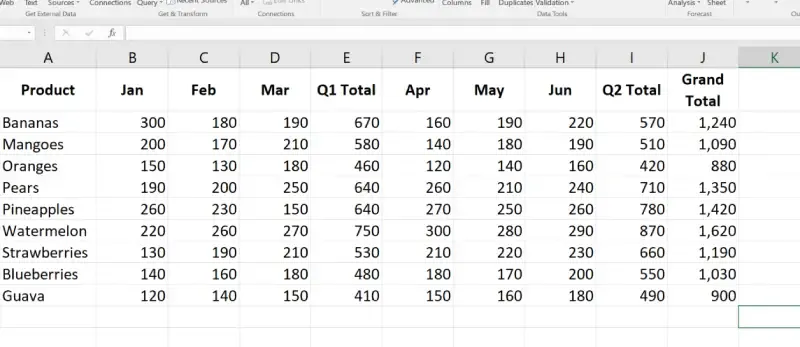
Ungrouping columns in Excel removes collapsible groups, making all data fully visible and easier to edit or reorganize.
1. Why Ungroup Columns?
Ungrouping columns in Excel is helpful for various reasons:
- Data Access: Reveals hidden data for editing or analysis.
- Improved Clarity: Simplifies the worksheet layout by removing unnecessary groups.
- Reorganization: Enables new groupings or data restructuring.
- Export/Print Preparation: Ensures all columns are visible for sharing or printing
2. Two Methods of Ungroup Columns in Excel
To ungroup columns in Excel, first we need to be grouped the columns and the upcoming section we are going to discuss 3 methods to ungroup columns in Excel.
2.1. Method 1: Manually Ungroup Columns in Excel
This method is straightforward for ungrouping specific column sets.
Step 1: Select the Grouped Columns
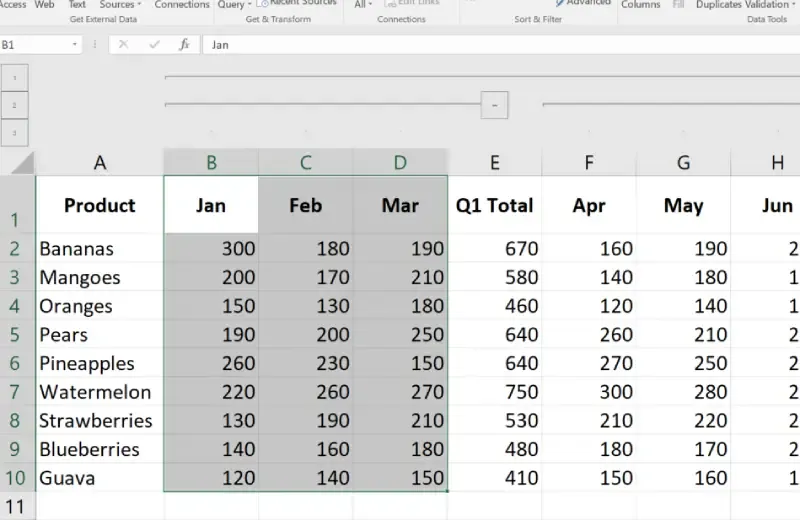
Highlight the grouped columns by clicking and dragging over their headers (e.g., B, C, D).
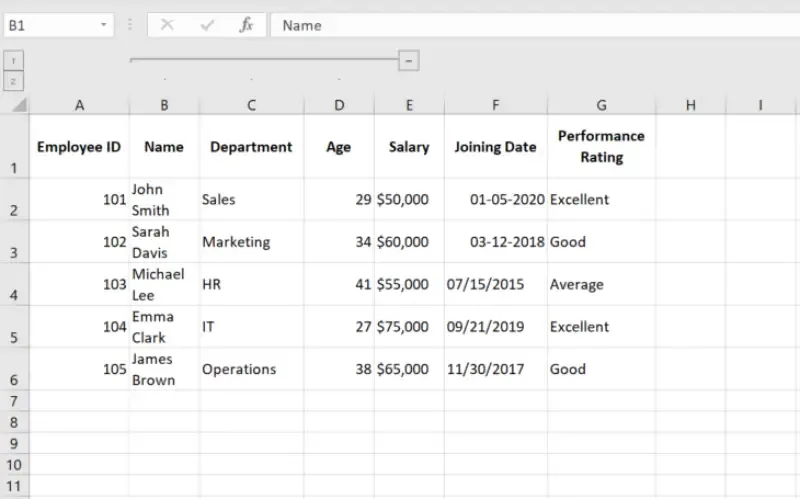
Step 2: Go to the Data Tab
Navigate to the Data tab on the Ribbon.
Step 3: Click on Ungroup
In the Outline group, click the Ungroup button.
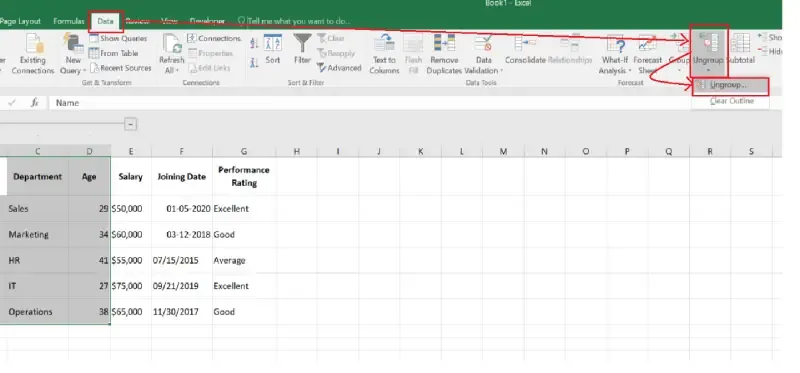
Step 4: Preview the Results
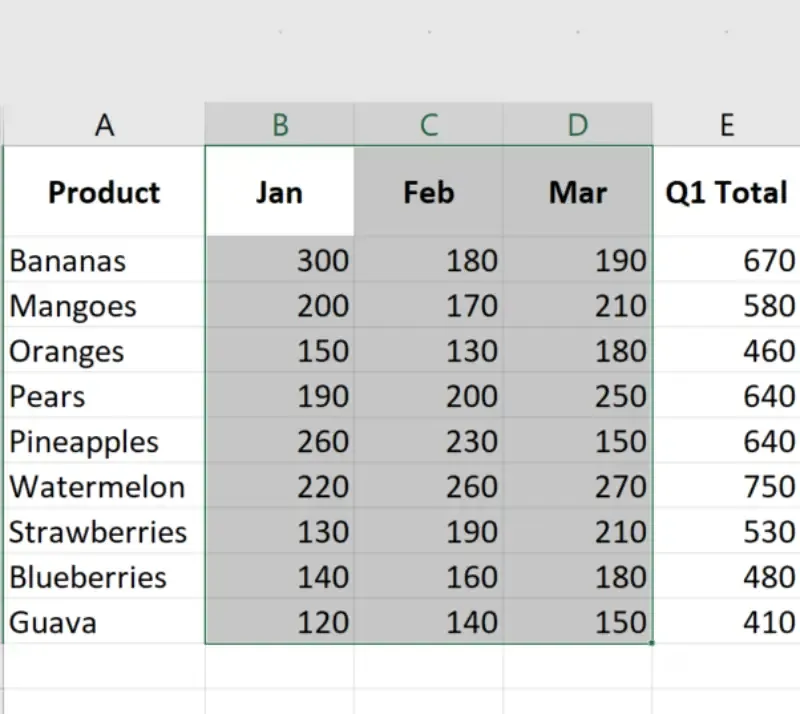
Once ungrouped, the plus (+) and minus (-) buttons above the columns will disappear, and all grouped columns will be fully visible.
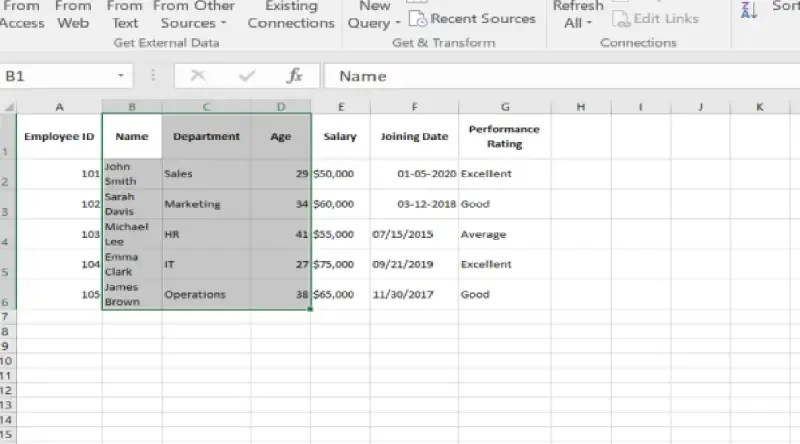
2.2. Method 2: Use Keyboard Shortcuts to Ungroup Columns
Excel offers a quick shortcut to ungroup columns, saving our time and effort.
Step 1: Select the Grouped Columns
Highlight the grouped columns by selecting their headers.
Step 2: Press the Ungroup Shortcut
Use the keyboard shortcut Alt + Shift + Left Arrow to ungroup the selected columns.
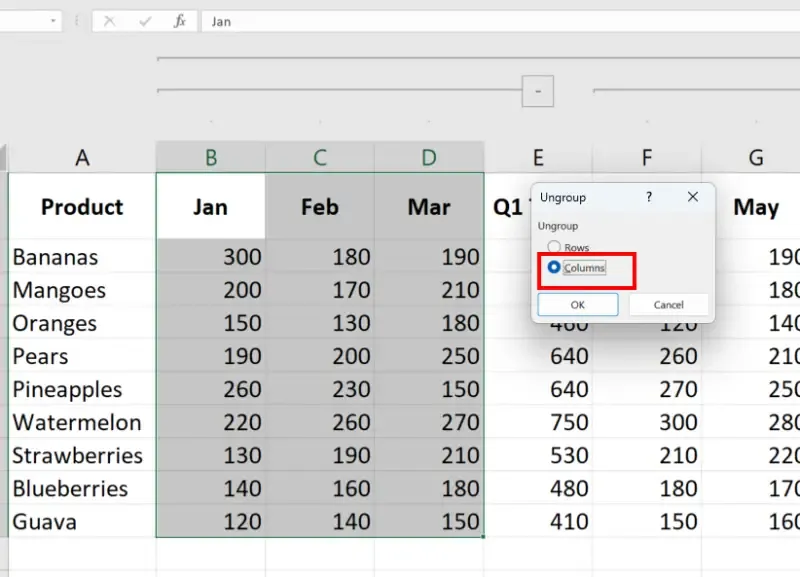
Step 3: Verify the Changes
Check that the columns are now ungrouped, with no collapse/expand buttons remaining.
2.3. Method 3: Ungroup All Columns at Once
This method removes all column groups in a worksheet, ideal for resetting the layout.
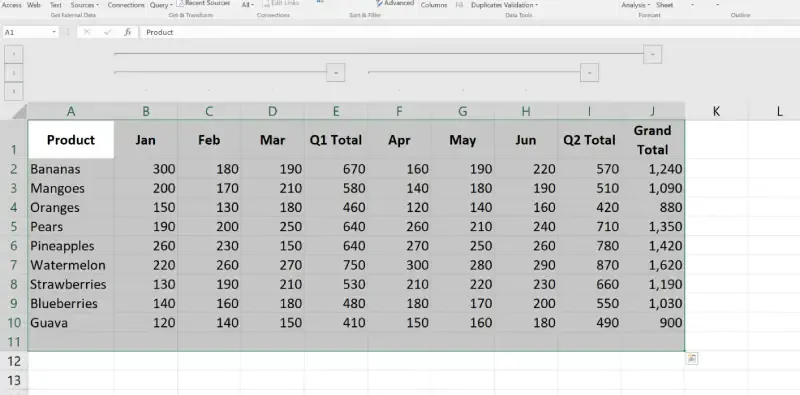
Step 1: Select the Entire Worksheet
Press Ctrl + A or click the Select All button (triangle at the top-left corner of the sheet).
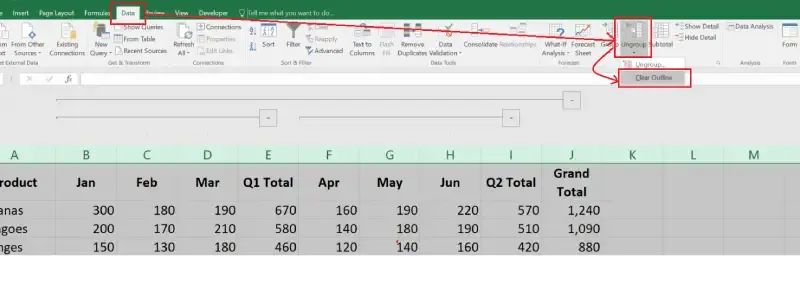
Step 2: Go to the Data Tab
Navigate to the Data tab in the Ribbon.
Step 3: Click on Clear Outline
In the Outline group, click Clear Outline to remove all grouping from our worksheet.
Step 4: Review the Results
All column groups will be removed, and the dataset will be fully expanded.