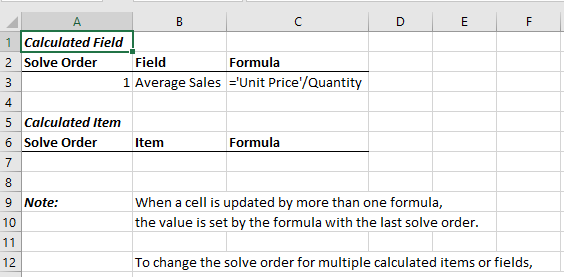
A Pivot Table Calculated Field allows you to create custom calculations using existing PivotTable data. It helps generate additional metrics such as sums, ratios, or percentages without modifying the source data, and updates automatically with the PivotTable.
Benefits of Using a Pivot Table Calculated Field
- Scalable: Automatically updates with new PivotTable data.
- No Source Data Changes: Eliminates the need for external formulas or data updates.
- Easy to Manage: Modify or delete calculations directly in the PivotTable.
- Flexible: Supports standard operators (e.g., +, -, *, /) and Excel functions.
Adding a Calculated Field to the Pivot Table
The following are the steps for adding a Pivot Table Calculated Field:
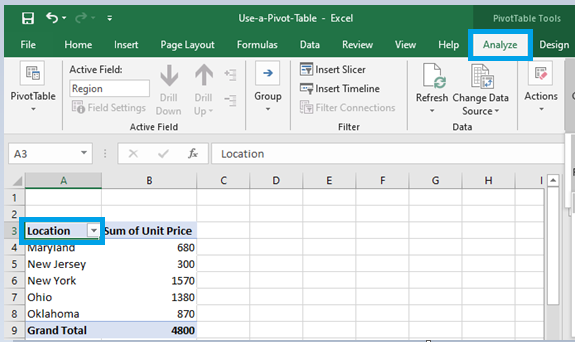
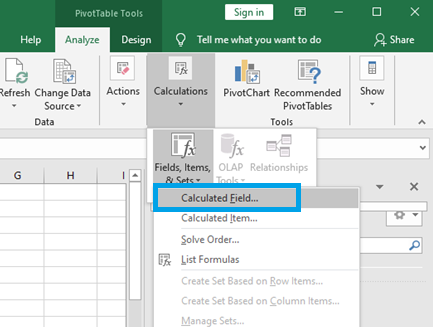
Step 1: Select any cell in the pivot table in our spreadsheet and Click on Analyze tab from the top ribbon.
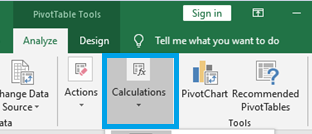
Step 2: Navigate to the Calculations group.
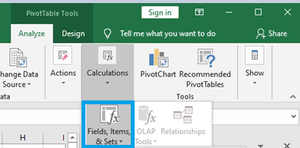
Step 3: Select the option Fields, Items, & Sets.
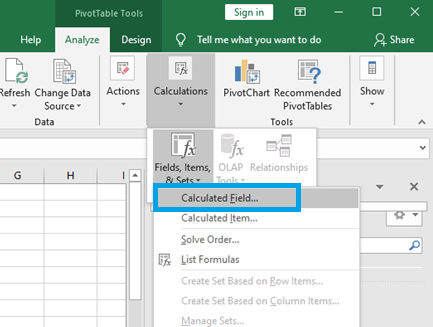
Step 4: Click on Calculated Field from the drop-down menu.
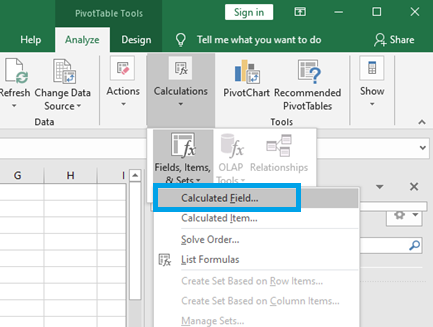
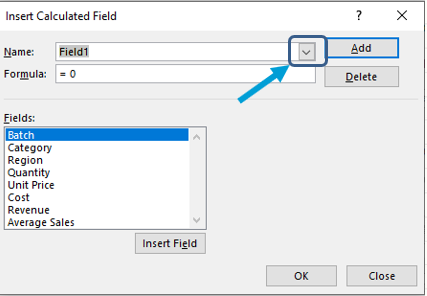
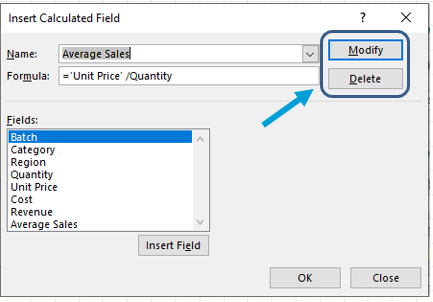
The dialog box Insert Calculated Field appears. This is where we will name and create the field.
Step 5: Enter a name and Formula for the calculated field in the Name and Formula fields respectively.
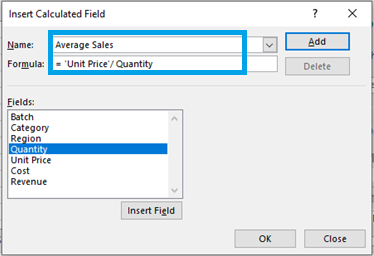
Note: Formulas can use operators and built-in functions but do not support cell references or array formulas. You can insert fields into the formula using the “Insert Field” option.
Step 6: Click Add. The Calculated Field will appear in the PivotTable Fields list, then click OK.
Modifying or Deleting a Calculated Field
After we've created a Pivot Table Calculated Field, we can modify or delete the formula by following these steps:
Step 1: Select any cell in the pivot table in our spreadsheet and Click on Analyze from the top ribbon.
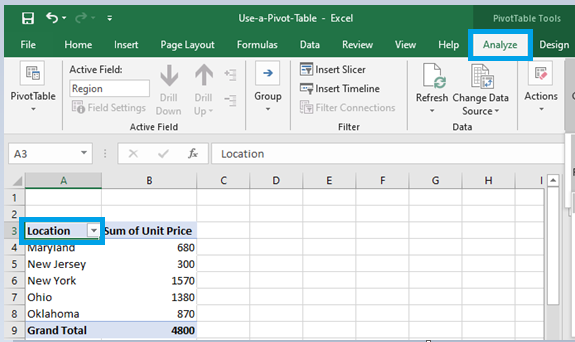
Step 2: Navigate to the Calculations tab.
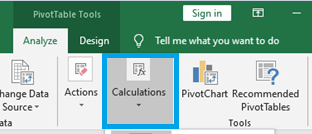
Step 3: Select the option Fields, Items, & Sets.
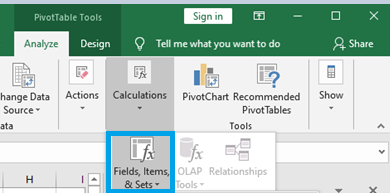
Step 4: Click on Calculated Field from the drop-down menu.
Step 5: Click the drop-down arrow in the Name field (small downward arrow at the end of the field).
Step 6: Select the calculated field we want to delete or modify from the list.
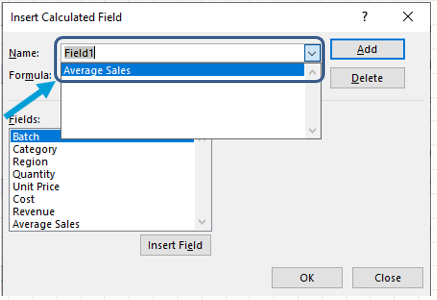
Step 7: If we wish to modify the formula, change it, or click Delete if we want to remove it.
Shortcuts for Calculated Fields
Excel makes it simple to generate a list of all the formulas used in the creation of Calculated Fields. The following are the procedures to easily obtain a list of All Calculated Fields formulas:
Step 1: Select any cell in the pivot table in our spreadsheet and Click on Analyze from the top ribbon.
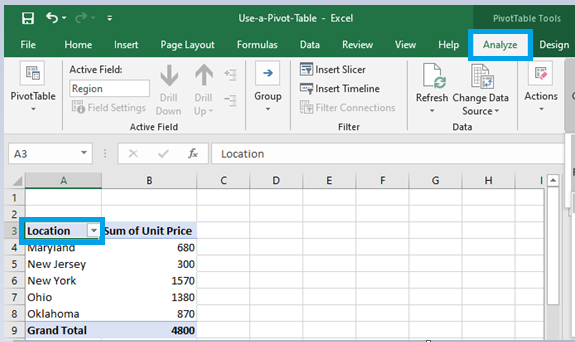
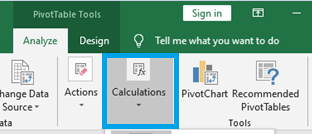
Step 2: Navigate to the Calculations tab.
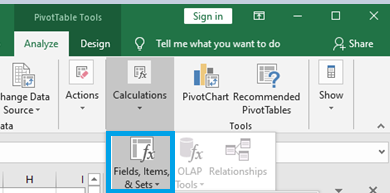
Step 3: Select the option Fields, Items, and Sets.
Step 4: Click on Calculated Field from the drop-down menu.
Step 5: Click on List Formulas.
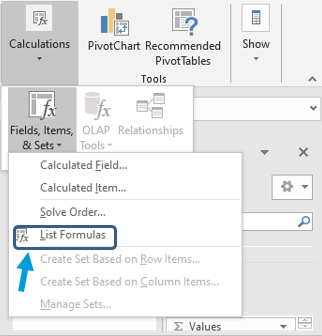
Step 6: When we select List Formulas, Excel will automatically create a new worksheet with information about all the calculated fields and items we have used in the pivot table.