
An array formula performs multiple calculations and processes multiple values at once. It executes operations depending on the conditions used within the formula. In contrast, a regular Excel formula operates on individual values one at a time.
Regular Excel Formula
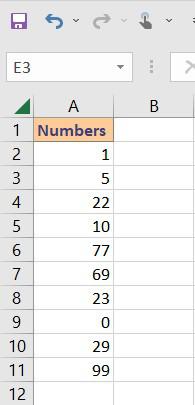
In order to apply the regular excel formula, we require a dataset. For example, if we have 10 different numbers and we are asked to find out the top 3 smallest numbers.
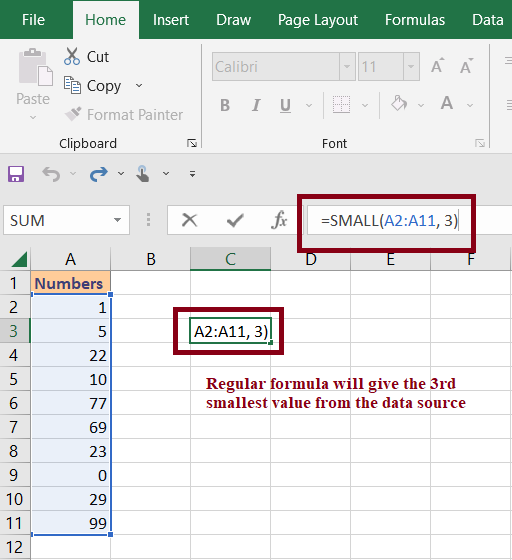
If we will use the regular excel formula, =SMALL(A2:A11, 3) we will get only the 3rd smallest value. Note that, we will not get all 3 smallest values instead we will get only the 3rd smallest value from our data source.
Array Formula
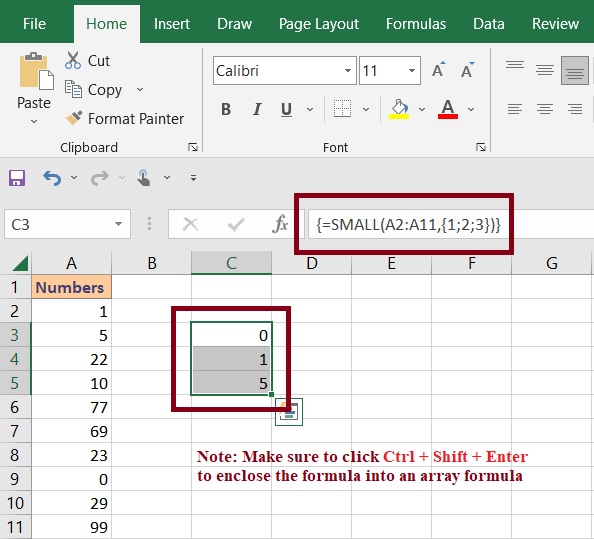
Using the array formula, we can easily find the top 3 smallest values from our data source in a single step. For this Select 3 Cells > Add Following Array Formula =SMALL(A2:A11,{1;2;3}) > Ctrl + Shift + Enter. As we click Ctrl + Shift + Enter, Excel will convert our formula into an array formula. And, find the top 3 smallest values from our data source.
What is an Array Formula?
An Array Formula in excel is a very powerful tool that allows us to perform multiple calculations at once. Along with this it can also be used to do single or multiple calculations with a fixed range multiple times.
Note: The main difference between formula and array formula is that, an array formula perform multiple calculation over an array of cells or column at once.
Before moving further let us understand what is an array in excel.
What is an Array in Excel?
In Excel, an array is a collection of values numbers or text arranged either:
- In a single row or column(1D array)
- Across multiple rows and columns(2D array)
How to Insert an Array in Excel?
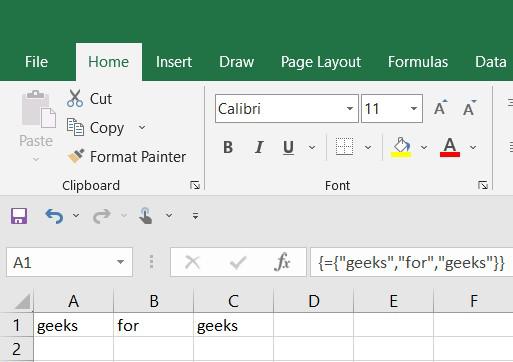
To insert an array in Excel, first select the number of cells equal to the number of items you want to display. Then type the array in the formula bar starting with the equal (=) sign and press Ctrl + Shift + Enter. Excel will create the array formula. Arrays in Excel are written using curly brackets, for example: {"geeks","for","geeks"}.
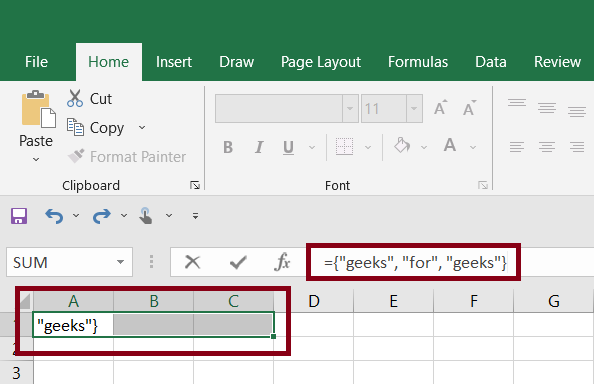
Once we click CTRL + SHIFT + ENTER, excel we automatically enter the 3 different items in 3 different rows.
Example:
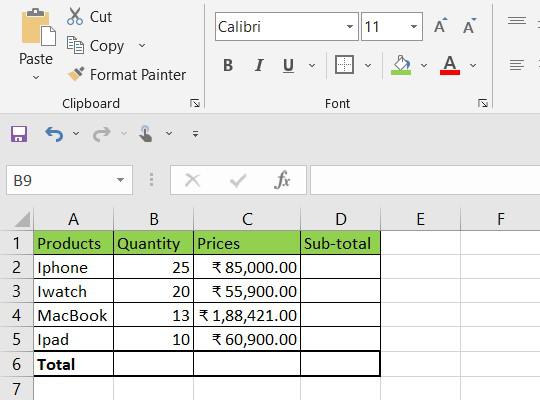
In this example, we will use the following random sales for different products and we will calculate the sub-total and total for all the different products using the array formula. For this, we are going to use the following dataset.
Calculating Sub-Total and Total
In order to calculate the sub-total and total we can simply calculate sub-total(B*C) and then calculate the total by adding each row. But if our dataset is having thousands of entries it became very difficult to use this method. We can reduce this operation by using the array formula as excel stores immediate results in memory rather than in additional columns.
Steps to use Array Formula
Step 1: Calculate Subtotal
In order to calculate the sub-total, first we will select the empty cells for all the rows(Here, it is D2:D5) and then we will use the following array formula.
=(B2:B5*C2:C5)
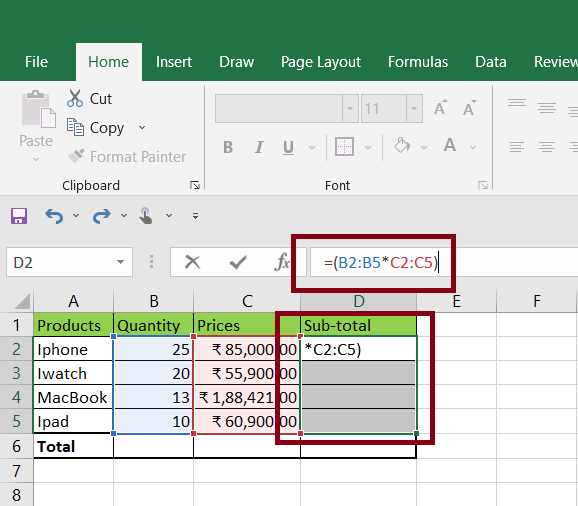
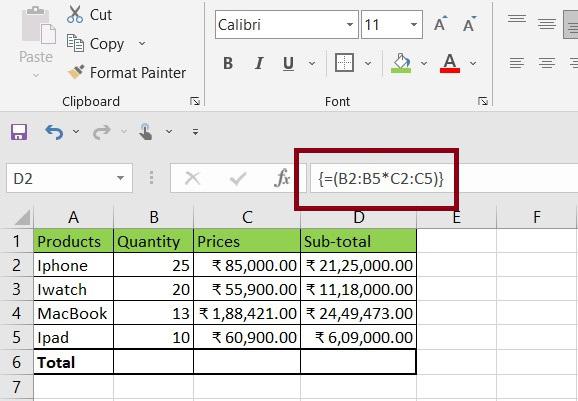
After this we need to press CTRL + SHIFT + ENTER, this will enclose our condition in the array formula and we will get the sub-total for each product.
Step 2: Calculate the Total
Similarly, we order to calculate the total sum, first, we will select the empty cell(Here, D6) and then use the following array formula.
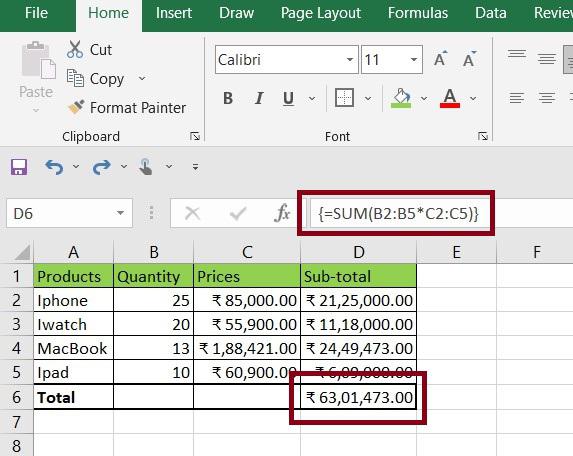
=SUM(B2:B5*C2:C5)
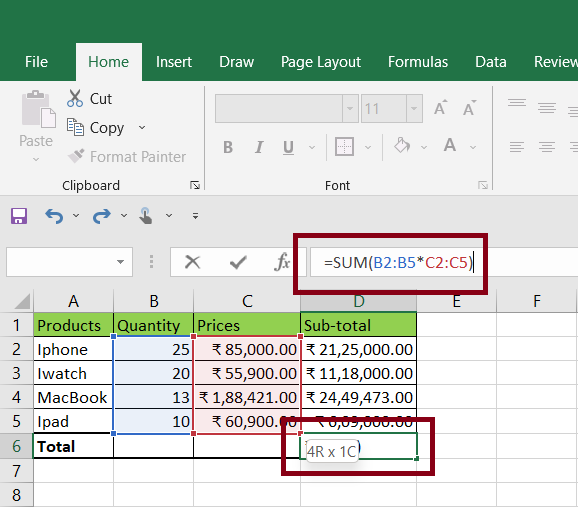
After we insert our formula we need to press CTRL + SHIFT + ENTER to insert the array formula. This will in-close our condition in curly brackets and we will get the output as the total sum.
Difference between Regular Formula & Array Formula
Regular Formula | Array Formula |
|---|---|
| Regular formula processes individual elements in a single operation. | The array formula processes multiple elements in a single operation. |
| To execute the regular formula we use Enter key. | To execute the array formula, we need to use the Ctrl + Shift + Enter key. |
| It could be useful for performing operations on a smaller dataset. | An array formula is very useful in processing larger datasets. |
| With larger datasets, the regular formula took a very long time to get the desired result. | It took less time to process a larger dataset. |