
Amazon Lightsail is one of the simplest ways to start using AWS. It is a Virtual Private Server (VPS) service that provides compute, storage, databases, and networking in one easy-to-manage platform with a predictable monthly price.
While EC2 offers unlimited flexibility (and complexity), Lightsail is designed for simplicity. It’s perfect for developers, students, and small businesses who want to launch a server in minutes without navigating the complex AWS networking console.
Lightsail is a good choice for:
- Students learning cloud computing
- Developers building small applications
- Startups and small businesses
- Simple hosting and testing environments
Key Features of Amazon Lightsail
- Blueprints: Launch ready-made applications quickly.
- OS Support: Amazon Linux, Ubuntu, Windows Server.
- App Deployment: WordPress, Django, Node.js, Magento, and more.
- Managed Databases: Simple MySQL and PostgreSQL setup.
- Container Services: Easy Docker container deployment.
- Snapshots: One-click backups for instances and disks.
- Networking: Static IP and DNS management included.
Understanding Lightsail, EC2, and Elastic Beanstalk Architecture
Understanding where Lightsail fits in the AWS ecosystem is crucial.
| Feature | Amazon Lightsail | Amazon EC2 | AWS Elastic Beanstalk |
|---|---|---|---|
| Model | Virtual Private Server (VPS). Simplified, all-in-one box. | Infrastructure as a Service (IaaS) with full infrastructure control. | PaaS. Managed platform for deploying code (Java, Python, etc.). |
| Complexity | Low. "Click and Launch." | High. Requires managing VPCs, Subnets, Security Groups manually. | Medium. Handles deployment, but runs on EC2 resources you can see. |
| Networking | Simple firewall rules (Allow HTTP/SSH). Static IPs. | Full VPC control (NACLs, Route Tables, Peering, Transit Gateways). | Uses EC2/VPC networking under the hood. |
| Pricing | Fixed Monthly Bundle (e.g., $3.50/month) Includes transfer. | Pay-as-you-go. Compute, storage, and transfer billed separately. | Free to use. You pay for the underlying EC2/RDS resources. |
| Scaling | Vertical (Upgrade plan). Load balancers available. | Full Auto-Scaling Groups with custom metrics. | Built-in Auto-Scaling based on traffic/CPU. |
| Best For | WordPress blogs, dev/test environments, simple web apps. | Enterprise apps, microservices, complex architectures. | Web apps where you just want to deploy code (e.g., Django/Node.js). |
AWS Lightsail CLI Commands
AWS provides a set of commands that can be executed using the AWS Command Line Interface (AWS CLI) to manage Amazon Lightsail resources directly from the terminal. These commands allow users to create, manage, monitor, and delete Lightsail services just like using the AWS Management Console.
AWS Lightsail CLI commands for Instance Management
Command | Description |
|---|---|
create-instances | Used for creating new virtual machines (instances). |
delete-instances | Used for removing existing instances. |
get-instances | Helps in retrieving information about instances. |
start-instance | Starts a stopped instance. |
stop-instance | Stops a running instance. |
get-instance-state | Displays the current state of an instance. |
Amaozon Lightsail - Disk Management
Command | Description |
|---|---|
create-disk | Helps in creating a new disk. |
delete-disk | Helps in deleting an existing disk. |
get-disk | Used for retrieving details of a specific disk. |
get-disks | Lists all available disks. |
Amazon Lightsail - Static IP Management
Commands | Description |
|---|---|
allocate-static-ip | Helps in allocating a new static IP address. |
attach-static-ip | Helps in attaching a static IP address to an instance. |
get-static-ip | Retrieves details of a specific static IP address. |
get-static-ips | Lists all available static IP addresses. |
release-static-ip | It release a static IP associated with the Instance |
Amazon Lightsail - Relational Database Management
Commands | Description |
|---|---|
create-relational-database | Creates a new relational database. |
delete-relational-database | Deletes an existing relational database. |
get-relational-database | Retrieves details of a specific relational database. |
get-relational-databases | Lists all available relational databases. |
Amazon Lightsail - Other Operations
Command | Description |
|---|---|
create-key-pair | Helps in creating an SSH key pair. |
get-key-pair | Lists all available SSH key pairs. |
update-domain-entry | Updates the domain entry configuration. |
download-default-key-pair | Downloads the default SSH key pair. |
get-regions | Displays all available AWS Regions for Lightsail services. |
Launching and Setting Up WordPress on Amazon Lightsail
Step 1: Sign Up for AWS
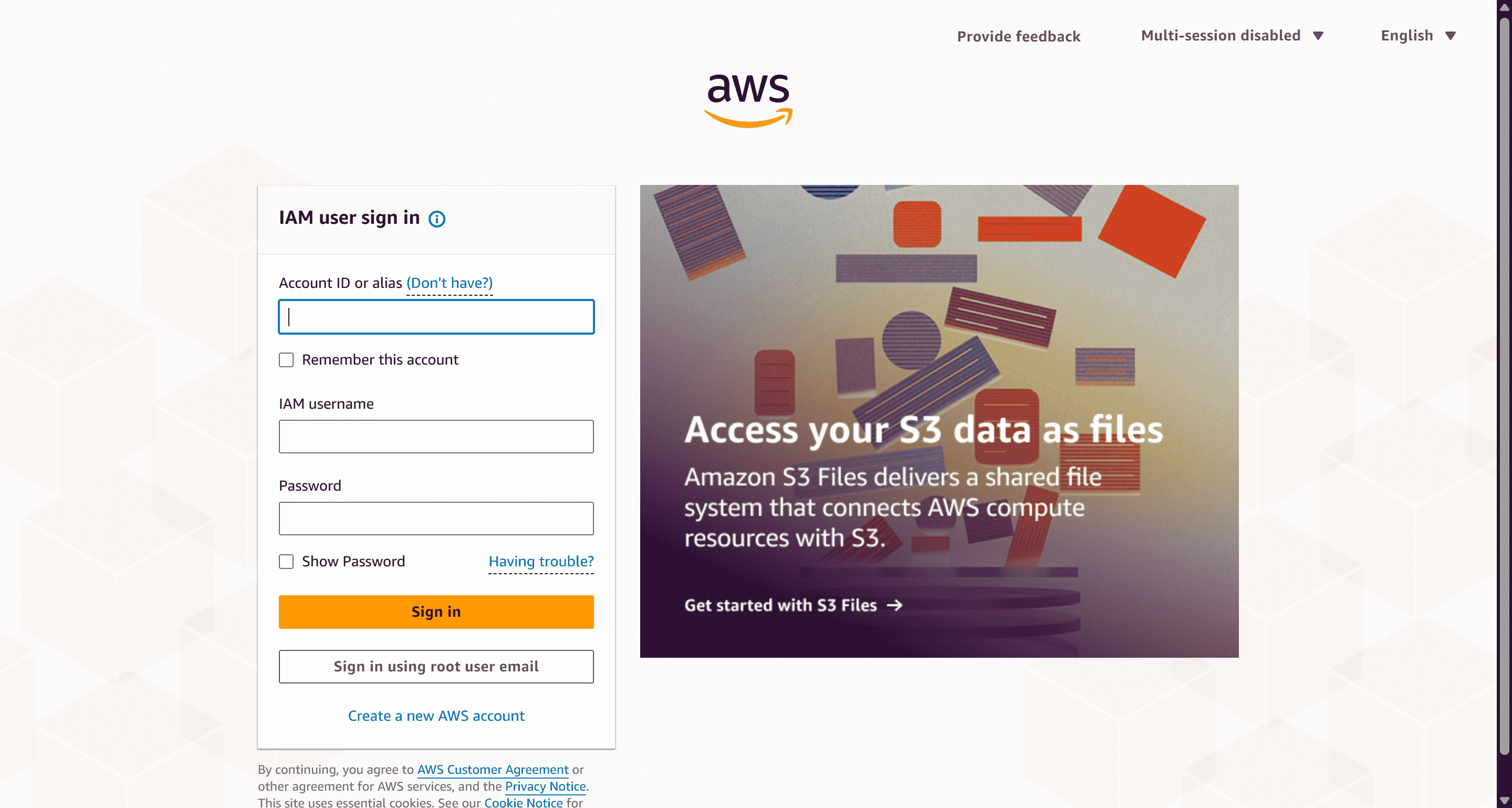
- First, navigate to the AWS Sign-In Console and log in with your AWS credentials.
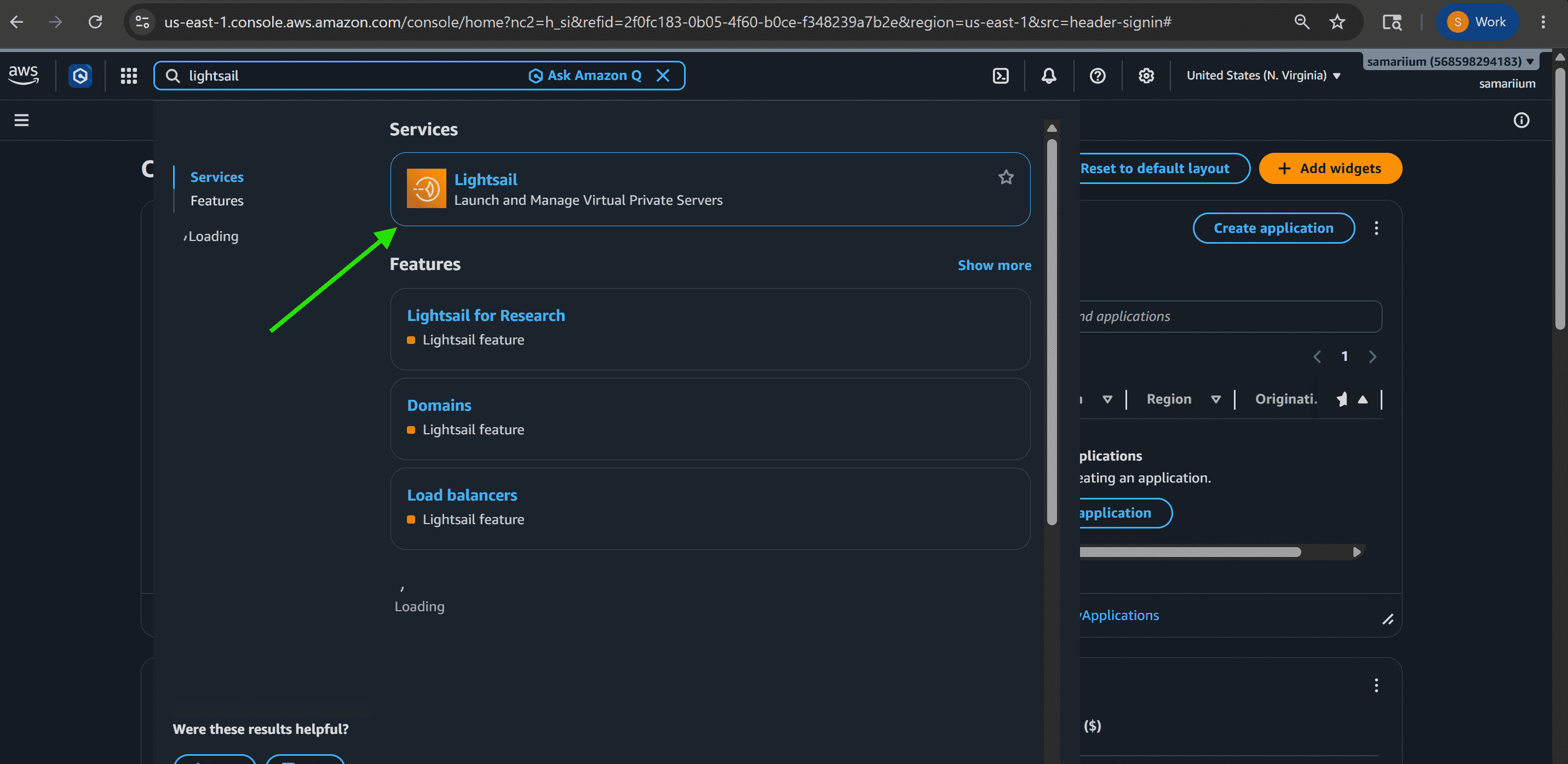
- Once logged in, you will be redirected to the AWS Console Home page. In the search bar at the top of the console, type “Lightsail” and select Amazon Lightsail from the list of AWS services.
Step 2: Create a WordPress instance
- On clicking on the Lightsail service, you will be landed to that page. They you can see create instance button.
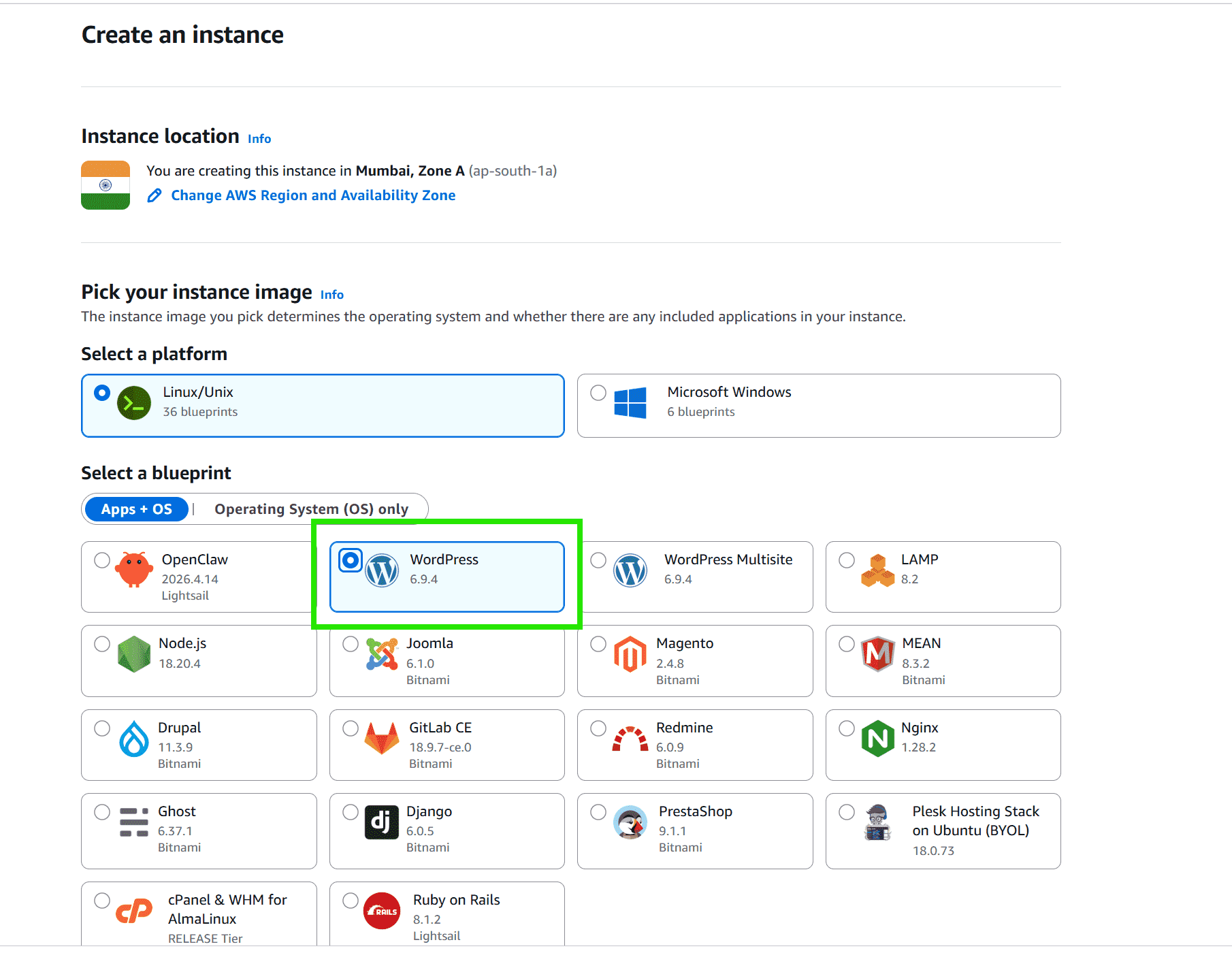
- Click on the create instance and choose the WordPress as your blueprint
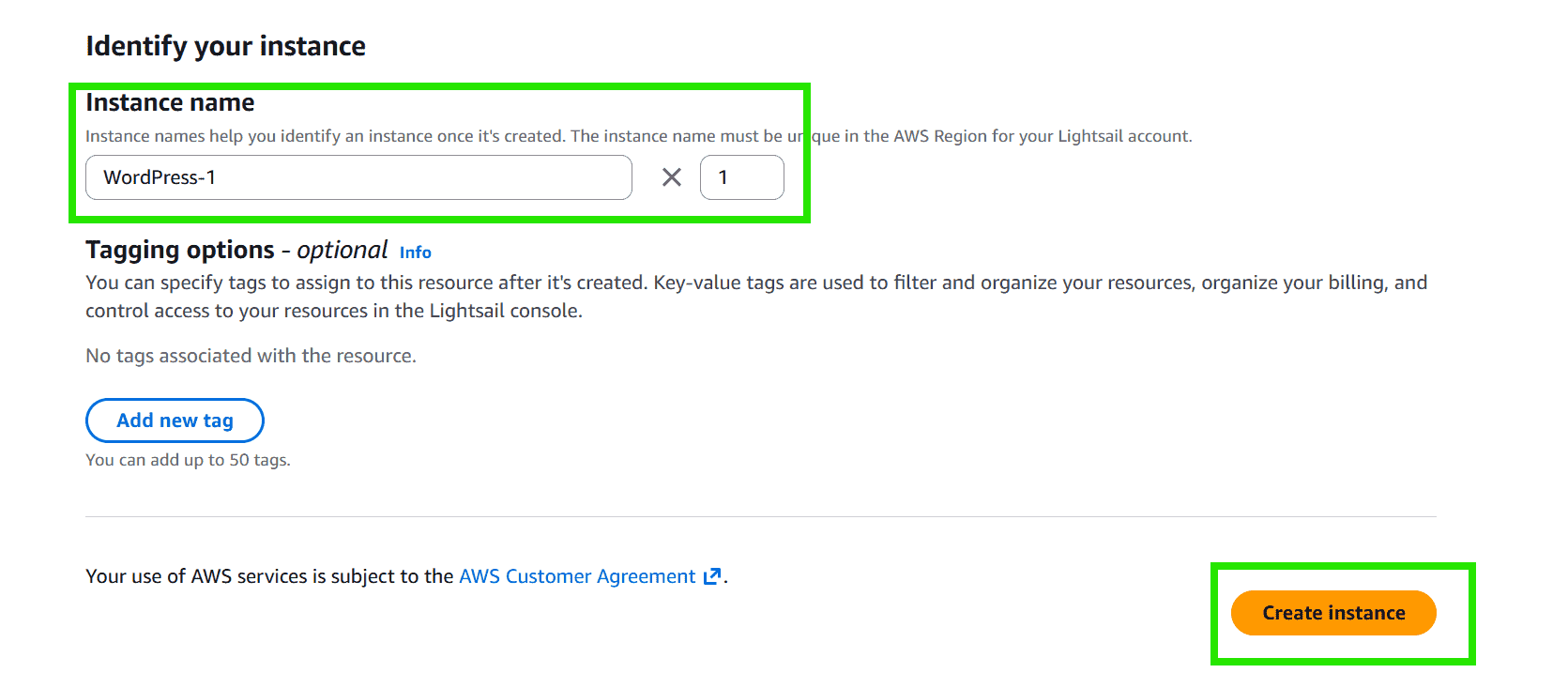
- Define the name of the instance and click on the create instance.
Step 3: Configure your WordPress Instance
- Once, your instance is running, click on its access management dashboard.
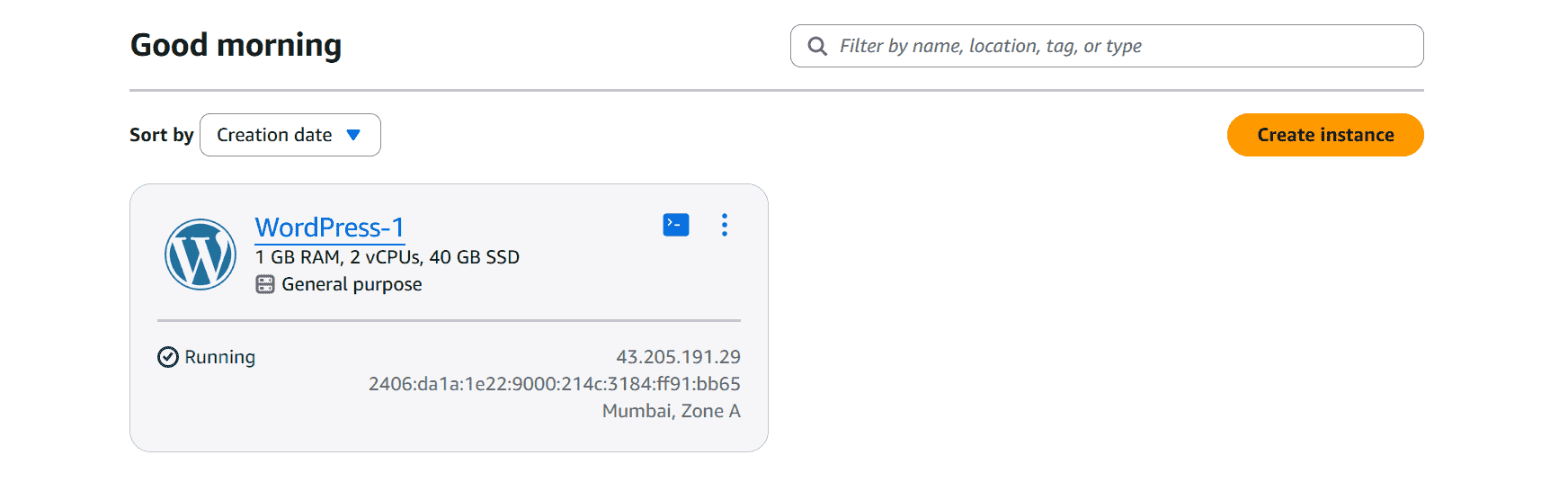
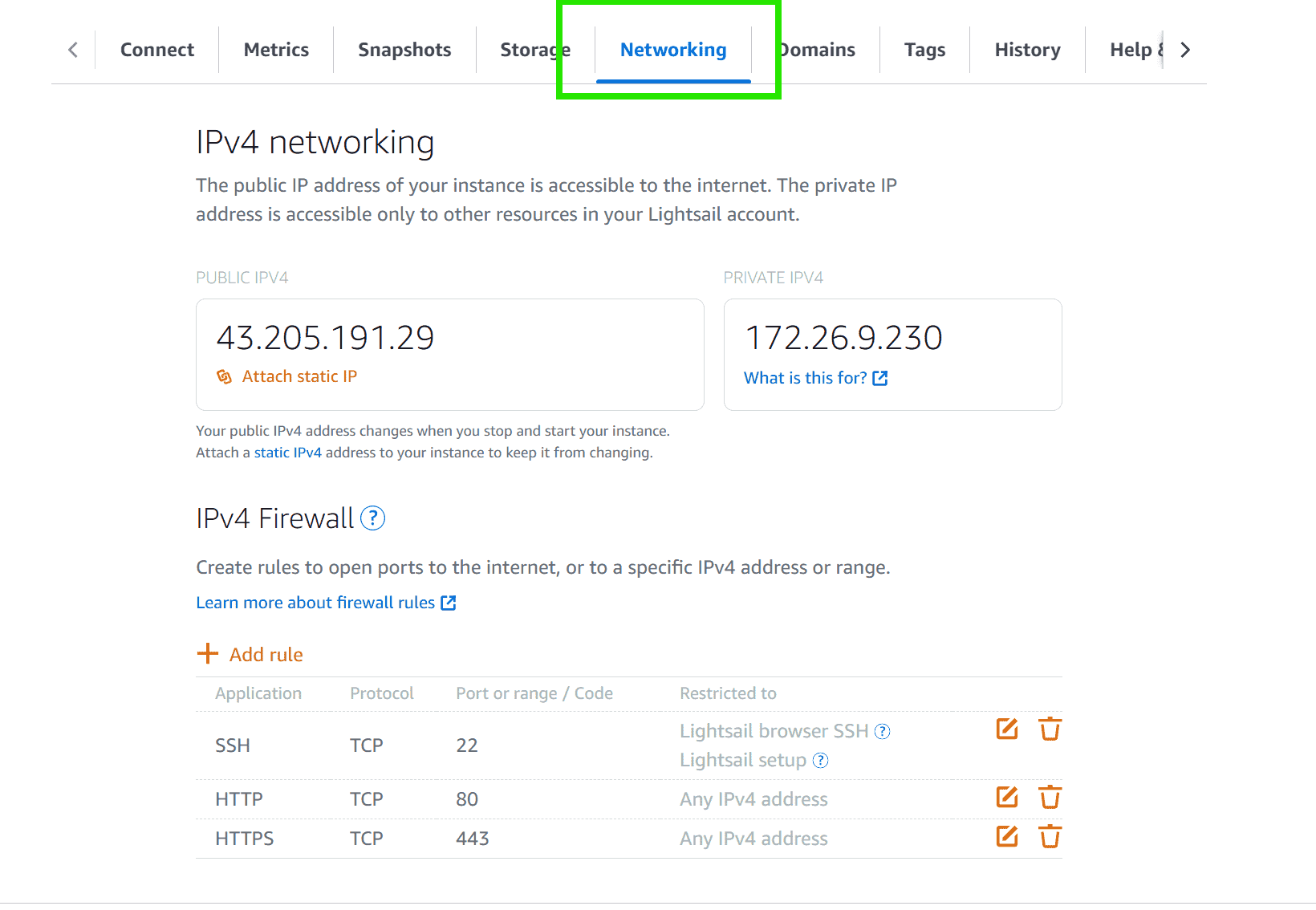
- Navigate to the networking tab and configure your instance's networking settings including the attaching of static IP if needed.
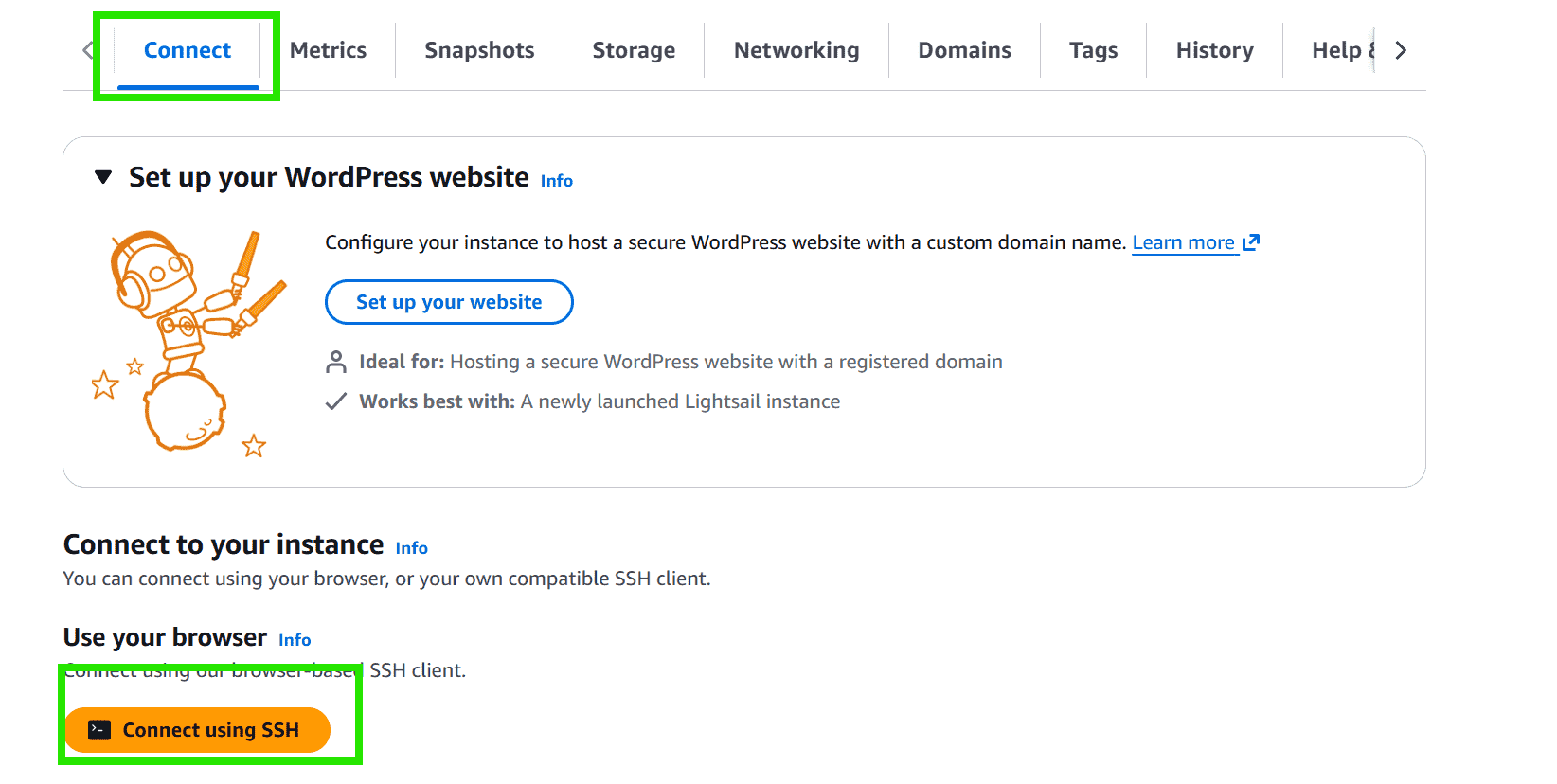
- Then, as a next step go the Connect tab and use the SSH to connect to your instance if you need to make any manual configurations.
Step 4: Get the admin password for your WordPress website
- On the instance management page, click on the Connect using SSH option to access your instance's command line interface.
- Try on running the command with `cat application_credentials` to retrive the default password for the your WordPress admin user.

Step 5: Sign In to the WordPress Administration Dashboard
- Now, open the browser and try on accessing the WordPress with entering the public IP address/wp-admin (http://43.205.xxx.xx/wp-admin) or domain name of your WordPress instance.
- You will be redirected to the WordPress setup page where you can enter your admin username (default: user ) and the password that is obtained in the previous step.
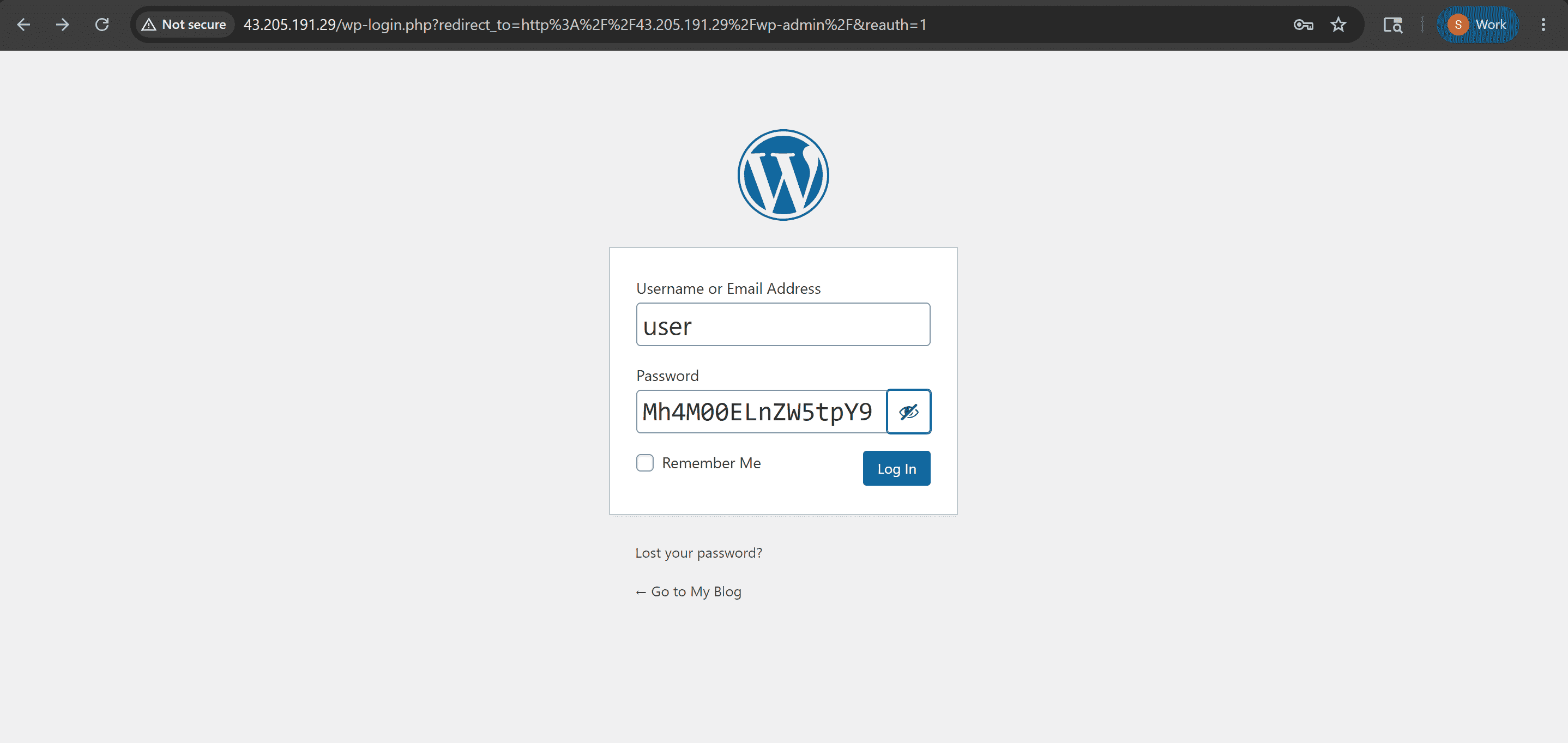
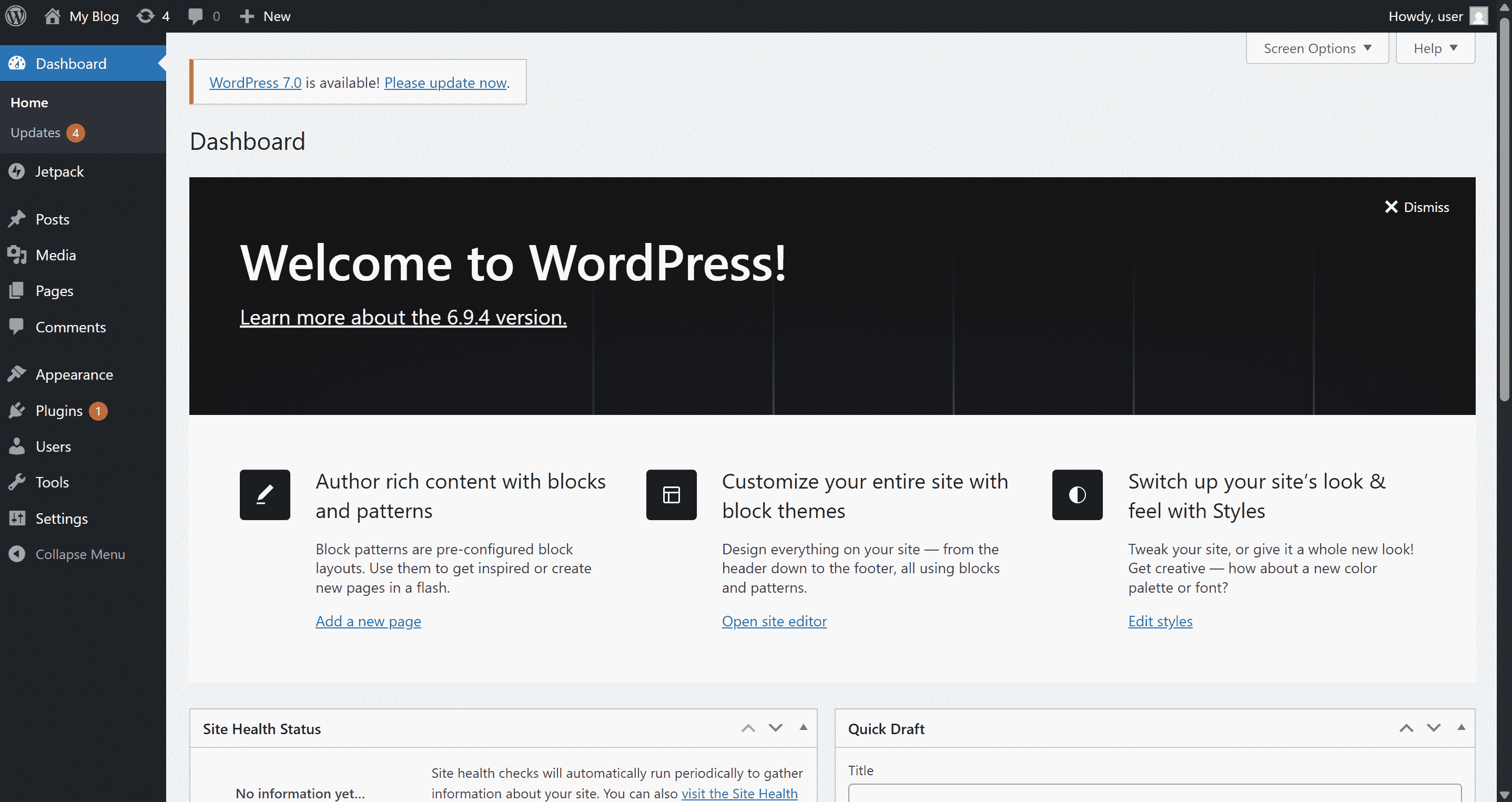
- After once you sign up, you will be redirected to the WordPress administration dashboard where you can start the customization of your website.
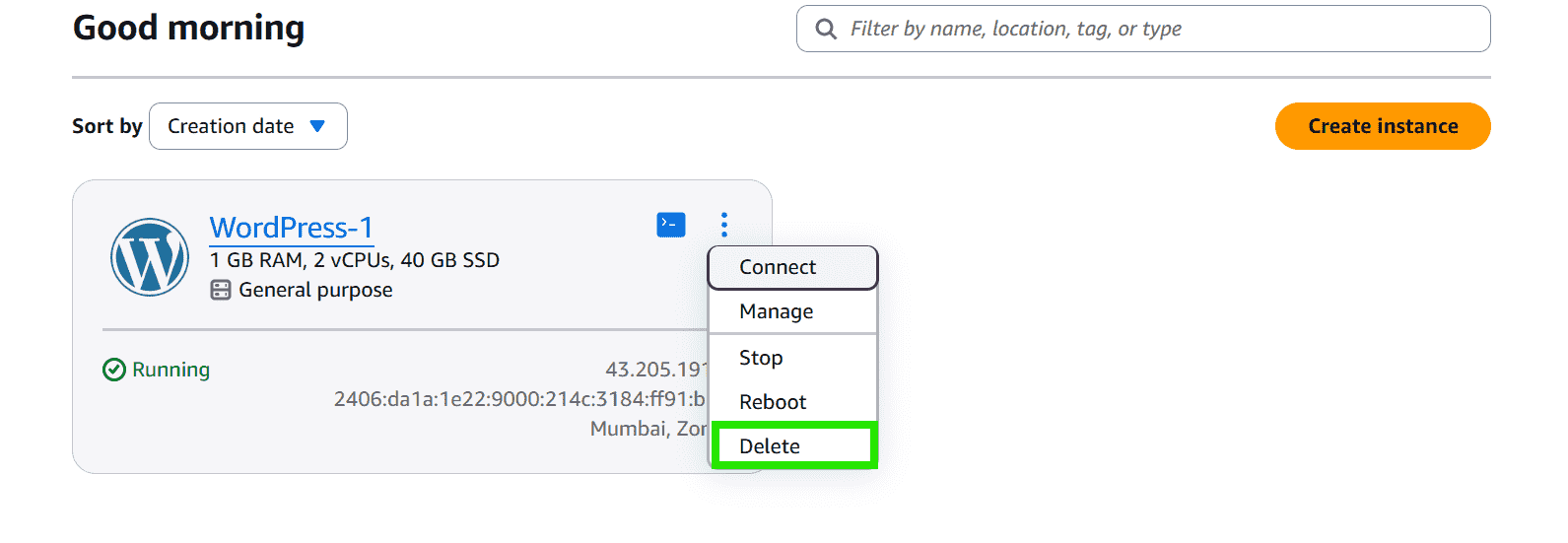
Step 6: Delete the WordPress Instance
- After once, completing the usage of WordPress Instance delete the instance, to stop the billing of the AWS Lightsail service.
Comparing AWS Lightsail and Amazon EC2
The following are the differences of AWS Lightsail and Amazon EC2:
Feature | AWS Lightsail | Amazon EC2 |
|---|---|---|
Ease of Use | Designed for simplicity with pre-configured setups. | Offers more flexibility but requires detailed setup and configuration. |
Pricing Model | Fixed monthly pricing with bundled resources. | Pay-as-you-go pricing with customizable resources. |
Management | Provides a simplified management interface. | Requires more manual configuration and infrastructure management. |
Target Audience | Ideal for beginners, students, small businesses, and simple projects. | Suitable for enterprises, large businesses, and complex applications. |
AWS Lightsail Pricing
Lightsail provides simple and fixed monthly pricing plans. Each plan includes:
1. Compute: vCPU and RAM.
2. Storage: SSD Disk.
3. Data Transfer: A generous monthly allowance (TB) for data out.
- $3.50/month: 512MB RAM, 1 vCPU, 20GB SSD, 1TB Transfer. (Good for testing/static sites).
- $5.00/month: 1GB RAM, 1 vCPU, 40GB SSD, 2TB Transfer. (Good for small WordPress sites).
- $10.00/month: 2GB RAM, 1 vCPU, 60GB SSD, 3TB Transfer. (Production web apps).
Note: Windows-based Lightsail plans cost more because of Windows licensing charges.
When to Move OFF Lightsail
Lightsail is simple and cost-effective, but it has limitations. You should move to Amazon EC2 when:
- Complex Networking: You need private subnets, VPN connections, or advanced VPC networking features.
- Auto Scaling: Your application requires dynamic scaling for high or unpredictable traffic.
- Specialized Hardware: You need GPU instances, high-memory servers, or advanced compute options.
- Enterprise Applications: Your project needs better performance, security, and infrastructure control.