
In docker, all the application in the container runs on particular ports when you run a container. If you want to access the particular application with the help of a port number you need to map the port number of the container with the port number of the docker host.
What are Ports in Docker?
The ports in docker are essential for enabling communication between the docker containers and the outside of the world via the internet. It helps in defining the endpoints through which services can be hosted within the containers and can be accessed by external entities. Docker uses port mapping to map the ports that are expose within a container to ports on the host system. It allows the services that are running within the containers to be accessed externally via the host's IP address and port number combination.
Why We Use Port Mapping?
The network services of a container are made accessible to the host or external network through port mapping in Docker. Docker containers can only communicate with other containers on the same Docker network and run by default in isolation from the host and external networks. By publishing a container's network service to the host or external network through port mapping, you can make it reachable from other networked devices.
When running a Docker container, you can map a port on the container to a port on the host or external network using the -p or —publish options. If you use the below command it will publish nginx, for instance, would publish port 80 from the container to port 8080 on the host or external network.
docker run -p 8080:80 [Options] <Container_name>Ways to Assign a New Port Mapping To A Running Container
There are a few ways to assign a new port mapping to a running container in Docker:
1. Stop And Restart The Container
We can Stop the running Container with the docker command "docker stop" and again run the container with the command "docker run" While running the container again use the below command.
docker run -p <HostPort:containerport> imagename:tag 2. Update The Running Container
If you wish to update the port mapping of a container named my container to map port 8080 on the host to port 80 on the container using the command, for instance, you can map the container port to the host port by updating the container.
docker container update --publish-add 8080:80 my_container3. Using the Docker API
Additionally, you can alter a running container's port mapping using the Docker API. Sending a POST request with the new port mapping configuration in the request body to the /containers/(id)/update endpoint will do this.
Example: You can send a POST request to http://localhost/containers/(container_id)/update with a JSON payload containing the new port mapping configuration.
http://localhost/containers/(container_id)/update
How to Update Config Files to Change The Container Port in the Docker?
- By using "docker ps" list all the containers and pick the container from the list to which the container port is to be changed.
- Stop the container to which you need to change the ports by using "docker stop"
- Find the port mapping definitions section of the configuration file. Typically, this section will have a queue like ports: - [HOST PORT]:[CONTAINER PORT]. The new port number you want to use should be entered as the value for "CONTAINER PORT". In the configuration file, save the modifications.
- Use the docker start command with the container name or ID to restart the container. By using "docker start"
How to Map Ports Of Docker Container With Docker Host?
In the implementation, we are going to download a Jenkins container from the docker hub and map the Jenkins container port number with the docker host port number.
Launching The Container
Step 1: Sign-up for your docker hub repository.

Step 2: Search for the Jenkins image and use the docker pull command to download the Jenkins image on your local server.
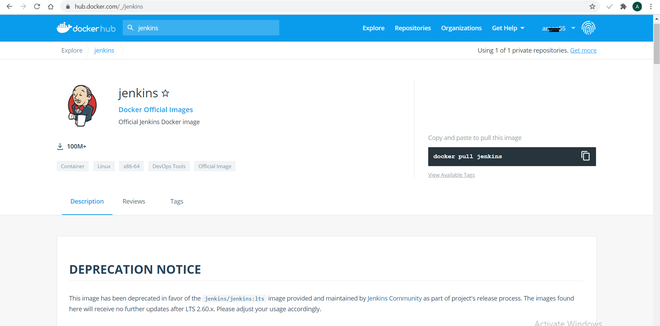
Step 3: Download Jenkins's image using the below command:
sudo docker pull jenkins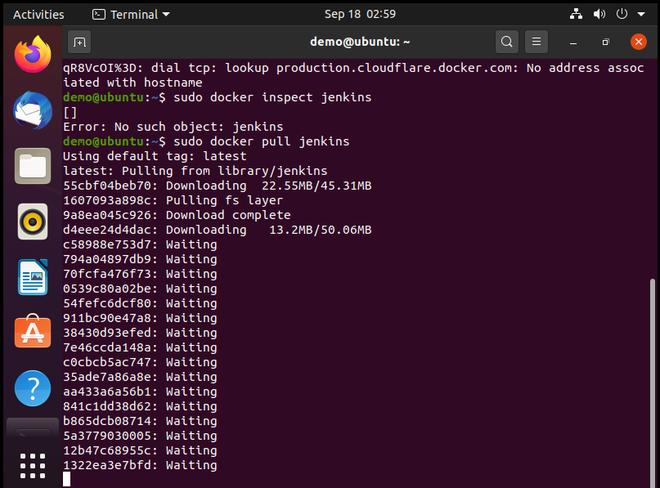
Step 4: To see the ports exposed by the Jenkins container type docker inspect command.
docker inspect Container/image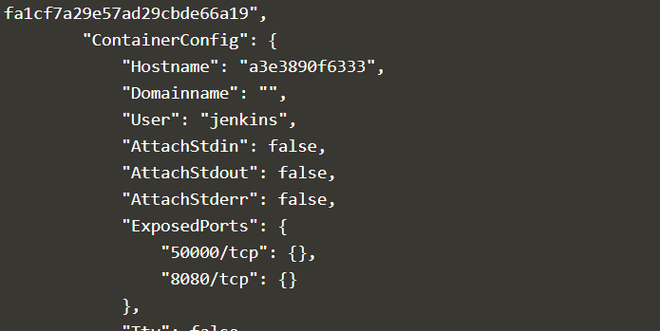
Step 5: In this step, we run Jenkins and map the port by changing the docker run command by adding the p option which specifies the port mapping.
sudo docker run -p 8080:8080 50000:500000 jenkins- On the left-hand side, it is the Docker host port number, and on the right-hand side Docker container number.
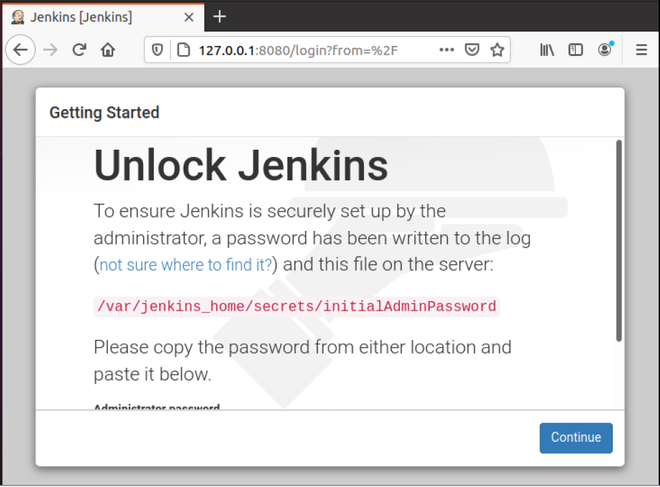
How to Publish Docker Ports Via -P or -p ?
The following are the different ways of publishing the docker ports via -p or -P option:
1. Map The Host Ports To Specific Ports Like TCP or UDP
To try this on your system you can use Apache HTTPD docker image.
#docker run \
-d \
-p 8080:80/tcp \
image
#docker run \
-d \
-p 8080:80/udp
image
- -d is used to run the docker container server in detached mode.
2. Publishing Any Range Of Ports To Container
#docker run \
-d \
-p 8000-8004:4000-4004 \
image
3. Publish Random Ports
Do not specify any port in the published tag, this will publish some randomly chosen ports to all the exposed ports of the docker container application. Always remember -P is in capital letters for this random allocation.
#docker run \
-d \
-P \
image
Check The published Ports Of A Running Docker Container
1. List All The Mapped Ports Of TheContainer
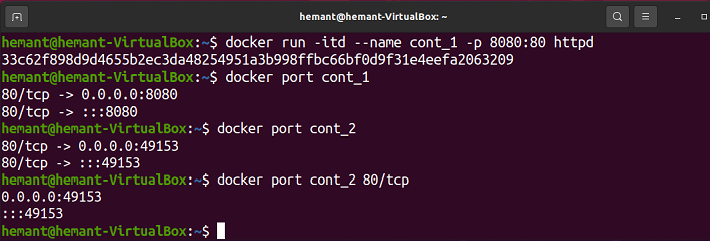
First, create an HTTPD server with a docker container. The following command helps in running a container with the mapping the host port with the container port and expose the application service to the outside world.
#docker run -itd --name cont_1 -p 8080:80 httpd- Now list the ports of the docker container "cont_1".
#docker port cont_1
Output:
80/tcp -> 0.0.0.0:8080
80/tcp -> :::8080
2. List Randomly Allocated Ports
#docker run -itd --name cont_2 -P httpd#docker port cont_2
Output:
80/tcp -> 0.0.0.0:49153
80/tcp -> :::49153
3. Check Any Specific Port OfA Docker Container
#docker port cont_2 80/tcp
Output:
0.0.0.0:49153
:::49153
Run Docker Container In Detached Mode
Most of the time you need to run the container in the detached mode or we can say in the background. By this, the application will continuously run when we are not engaged by this we can work on the remaining features of containers like networks or volumes of containers and also we can work on different multiple containers. To run the container in "detached" mode use the below command.
docker run -d -p 80:80 Nginix: latestWe can use "--detach" or "-d" in short. The Docker container will start and run in the "detach" mode and it returns you to the terminal prompt.
List containers In Docker
How do we know whether our container is running or not and know if any other containers are running in the Docker cluster? By using the below command we can know all the containers that are running.
docker psStop, Start, And Resart Containers
In real-time we need to perform some upgrades or any other modifications to the containers then we can perform upgrades while the container is running but it is not good practice to do then in that time we will stop the container and perform our patches. For stopping the container we can we below command.
docker stop <ContainerName/container id> After completing our maintenance to the containers know we need to start the container again so that end users can access our application for that we can use the following command.
docker start <ContainerName/Container ID>In some conditions, like when we change the container port in a scenario we need to restart our containers and sometimes the container will have trouble we have performed an upgrade in the running container so in that time we need to restart the containers. By using the following command we can restart our container.
docker restart <ContainerName/Container ID>Exposing Docker Ports Via EXPOSE or –expose
The port is not actually published by the EXPOSE command. It serves as a form of documentation regarding which ports are meant to be released between the person who produces the image and the person who runs the container. Use the -p flag on docker run to actually publish and map one or more ports when starting the container.
Note: The EXPOSE command tells Docker that the container is now listening on the given network ports.
Syntax
EXPOSE 8080 How to check whether the Port is exposed or not?
The following steps helps in checking whether the port is exposed or not:
Step 1: Inspect the Dockerfile
- Open the dockerfile nd check for the EXPOSE instruction to know which ports are intended to expose.
# Example Dockerfile
FROM ubuntu
EXPOSE 8080
Step 2: Run the Container
- Use the following run command to start the container:
docker run -d --name my-container my-imageStep 3: Inspect the Container
- Use the following command with container name or ID to inspect that container, and verify which ports are exposed from the details.
docker inspect my-containerDifferences between EXPOSE And Publish
The following are the difference between Docker EXPOSE and Publish:
| Feature | EXPOSE | --publish (-p) |
|---|---|---|
| Purpose | Informs Docker about the port(s) the container listens on | Maps container ports to host ports for external access |
| Usage | Defined in the Dockerfile | Used in the docker run command |
| Port Mapping | Does not map ports to the host | Maps container ports to specific host ports |
| Scope | Primarily for documentation and inter-container communication | Enables communication from outside the host machine |
| Command Example | EXPOSE 8080 (in Dockerfile) | docker run -p 8080:8080 my-container |
| Network Visibility | Makes ports known to Docker and linked containers | Makes ports accessible to the external network |
How to expose two ports in Dockerfile?
On adding multiple EXPOSE instructions in the Dockerfile such as EXPOSE 8080 and EXPOSE 9090 we can expose two ports in it.
How do you check if a port can be reachable or not?
On using the commands such as curl or telnet we can check the connectivity to the specified ports.