
Docker networking enables containers to communicate with each other, the Docker host and external systems. Each container runs in its own isolated network environment with a unique IP address and network interface. Containers on the same network can communicate directly without exposing ports to the host, allowing you to build secure, interconnected multi-container applications.
Core Networking Concepts
- Network Namespaces: Provide network isolation by giving each container its own interfaces, IP, and routing.
- veth pairs: Connect container networks to the host using virtual links.
- iptables: Manage port mapping and NAT to route traffic between hosts and containers.
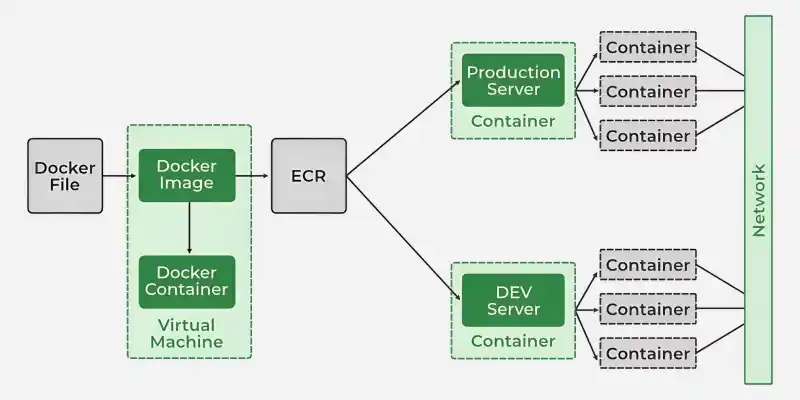
Network Drivers
Docker uses different network drivers to create and manage various types of networks. Here are the most common drivers and what they do:
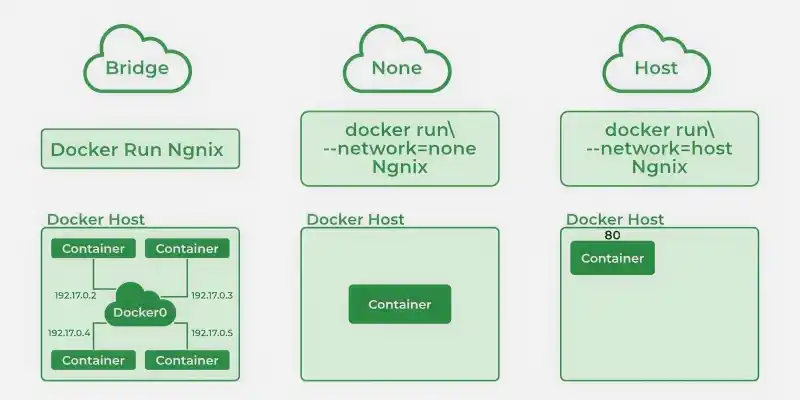
- bridge (default): Creates a private network where containers communicate internally and require port mapping for external access.
- host: Shares the host network directly, offering better performance but no isolation.
- none: Provides full isolation with no network access.
- overlay: Enables communication across multiple hosts in distributed setups.
- macvlan: Assigns a MAC address to make containers appear as physical devices.
- User-defined bridge: Allows containers to communicate using names instead of IPs.
Essential Docker Network Commands
1. Understanding the Docker Network Command
The Docker Network command is the main command that would allow you to create, manage, and configure your Docker Network. Let's see what the sub-commands can be used with the Docker Network command. to know more about Creating a Network in Docker and Connecting a Container to That Network.
sudo docker network
We will see all the Network sub-commands one by one.
2. Using Docker Network Create command
With the help of the "Create" command, we can create our own docker network and can deploy our containers in it.
sudo docker network create --driver <driver-name> <bridge-name>
3. Using the Docker Network Connect command
Using the "Connect" command, you can connect a running Docker Container to an existing Network.
sudo docker network connect <network-name> <container-name or id>In this example, we will connect an Ubuntu Container to the Bridge Network we created in the last step.

4. Using the Docker Network Inspect command
Using the Network Inspect command, you can find out the details of a Docker Network.
sudo docker network inspect <network-name>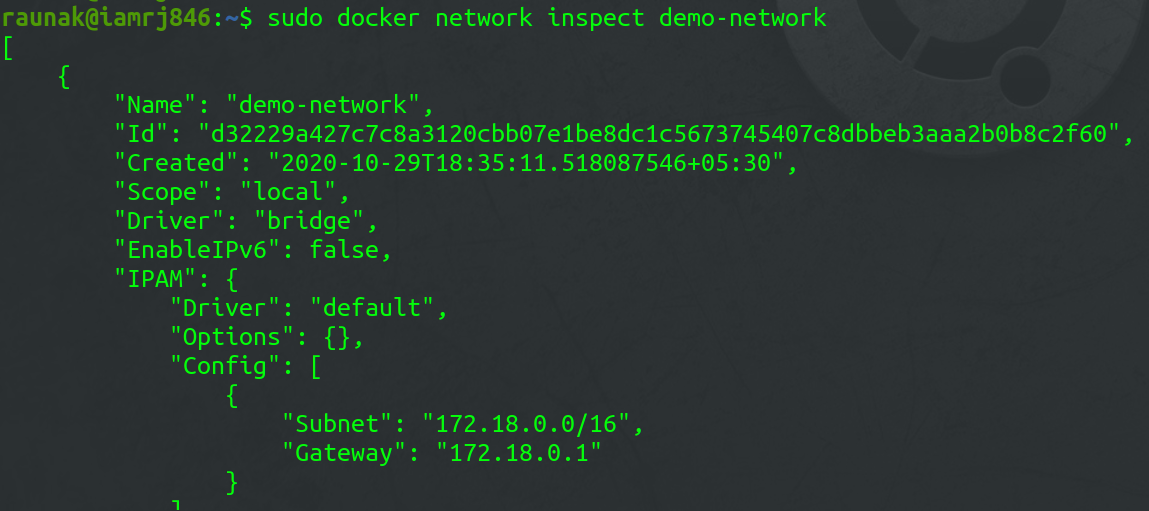
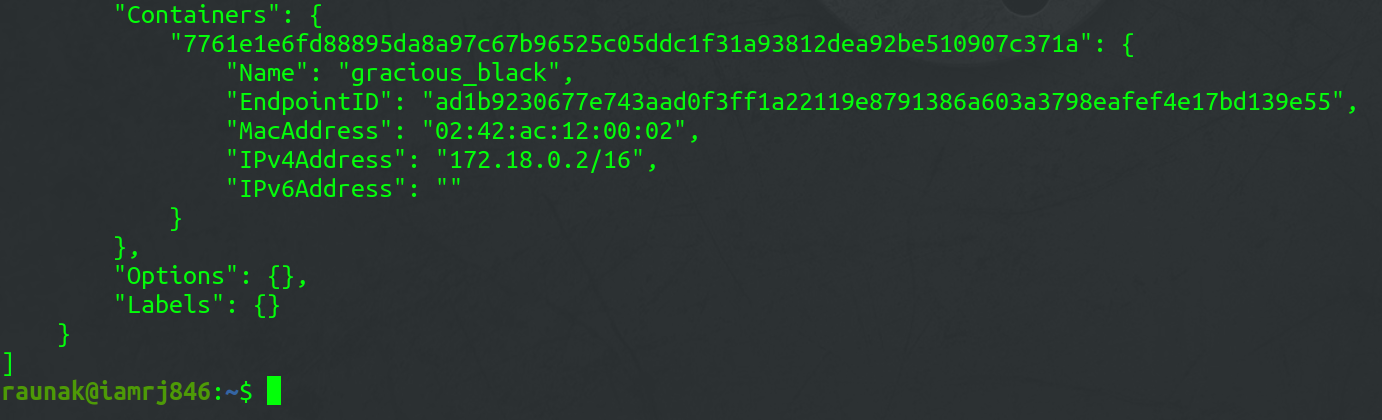
You can also find the list of Containers that are connected to the Network.
5. Using the Docker Network ls command
To list all the Docker Networks, you can use the list command.
sudo docker network ls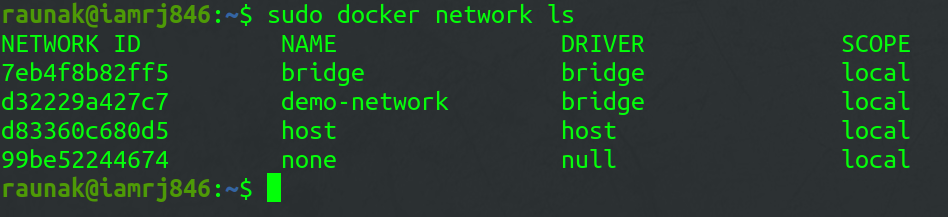
6. Using the Docker Network Disconnect command
The disconnect command can be used to remove a Container from the Network.
sudo docker network disconnect <network-name> <container-name>
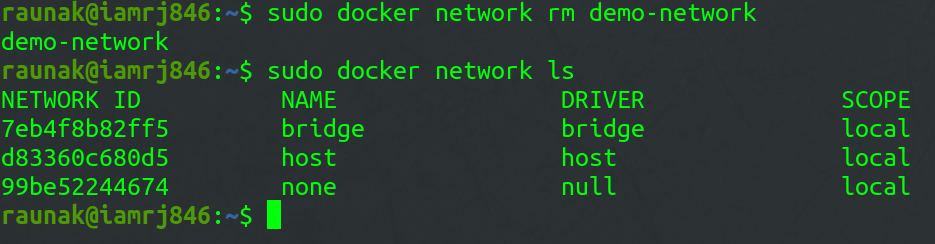
7. Using the Docker Network rm command
You can remove a Docker Network using the rm command.
sudo docker network rm <network-name>Note that if you want to remove a network, you need to make sure that no container is currently referencing the network.
8. Using the Docker Network prune command
To remove all the unused Docker Networks, you can use the prune command.
sudo docker network prune
To know more about Docker-published ports refer to this article Docker – Managing Ports
Common Operations
- docker network inspects: We may examine the configuration information of a specific network, such as the name of the network, the containers that have linked to this network, the type of driver used to construct this network, and other characteristics, by using the "docker network inspect" command.
- docker network ls: We can see all of the networks that are available on the current host by using "docker network ls".
- docker network creates: Using the command "docker network create" and the name of the driver, such as bridge, overlay, or macvlan, we can establish a new network.
- docker network connects: In order to use this command, we must first confirm that the appropriate network has already been formed on the host. Then, using docker "network connect", we may attach the container to the necessary network.