Bootstrap 5 provides ratios, which can be used to create fixed-ratio containers. These containers maintain a specific aspect ratio, regardless of the size of the screen or the content within them.
Bootstrap 5 Ratios:
- Aspect ratio: The proportionality between an element's height and breadth is known as an aspect ratio. Aspect ratios are useful when we use videos, images, etc. The height-width relationship stays the same, as defined, regardless of the width. By default, the four aspect ratios are set in Bootstrap 5.
- Custom Ratio: We can use bootstrap 5 custom ratios to set the aspect ratio using a CSS custom property. Components can have unique aspect ratios by simply substituting CSS variables for modifier classes. A CSS custom property or variable is present in the selector for each ratio-* class.
- SASS map: Syntactically awesome stylesheet is used to customize the aspect ratio values. $aspect-ratios is used to customize the aspect ratio values.
Example 1: In this example, we will demonstrate bootstrap 5 aspect ratios.
<!DOCTYPE html>
<html>

<head>
    <meta charset="utf-8">
    <meta name="viewport" content=
"width=device-width, initial-scale=1">
    <link href=
"https://cdn.jsdelivr.net/npm/bootstrap@5.2.3/dist/css/bootstrap.min.css"
        rel="stylesheet">
    <link href=
"https://getbootstrap.com/docs/5.2/assets/css/docs.css"
        rel="stylesheet">
    <script src=
"https://cdn.jsdelivr.net/npm/bootstrap@5.2.3/dist/js/bootstrap.bundle.min.js">
    </script>
</head>

<body class="p-3 m-2 mt-4 text-center shadow
        bd-example bd-example-ratios">

    <h1 class="text-success">
        GeeksforGeeks
    </h1>
    <h3>Bootstrap 5 Ratios</h3>
    <div class="ratio ratio-1x1 bg-primary">
        <h1 class="text-success">GFG</h1>
    </div>
    <div class="ratio ratio-4x3 bg-info">
        <h1 class="text-success">GFG</h1>
    </div>
    <div class="ratio ratio-16x9 bg-secondary">
        <h1 class="text-success">GFG</h1>
    </div>
</body>
</html>
Output:
.png)
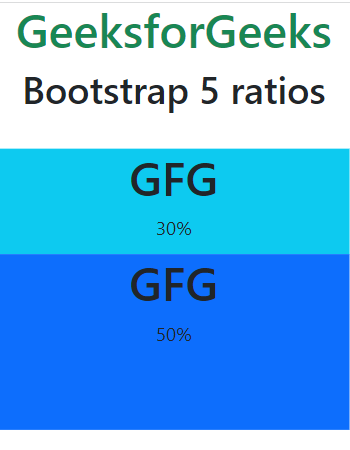
Example 2: In this example, we will demonstrate bootstrap 5 Custom ratios.
<!DOCTYPE html>
<html>

<head>
    <meta charset="utf-8">
    <meta name="viewport" content=
"width=device-width, initial-scale=1">
    <link href=
"https://cdn.jsdelivr.net/npm/bootstrap@5.0.2/dist/css/bootstrap.min.css"
        rel="stylesheet" integrity=
"sha384-EVSTQN3/azprG1Anm3QDgpJLIm9Nao0Yz1ztcQTwFspd3yD65VohhpuuCOmLASjC"
        crossorigin="anonymous">

    <script src=
"https://cdn.jsdelivr.net/npm/bootstrap@5.0.2/dist/js/bootstrap.bundle.min.js"
            integrity=
"sha384-MrcW6ZMFYlzcLA8Nl+NtUVF0sA7MsXsP1UyJoMp4YLEuNSfAP+JcXn/tWtIaxVXM"
            crossorigin="anonymous">
    </script>
</head>

<body class="m-3" style="width:540px">
    <center>
        <div>
            <h1 class="text-success">GeeksforGeeks</h1>
            <h2>Bootstrap 5 ratios</h2>
        </div>
        <br>
        <div class="ratio" style="--bs-aspect-ratio:30%;">
            <div class="bg-info">
                <h1>GFG</h1>
                <p>30%</p>
            </div>
        </div>
        <div class="ratio" style="--bs-aspect-ratio:50%;">
            <div class="bg-primary">
                <h1>GFG</h1>
                <p>50%</p>
            </div>
        </div>
    </center>
</body>

</html>
Output: