
Nowadays, it is very much necessary to secure email addresses from spoofing and phishing attacks. To make email addresses more secure, Domain-based Message Authentication, or DMARC is very much needed.
Domain-based Message Authentication is an email authentication protocol that can be used by any email owner. Let us deep dive into this article to learn more about Domain-based Message Authentication, Reporting & Conformance.
What is DMARC?
DMARC, which stands for “Domain-based Message Authentication, Reporting & Conformance” is an email authentication, policy, and reporting protocol that operates alongside the Sender Policy Framework (SPF) and Domain Keys Identified Mail (DKIM) to determine the authenticity of an email message.
DMARC protects organizations from Business Email Cyberattacks, it also allows them to receive DMARC reports from mail service providers. Also, DMARC provides valuable feedback through reports that help organizations monitor and improve their email security posture.
What is a DMARC Policy?
A Domain-based Message Authentication, Reporting & Conformance Policy is a set of rules that a domain owner can set to handle unauthenticated messages claiming to come from their domain.
It specifies whether to reject, quarantine, or allow emails that fail authentication checks like SPF (Sender Policy Framework) and DKIM (DomainKeys Identified Mail). If the DMARC Policy is implemented, it will help to prevent email spoofing and phishing attacks. Also, it ensures that only legitimate emails are delivered to recipients.
What is a DMARC Report?
A DMARC report provides detailed information about the email messages sent from your domain. It will also include whether they passed or failed DMARC, SPF, and DKIM checks. These reports help domain owners monitor and analyze email traffic, identify potential sources of abuse, and fine-tune their DMARC policies.
There are two types of DMARC reports. One is the Aggregate Reports and another is the Forensic Reports. Aggregate Reports provide a summary of authentication results. Forensic Reports give detailed information on specific failed messages. If you regularly review DMARC reports. email security will be well maintained.
What is a DMARC Record?
A DMARC record is a DNS (Domain Name System) entry that specifies the DMARC policy for your domain. It contains instructions on handling emails that fail authentication checks and where to send DMARC reports. The DMARC record includes several components, such as the policy (p=), reporting email addresses (rua=, ruf=), and alignment criteria (aspf=, adkim=).
By publishing a DMARC record, domain owners can gain control over their domain’s email security. It will eventually reduce phishing attacks, and enhance email deliverability.
How to Create a DMARC Record?
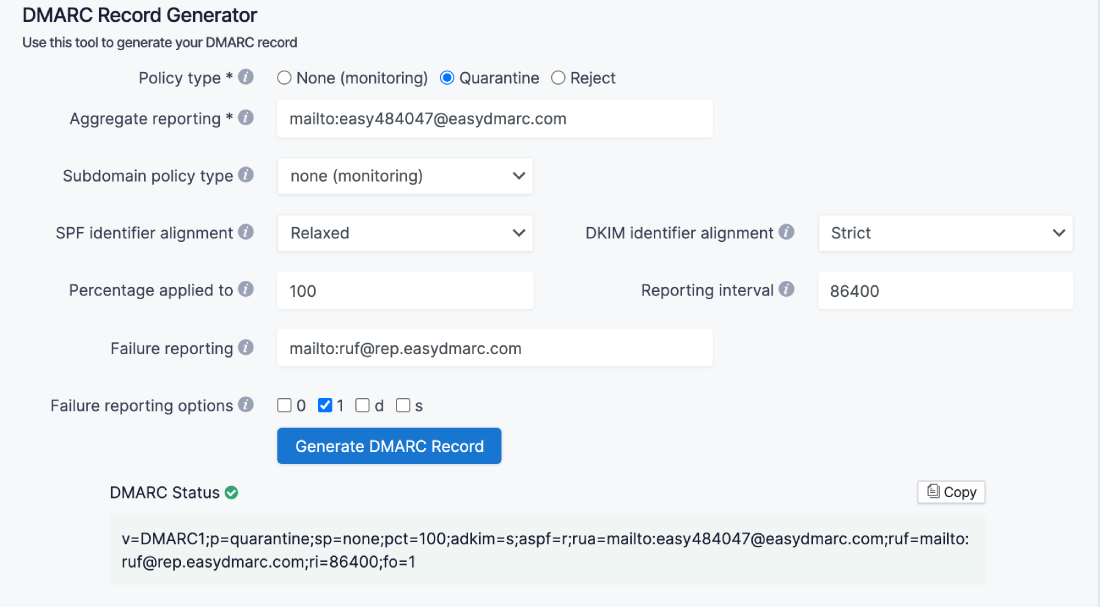
1. Go to EasyDMARC free DMARC Record Generator tool
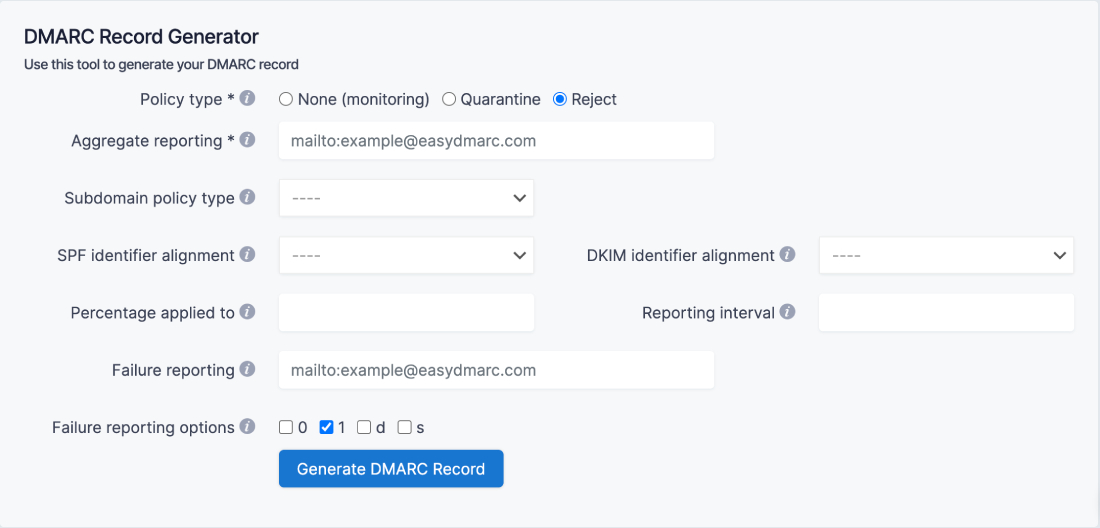
2. Select the Policy type (choose from “none”, “quarantine”, and “reject”).

Common DMARC policies
- Nothing or None: This means that an email will be treated the same as if DMARC was not set up. A message can still be delivered, placed in the inbox, spam, or discarded. The option usually watches the environment, used in report analyses without affecting delivery methods.
- Quarantine: The option allows an email but does not reach the inbox. These messages usually go straight to spam when the DMARC check fails.
- Reject: Discards any messages that fail the DMARC check immediately.
3. Choose your Aggregate reporting address, mailtoailto:example@easydmarc.com).
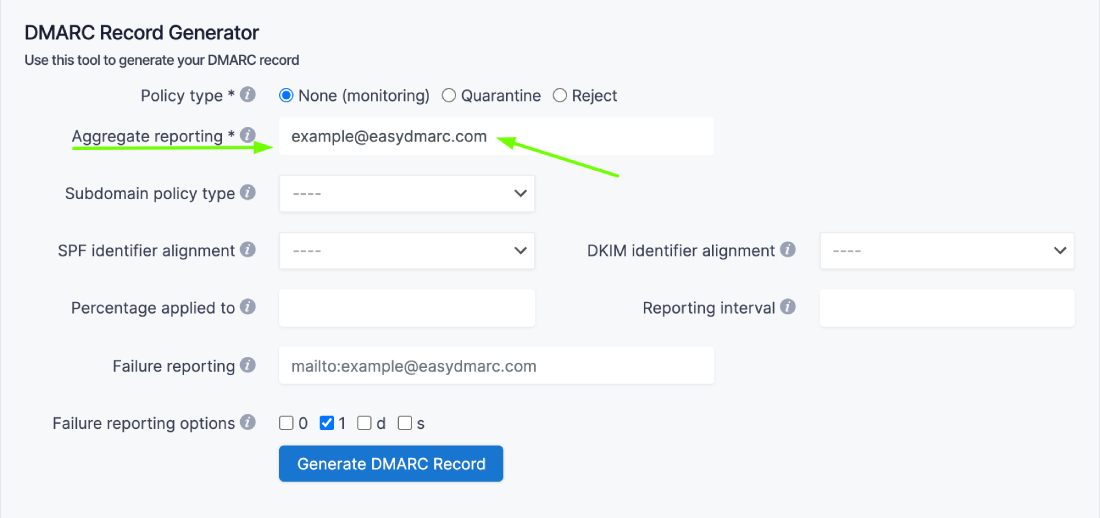
4. Select a Subdomain policy type (again, choose from “none”, “quarantine”, and “reject”).

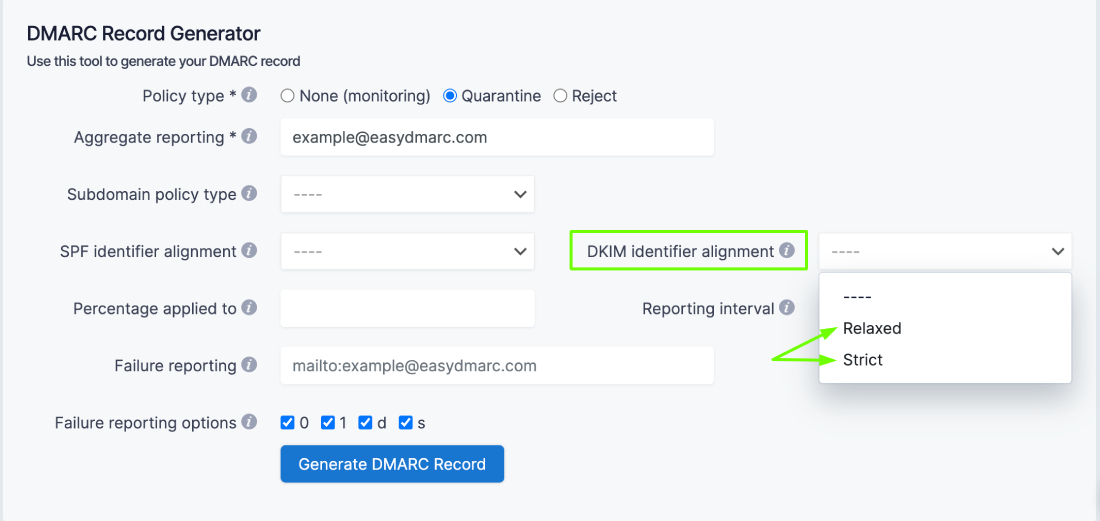
5. Next, select SPF identifier alignment (can be chosen either “relaxed” or “strict”).

6. Choose DKIM identifier alignment (can be chosen either “relaxed” or “strict”).
7. Write down the Percentage applied for your DMARC policy (the percentage of messages from the domain owner mainstream to which the DMARC policy is used, the default is 100).
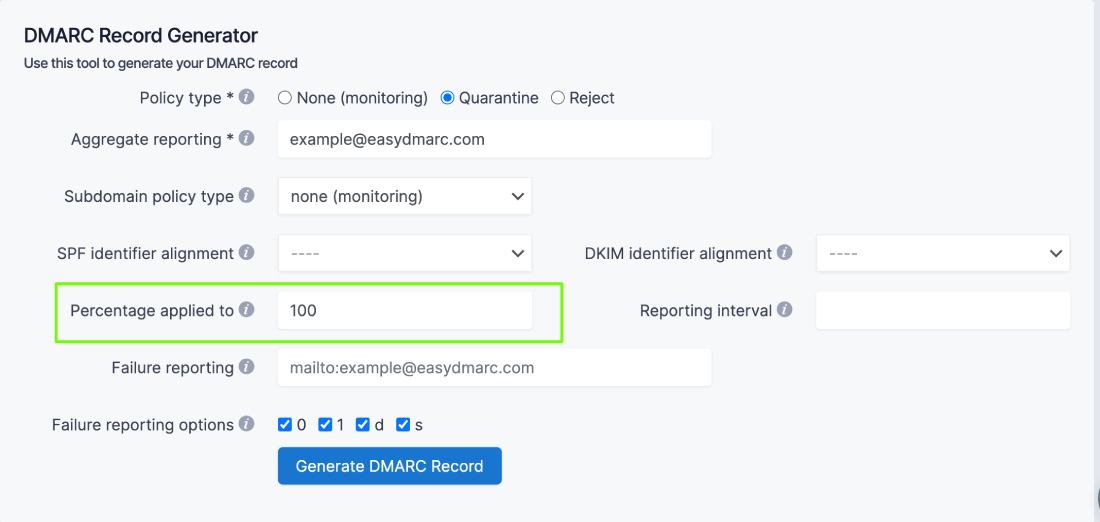
8. Also, choose the Reporting interval (the requested interval in seconds between aggregate reports, the default is 86400).
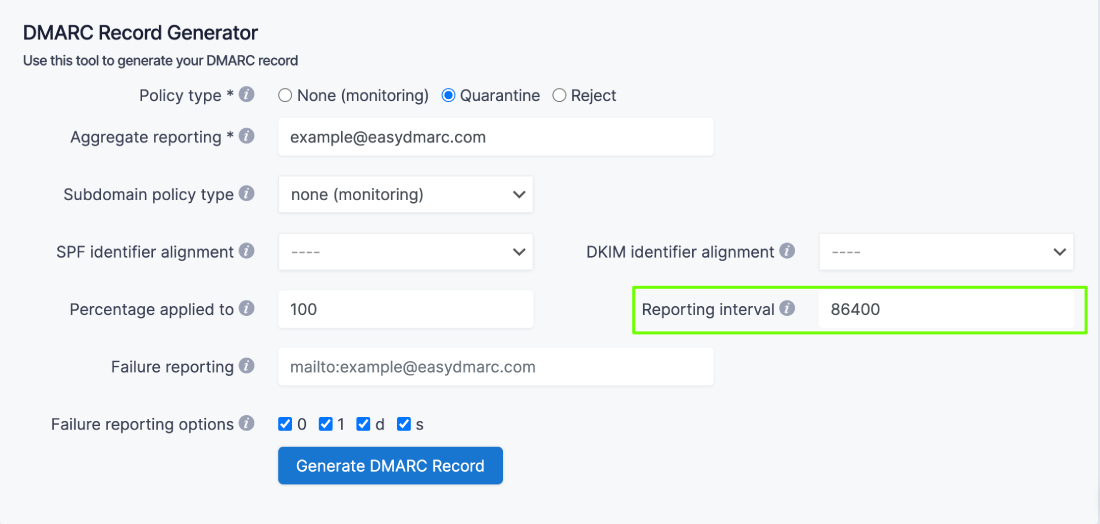
9. Choose your Failure reporting address, mailto:example@easydmarc.com).
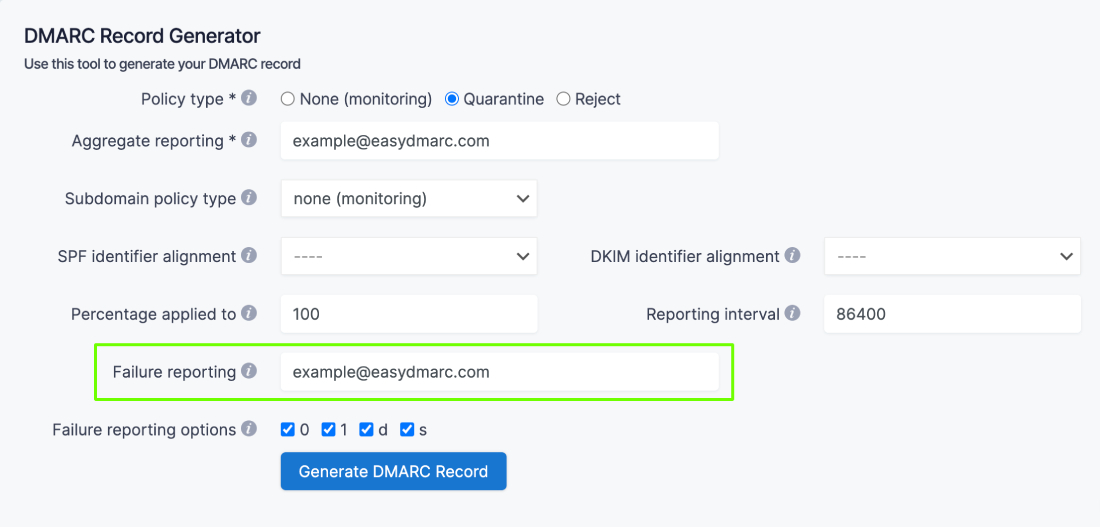
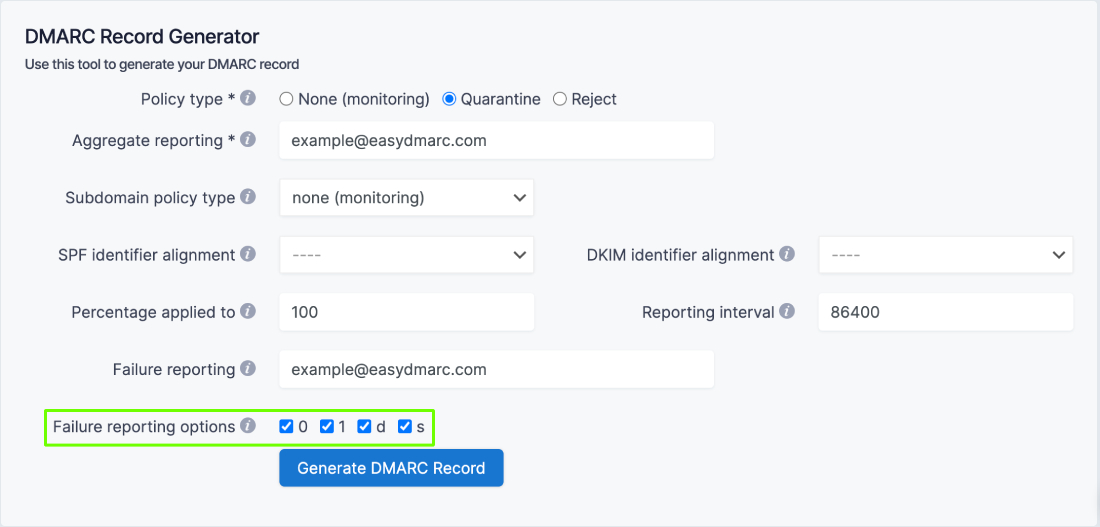
10. And lastly, pick out Failure reporting options (controls the type of reports that are sent out).
11. Once the tags are customized, click on the button that says “Generate DMARC Record” at the bottom.
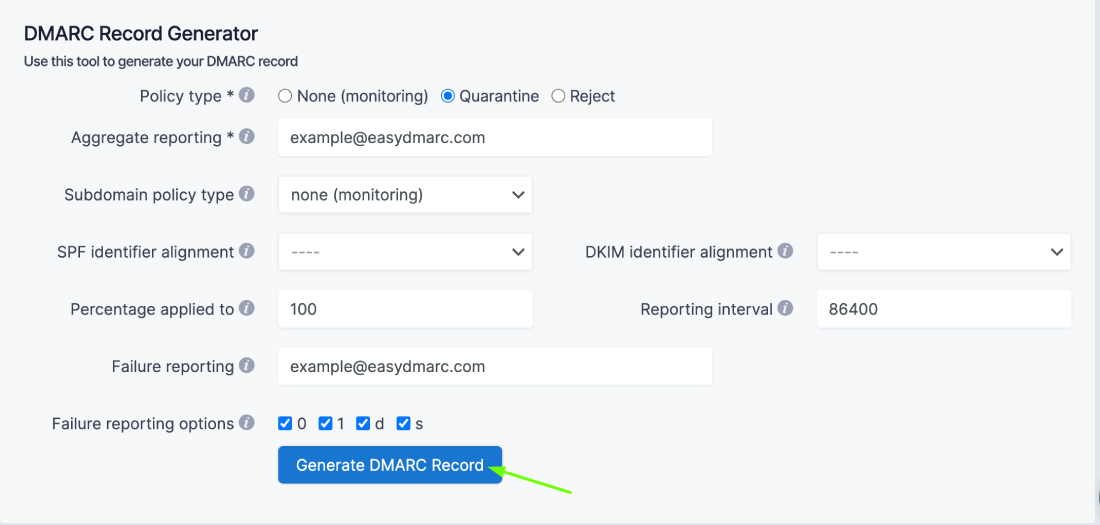
12. Your DMARC record is created!
What are Different Types of DMARC Tags?
There are different types of DMARC tags and all DMARC tags are divided into optional and required tags.
Tag Name | Purpose | Sample |
|---|---|---|
| v | Protocol Version | v=DMARC1 |
| p | Policy for organizational domain | p=quarantine |
| ruf | Reporting URI for forensic reports | ruf=mailto:authfail@example.com |
| rua | Reporting URI of aggregate reports | rua=mailto:aggrep@example.com |
| pct | Percentage of messages subjected to filtering | pct=20 |
| sp | Policy for subdomains of the OD | sp=reject |
| adkim | Alignment mode for DKIM | adkim=s |
| aspf | Alignment mode for SPF | aspf=r |
Required tags
- Version (“v”): Must take the value DMARC1 (e.g. v=DMARC1). The entry will be ignored otherwise.
- Policy (“p”): Policy for receiving messages. Determines the policy for the domain and subdomains.
Optional tags
- RUA Report Email Address (rua): Addresses for sending Aggregated reports, separated by commas. It is possible to specify mailto: links for sending reports by mail.
- RUF Report Email Address (ruf): Addresses to submit Failure reports, separated by commas. Specifying this tag implies that the owner requires recipient servers to send detailed reports on every message that fails DMARC validation.
- Percentage (pct): It specifies the number of emails to be filtered, indicated as a percentage. For example, “pct = 20” will filter 20% of emails.
- Subdomain Policy (sp): This tag represents the requested handling policy for subdomains.
- ADKIM Tag (adkim): DKIM record authentication check. It can take the value Relaxed “r”, or Strict “s”. The default is “r”
In relaxed mode, if the DKIM record being verified belongs to the domain d=example.com, and the message is sent from email@news.example.com, the verification will pass. In the strict mode, the check will be passed only if the sending comes from an address on the example.com domain. Subdomains will not pass validation.
How to Implement DMARC with EasyDMARC?
1. Identify all the domains that you own. This means all the domains from which emails are sent on your company's behalf including “look-alike” or “cousin” domains and any inactive/parked domains.
2. Register an account at EasyDMARC and add your domain(s)

The system automatically will forward you to the Add Domain page after the registration.

3. As you add your domain, we automatically generate a DMARC Record for you.

The same DMARC record applies to all the domains under one account.
4. Publish the generated DMARC Record in your DNS
How to Add the DMARC Record in DNS?
Here is an example of a published record in the Cloudflare DNS
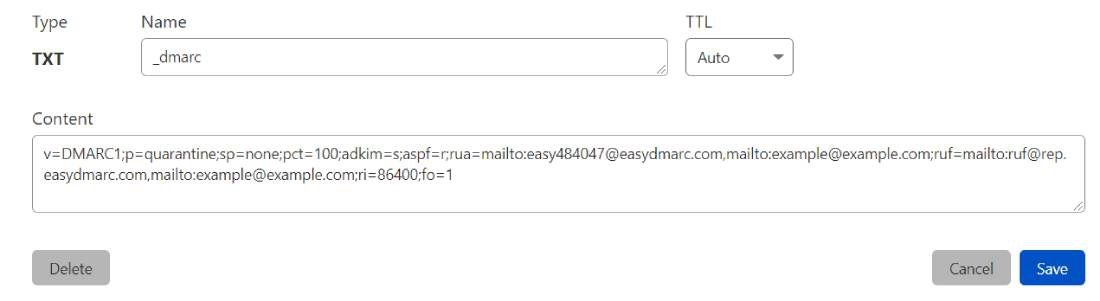
Note that the Name section of the TXT record should be _dmarc. Once the TXT record is saved in the DNS, use the DMARC record lookup tool on the EasyDMARC website to ensure the record is set up correctly.
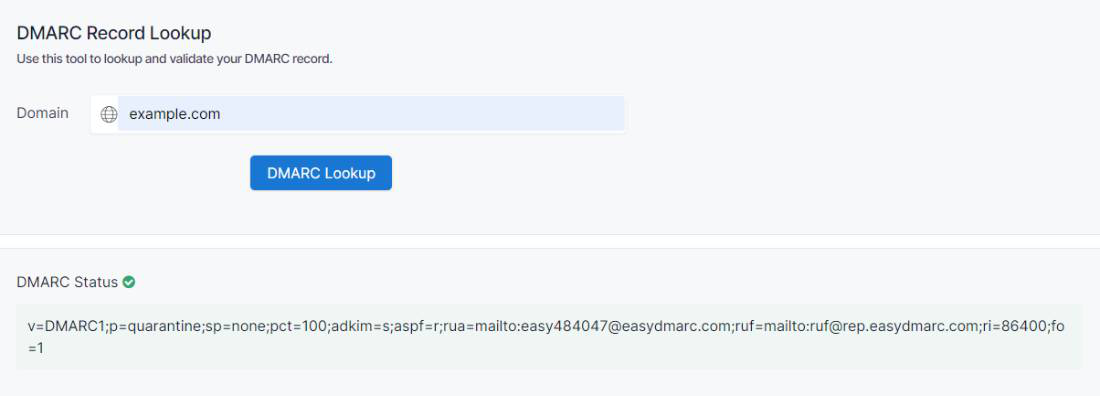
When the DMARC status is shown the green color, that indicates the record is set up correctly.
Conclusion
Domain-based Message Authentication, Reporting & Conformance are very much needed to safeguard your email address from external threats. The process of getting Reports and Records on Domain-based Message Authentication, Reporting & Conformance makes it popular among email users.