
Accidentally deleted an important WhatsApp photo? It happens more often than you think. The good news is that WhatsApp photos can often be recovered through backups, phone storage, cloud services, or even the sender. This guide explains simple and reliable methods to retrieve deleted WhatsApp images on Android and iPhone.
Method 1: Restore Deleted Photos Using WhatsApp Backup
If WhatsApp backup was enabled before deletion, restoring the backup is the most reliable option.
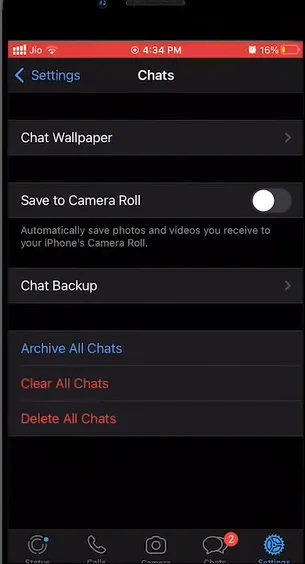
Step 1: Check Backup Availability
- Open WhatsApp > Settings > Chats > Chat Backup
- Check the last backup date
- Ensure the backup was created before the photo was deleted
- Android → Google Drive
- iPhone → iCloud
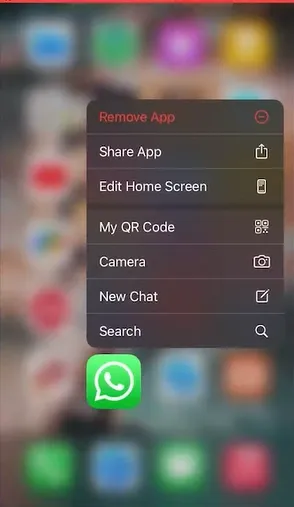
Step 2: Uninstall WhatsApp
- Press and hold the WhatsApp icon
- Tap Remove App > Delete App
Step 3: Reinstall WhatsApp
- Download WhatsApp from Google Play Store (Android) or App Store (iPhone)

Step 4: Verify Your Number
- Open WhatsApp
- Enter your phone number
- Verify using the OTP sent via SMS
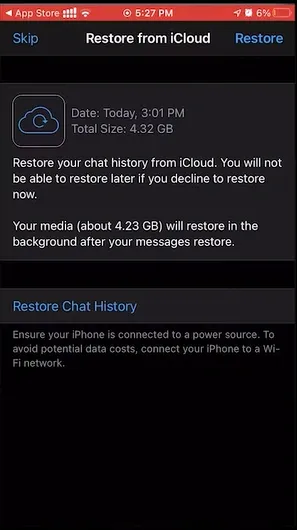
Step 5: Restore Backup
- When prompted, tap Restore Chat History
- Wait for the restoration to complete
- Deleted photos should reappear in chats and galleries
Note: Messages and media received after the backup date will be lost
Method 2: Recover from Phone Storage (Android Only)
WhatsApp media is often stored locally on Android devices.
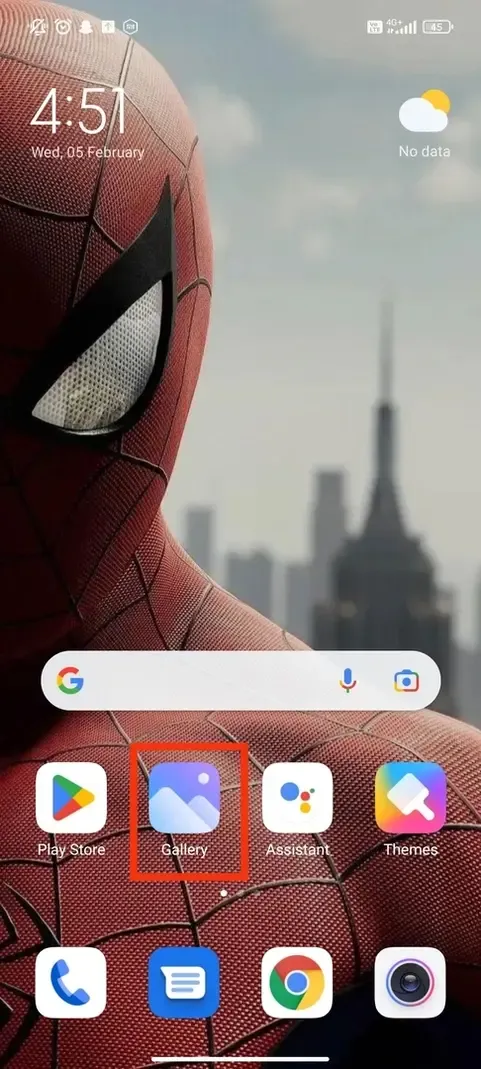
Step 1: Open Google Photos or Gallery
- Search for your missing image
Step 2: Check WhatsApp Folder
- Go to Albums
- Open WhatsApp Images or WhatsApp Media
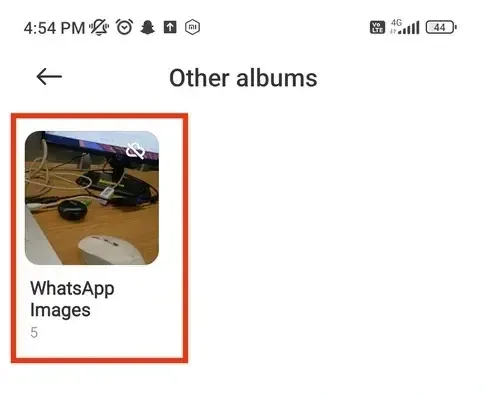
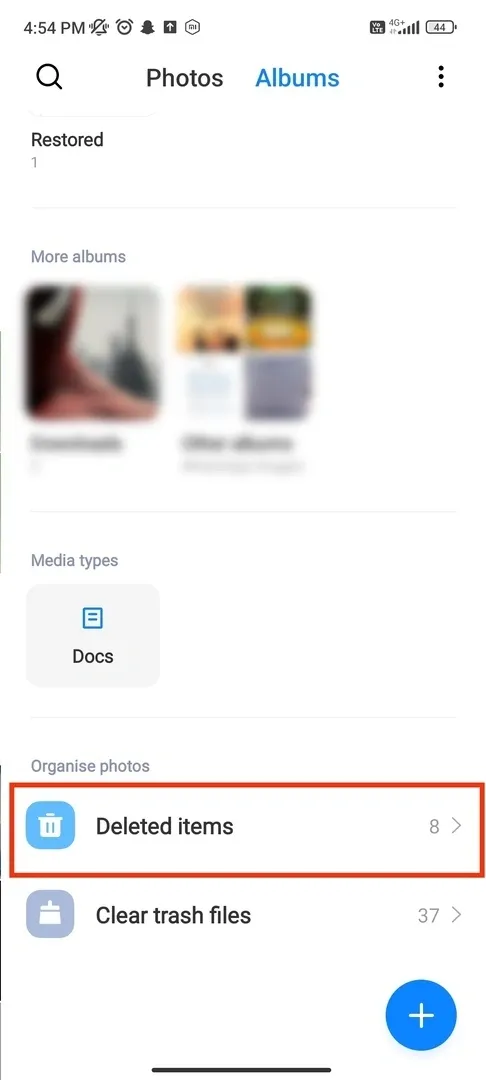
Step 3: Check Recently Deleted
- Open Recently Deleted / Trash
- Restore the photo if found
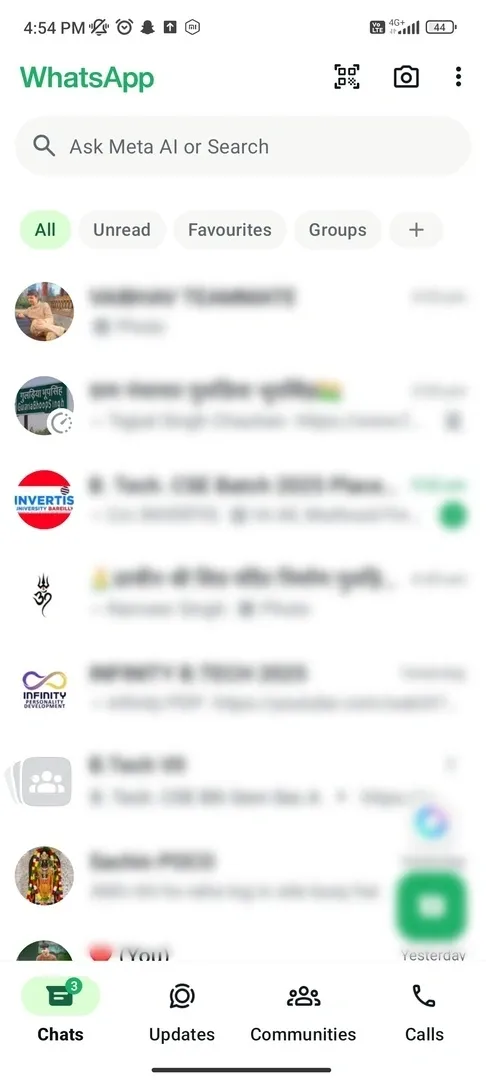
Step 4: Check WhatsApp Chats
- Open the chat where the image was shared
- Tap the download icon if visible
Step 5: Enable Auto-Save
- WhatsApp > Settings > Chats
- Enable Save to Gallery
Method 3: Recover from Recently Deleted Folder (iPhone)
Deleted photos remain here for up to 30 days.
Steps:
- Open Photos
- Tap Albums > Recently Deleted
- Select the photo
- Tap Recover
If the photo isn’t there, proceed to backup or cloud methods.
Method 4: Check Cloud Storage or Email
Your photos may still exist if previously backed up or shared.
Check These Locations:
- Google Photos: Search “WhatsApp”
- iCloud Photos: Albums > WhatsApp / Recently Deleted
- Dropbox / OneDrive: Search WhatsApp media
- Email: Check sent emails or attachments
Download and save the image if found.
Method 5: Ask the Sender to Resend the Photo
If no backup exists, this is often the easiest solution.
Steps:
- Open the original chat
- Ask the sender or group member to resend the image
- Request the original file, not a screenshot
- Check WhatsApp Web or linked devices if previously used
Tips to Avoid Losing Photos in the Future
Enable Auto-Download:
- Open WhatsApp > Settings > Storage and Data > Media Auto-Download.
- Select the types of media you want to auto-download (e.g., photos, videos).
Backup Regularly:
- Open WhatsApp > Settings > Chats > Chat Backup.
- Tap Back Up to manually back up your data or enable automatic backups.
Save Photos Manually:
- Open the chat with the photo, tap and hold the photo, and select Save to Gallery (Android) or Save Image (iPhone).