
It might be annoying to experience problems with your system's microphone or audio, particularly if you depend on them for critical functions like streaming or video calls. These issues can occur for a number of reasons, such as your computer's audio not functioning properly or your microphone not picking up sound. We'll show you how to troubleshoot audio issues and cure mic issues on PC using easy-to-follow instructions in this post. These audio troubleshooting procedures will assist you in fixing your problems and getting your devices back up and running, regardless of whether you're using Windows or another operating system.
Table of Content
Troubleshoot Audio and Mic Related Issues in Your System
Method 1: Check for connections
Check for speaker and headphone connections for loose connections or cables. Make sure all cables are plugged in properly.

Method 2: Check for Sound Settings.
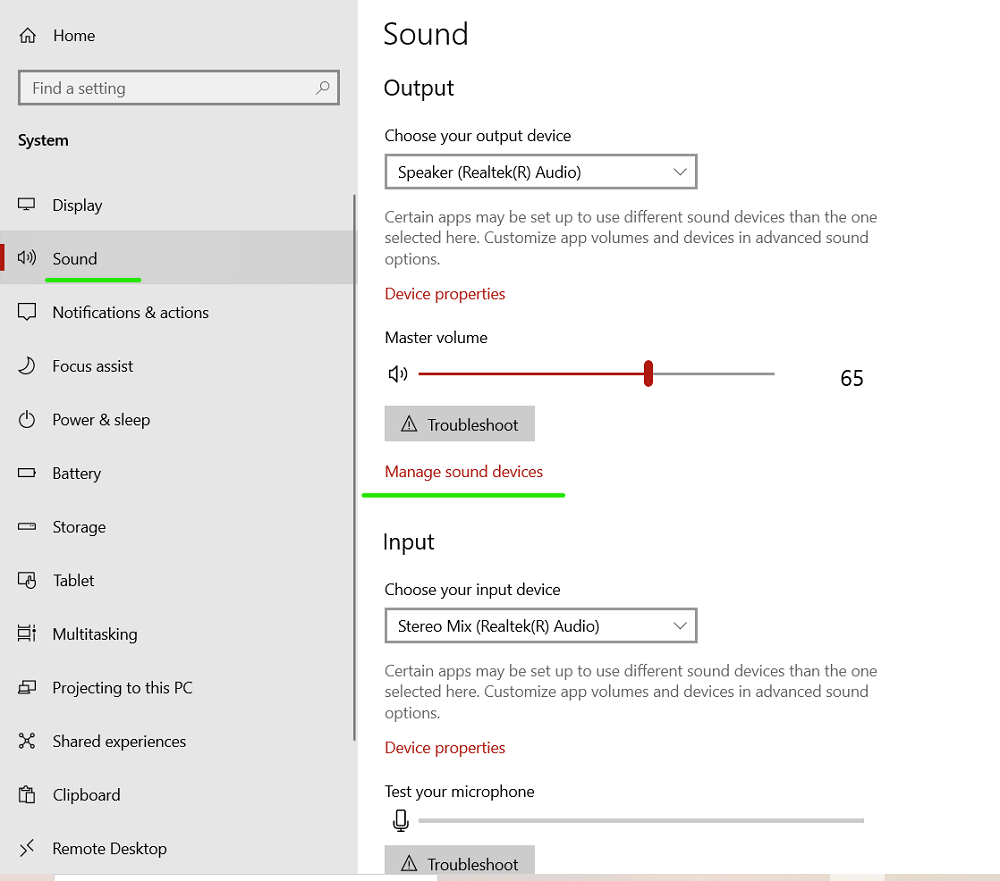
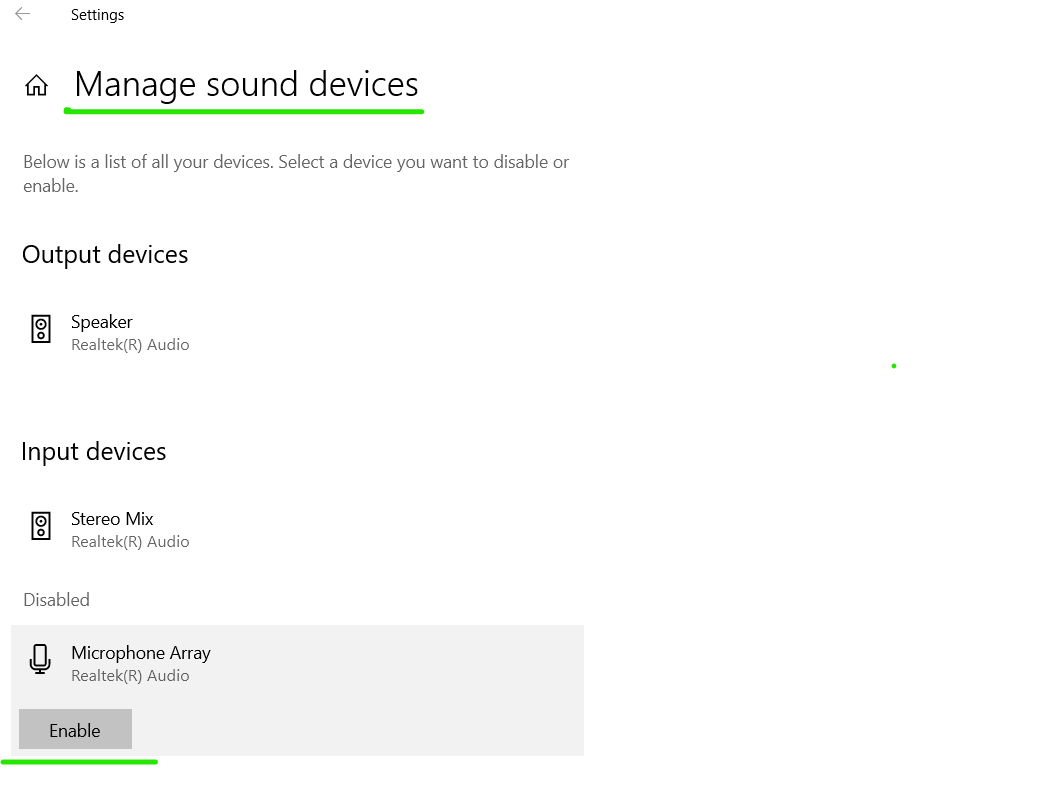
Go to settings ` option->click on system-> go-to sound option` (which will be on the left-hand side of the laptop screen). Now click on manage sound devices. and check if Speaker and microphone are enabled, if not... enable it. If this does not help go to the next step.
Method 3: Check for updates
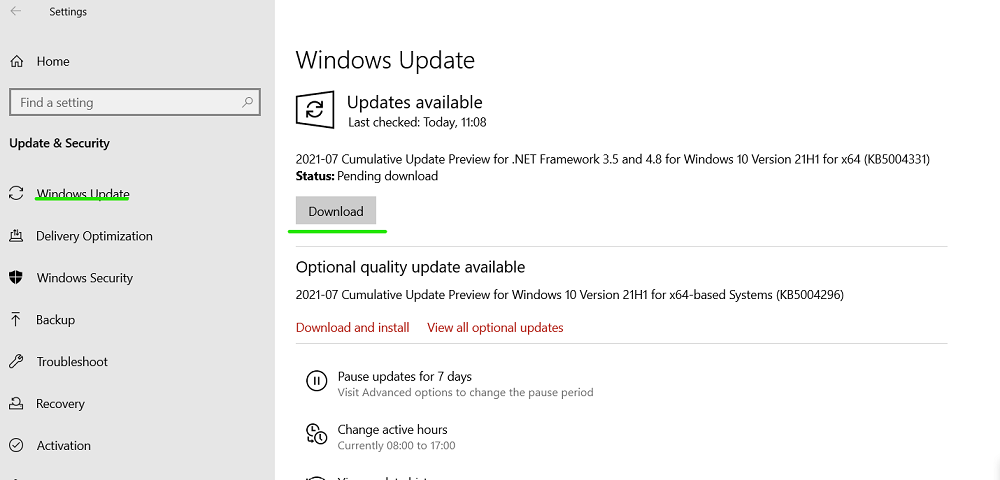
Select ` Start > Settings > Update & Security > Windows Update > Check for updates `.
Follow these steps:
- If the status of the updates is "You're up to date, go to the next step.
- If the status of the updates is "Updates are available," select Install now.
- Select the updates you want to install, then click on Install.
- Restart your PC and see if your audio issue is resolved. If this does not help go to the next step.
Method 4: Install Audio driver
Open any search engine like google chrome and search for "(LAPTOP COMPANY NAME) support" (put your laptop company name in place of dell) and click on the official site of your laptop. Now in the search support option type your laptop's serial number.
To get the serial number of your laptop/PC, search for "cmd" in the window search bar and open it. Now type wmic bios get serialnumber and hit enter. Now you will get the serial number.
Now click on the " drivers and download " option from sub-menu now click on the " find drivers " option.
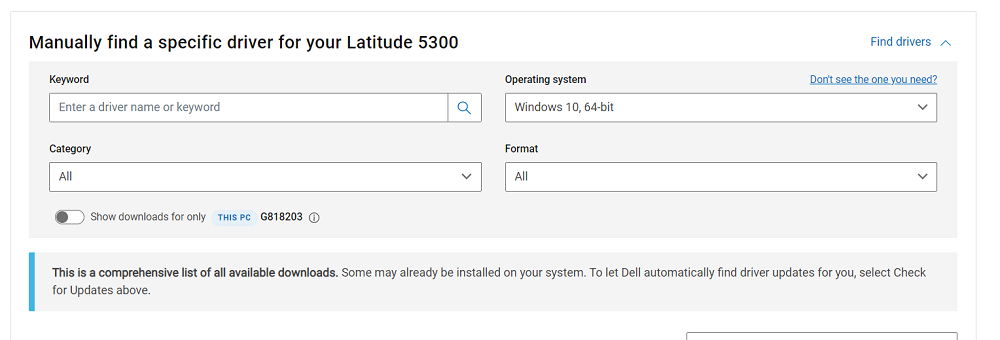
Type " Realtek " in the keyword option and select " audio " from the Category option. scroll down and you will see the audio driver, download it and paste it into the C drive. now install the driver.
Conclusion
Knowing how to troubleshoot audio issues and solve microphone problems might help you avoid wasting time and stress when you face them. You ought to be able to fix the majority of common audio and microphone issues on your system by following the instructions provided in this article. These fixes, which include driver updates, setting checks, and hardware difficulties, will help guarantee that your microphone and audio function flawlessly for all of your requirements.