
Have you ever looked at the clock on your Windows 11 taskbar and wanted it to show seconds, not just hours and minutes? Maybe you’re timing something, keeping track of exact moments, or just like seeing more details. Normally, Windows 11 doesn’t show seconds to keep things basic, but you can customize it.
Windows 11 provides various customization options, including for the taskbar clock and in this blog, we’ll show you how to put seconds on the taskbar clock in Windows 11 in an easy, step-by-step way.
Methods to Show Seconds in Taskbar Clock Windows 11
Here are the following methods to set the Windows 11 taskbar clock to show seconds too. We will learn 4 different methods to show seconds in the taskbar clock in Windows 11.
Method 1: Show Seconds in Windows 11 Taskbar Clock Using Settings
This is the most convenient and easiest way to display seconds in the Windows 11 clock app taskbar clock. All you have to do is go into the Settings app and tick a simple box. Here are the steps:
Step 1: Open Settings
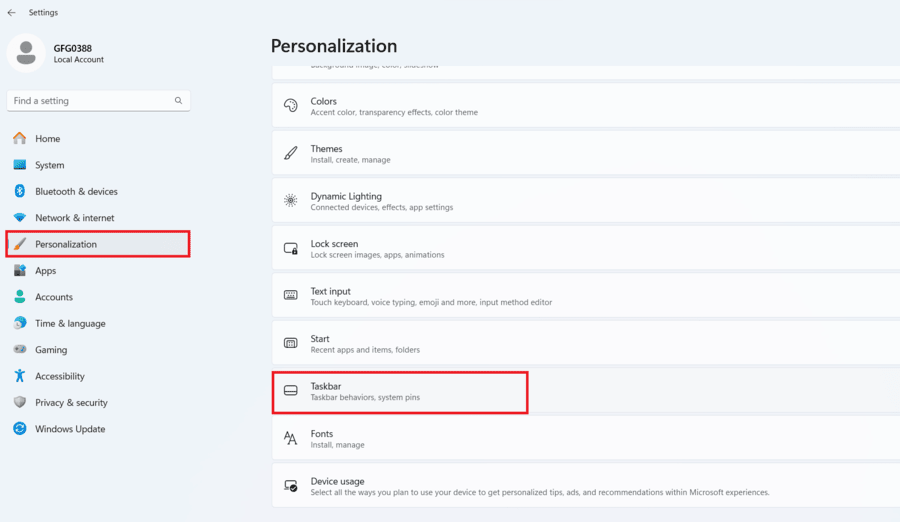
Go to the Settings and click Personalization > Taskbar.
Step 2: Go to Taskbar Behaviours
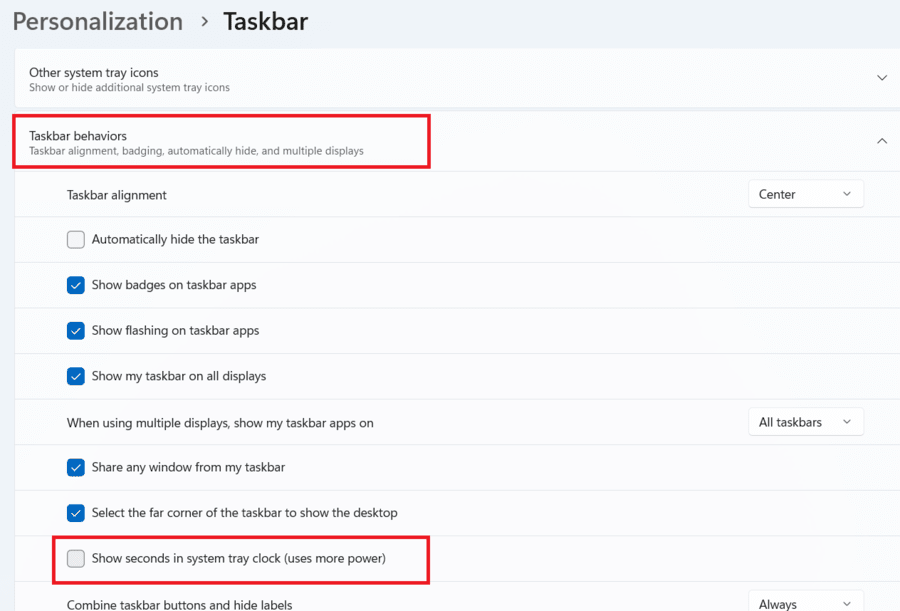
Now click on Taskbar behaviours and check the box next to "Show seconds in system tray clock".
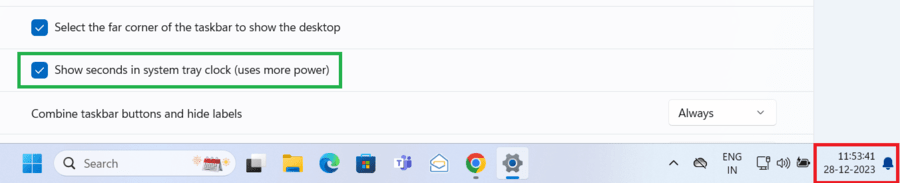
The seconds should now appear in the taskbar clock!
Method 2: Show Seconds in Windows 11 Taskbar Clock Using Registry Editor
Windows registry is a database that stores all kinds of settings and options for the system and applications. Changes made by the Registry Editor can make an unstable system or cause errors. To show seconds in taskbar windows 11 clock using the Registry Editor, follow these steps:
Step 1: Open Registry
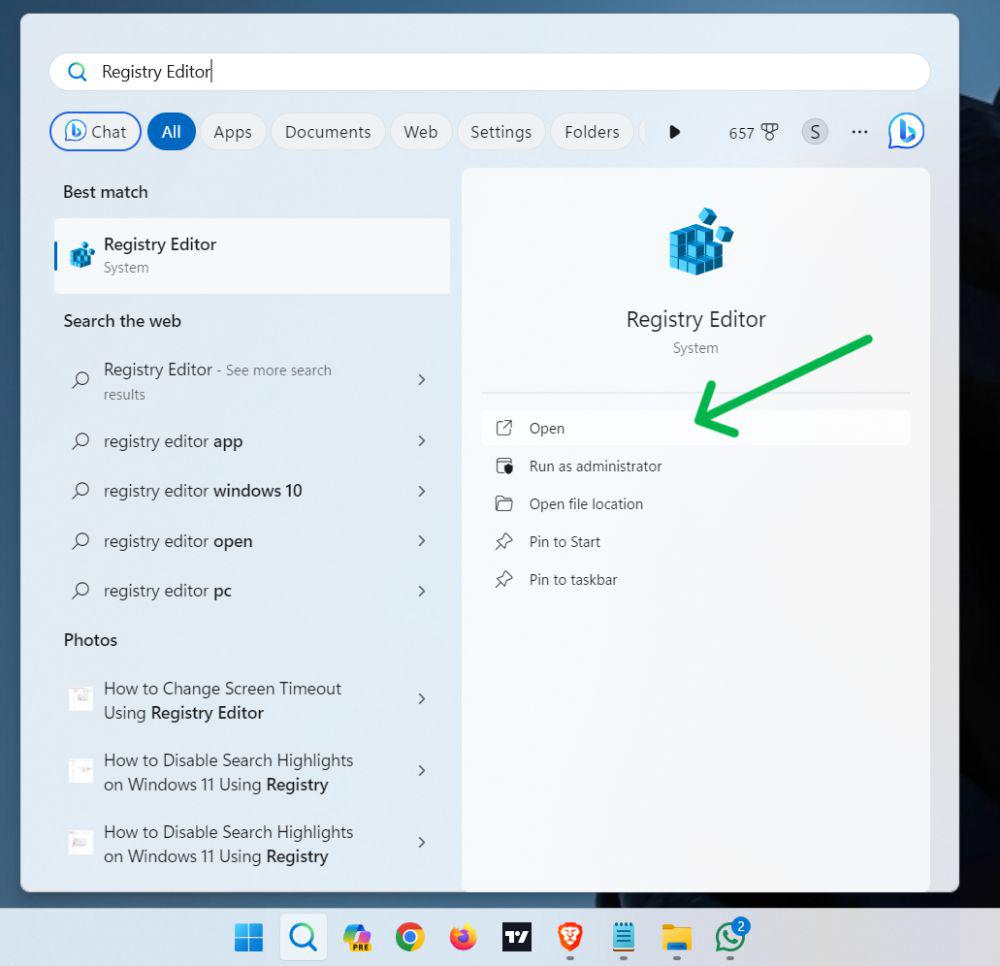
Press Win + S and type "Registry Editor"
Step 2: Go to HKEY CURRENT
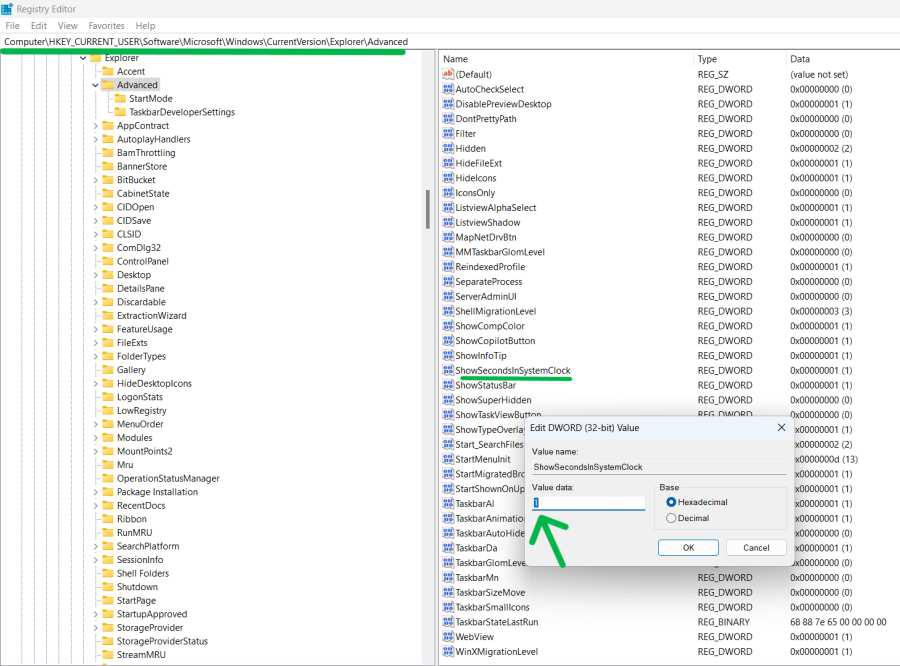
Navigate to the following key in the Registry Editor:
Computer\HKEY_CURRENT_USER\Software\Microsoft\Windows\CurrentVersion\Explorer\Advanced
Step 3: Double-click on ShowSecondsInSystemClock to modify it
Step 4: In the Value data field, enter "1" and click OK.
Step 5: Restart Computer
Once you have change the settings restart Your computer
Method 3: Show Seconds in Windows 11 Taskbar Clock Using Windows PowerShell
Windows PowerShell is a command-line tool that PowerShell can do many tasks. It also allows you to automate scripts. PowerShell allows you to display seconds in the taskbar clock using the windows 11 clock app with a single command. Here are the steps:
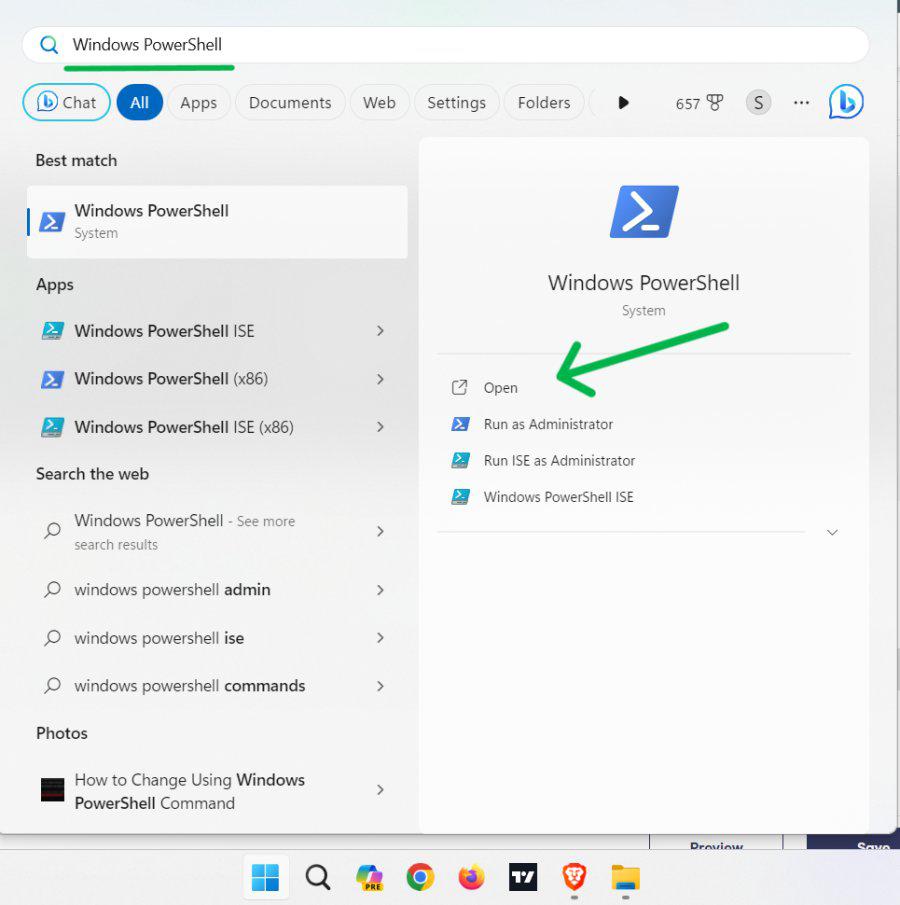
Step 1: Open PowerShell
Press Win + S then on the search bar type "PowerShell" or Windows PowerShell
Step 2: Set Item Property
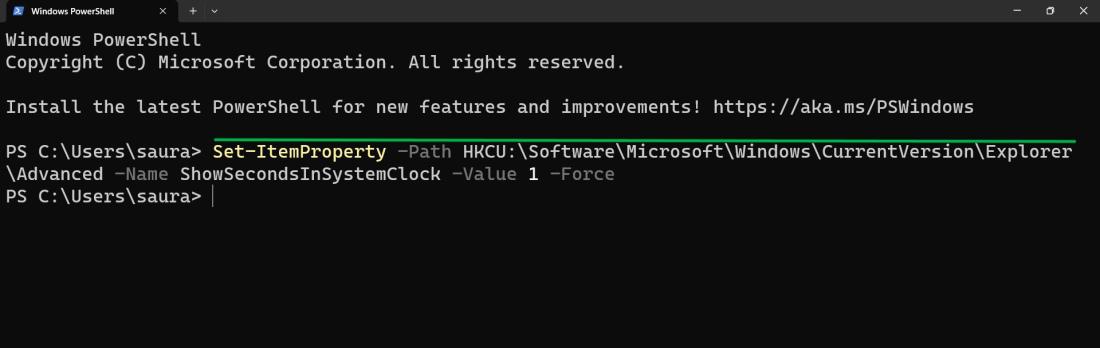
In the PowerShell window, type copy and paste the following command and press enter
Set-ItemProperty -Path HKCU:\Software\Microsoft\Windows\CurrentVersion\Explorer\Advanced -Name ShowSecondsInSystemClock -Value 1 -Force
Step 3: Restart System
Once the command is completed Restart your PC
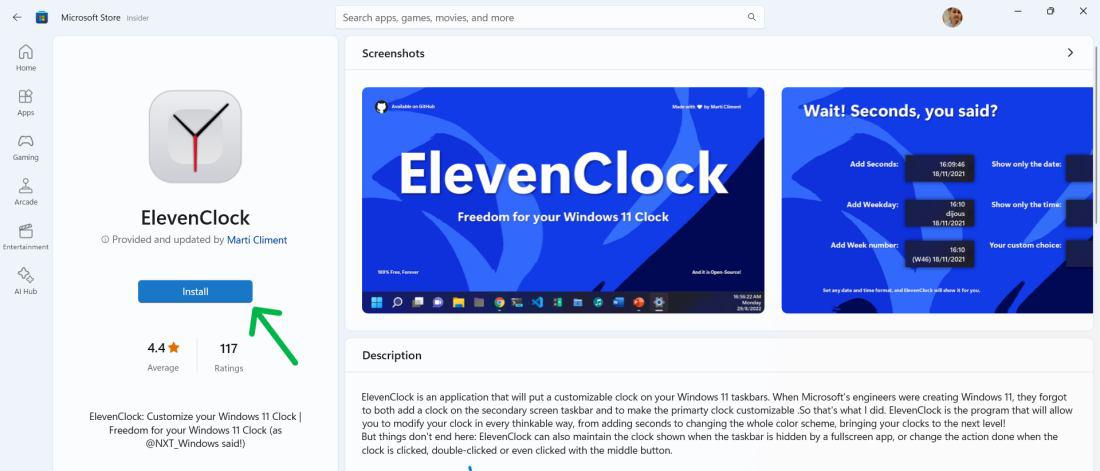
Method 4: Show Seconds in Windows 11 Taskbar Clock Using ElevenClock App
ElevenClock is a third-party app that puts another clock on the Windows 11 taskbar. With this app, you could have seconds displayed on the clock. You can also customize other parts of the clock, such as font, colour, size and so forth. Here are the steps to use ElevenClock:
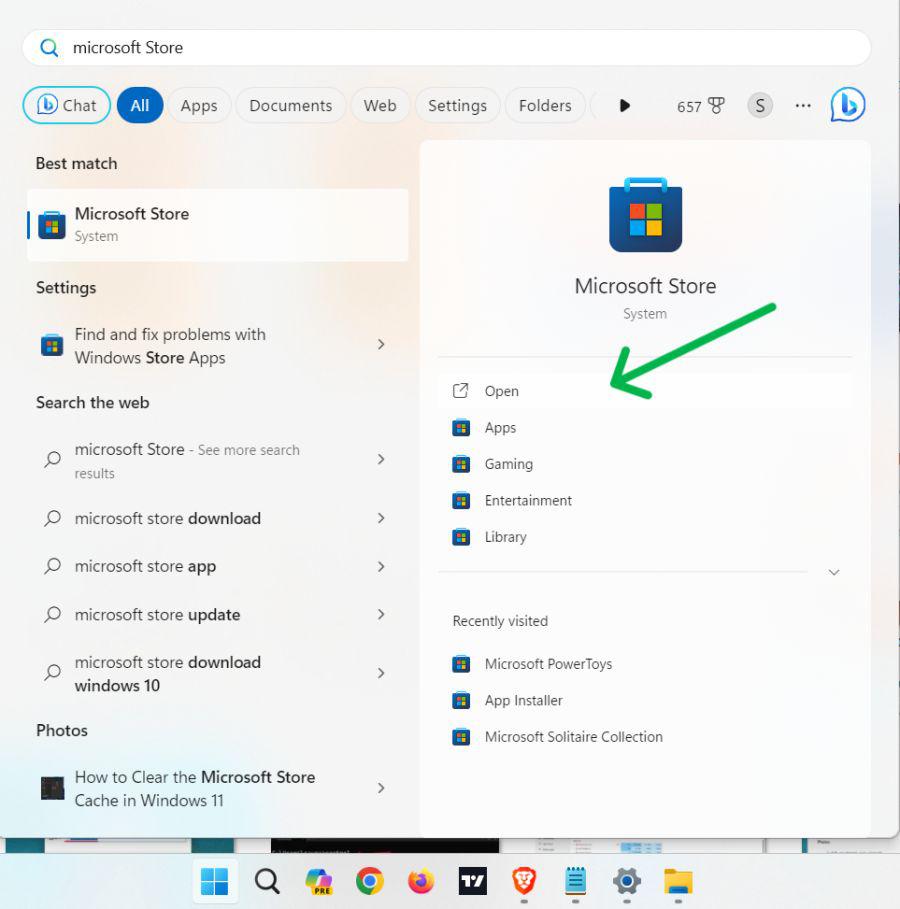
Step 1: Open Microsoft Store
Press Win + S then on the search bar type "Microsoft Store"
Step 2: Search ElevenClock
On the Microsoft Store search bar type "ElevenClock" then hit enter

Step 3: Install ElevenClock
On the right pane click on "Install"
Step 4: Open ElevenClock
After installing the Eleven clock open the ElevenClock
Conclusion
To wrap up, showing seconds in the taskbar clock on Windows 11 is a simple process that can be accomplished in just a few steps. By enabling this feature, you can enjoy a more precise time display and keep better track of your schedule. From user-friendly apps like Settings to advanced tools like the Registry Editor or PowerShell, users are spoiled for choice. ElevenClock is an example of a third-party app that provides simplicity. So now you know how to show seconds in the taskbar clock on Windows 11, you can take advantage of this feature for better time management and organization.