
Bluetooth technology enables wireless communication between devices, but its range can sometimes be limited, affecting connectivity and performance. If you’re experiencing issues with Bluetooth range on your Windows computer, there are several methods to enhance and extend the signal. This guide will walk you through practical steps to increase Bluetooth range on Windows, ensuring a more stable and reliable device connection.
Table of Content
Why your Bluetooth Range is Short?
Bluetooth range is limited to around 30 feet (10 meters) due to its use of low-power radio waves. Bluetooth operates on the 2.4 GHz frequency, shared with WiFi. Its short range is intentional for close connections. Bluetooth's slow data exchange and low power usage differentiate it from WiFi, which consumes more power. These design choices help Bluetooth save energy and avoid interfering with distant devices, resulting in its limited range.
How to Expand Bluetooth Range on Windows?
For boosting the Bluetooth range of Windows, the following four effective methods can be executed. We will start by updating the Bluetooth Driver on the device.
Method 1: Update Bluetooth Driver
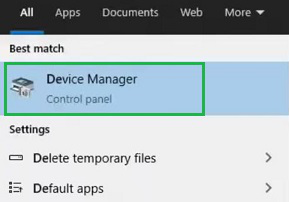
Step 1: Search for the Device Manager in the Search Bar of the device. And go with the best available option.
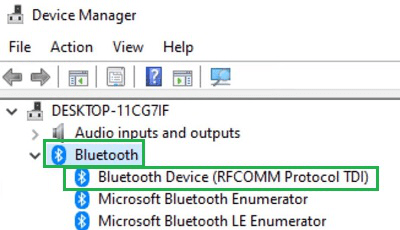
Step 2: Expand the Bluetooth Section. And then, right-click on the Bluetooth Driver Name.
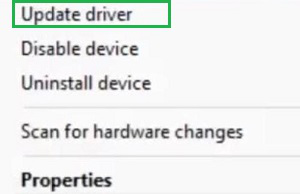
Step 3: Click on the Update Driver option.
Step 4: Now, click on Search Automatically For Updated Driver Software.
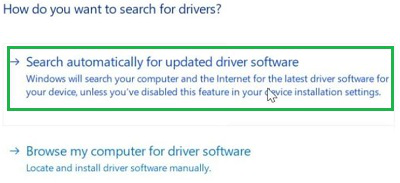
Hence, we have successfully expanded the range of Bluetooth Driver on Windows by Updating the Bluetooth Driver.
Method 2: Remove All Interferences
Bluetooth Uses Radio Waves to get connected with the devices. It mainly uses the 2.4GHz radio frequency. And unfortunately, the Wi-Fi routers also use the same Radio Frequency. So, if the Bluetooth Device is placed near the Wi-Fi Router, try to replace the Wi-Fi router from a far distance from the Bluetooth Device. Also, check whether other Bluetooth devices are interfering or not.
Hence, we have successfully expanded the range of Bluetooth Driver on Windows by Removing all possible Interferences.
Method 3: Use A Dedicated Bluetooth Driver
If you are using your Laptop & getting such a problem, then the problem might be with the inbuilt Bluetooth driver. In such case try to switch to any External Bluetooth Driver and add it to the device. And check whether the problem is restored or not. However, if you are getting this issue on your PC, then you might not have an internal Bluetooth driver. In such cases, the final method can be used.
Hence, we have successfully expanded the range of Bluetooth Driver on Windows by Using External Bluetooth Driver.
Method 4: Check Any Pending Updates
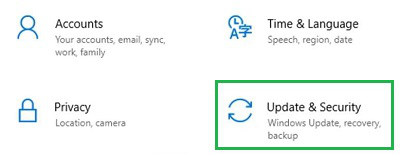
Step 1: Open the Settings & click on the Update & Security.
Step 2: On the right-hand side, you will get the Check for Update option. Click on that to download and install any pending updates.
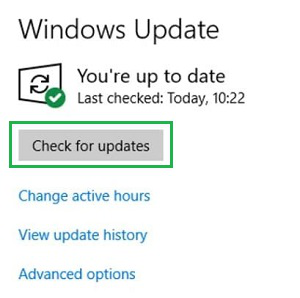
Hence, we have successfully expanded the range of Bluetooth Drivers on Windows by Updating Windows.
Improving the Bluetooth range on your Windows computer can significantly enhance your wireless connectivity experience. By following the tips and techniques outlined in this guide, you can boost your Bluetooth signal, reduce interference, and enjoy better performance from your Bluetooth-enabled devices. Regular maintenance and updates can also help keep your Bluetooth connections strong and reliable.