
Multiple files with the same name and format can be uploaded to Google Drive, but the new file does not replace the old one. This results in a different shareable link, which can cause confusion if the old link has already been shared. Additionally, any updates to the file require sending a new link.
Steps to Replace the File in Google Drive without Changing the Link
Replace the file in Google Drive without changing the link is a feature that lets you update shared files without altering the link. It’s also a great means of making shared files stay current. Follow these steps to update the file with changing the links:
Step 1: Locate the File
Start by going to the file in Google Drive that you would like to update. Right-click on the file and hover on "File information" then select "Manage Versions".

Step 2: Upload New Version
In the ‘Manage versions’ window, click on ‘Upload new version’. Choose the updated file from your computer and confirm the upload.

Step 3: Manage Uploaded Files
On the dialog box of managing Versions, all the versions appear on the list, and one of them is labeled "Current Version." It is useful because you can see the past versions and, if there is a need, you can download from them. You also can tell whether to keep or delete them. Click "Close" to exit.

Step 4: Get Link
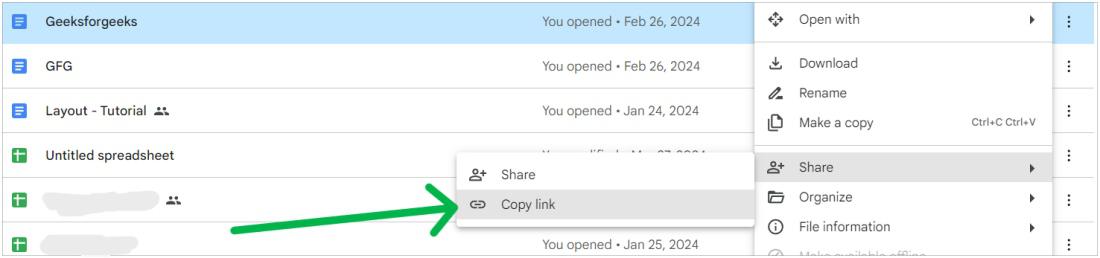
One file copy remains in your Drive. After selecting Get shareable link the provided link remains unchanged from the original.
Also Read