
When you have an iPhone, you have to use the iCloud Application multiple times for Backup, Sync & Restore iPhone Data. However, the process becomes ridiculous when you face iCould Challenges with the iPhone.
The iPhone Not Recognition Problem by iTunes is one such kind of problem where the Connection between iPhone and iCloud will not work. This article will discuss the methods needed to deal with the Not Recognition iPhone Problem with iTunes.
Table of Content
- Reasons behind the ‘iPhone Not Recognized by iTunes’ Issue:
- How to Fix ‘iPhone Not Recognized by iTunes’ Issue?
- Method 1: Fix the ‘iPhone Not Recognized by iTunes’ Issue by Checking the USB Cable
- Method 2: Fix the ‘iPhone Not Recognized by iTunes’ Issue by Updating iTunes
- Method 3: Fix the ‘iPhone Not Recognized by iTunes’ Issue by Restarting the iPhone
- Method 4: Fix the ‘iPhone Not Recognized by iTunes’ Issue by Disabling Firewall Service
- Method 5: Fix the ‘iPhone Not Recognized by iTunes’ Issue by Resetting Location and Privacy
- Method 6: Fix the ‘iPhone Not Recognized by iTunes’ Issue by Trusting the Computer
- Method 7: Fix the ‘iPhone Not Recognized by iTunes’ Issue by Updating the iPhone OS
- How to Fix ‘iPhone Not Recognized by iTunes’ Issue - FAQs
Reasons behind the ‘iPhone Not Recognized by iTunes’ Issue:
- Damaged Cable: One of the major reasons is the Damaged Cable that is being used to connect the iPhone and iTunes. If the USB C Cable is damaged, then it is simple that the iPhone and iCloud will not be connected.
- Outdated iTunes: Sometimes, there are some Updates given to the iCloud Application that as a user many individuals fail to Download and Install. If the iTunes is outdated, then it will not properly work.
- Outdated iOS: If there are some Updates Pending for iOS, then some properties like Accessing iCloud with iPhone might not work. Hence, you have to update the iPhone OS.
- Interaction of Firewalls: Sometimes, due to the installation of third-party applications, the Firewall starts misbehaving. Hence, the Firewall might cause problems during the connection time.
How to Fix ‘iPhone Not Recognized by iTunes’ Issue?
To Resolve iPhone Not Recognition iTunes Issue, the following methods should be executed. Let us start with the very simple method where we have to Check the Lighting Cable first.
Method 1: Fix the ‘iPhone Not Recognized by iTunes’ Issue by Checking the USB Cable
The first and very simple method will be to check the Connection of USB Cable. Also, we have to check the USB Port Connection as well. Sometimes, the USB Cable gets damaged and as a result, we can face disrupted connection problems.
Along with the Defective USB Cable, we have to look at the USB Port Connection as well. If the USB Cables are not getting connected with the ports well, then this kind of problem will become common. So, we have to use a New USB Cable to check the proper problem.
Method 2: Fix the ‘iPhone Not Recognized by iTunes’ Issue by Updating iTunes
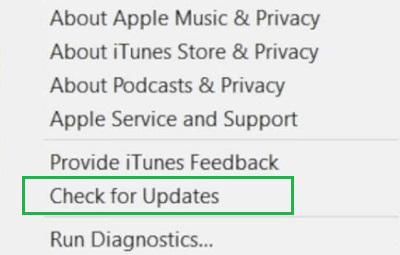
Step 1: Open the iTunes Application and click on the Help Tab. Now, select the Check for Updates.
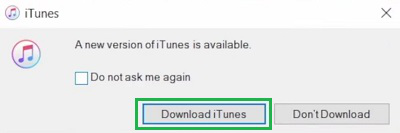
Step 2: Now, if there is any Pending Update present, you will get the small window. Click on the Download iTunes option.
Method 3: Fix the ‘iPhone Not Recognized by iTunes’ Issue by Restarting the iPhone
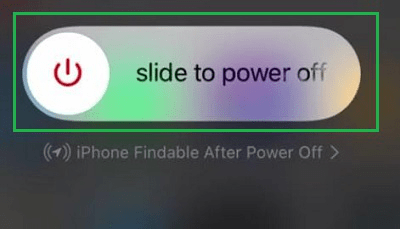
In the iPhone, there is no Simple Restart process, so we have to perform it manually. We have to first press the Power Button & then slide the button. After a few moments, again press the Power Button to Simple Start the iPhone. Hence, we have performed the iPhone Restarting.
Method 4: Fix the ‘iPhone Not Recognized by iTunes’ Issue by Disabling Firewall Service
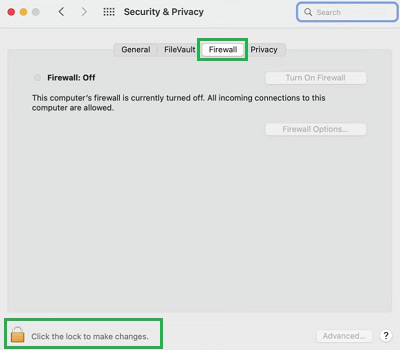
Step 1: On your Mac where iTunes is running, click on the System Preferences. And go for the Security and Privacy.
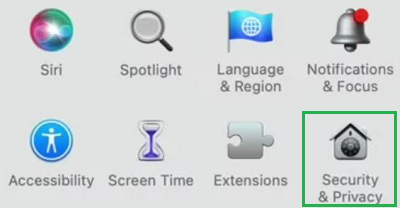
Step 2: Now, click on the Firewall Tab and select the Lock Symbol to Disable the Firewall Service on Mac where iTunes is running.
Method 5: Fix the ‘iPhone Not Recognized by iTunes’ Issue by Resetting Location and Privacy
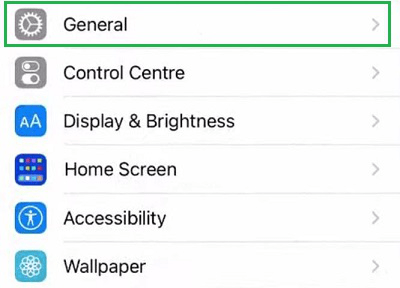
Step 1: Open Settings on iPhone and go to the General Option.
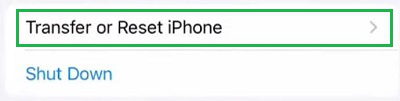
Step 2: Now, click on the Reset iPhone Option.
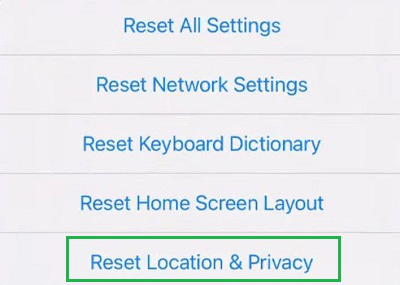
Step 3: Now, select the Reset Location and Privacy Option.
Method 6: Fix the ‘iPhone Not Recognized by iTunes’ Issue by Trusting the Computer
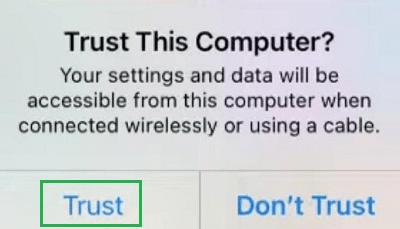
When you put the iPhone with your Computer, you are going to get a simple message on a small window. This is the Trust This Computer window. In this Window, you have to click on the Trust Option. If you press Don't Trust, then the Computer will never be used with an iPhone. So, you have to be careful.
Method 7: Fix the ‘iPhone Not Recognized by iTunes’ Issue by Updating the iPhone OS
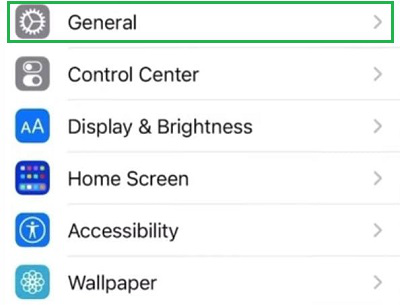
Step 1: Open Settings, and go to the General Option.
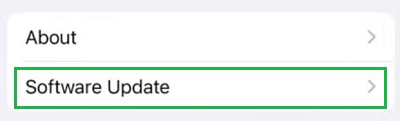
Step 2: Now, go for the Software Update option. If there is any Pending Software Update, it will be directly downloaded and installed.

Conclusion
In the end, we can say there are some very simple solutions present to deal with the iPhone Not Recognition Problem with iTunes. To completely get rid of the Non-Recognition iPhone Issue on iCloud, all of the above-mentioned methods should be used. But still, if you are facing the issue, then it will be better to bring the iPhone to Apple Support.