
The “Windows cannot access the specified device, path, or file” error appears when Windows is blocked from opening a file or application. This usually happens due to permission issues, incorrect file paths, antivirus restrictions, or corrupted files. The good news is that the issue can be fixed quickly using a few practical troubleshooting steps.
Why This Error Occurs:
- Insufficient user or administrator permissions
- File or shortcut pointing to an invalid or missing location
- Antivirus or Windows Security blocking the file
- Corrupted files or bad sectors on the drive
- Missing system files or external storage not connected
How to Fix “Windows Cannot Access the Specified Device” Error
Now, we'll see some easy methods to fix "Windows cannot access the specified device". In this article, we will discuss eight methods to resolve Windows cannot access the specified device error.
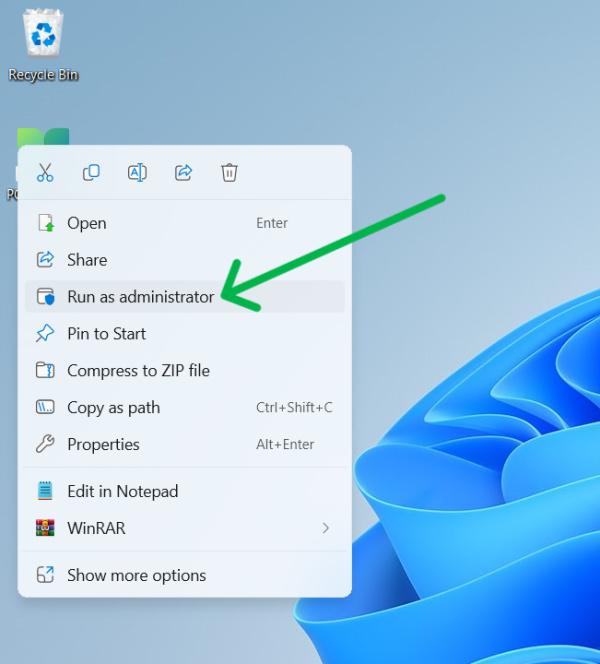
Method 1: Run the App as Administrator
Running the program with elevated privileges often resolves access restrictions.
- Right-click the affected application
- Select Run as administrator
Method 2: Temporarily Disable Antivirus
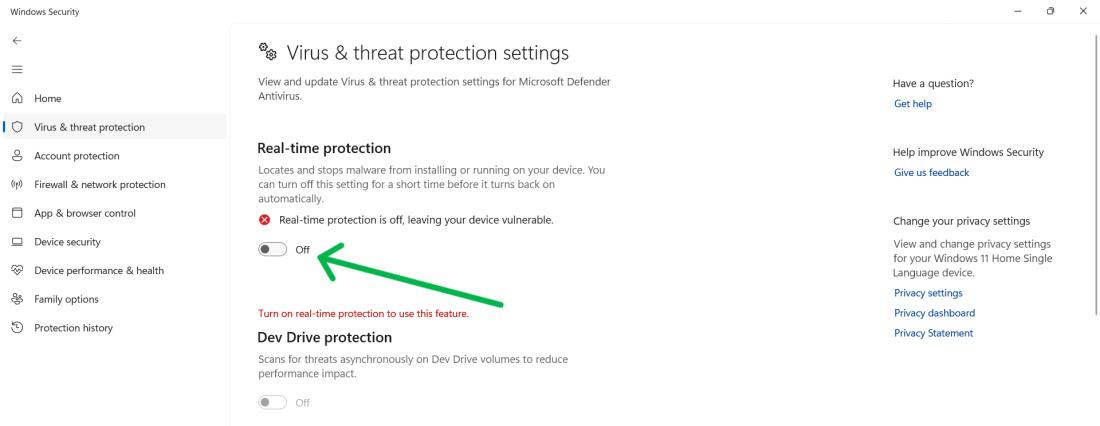
Sometimes antivirus software blocks trusted files by mistake.
- Open Windows Security or your antivirus tool
- Go to Virus & Threat Protection → Manage settings
- Temporarily turn off Real-time protection
(Enable it again after testing)
Method 3: Check File or Folder Permissions
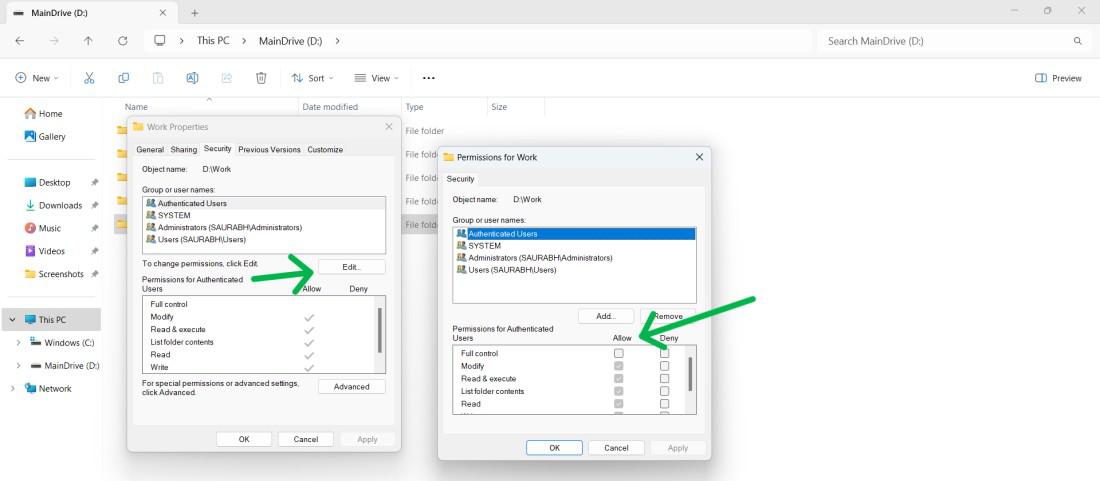
Incorrect permissions can prevent access.
- Right-click the file → Properties → Security tab
- Click Edit and ensure required permissions are allowed
- Apply changes and retry
Method 4: Unblock the File
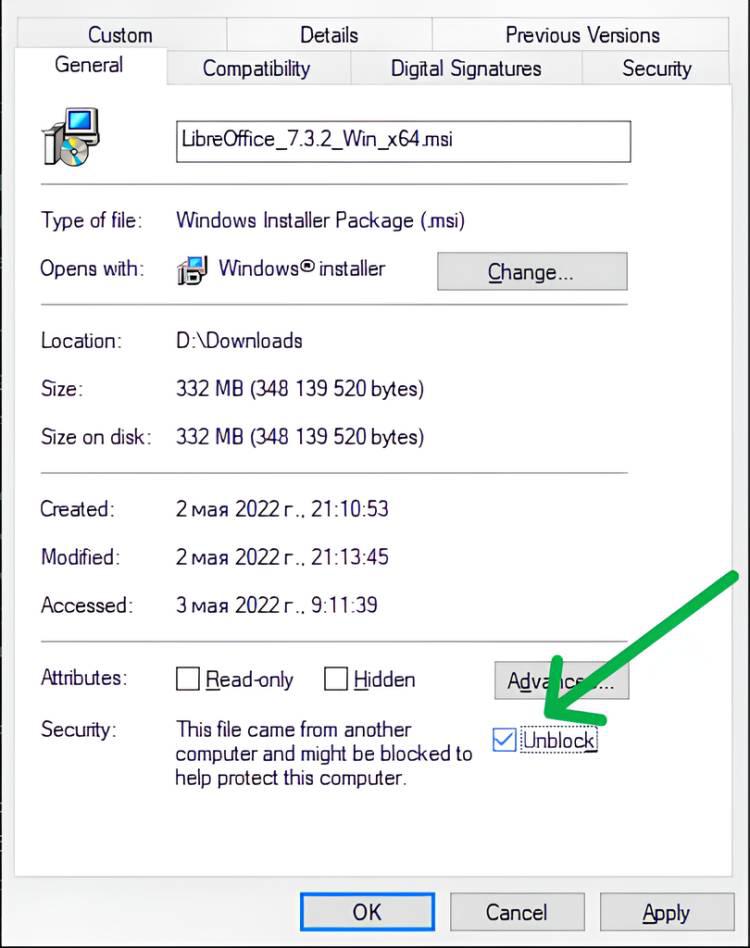
Files downloaded from the internet may be blocked by Windows.
- Right-click the file → Properties
- Under the General tab, check Unblock (if available)
- Click Apply → OK
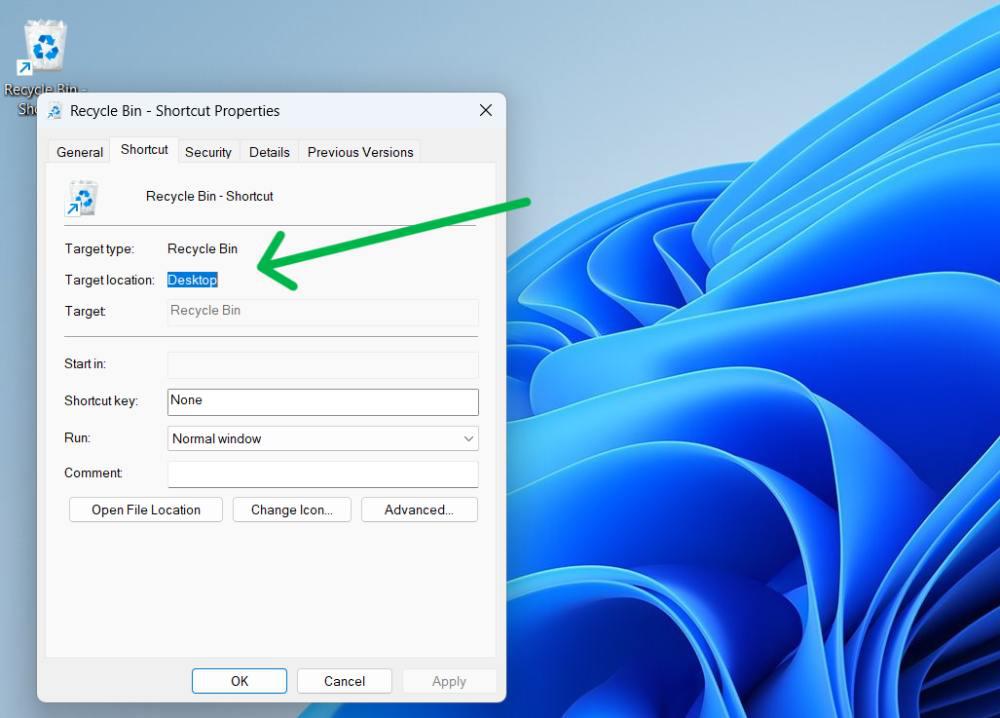
Method 5: Verify the File Location
Broken shortcuts or moved files cause access errors.
- Right-click the file/shortcut → Properties
- Check the Target or file path
- Ensure the location exists and is accessible
Method 6: Recreate the Program Shortcut
If the shortcut is broken, recreate it.
- Right-click Desktop → New → Shortcut
- Browse and select the program’s
.exefile - Click Next → Finish

Method 7: Repair or Reinstall the Program
Corrupted installations can trigger this error.
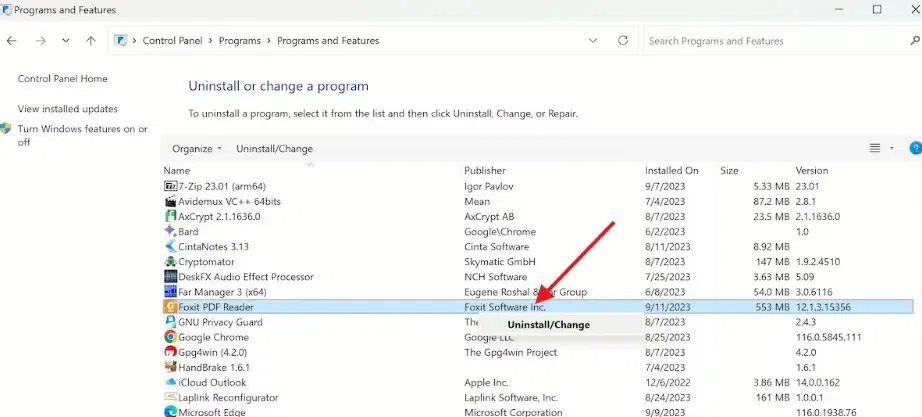
- Open Control Panel → Programs → Programs and Features
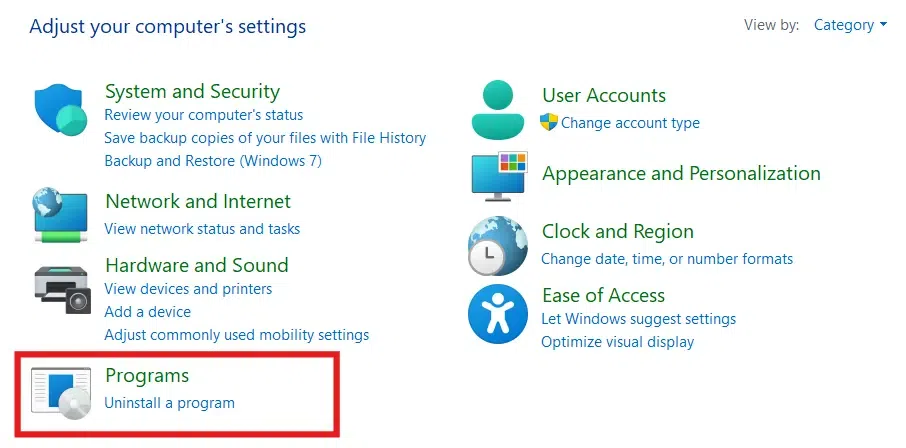

- Choose Repair or Uninstall, then reinstall if needed
Also Read: