The BAD_SYSTEM_CONFIG_INFO error is a Blue Screen of Death (BSOD) issue in Windows that appears with stop code 0x00000074. It usually occurs during startup and prevents the system from booting properly. This error indicates a problem with Windows system configuration, which may be related to corrupted files, drivers, or hardware components.
Common causes of the BAD_SYSTEM_CONFIG_INFO error include:
- Loose or improperly connected internal cables
- Corrupted system files or damaged Windows registry entries
- Faulty, outdated, or incompatible device drivers
- Corrupted Master Boot Record (MBR) or Boot Configuration Data (BCD)
- Incorrect system configuration settings
- Hardware failures such as defective RAM or hard drive issues

How to Trouble Shoot BAD_SYSTEM_CONFIG_INFO Error on Windows
To Come Out from Windows Error BAD_SYSTEM_CONFIG_INFO, the following guideline should be executed. We will start with the simple solution where we have to perform only System Restart.
Method 1: Fix Windows Configuration Error Using System Restart
Sometimes the issue is temporary.
- Press and hold the Power button to shut down your PC.
- Disconnect all external devices (USB, printer, external drives).
- Wait 1–2 minutes.
- Reconnect devices and restart the system.
If the issue persists, proceed to the next method
Method 2: Fix Bad System Config Info By Resetting Windows PC
- Step 1: Click on the Troubleshoot option to reset your PC.

- Step 2: Select Reset this PC.
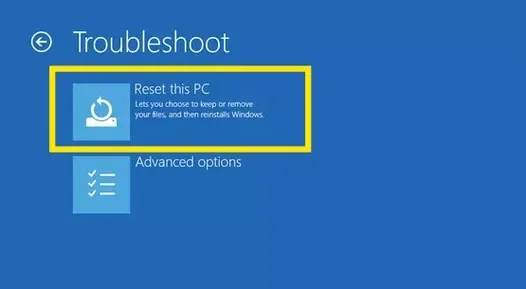
- Step 3: Now, choose an option. We are selecting the Keep My Files option to remove apps and settings by keeping our personal files.

Method 3: Uninstall the Latest Updates to Fix System Windows Config Error
- Step 1: Click on Troubleshoot option.
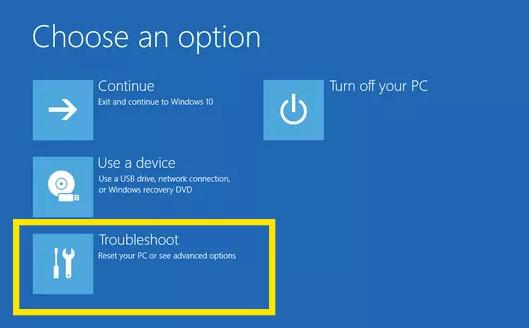
- Step 2: Click the Advanced Options menu.

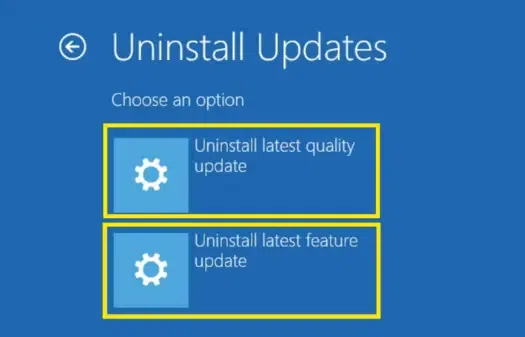
- Step 3: Select Uninstall Updates option to remove recently installed updated from Windows
.webp)
- Step 4: Choose an Option as per your choice and proceed to uninstall recent updates.
Method 4: Fix Bad System Config Info by Memory Diagnostic
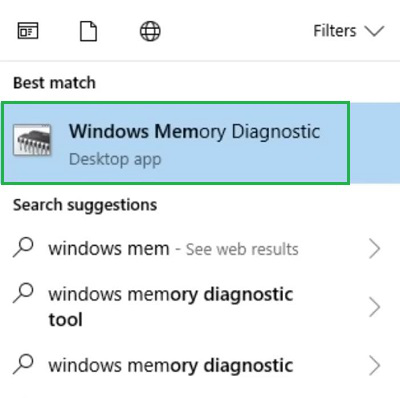
- Step 1: Search for the Windows Memory Diagnostic on the Windows Search bar. Now, open it.
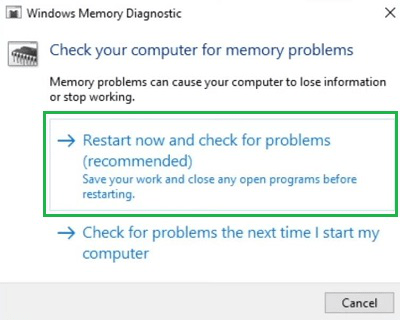
- Step 2: You will find the Restart Now & Check For Problems option. Go for it to check for any issues on Windows Memory.
Method 5: Run SFC Command to Fix Windows Configuration Error
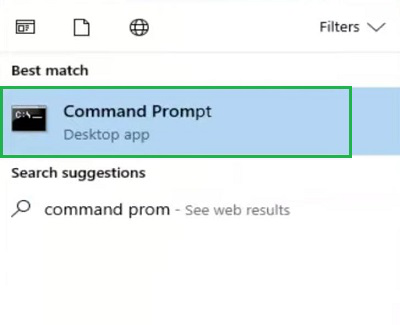
- Step 1: Search for the Command Prompt & open it.
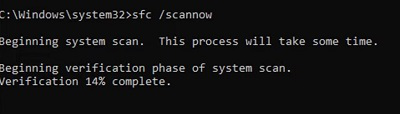
- Step 2: Execute the following command. It will check the entire data on the system whether any problem is there or not.
Command: sfc /scannow
Method 6: Reset Driver Health to Fix Bad System Config Info
- Step 1: In this case also, we need to open the Command Prompt on Windows.
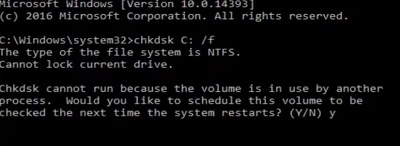
- Step 2: The below-mentioned command should be used to check & fix the Driver Heath if any problem is there.
Command: chkdsk C: /f
Method 7: Fix Windows Error by Repairing the Master Boot Record
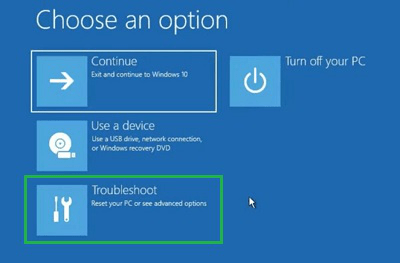
- Step 1: On the Boot Menu after entering by pressing Del Key multiple times, click on the Troubleshoot option.
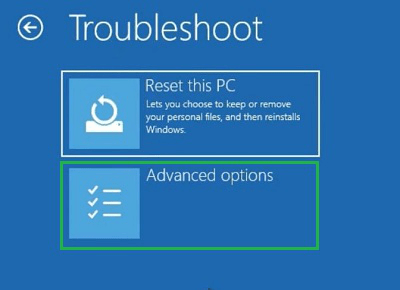
- Step 2: Press the Advanced Options.
- Step 3: Select the Command Prompt option.
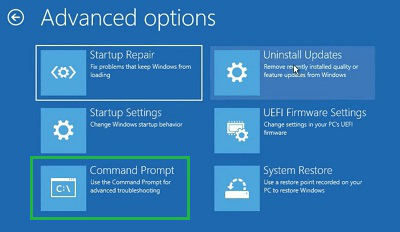
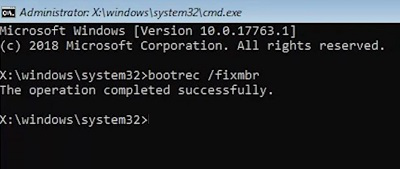
- Step 4: Now, the following command will be used. It will fix the Master Boot Record of the system which might be also a potential reason behind the problem.
Command: bootrec /fixmbr
Method 8: Fix Windows Config Error Using Advanced Options
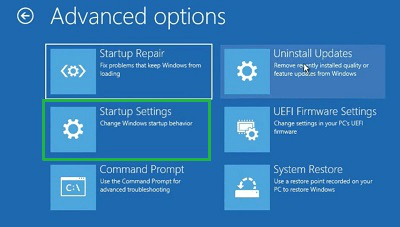
- Step 1: On the Boot Menu, select the Troubleshoot option.
- Step 2: Press the Advanced Options.
- Step 3: Click on the Startup Settings Option.
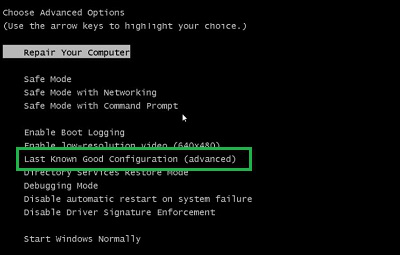
- Step 4: After restarting, press Enter on the Last Known Good Configuration.
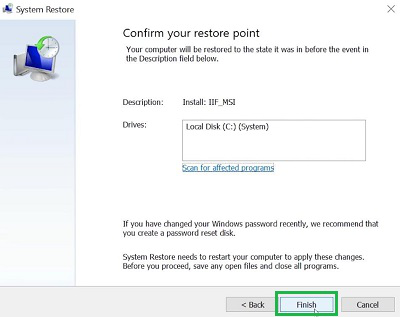
Method 9: Fix Bad System Config Info on Windows via System Restore
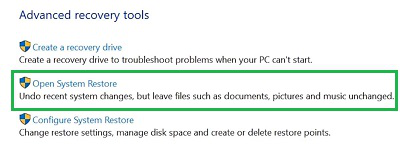
- Step 1: Search for the Recovery Under Control Panel & open it.

- Step 2: Click on the Open System Restore Option.
- Step 3: Click on the Next to move ahead without any changes.
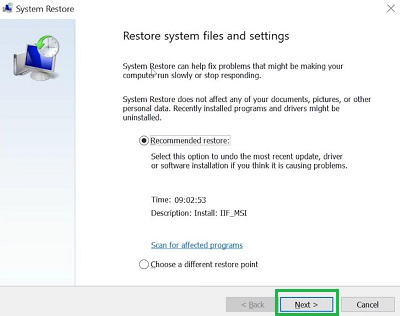
- Step 4: Select Finish to start the Restoring Process of Windows.