Windows 11 includes a powerful set of notification customization options that let you control what alerts you receive and how they appear on your screen. These notifications can help you stay updated with messages, reminders, and app activity, but they can also become distracting if not managed properly
1. How to Turn Notifications On or Off
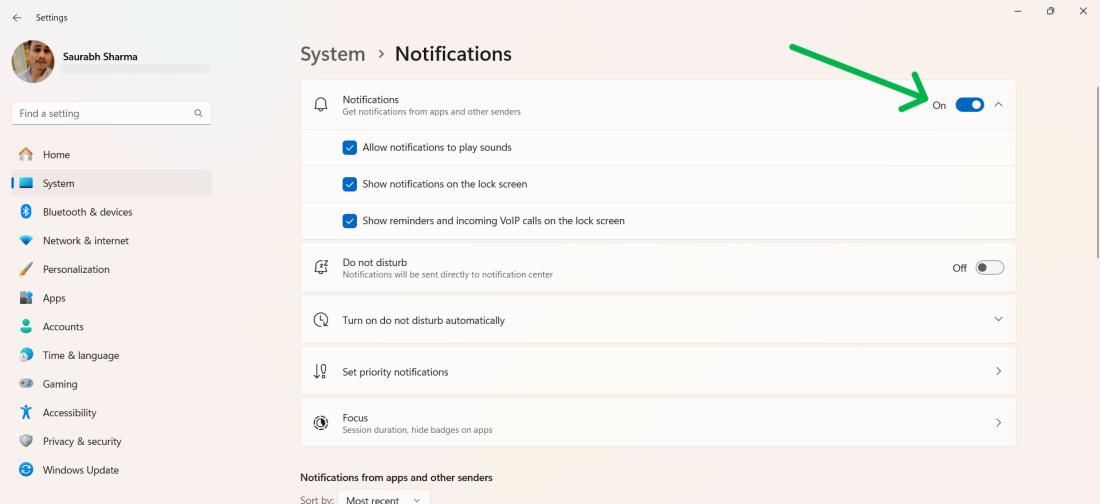
Step 1: Press Win + I to open settings, then navigate to System > Notifications.
Step 2: Toggle the "Notifications" switch to turn them on or off for all apps.
2. How to Turn Do Not Disturb On or Off
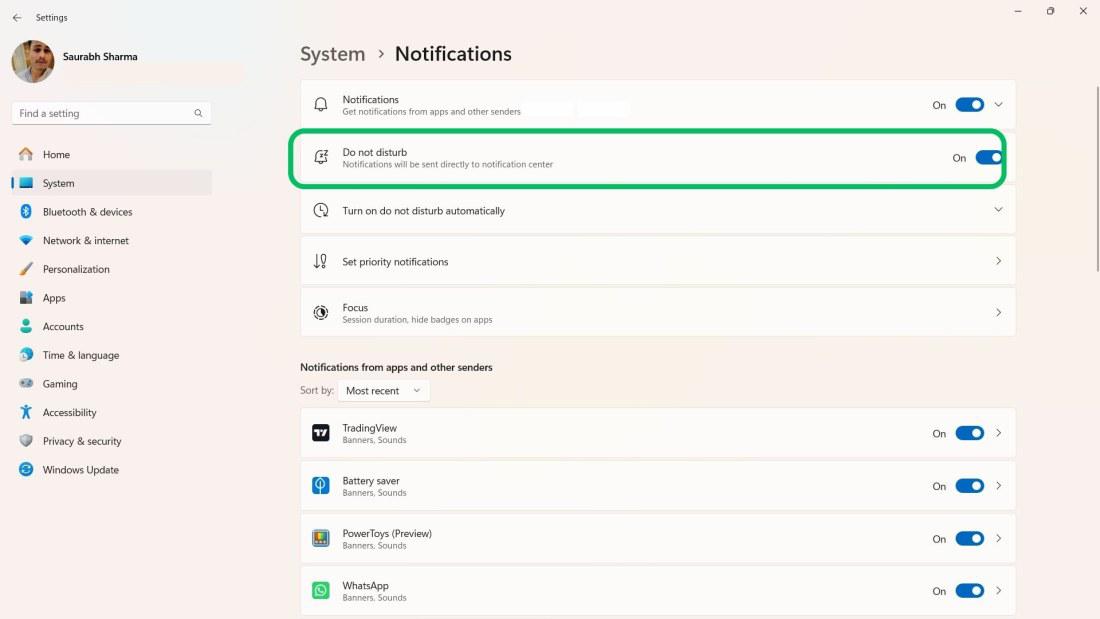
DND (Do Not Disturb) mode is a feature that allows you to silence notifications during certain times or activities, including when you are working, sleeping, playing a game, or presenting something. To turn Do Not Disturb mode on or off manually, follow these steps:
Step 1: Press Win + I to open settings then navigate to System > Notifications.
Step 2: Toggle on the "Do not disturb" to silent the all notifications
3. How to Customize Do Not Disturb Automatic Rules
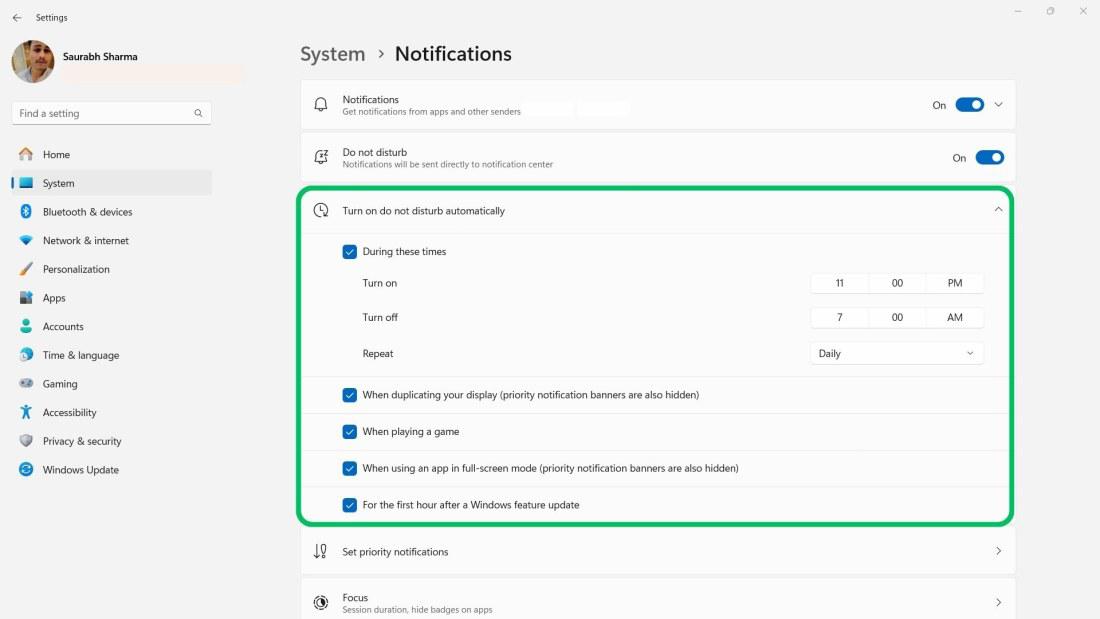
Step 1: Expand the "Turn on do not disturb automatically"
Step 2: From the Reminders list of option you can turn on the features as your need
4. How to Customize Priority Notifications in Windows 11
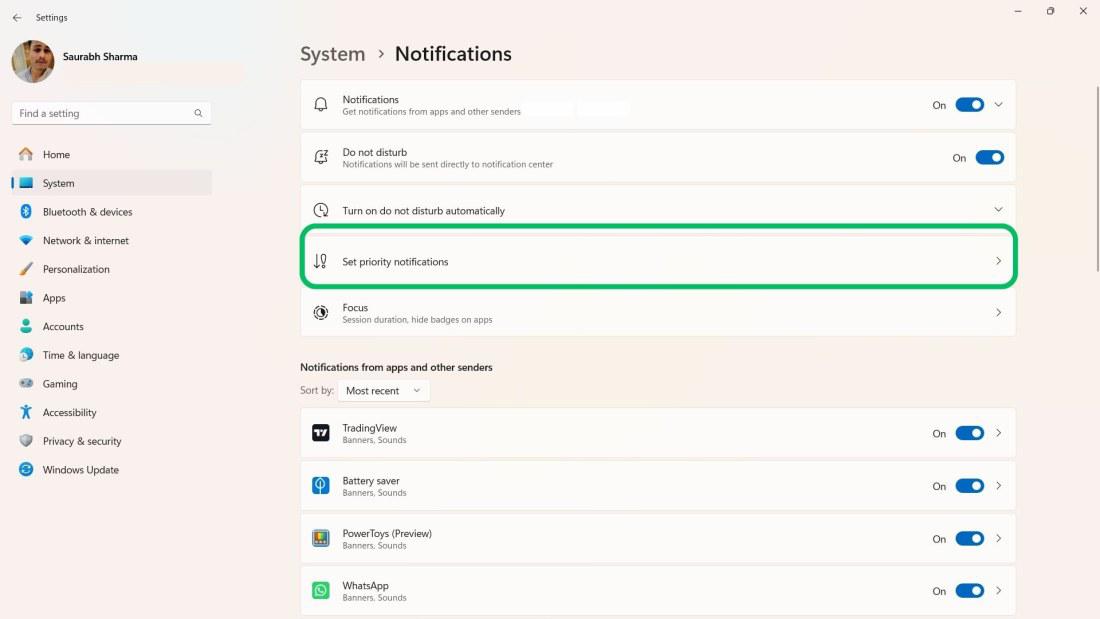
Step 1: Press Win + I to open settings then navigate to System > Notifications
Step 2: Click on the "Set priority notifications"
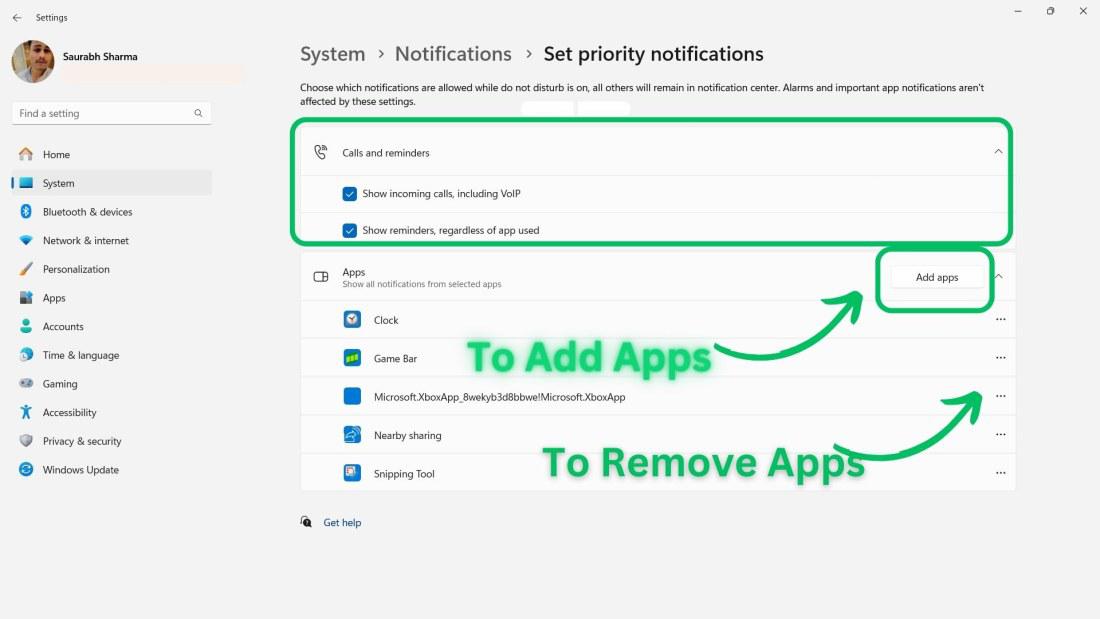
Step 3: The Calls and Reminders group is for notifications from apps like Teams or alarms.
Step 4: For Apps, you can turn the toggle on for each app that you want to receive notifications from when Do Not Disturb is on.
Step 5: To add apps to the priority list, click Add apps and select the desired app to not disturb.
Step 6: To remove an app, click the ellipsis button and choose Remove.
5. How to Customize Notifications for Each App
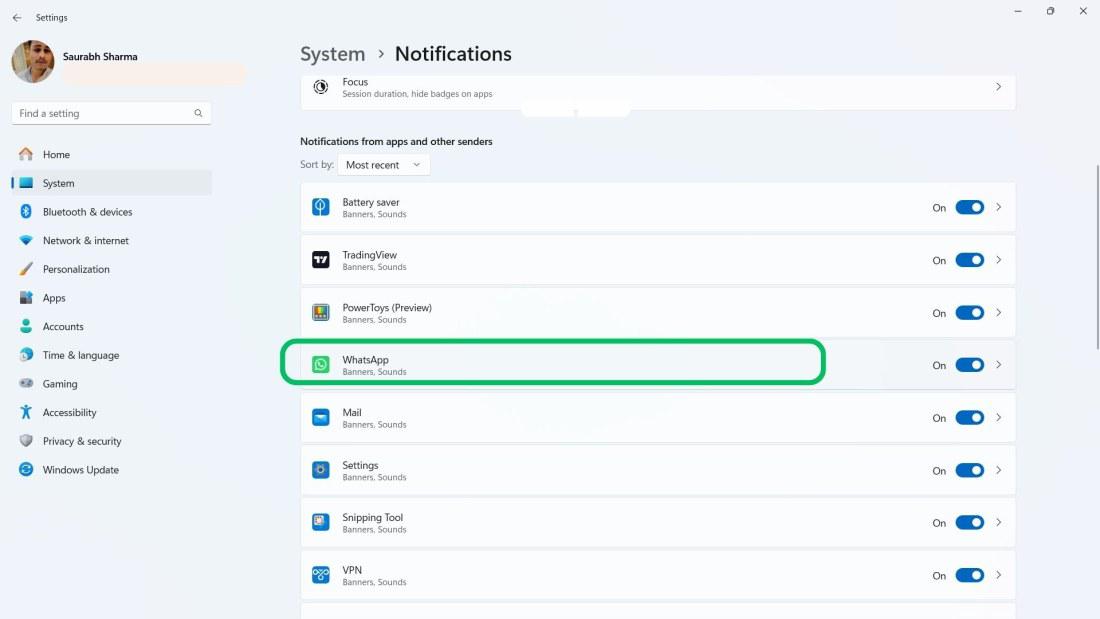
Step 1: Press Win + I to open settings then navigate to System > Notifications
Step 2: To customize an app, scroll down to your apps and select the desired app
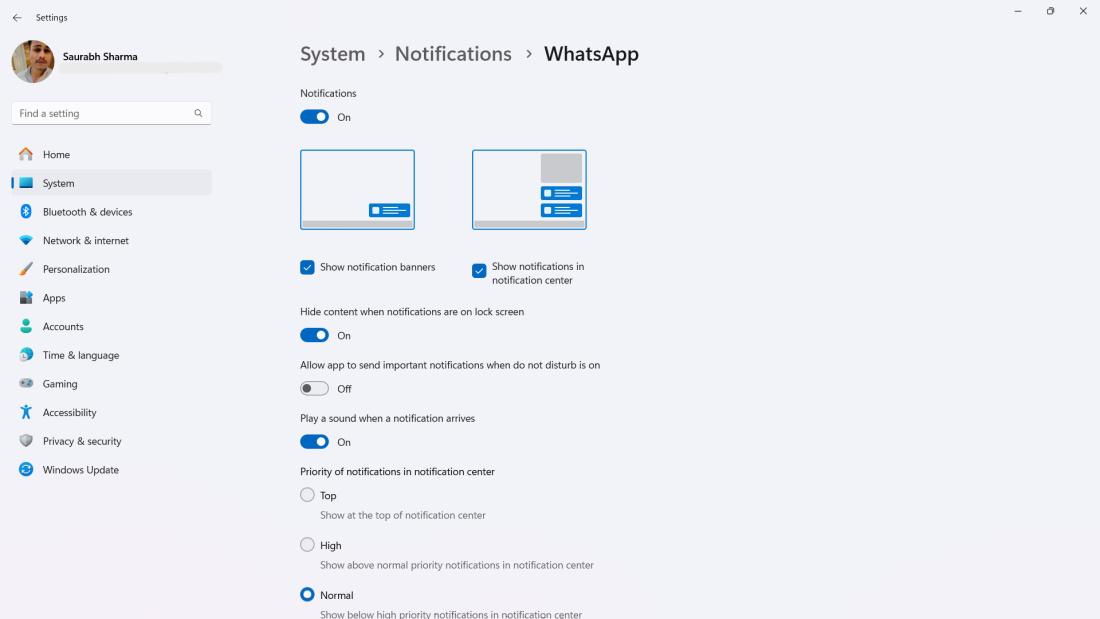
Step 3: Here, you can change these settings:
- Show banners: Turn off to hide pop-up alerts.
- Show in center: Turn on to see notifications in the taskbar area.
- Hide content on lock: Turn on to conceal notification details on the lock screen.
- Allow important in DND: Turn on to let some notifications bypass Do not disturb mode.
- Play sound: Turn on to hear a sound when notified.
- Priority in center: Set the order of notifications from different apps.
6. How to Change Notification Sound
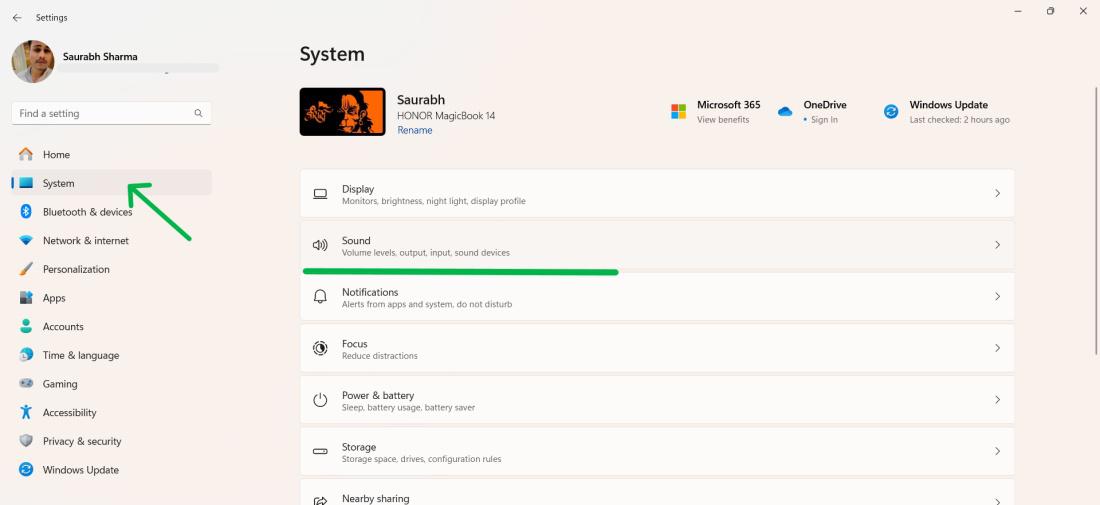
Step 1: Press Win + I to open settings then navigate to System > Sound
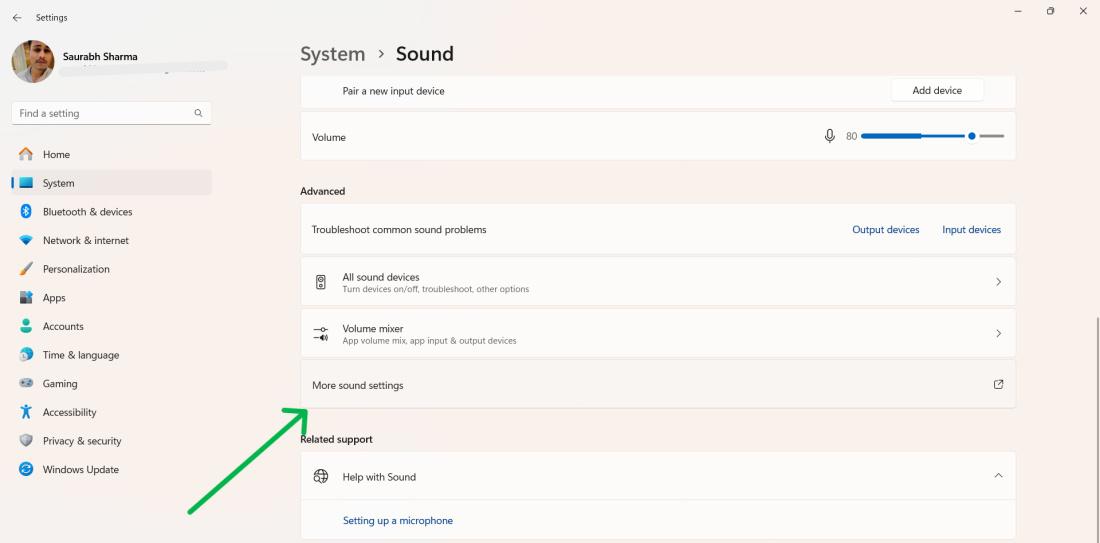
Step 2: Under the Advanced section and click More Sound settings
Step 3: Scroll down to the Notification option under the Sounds tab.
Step 4: Select the sound from the menu, preview it, and then click Apply.
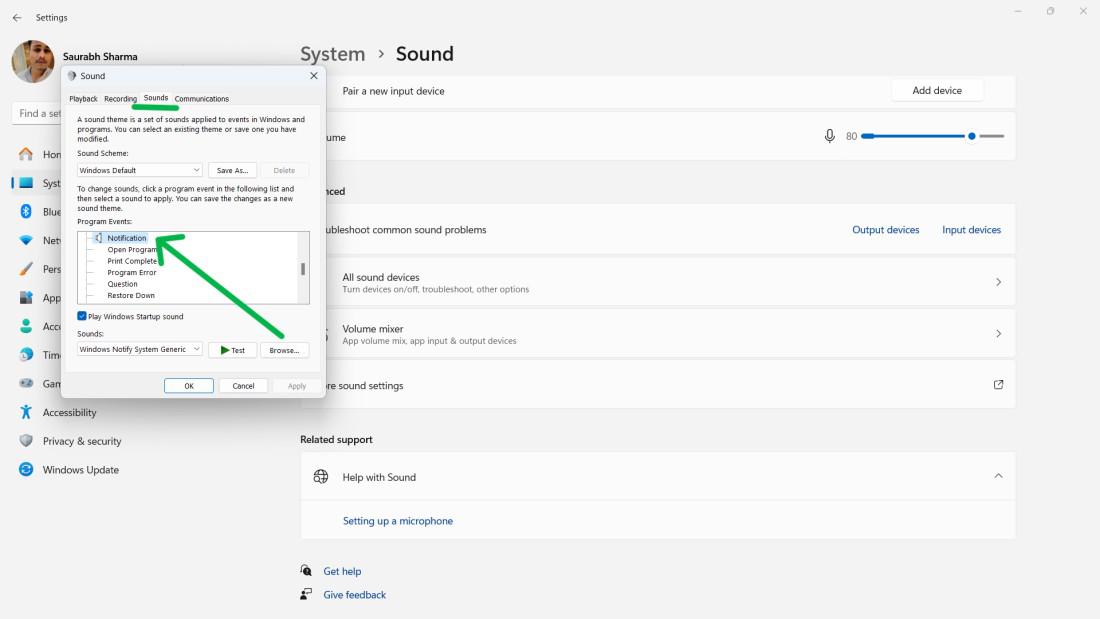
Step 5: Click on “OK”
7. How to Change Banner Notifications Duration
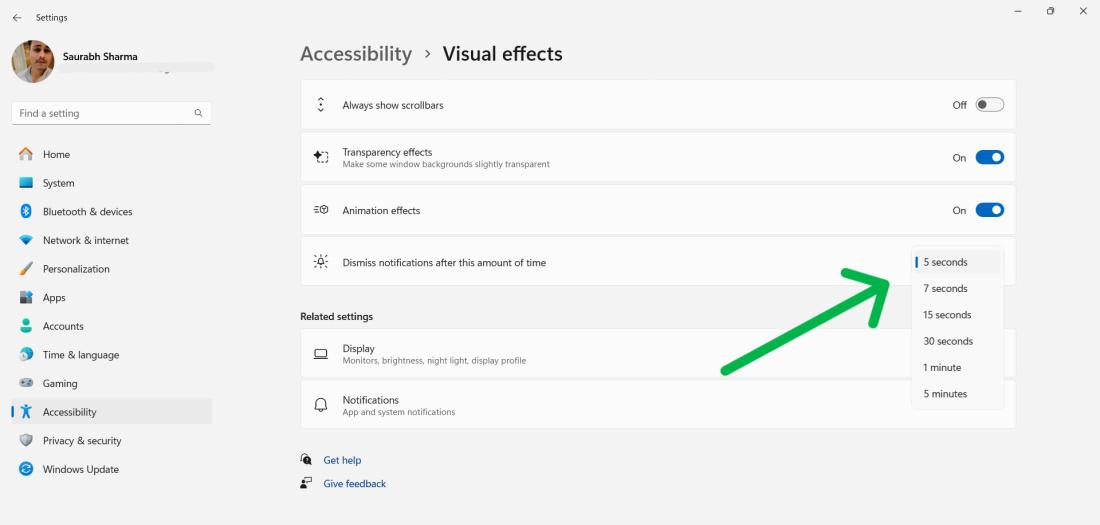
Step 1: Press Win + I to open settings then navigate to Accessibility > Visual effects
Step 2: From Dismiss notifications after this amount of time dropdown menu you can select any time
8. How to Disable Lock Screen Notifications
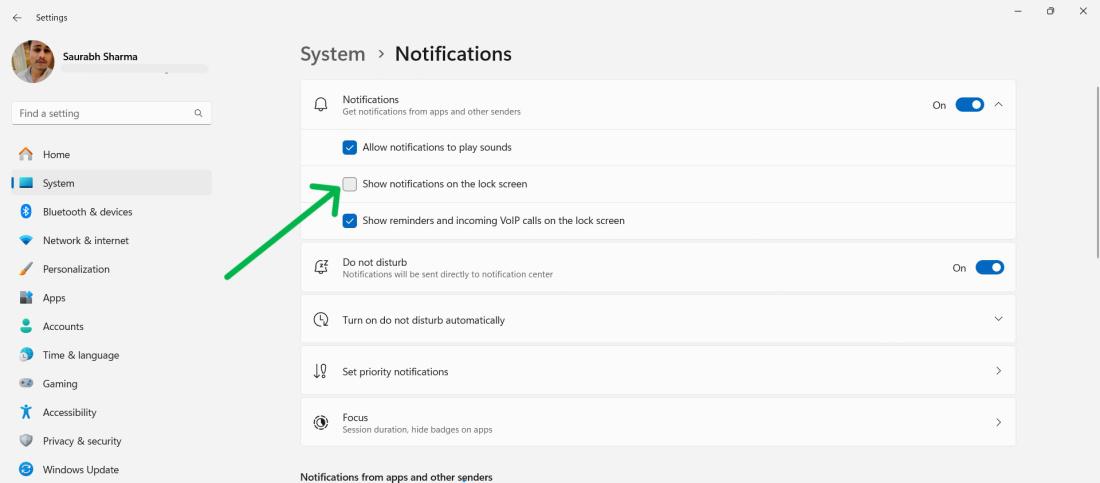
Step 1: Press Win + I to open settings then navigate to System > Notifications.
Step 2: Click on Notification to expand then uncheck the "Show notifications on the lock screen."