
The yfinance API is a powerful tool for accessing financial data from Yahoo Finance. It allows users to download historical market data, retrieve financial information, and perform various financial analyses. This API is widely used in finance, investment, and trading applications for its ease of use and comprehensive data coverage. In this article, we will explore the installation process of yfinance with Anaconda and see a code example using Python.
Setting Up Conda
Before installing yfincance, ensure you have Conda installed on your system. Conda is a powerful package manager and environment management system that simplifies the installation and management of software packages and dependencies.
Installing yfinance using Anaconda
Once you are done setting up Conda on your system, follow these steps to install yfinance.
Open Conda Terminal
Click on the Start menu, search for Anaconda Prompt, and open it. This terminal allows you to manage Conda environments and packages.
Create a New Conda Environment
In the Anaconda Prompt, type the following command and press Enter. This command creates a new Conda environment named yfinance-env for isolating dependencies.
conda create --name yfinance-env 
Activate the Newly Created Environment
Activating the environment ensures that packages installed are isolated within this environment.
conda activate yfinance-env
Install yfinance
With the environment activated, type this command and press Enter. This installs yfinance and its dependencies from the conda-forge channel.
conda install -c conda-forge yfinance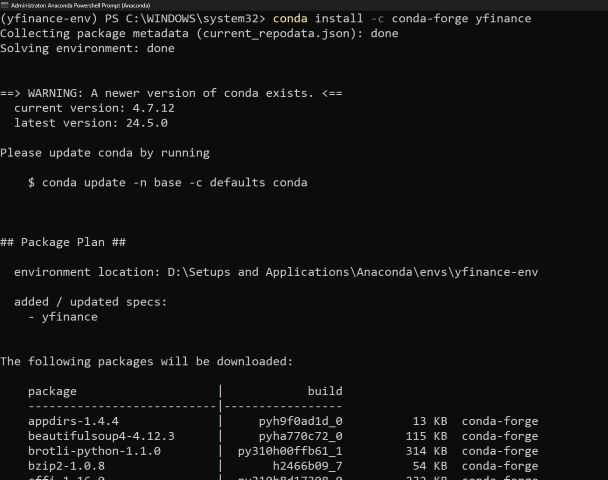
Verifying yfinance Installation
To verify that yfinance has been installed correctly using Conda, you can check the package information directly in the Conda environment.
To get detailed information about the yfinance package, use the following command. This will display details such as the version number and the build string, confirming that the package is present and correctly installed.
conda list yfinance
Code Examples
Now that we have successfully installed and verified yfinance in Anaconda, let us see an example how we can use it in our code.
Fetch and Plot Historical Stock Prices
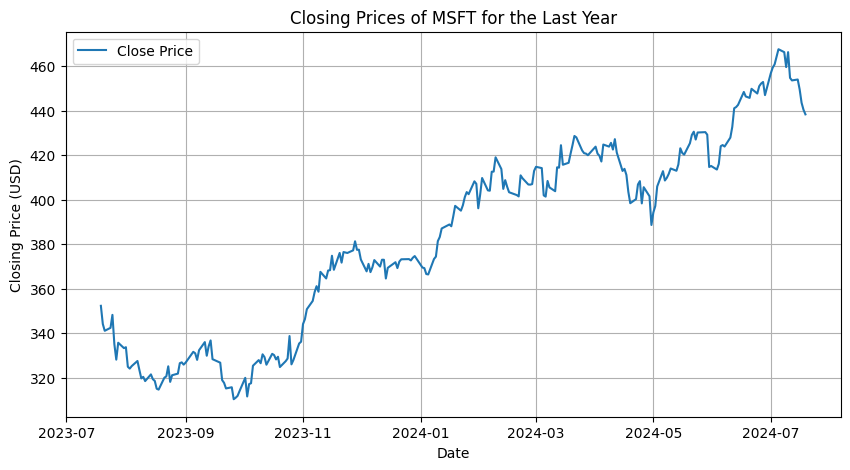
In this example, we are using the yfinance library to fetch historical stock prices for the ticker symbol 'MSFT' (Microsoft) over the past year. The script then plots the closing prices using Matplotlib, handling any errors that may occur during the data fetching process.
import yfinance as yf
import matplotlib.pyplot as plt

# Define the ticker symbol
ticker_symbol = 'MSFT'

# Get the data for the stock
try:
    ticker = yf.Ticker(ticker_symbol)
    historical_data = ticker.history(period='1y')

    if historical_data.empty:
        raise ValueError(f"No data found for ticker symbol: {ticker_symbol}")

    # Plot the closing prices
    plt.figure(figsize=(10, 5))
    plt.plot(historical_data.index, historical_data['Close'], label='Close Price')
    plt.title(f'Closing Prices of {ticker_symbol} for the Last Year')
    plt.xlabel('Date')
    plt.ylabel('Closing Price (USD)')
    plt.legend()
    plt.grid(True)
    plt.show()

except Exception as e:
    print(f"Error fetching data for {ticker_symbol}: {e}")
Output:
Conclusion
In conclusion, using yfinance with Conda simplifies the installation process and ensures proper management of dependencies. By following the steps to set up Conda, create an isolated environment, and install yfinance, you can efficiently fetch and analyze historical stock data. This approach ensures a streamlined and error-free workflow for financial data analysis.