
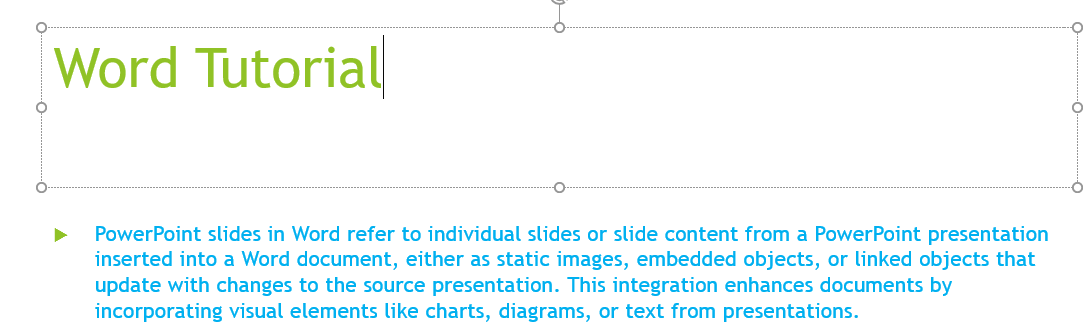
PowerPoint slides in Word refer to inserting slides or slide content from a PowerPoint presentation into a Word document as images, embedded objects, or linked objects that update when the original presentation changes it helps enhance in documents with visual elements such as charts, diagrams, and slide text.
Key Features
- Static Insertion: Insert slides as images for a non-editable snapshot.
- Embedded Objects: Embed slides to edit PowerPoint content within Word.
- Linked Objects: Link slides to the original PowerPoint file for dynamic updates.
- Formatting Flexibility: Apply Word’s formatting tools to adjust slide appearance in the document.
Example: Insert a PowerPoint slide with a project timeline chart into a Word report for visual clarity.
Steps to Insert and Manage PowerPoint Slides in Word
Step 1. Insert a PowerPoint Slide as an Image
Copy from PowerPoint:
- Open the PowerPoint presentation and navigate to the desired slide.
- Right-click the slide in the slide pane or in Slide Sorter view, and select Copy.
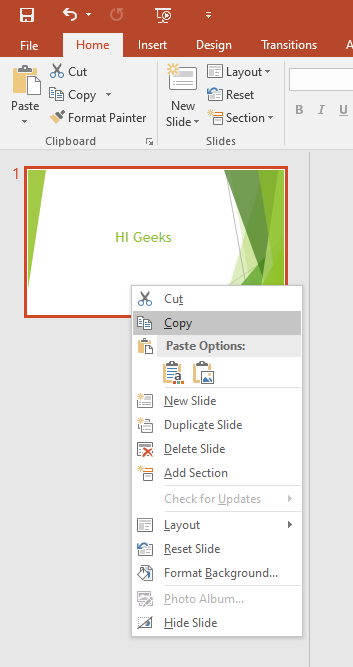
- In Word, place the cursor where you want the slide, and paste (Ctrl+V or Command+V).
- Choose a paste option (right-click > Paste Options):
- Keep Source Formatting: Retains the slide’s PowerPoint design.
- Picture: Inserts as a static image, editable with Word’s picture tools.

Save as Image in PowerPoint:
- In PowerPoint, go to File > Export, select JPEG or PNG, and choose Current Slide Only.
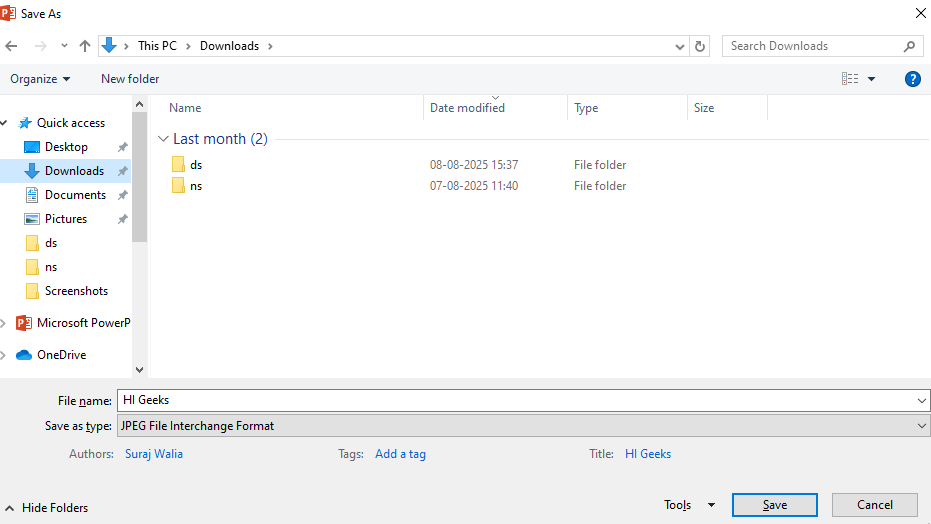

- In Word, go to Insert > Pictures > This Device, select the saved image, and click Insert.

Step 2. Insert a PowerPoint Slide as an Object
Embed a Slide:
- In Word, place the cursor where you want the slide.
- Go to Insert > Object > Object > Create from File tab.

- Click Browse, select the PowerPoint file (e.g., “Presentation.pptx”), and click OK.
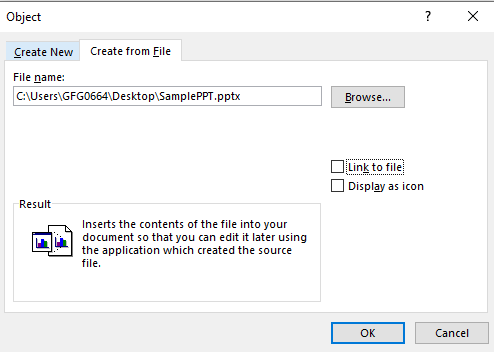
- The first slide appears by default; to select a specific slide, double-click to open and edit in PowerPoint mode.

Link a Slide:
- Follow the same steps, but check Link to File before clicking OK.
- Changes in the original PowerPoint file update in Word.
Step 3. Edit PowerPoint Slides in Word
Edit Embedded Slide:
- Double-click the embedded slide in Word to activate PowerPoint’s editing tools.
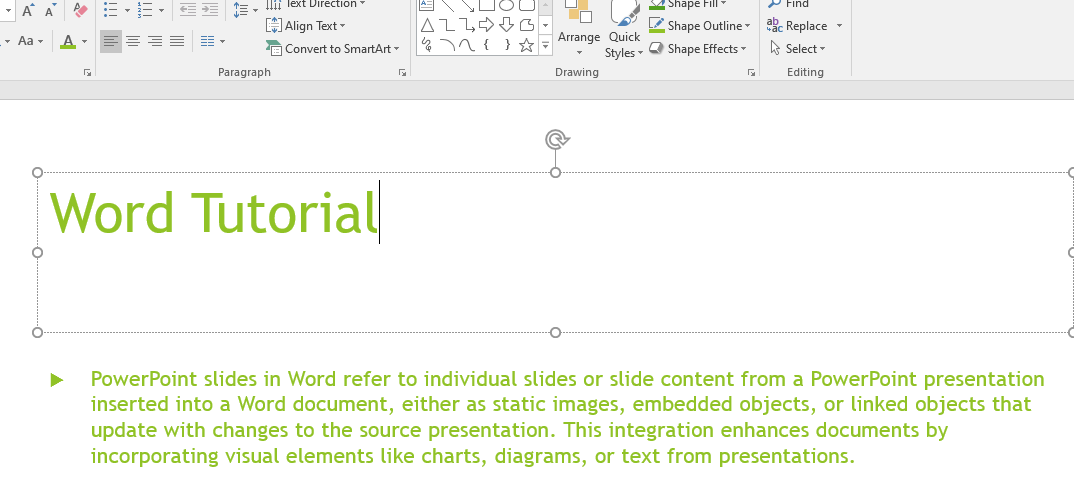
- Modify text, colors, or elements as needed, then click outside to save changes in Word.
Update Linked Slide:
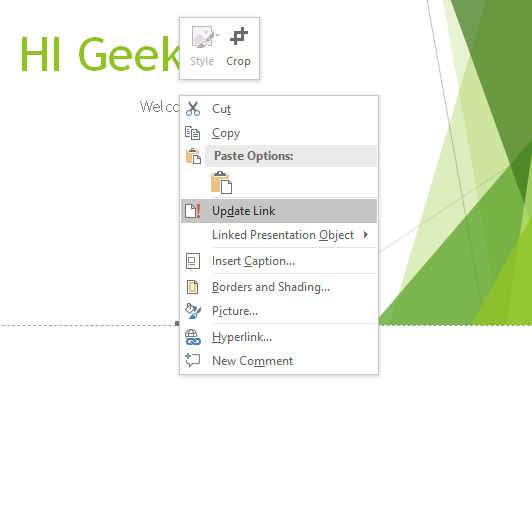
- Edit the original PowerPoint file and save; the Word document updates automatically if linked.
- Alternatively, right-click the slide in Word, select Linked Presentation Object > Links, and click Update Now.
Step 4. Format and Manage Slides in Word
Format Slide Appearance:
- Select the slide (image or object), then use Picture Format or Shape Format to adjust size, borders, or text wrapping (e.g., Wrap Text > Tight).
- Apply Word styles (e.g., captions) via Home > Styles for consistency.
Resize or Reposition:
- Drag the slide’s handles to resize or drag to move within the document.
Manage Links:
- For linked slides, go to File > Info > Edit Links to Files to update, break, or change the source.
Example: Resize a PowerPoint slide image in Word and wrap text around it for a polished report layout.